Tag: Android smartphones

  • Best Foldable Phones of 2024: A Buyer’s Guide

    Best Foldable Phones of 2024: A Buyer’s Guide

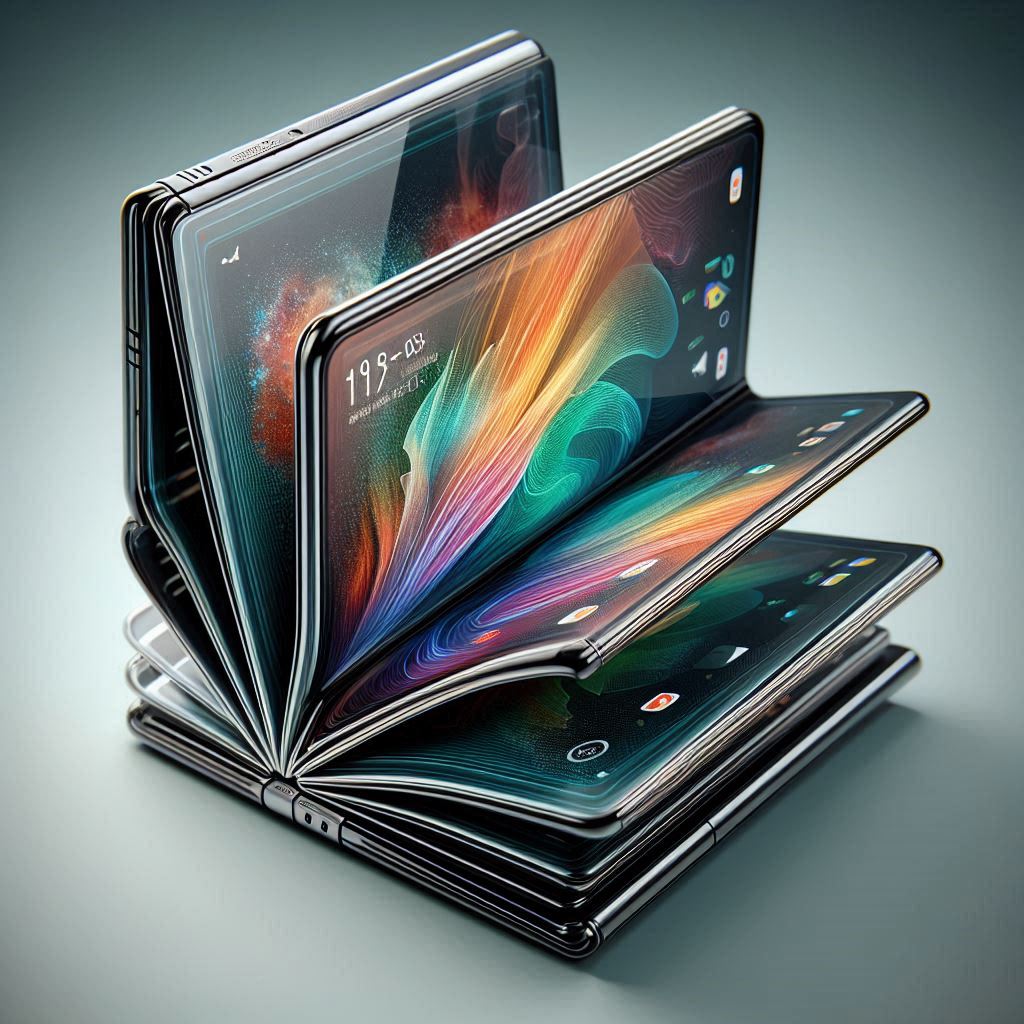
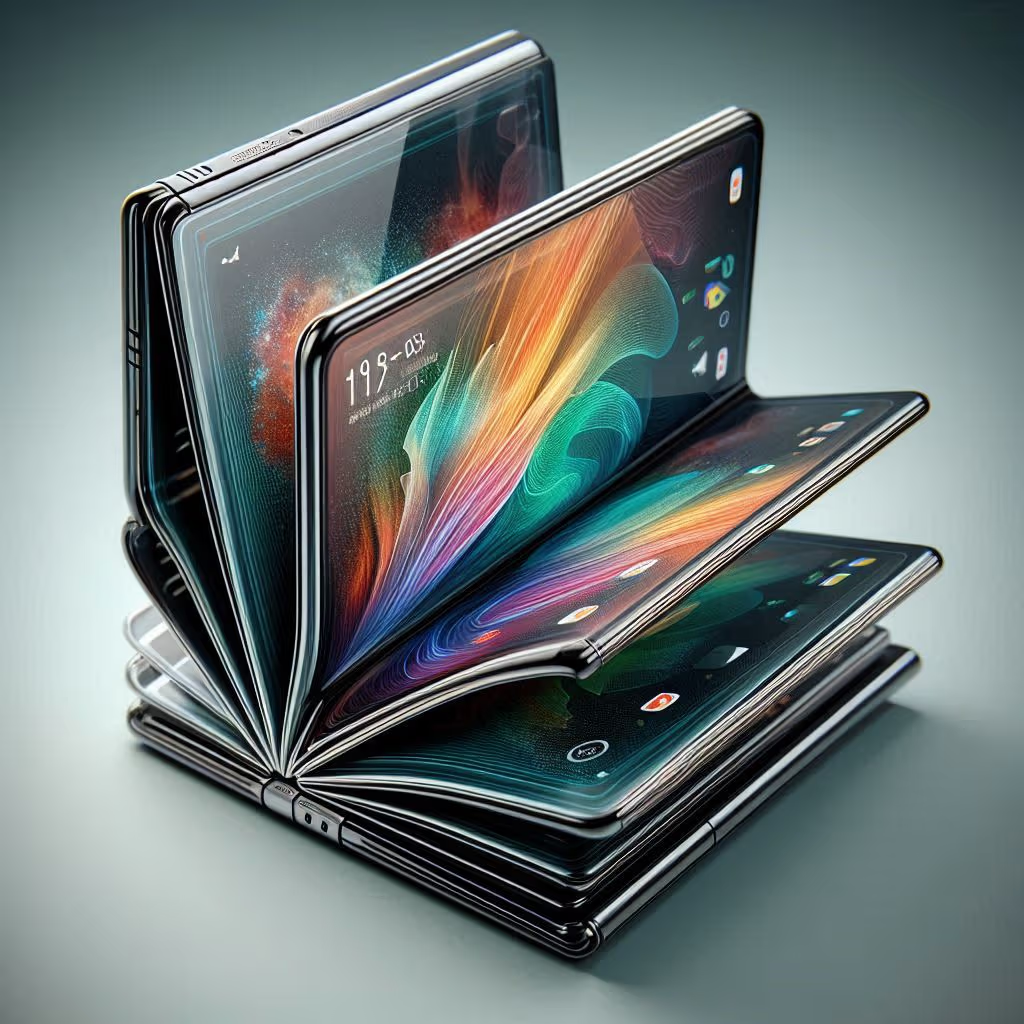
    The foldable phone market is rapidly evolving, offering consumers an exciting array of options. With new models being released regularly, it can be challenging to determine which device best suits your needs. This guide will help you navigate the landscape and find the perfect foldable phone for you.

    Understanding Your Needs

    Before diving into specific models, consider what you prioritize in a foldable phone. Are you looking for a larger screen for productivity, a compact device with a stylish design, or a balance of both?

    • Productivity: If you prioritize multitasking and large-screen experiences, a book-style foldable like the Samsung Galaxy Z Fold 5 or OnePlus Open might be ideal.
    • Compactness and Style: For those seeking a pocketable device with a unique design, flip-style phones like the Samsung Galaxy Z Flip 5 or Motorola Razr+ are excellent choices.
    • Balance: If you want a blend of both worlds, some models offer a compromise, but you might have to sacrifice certain features.

    Top Contenders in the Foldable Market

    While the foldable phone market is still relatively new, several models have stood out in 2024.

    • Samsung Galaxy Z Fold 5: This device continues to be a leader in the foldable space. Its large inner screen offers ample room for multitasking, and the improved hinge makes it more durable. However, it comes with a premium price tag. 
    • OnePlus Open: A strong contender, the OnePlus Open offers a large screen, impressive performance, and a more affordable price point compared to the Galaxy Z Fold 5. It’s a great option for those seeking value without compromising on features.  

    • Google Pixel Fold: With a focus on software integration and camera quality, the Pixel Fold is a compelling choice. Its foldable design and unique features make it a standout in the market.
    • Samsung Galaxy Z Flip 5: This flip-style phone offers a stylish design and a larger cover screen compared to its predecessor. It’s perfect for those who prioritize portability and fashion.
    • Motorola Razr+: Known for its iconic flip phone design, the Razr+ offers a premium experience with a large cover screen for notifications and widgets.
    Motorola Razr+
    Motorola Razr+

    Key Factors to Consider

    When choosing a foldable phone, consider the following factors:

    • Screen quality: Look for vibrant colors, high resolution, and good visibility in different lighting conditions.
    • Performance: Ensure the phone has a powerful processor to handle demanding tasks smoothly.
    • Camera system: If photography is important, consider the phone’s camera capabilities, including zoom, low-light performance, and video quality.
    • Battery life: Foldable phones often have larger screens, which can impact battery life. Look for models with good battery efficiency.
    • Durability: Foldable phones are susceptible to damage. Check for features like water resistance and hinge durability.
    • Price: Foldable phones tend to be more expensive than traditional smartphones. Set a budget and prioritize features accordingly.   

    The Future of Foldable Phones

    The foldable phone market is rapidly evolving, with new innovations and models emerging regularly. As technology advances, we can expect to see improvements in screen quality, battery life, and overall performance. Additionally, more affordable options are likely to become available, making foldable phones accessible to a wider audience.

    By carefully considering your needs and exploring the available options, you can find the perfect foldable phone to enhance your mobile experience.

  • Developer Options: How To Enable It On Any Android Phone

    Developer Options: How To Enable It On Any Android Phone

    Even if you are sceptical about rooting your Android phone and installing a custom ROM, there is no trouble in trying out some features that are not enabled by default. As you may know, every Android smartphone’s Developer Options can be turned on. Once done, it allows you to test certain features. This will also let users access some parts of the phone which may not be accessible otherwise. Of course, Developer Options are not visible at first glance. They are hidden away by default so that lay users don’t get into trouble as they explore the phone. However, it is an easy enough matter to enable it.

    Finding your Android Build Number

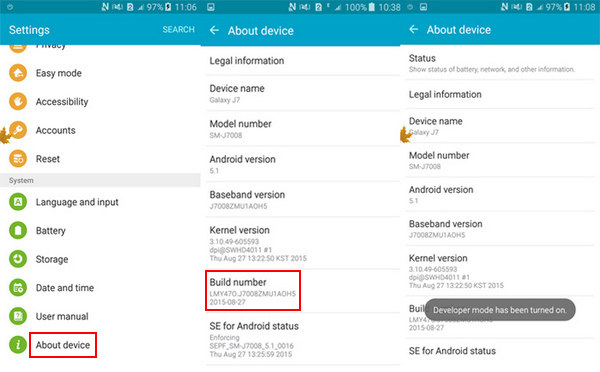
    Before you go ahead and enable Developer Options on your Android phone or tablet, you will require your phone’s build number. Despite what most think, it is actually a very easy process. In fact, in some phones, you can simply type ‘build number’ and the data will come up. If it doesn’t work this way on your phone, check out below. Each brand of smartphone will have a slightly different process.

    About Phone
    About Phone

    Google Pixel: Settings > System > About phone > Build number

    Samsung Galaxy S8 and higher models: Settings > About phone > Software information > Build number

    LG G6 and higher models: Settings > About phone > Software info > Build number

    HTC U11 and higher models: Settings > About > Software information > More > Build number

    OnePlus 5T and higher models: Settings > About phone > Build number

    Enabling Developer Options 

    Armed with your build number, you can now easily enable the Developers Option. Simply tap on the build number about seven times. It may seem like a weird way, but it works. You will see a small pop-up alert telling you that “You are now X steps away from being a developer”. There will be a countdown number which reduces every time you tap. Once you are done with seven taps, you will receive another pop-up with the message, “You are now a developer!”

    Developer Options
    Developer Options

    Now, you will be able to access Developer Options in the Settings menu. You are ready to explore your phone now. You may want to keep an eye on what you are doing. Most options here are strictly for the developers. This includes bootloader unlocking, USB debugging, notch options, high-fi audio codecs, and CPU usage.

    Turning off Developer Options 

    Previously, Google needed you to factory reset your device to get out of the Developer Options, it is now far easier. If your phone is running on Nougat or higher versions, you will see a toggle at the top of the screen. Simply using this will let you turn off the Developer Options. You will know it has worked as intended since the screen grays out for a few seconds. The next time you visit the Settings menu, you will not see it. To enable it again, you will have to go through the process again, as mentioned in the previous section.