Category: Tech

Tech news in Android.appsapk.com, read all about the recent tech news

  • How To Get Started With Zoom App Android?

    How To Get Started With Zoom App Android?

    These days, everyone is talking about the Zoom app. It is getting immensely popular and people are using it daily. But why? The answer is very simple and known to all. Everyone knows that the world is facing a pandemic situation due to coronavirus. The situation is very harmful such that there is an implementation of lockdown in various countries all across the globe.

    How To Get Started With Zoom App Android?

    But everyone knows this saying ‘The show must go on’. This is what implies to our current situation. This situation cannot stop us from working. It is very important to work, so people are opting to work from home. Everyone is completing their tasks from home. For this purpose, people are using the video calling application: Zoom.

    This application is widely popular and famous. It allows you to have a conference or meeting through video calls. You can connect to anyone through a meeting ID that you get through this application. People are finding it very useful and helpful. It was not that popular before the lockdown, but now since most of the people are working remotely, it is going viral.

    If you want to use Zoom, or if you are using it for the first time, then here are all the details that might help you. Have a look!

    How to download the Zoom application?

    The widely popular Zoom application is available on the Google Play Store on all Android mobile phones and handsets. It is completely free of cost. Anyone who wishes to use this application, can visit the Google Play Store and get it from there for no cost. For iOS users, the application is available in the App Store for free.

    Setting up your account

    After the completion of the downloading and installing process, you need to set up your account. Setting an account is a very easy task.

    You just need to enter your basic details including your email ID and create a password. You can also sign up using your Google account. Signing up will create a successful account on the Zoom application.

    How to host a meeting?

    To start using Zoom, you need to host or start a meeting.

        • For hosting a meeting in Zoom, you need to tap on the new meeting button present on the screen in the top left corner.
        • After this, you will see a meeting ID on the screen.
        • You need to share this ID with the ones whom you want to conduct the meeting with.
        • You can share it on different media platforms to allow people to join the meeting directly.
        • After this, you need to tap on Start The Meeting.

    How to join a meeting?

    In case, you do not want to conduct a meeting, instead, you want to join someone else’s meeting, then you can ask the host of that meeting to share the meeting ID with you. You can simply click on that meeting ID and tap on join the meeting. Also, you will have to enter a password that the host provides you.

    You also have the option to turn your video and audio on/off in the Zoom app. This option is available at the bottom of the screen. Follow these simple steps to work on Zoom.

  • Android 11 Will Fix Dozens Of Small Annoyances, But What About The Apps?

    Android 11 Will Fix Dozens Of Small Annoyances, But What About The Apps?

    It’s time to welcome the latest Android R which has been renamed as Android 11 by Google!

    Android 11 Will Fix Dozens Of Small Annoyances, But What About The Apps?

    With the incoming of Android version, the job of Android developers will become cumbersome. It is a complicated and tedious procedure. However, with the Android developers will try to fix various bugs with Android 11.

    It’s time for the app developers to gear up!

    While the whole process seems lengthy and cumbersome, one cannot forget the tasks to be done by the app developers. They need to update the applications for some new permission structures like scoped storage and located permissions. Google is bringing in some major changes like the inclusion of a complicated developer-facing operating system.

    Google endeavors to make updates

    According to the sources, Google is putting tremendous efforts to resolve various issues with Android’s updated version. Android 11 shall be capable of solving the small disturbances with its new and advanced features.

    With the help of a few projects by Google, the problem of an operating system has been reduced. The usage has become easier and better. In terms of application quality, Google has always had a tough time. However, with the launch of these updates Google endeavors to tackle the quality issues.

    With the incoming Android 11, running applications on Android phones will become easier. As Google strives hard to make our lives easier it is time to experience the smoother running of applications with the new version of Android!

    So, let us wait and see how much beneficial Android 11 proves to be.


  • Pex buys Dubset to build YouTube ContentID for TikTok & more

    Pex buys Dubset to build YouTube ContentID for TikTok & more

    Pex buys Dubset! Social networks will now need to pay more attention to copyright issues. A new European Union law called Article 17 ensures that copyright holders can protect their content online. Social networks will now require to put in their “best effort” to receive licenses from the copyright holders for all content that is made available on their streaming platform. This is excellent news for artists, film producers, and others in the industry who will now be paid for their services and talents.

    Pex buys Dubset
    Pex buys Dubset

    The influencers and creators are the ones who might face issues here since their clips and remixes might be blocked. This could also lead to the revenue that should ideally belong to them could end up somewhere else. There is no doubt about one thing – this law is certain to bring some delicate issues for content-sharing sites.

    Pex buys Dubset

    Enter Pex! The owners set up Pex as a profitable royalty attribution startup in 2014. It scans social networks and other user-generated content websites for rightsholders’ content. Once it finds out, it allows them to discuss licensing with the platforms. They could also talk about demanding attribution, requesting a take-down, tracking consumption statistics, and more. It has a huge database consisting of more than 20 billion audio and video tracks across all popular social media websites. In the latest news, Pex has acquired Dubset. The latter is another platform that is working on trying to get the remixes and multi-song DJ sets legalized for streaming services. Together, they will be working on Pex’s new Attribution Engine that will set up a three-sided marketplace for content.

  • Google Assistant Can Read Web Pages You Aloud, Available Today On Android

    Google Assistant Can Read Web Pages You Aloud, Available Today On Android

    If you are someone who prefers podcasts over reading long pages, then the all-new feature from Google Assistant has made it easier. Google has introduced its new feature READ IT. All you have to do is remember 4 words, that is Google Assistant, Read it.

    Google Assistant Can Read Web Pages You Aloud, Available Today On Android

    The feature will help you by reading out long paragraphs for you which you can just sit back and listen to. You can even ask your Google Assistant to read out a 1000-2000 word article for you while you are doing some other work.

    The feature is going to be a great help for the visually impaired people. It can also translate the content into 42 different languages, out of which 11 are Indian languages. The Assistant works only in English as of now, but it will surely support other languages in the future.

    This feature of Google Assistant will also work in a 2G network apart from the 4G network and Wi-Fi. The translator will help its users to translate the content in any language of their choice.

    How can you enable this feature?

        • Download Google Assistant from Google Play Store, in case you do not have it already.
        • Just ask the Assistant to read out the content of a particular page and it will start reading out loud for you.
        • You can highlight important points on the page
        • You can even control the reading speed of the content

    Limitations

    The only limitation of this feature is that the Google Assistant doesn’t edit the typos made in the content. It will read the content as it is no matter how many spelling mistakes or typing mistakes are there.

  • 10 Best Android Hacks And Tricks That You Should Know

    10 Best Android Hacks And Tricks That You Should Know

    Android is a very common operating system in today’s generation. Everyone knows about Android and uses it. It is very reliable and easy to use. The world is growing at a very high speed, and it is very important to cope up with the growing world to be able to survive here. With the increasing use of Android smartphones, there are various new hacks and tricks that are being found by different users.

    10 Best Android Hacks And Tricks That You Should Know

    These hacks and tricks can help you a lot in different situations. If you still do not know about these hacks, then here we have the ten best hacks and tricks that you should know, have a look!

    1. An app similar to Apple’s Find my iPhone

    Yes!! You heard it right. You can use Apple’s Find My iPhone counterpart in Androids as well. This is the first and one of the best hacks. In your Android smartphones, you have an inbuilt application called Find my device. This works exactly the same as Apple’s application. You can easily find your smartphone/ device using this feature. If your phone gets lost, you can find your phone easily.

    Also, it helps you block your data if the phone is lost or gets stolen. This is very easy to use and handle.

    2. You can use your camera and flashlight to monitor the heart rate

    Do not have a device that can measure fitness ad track your activities? Don’t worry, you can now measure your fitness without any such device. All you need is an Android smartphone. There are various applications on the Google Play Store that offers this feature.

    You need to place your finger on the flashlight, and it will track your activities and measure fitness. It is simple and easy.

    3. You have app shortcuts in Android

    You can use your navigational buttons as an app shortcut on your Android smartphones. Yes, you can close and open your applications using navigation buttons. For this, you need to download a relevant app from the Google Play Store.

    4. You can keep your applications completely private

    This may be very exciting for a lot of you. It is very easy to keep your applications private in your Android smartphones. For this, you need to visit the security section in the settings option of your phone. After this, you need to enable screen pinning and then you can pin your favorite apps and keep them private. If you pinned any application by mistake, you can unpin them anytime.

    5. Set the orientation as per your wish

    Sometimes the orientation of your smartphone can be very irritating. If this is a problem with you, then you need not worry about that. You can download the rotation lock application from the play store and set the orientation of your screen as you wish.

    The various orientations include reverse landscape, reverse portrait, force landscape, upside down and various others. You just need to download the application and it is that easy.

    6. The guest mode

    This is a very useful feature. Using this, you can allow access to various applications and features on the lock screen itself. This may be advantageous and disadvantageous both. Anyone who uses the phone can access this feature without unlocking the screen. So, it is important to use this feature very precautiously.

    You need not download any application for this, it is already available on Android smartphones. You just need to go to the settings block of your phone and switch on the guest mode. Also, you can do this directly also by pulling down the status bar and click on guest mode.

    7. Reducing lag and delays

    Irritated of lags and delays in your Android smartphone? Not able to use your smartphones properly? Here we have something for you. There are various applications available on the Google Play Store which helps you with this. You can download any of these applications, preferably Seeder application or L Speed application to improve the speed and working of your smartphone. But the only thing that is very important is that these applications need Root.

    8. Keep your files and documents safe

    Losing files and documents must have happened with everyone at least once. To resolve this, you can download various security locker applications that are easily available on the Play Store. But the best part is that you can do this without downloading these applications also. You can use the inbuilt backup system available on your smartphone.

    This will help you keep your files safe by creating a back- up of your important files and documents. To enable this feature, you can visit the settings option, tap on the system and turn on the backup option.

    9. You can improve your game graphics 

    To all the gamers out there, to everyone who enjoys gaming and everyone who feeds on games, this is for you guys. Graphics are a very important part of your game; good graphics increase the performance of your game.

    To improve the graphics, you can download GLTools application from the Google Play Store or any other application store available on your Android smartphone. This application also requires the inbuilt root system in your smartphone. This will help you provide a better outlook on your game.

    10. You can ensure different volumes for different applications 

    This is also a very useful feature in your smartphones. You can set different volumes for different applications using this feature on your Android Smartphones. You can set different volumes for alarms, ringtones, notifications, and all other applications.

    To use this feature, you need to press the volume button, then open the drop-down list and set different volumes for different applications.

    Conclusion 

    An android operating system is used by various people around the world. There are many tricks and hacks that you can use to make your Android system smartphones work better and be productive. Above is the list of ten best hacks of this type. They are easy to use and handle. Try them now!

  • 2FA Security Keys For Your Google Account Can Now Be Set Up From Android Devices

    2FA Security Keys For Your Google Account Can Now Be Set Up From Android Devices

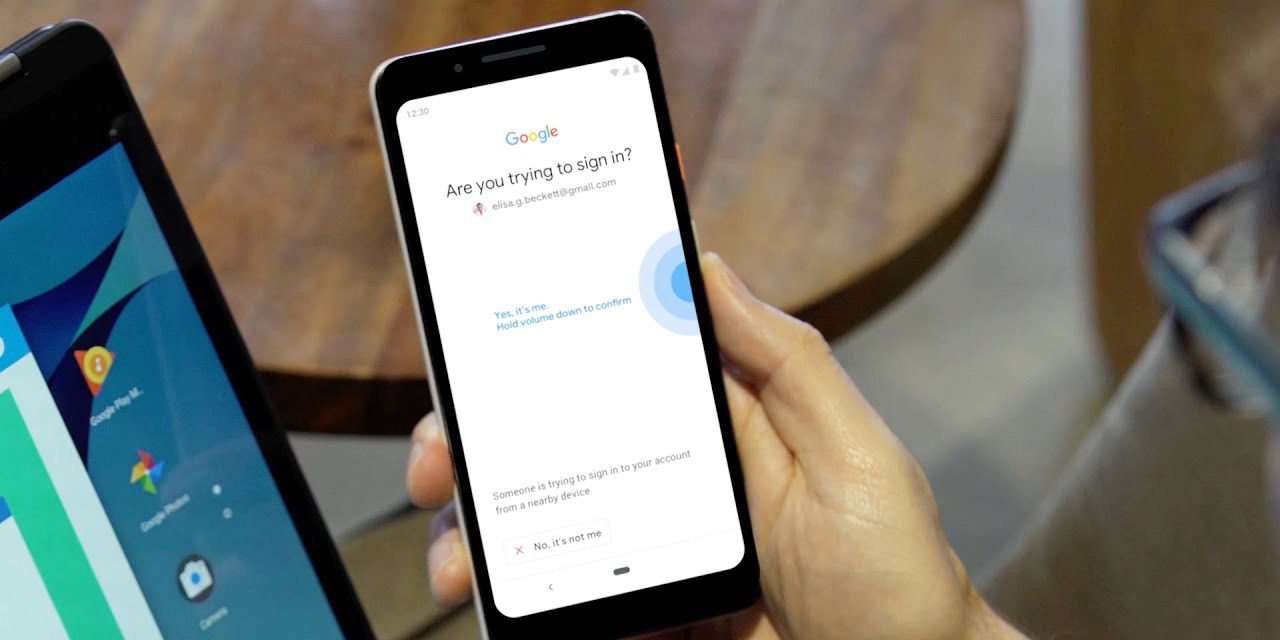
    While all of us value our privacy and security, a few of us might be too lazy to take active steps towards ensuring that which could pose a problem. Not all of your account can be set up with two-factor authentication. To help us deal better with it, Google just removed one barrier. Now, users would be able to enrol 2FA Security Keys from Android using Chrome and Safari (for macOS users).

    2FA Security Keys
    2FA Security Keys

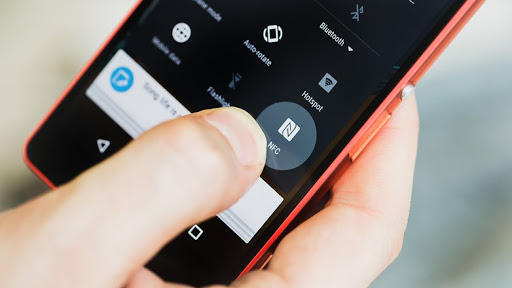
    This move was announced sometime earlier today on the G Suite blog. At the moment, it is live. If you make your wat to the security settings section of your Google account, you will notice that the system is now in place to help you go ahead with the setup process. It works perfectly well with most devices, with Pixel users being able to breeze through. You can add a Titan USB key to the account via NFC without any issues at all.

    Along with this, Google also announced support for registering the 2FA Security Keys via Safari on macOS. This means that if you don’t want to use Chrome on your Mac, you will now be able to use the other option for setting up security measures on your Google account. Do note that devices will need to be Android 7.0 Nougat or later and Chrome v70 or later. Naturally, they will also need to support NFC, USB OTG, Bluetooth, or any mechanism that you are trying to use. The best part here is the fact that users can now add a hardware 2FA security key to their Google account from Chrome using just their Android devices.

  • How To Reach Conqueror In PUBG

    How To Reach Conqueror In PUBG

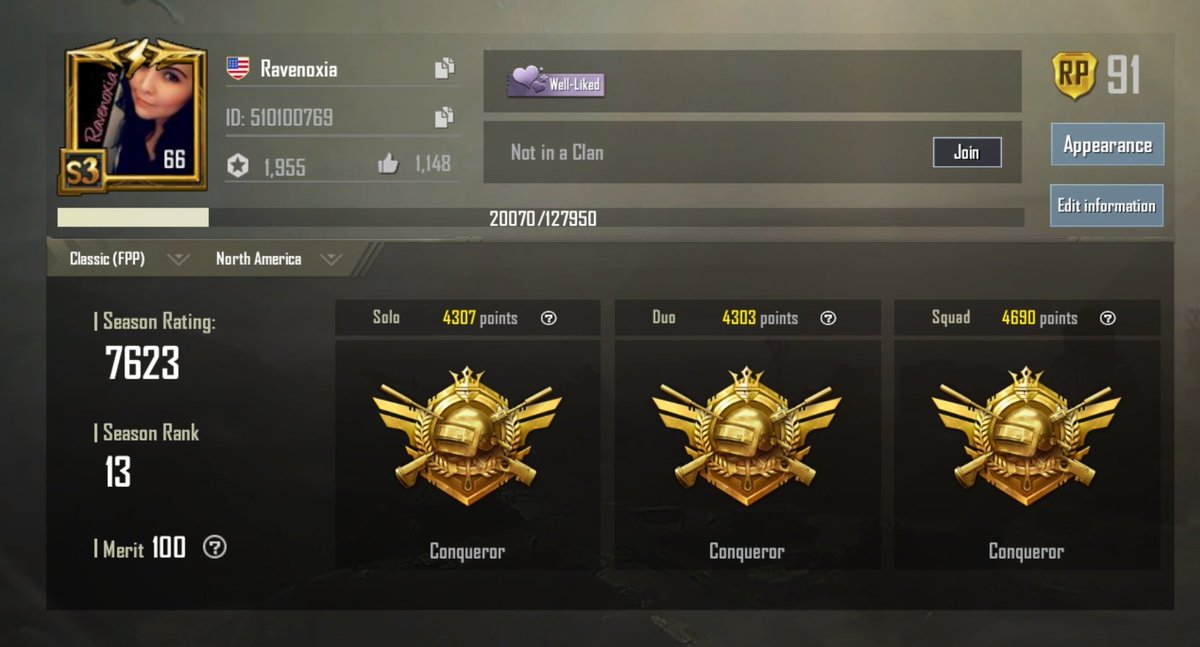
    Player Unknown’s Battlegrounds (PUBG) is that virtual gaming that boomed the entire world with its fame. You might wonder what made this game so lionized? The weapons? Survival strategies or Maps? No, none of these reasons are enchanting than the courage of racing to reach the “Conqueror” level in the game and get in the top 500 server list on the PUBG platform.

    How To Reach Conqueror In PUBG

    There are more than 400 million users online who play their hearts out and expressed their love for PUBG. Right after seeing such a good growth pace of PUBG, their creators are coming up with an Android smartphone that’s solely for PUBG, otherwise called “PUBG Mobile”.

    The PUBG mobile provides similar gameplay as that in PCs or XBOX PUBG gaming, only differing in controls. The PUBG mobile has many seasonal tiers such as ACE, DIAMOND, SILVER, etc. And the player has to play to get into any of these season tiers to be put in the top 500 players having good rating points.

    Reaching the Conqueror stage is challenging and maintaining the 500 list position is even more challenging. One has to upgrade their kill rate and survival time to win all the matches and get into the top 500 list players.

    We, want you to reach the “Conqueror” level and hence we here present some tricks and tips you could use to reach Conqueror level easily and become one of the players in the top 500 list in no time.

    Steps to reach Conqueror Title in PUBG

    Just to let you know that only the Top 500 players in every server, mode, and style can claim the position of Conquerors.

    1. Change your gameplay: Be a killer and grab more points, getting points is easy when you’re in Top 10. Improve your game skills get more kills and Chicken Dinners to reach your final destination i.e becoming a Conqueror.
    2. Change to FPP game mode: For TPP- Choose only Solo or Duo and for FPP- Choose only Solo or Duo. Be a low key while choosing your game mode, most people opt for TPP than FPP. Thus, the possibility of yours getting the Conqueror title becomes high in FPP.
    1. Power up with best rifle guns: Get good control practice on Groza, DP rifle guns and AWM, M24 sniper. Mastering with these guns will lead you to get a good kill ratio.
    2. Pursue the map: Predict the safest zone by looking at the map and get details about loot and vehicle position.
    3. Decide your fire location: Aimless firing will lead you in danger because if you fire other players (duo/solo/squad) might find you and even kill you.
    4. Bang with the best weapons: Get yourself ready with One flash grenade, 1 Molotovs, and 3 Frag Grenades. These explosive weapons will get you more kills and easy Chicken Dinners.
    5. Play safe with Protective gears: Make sure you don’t run out of LVL2 vest and helmet.
    6. Avoid playing Sanhok: Playing Miramar and Erangel will help you level up faster than Sanhok.

    Conclusion

    Want to get a Conqueror title? Abide our steps and get into the top 500 list on the PUBG Platform.

  • Android Pie finally descends for the Sprint LG G7 ThinQ

    Android Pie finally descends for the Sprint LG G7 ThinQ

    About Lg

    LG is one of the fastest-growing android smartphone companies. It steps in the market in 1958 in Seoul. LG launched the 1st Android smartphone in the year 2009, and the 1st Android tablet in 2011. The company is popular for G series smartphones. G series is their flagship model. It is also famous for its wide range of products including smart TVs.

    Android Pie finally descends for the Sprint LG G7 ThinQ

    Mobile phones are not just gadgets but they are the basic needs of individuals and the world. Android is the most widely used operating system designed solely for mobile devices. It is a modified version of Linux Kernel. In the fast and ever-changing technology, there’s always a need to keep pace with the rest of the world. Hence, Google is very punctual in releasing its latest version from time to time.

    Pie Update

    The demand for the latest Android version is increasing at a very high pace. But unfortunately, LG is not satisfying its users at the same pace. This is now becoming a concern for the higher authorities of LG.

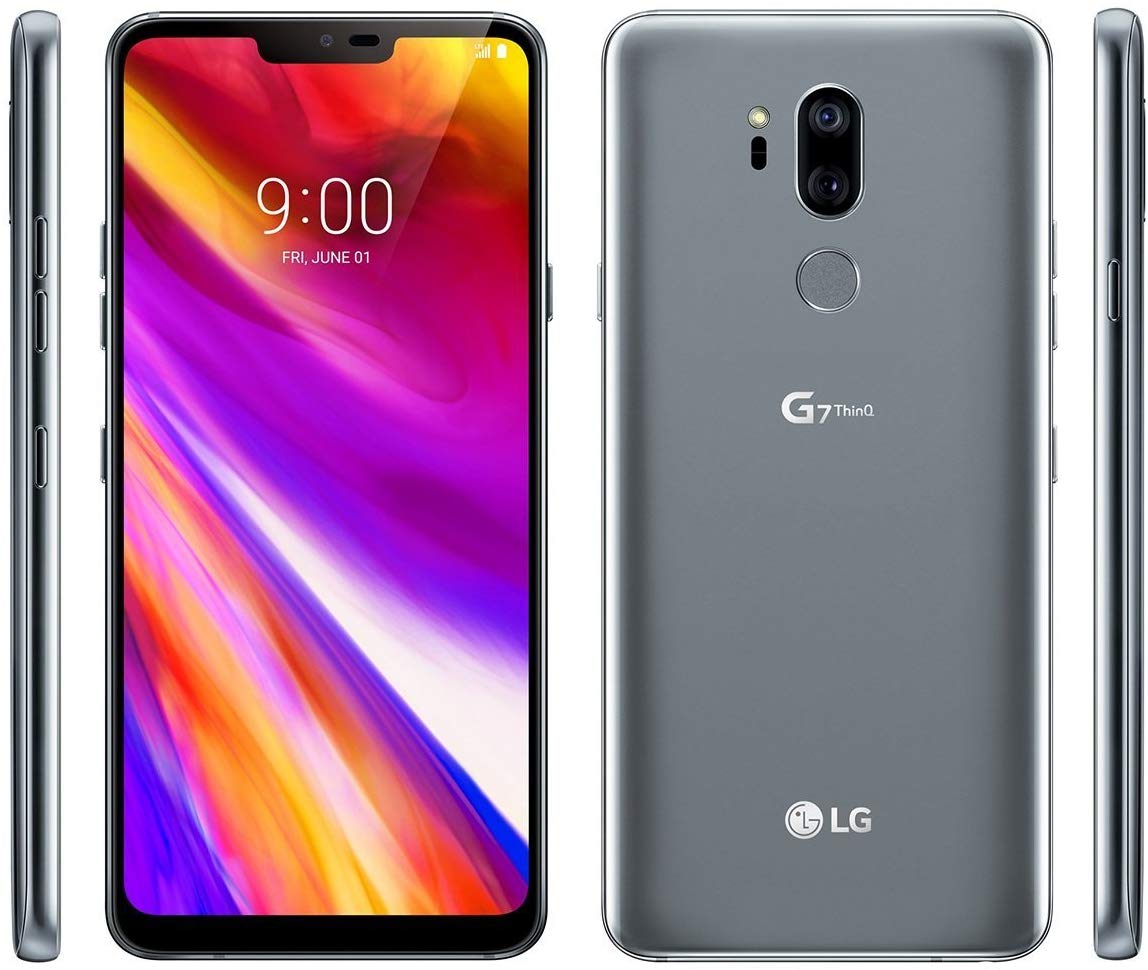
    LG launches the Sprint model LG G7 ThinQ model in the last months of 2018 with OS Android v8.1 Oreo. And it is getting a Pie update now!! The users of this device were using the same Android 8 Oreo for nearly 2 years now!

    Android 10 is going to complete its six months as it officially launches back in September 2019. Many devices from other manufacturing companies have already received an update for Android 10.

    LG update policy for OS is not up to the mark and it’s even more irritating to see this much delay in receiving its FIRST UPDATE. Sprint V40 ThinQ and sprint got it’s Pie update six months after another handset. And LG followed the suit this time too, with Sprint G7 ThinQ.

    Although, the update has a size of 1400MB and pleases users because of its smoothness and battery efficiency. This is one of the best-selling features for the company. Before the update pushes itself to the phones, they have to modify the update so that it incorporates its own fixes. This occupies the automatic commands which run and fix these bugs.

    Lg And Its Competitors In Market

    LG proclaims its image as slowest when it comes to updates. It is facing this problem for quite some time. Approximately, five months after the launch of Android 10, LG created its roadmap for updates.

    A while ago, LG’s compatriot Samsung was receiving the same delay criticism. But Samsung quickly changed the scenario and got back in the race. It has already released the Android 10 update to over ten smartphone models and has several more lined up for the next few months.

    Bottom Line

    While LG released the update for only one device so far. Its Android 10 plans are not reliable either. By the time it starts giving updates to its devices, Android 11 would be a few months old. At this pace, LG will find it difficult to compete with others in the market.

  • How to capture scrolling screenshots on Android

    How to capture scrolling screenshots on Android

    A screenshot is a captured image of the currently displayed screen on your mobile phones or laptops. Time and again, Androids have introduced new ways to take screenshots. There are various ways to capture a screen and take a screenshot. You can take screenshots by long-pressing the volume button and the power off button. On some mobile phones, you can also swipe the screen to take a screenshot.

    How to capture scrolling screenshots on Android

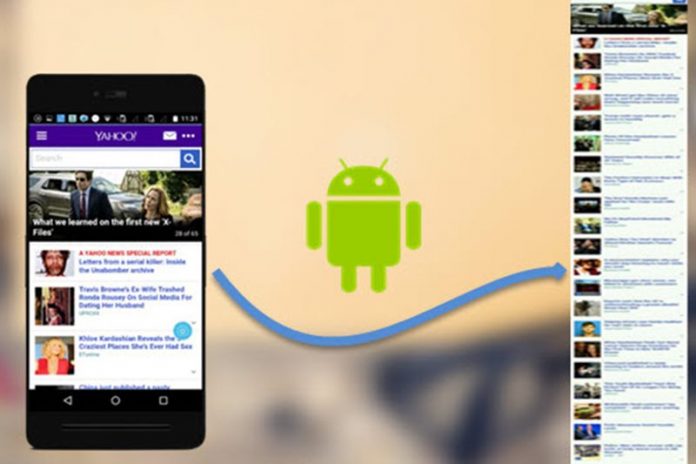
    Scrolling Screenshots are now readily available in Androids. A normal screenshot captures the current screen whereas a scrolling screenshot helps you capture a full page. Scrolling Screenshot lets you capture the whole web page, long conversations or any kind of long pages.

    Capture Scrolling Screenshots on Android

    Earlier, scrolling screenshots were not an in-built feature of Androids. For taking these types of screenshots, it was mandatory to download a third-party application. But nowadays, a lot of Android companies are adding scrolling screenshots as their in-built features.

    The mobile handsets of some top Android companies including Samsun, Huawei and LG have the new scrolling screenshot in them. It is in-built and ready to use. There are different methods to take scrolling screenshots in different handsets. Here is a guide for new users.

    Capture scrolling screenshots in Samsung

    In Samsung, the first scrolling screenshot was present in Note 5 by the name of ‘Capture more’. It is also available in Galaxy S8 and the latest handset Galaxy S10. To take a scrolling type of screenshot in your Samsung mobile handset, you need to enable the smart capture feature in the Advanced settings.

    After enabling it, you can go to the screen which you want to take a screenshot of and take its screenshot as usual. Take a normal screenshot and then, tap on the scroll capture option. This option will be available on the bottom of the screen that you are capturing. Keep doing this continuously till you reach the endpoint where you feel that it is complete.

    Taking scrolling screenshots in Huawei

    Scrolling screenshots are readily available in the Huawei mate series. In Huawei’s handsets, you can capture the screenshot by holding the power off and volume down button at the same time. After some time, you will see a pop-up that lets you know that you have taken the screenshot successfully.

    Before the pop-up disappears, tap on the scroll shot option. As you tap on it, your screen will start scrolling until you re-tap on the screen. The scrolling screenshot will then appear on your screen for inspection.

    Taking scrolling screenshot on LG Smartphone

    To take a scrolling screenshot on LG smartphones, you need to pull the notification bar and select Capture+. Then select the extended option in the corner of the screen. After this, your screen starts scrolling and you can stop it by tapping when you feel that it is complete. To save it, you can tap the tick in the upper left corner.

    Conclusion

    It is quite easy to capture scrolling screenshots in your Android mobiles. As in Huawei, Samsung and LG smartphone handsets, you can take it in your Android mobiles as well. It is as simple as taking a normal screenshot.

  • Senior Tories Expresses Concern Over Huawei 5G Network In UK

    Senior Tories Expresses Concern Over Huawei 5G Network In UK

    Lately, the Chinese smartphone giant Huawei has been receiving a considerable amount of backlash from the USA and the UK. There are confusion and disagreement regarding the involvement of Chinese vendors entering the countries’ critical national infrastructure.

    Senior Tories Expresses Concern Over Huawei 5G Network In UK

    Several senior Conservatives in the United Kingdom have expressed their concerns regarding the government’s decision to allow Huawei to participate in building the 5G network in the country.

    The senior Conservatives have written a letter to the MPs requesting to rule out the involvement of Huawei or any other high-risk vendors in building the 5G network in the country.

    The Tories who have signed the letter include former ministers Sir Iain Duncan Smith, Owen Paterson, David Davis, Bob Seely, Tobias Ellwood and, Damian Green, wherein they have stressed to find better solutions on providers for the next-generation cellular network in the UK.

    The senior Conservatives have mentioned that the country should identify the trusted vendors to allow them to become a primary contractor in building such a critical infrastructure for the country.

    They have also added that by trusted vendors, they mean companies from countries that encourage fair market competition, respect human rights, is ruled by law, and understand data privacy and non-coercive government agencies.

    The Earlier News

    Earlier in the month, the UK government has confirmed restrictions on Huawei’s role in installing the 5G network in the UK. The limits include a ban on Huawei from supplying kits to sensitive parts of the network, allowing it to account up 35 percent cap in the network periphery, and removing or excluding the company’s use of equipment near areas like military bases and nuclear sites.

    Quite many foreign offices, as well as Conservative MPs, have emphasized the tensions between the two countries regarding Huawei. In light of these situations, it will not be a great move to allow Huawei to take part in such a severe advancement to the country. The country in no means is ready to compromise on the privacy and security of the UK when it comes to Huawei.

    On the flip side, Huawei has always confirmed that it would never aid the Chinese government attack any of its client countries using the inside or business information. The founder of Huawei, Ren Zhengfei, has also said that he would rather shut the company down than help any spying activities in favor of any government. Some rumors are allowing Huawei to enter in the UK for the 5G rollout will finally result in jeopardizing the post-Brexit deal between Britain and the US.

    Final Words

    Finally, Boris Johnson, the Prime Minister of Britain, has responded to the letters by confirming that he, too, wishes to lessen the involvement of Huawei in rolling out the 5G network in the UK. He has kept the details closed for now but is on the lookout for solutions and ideas to proceed from other parliamentarians.