Tag: Zoom Android app

  • Zoom Becomes India’s Most Downloaded Android Application

    Zoom Becomes India’s Most Downloaded Android Application

    Although many people might have thought initially, Zoom is not a new application. Now amidst the lockdown period Zoom has become the largest downloaded app in India from Google Play Store. It has already surpassed 100 million downloads. The figure increases in the month of March as 6.7 million users download the app.

    Zoom Becomes India’s Most Downloaded Android Application

    What does zoom offers?

    Zoom offers its users with a basic and a premium version. In the basic version itself, the app offers video conferencing up to 100 people at once.

    The maximum time limit is set to 40 minutes for the meetings of more than 3 people. If you want more time limit for your conference, users can upgrade to the premium version which costs around 14.99$/mo.

    User interface

    The user interface of the app is also user friendly. The app also has many other features like group chatting, screen sharing for presentations, etc. The Zoom app does support web, iOS, and Android versions. The web version has slightly better audio and video communication quality than its mobile versions.

    Who is using the application?

    Zoom has become the first choice of companies who need to converse with a large group of people at the same time. As everyone in India will be working from home at least till the lockdown gets over, people are preferring Zoom app over other video conferencing services out there. Even the students who are learning from home can now easily learn with their teachers through Zoom.

    Nevertheless, in the future, most of us might be using the application on a daily basis. If it offers HD video quality calls for 100 people, what’s more, do you want.

  • How To Get Started With Zoom App Android?

    How To Get Started With Zoom App Android?

    These days, everyone is talking about the Zoom app. It is getting immensely popular and people are using it daily. But why? The answer is very simple and known to all. Everyone knows that the world is facing a pandemic situation due to coronavirus. The situation is very harmful such that there is an implementation of lockdown in various countries all across the globe.

    How To Get Started With Zoom App Android?

    But everyone knows this saying ‘The show must go on’. This is what implies to our current situation. This situation cannot stop us from working. It is very important to work, so people are opting to work from home. Everyone is completing their tasks from home. For this purpose, people are using the video calling application: Zoom.

    This application is widely popular and famous. It allows you to have a conference or meeting through video calls. You can connect to anyone through a meeting ID that you get through this application. People are finding it very useful and helpful. It was not that popular before the lockdown, but now since most of the people are working remotely, it is going viral.

    If you want to use Zoom, or if you are using it for the first time, then here are all the details that might help you. Have a look!

    How to download the Zoom application?

    The widely popular Zoom application is available on the Google Play Store on all Android mobile phones and handsets. It is completely free of cost. Anyone who wishes to use this application, can visit the Google Play Store and get it from there for no cost. For iOS users, the application is available in the App Store for free.

    Setting up your account

    After the completion of the downloading and installing process, you need to set up your account. Setting an account is a very easy task.

    You just need to enter your basic details including your email ID and create a password. You can also sign up using your Google account. Signing up will create a successful account on the Zoom application.

    How to host a meeting?

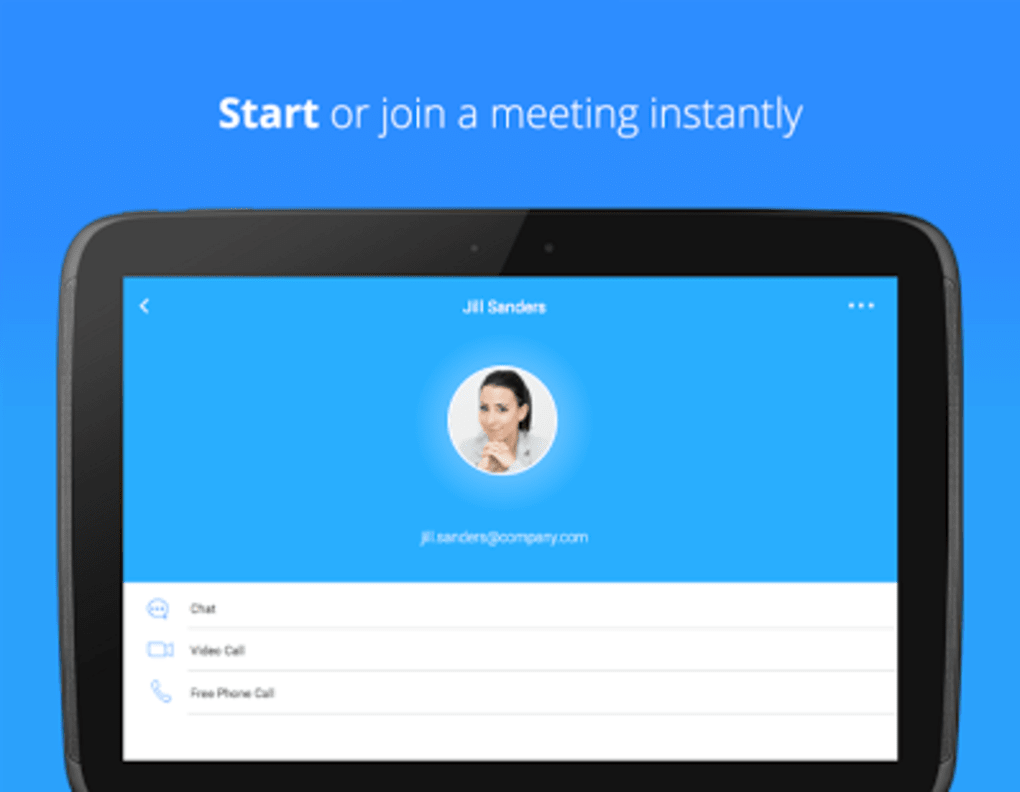
    To start using Zoom, you need to host or start a meeting.

        • For hosting a meeting in Zoom, you need to tap on the new meeting button present on the screen in the top left corner.
        • After this, you will see a meeting ID on the screen.
        • You need to share this ID with the ones whom you want to conduct the meeting with.
        • You can share it on different media platforms to allow people to join the meeting directly.
        • After this, you need to tap on Start The Meeting.

    How to join a meeting?

    In case, you do not want to conduct a meeting, instead, you want to join someone else’s meeting, then you can ask the host of that meeting to share the meeting ID with you. You can simply click on that meeting ID and tap on join the meeting. Also, you will have to enter a password that the host provides you.

    You also have the option to turn your video and audio on/off in the Zoom app. This option is available at the bottom of the screen. Follow these simple steps to work on Zoom.