Tag: Download Netflix Movies

  • Record Netflix Movies: How to Watch and Download Content For Streaming Offline

    Record Netflix Movies: How to Watch and Download Content For Streaming Offline

    Netflix is truly a boon. With hundreds of shows and movies to choose from in addition to Netflix’s original series and movies, there is no way we are going to be stuck for something to watch. However, one annoying thing here is how Netflix removes its titles once in a while and randomly adds other titles later on. Even if you have been crafty enough to have downloaded the title, you find that has disappeared as well! The only solution here is to record Netflix movies so that you can watch it offline later.

    Streaming Services
    Streaming Services

    One way of doing this would be to use PlayOn. It is an app that allows users to download and watch Netflix videos offline. This means you will be able to watch movies without needing Wi-Fi. The best part about it is that you can even watch them after Netflix removes it. PlayOn downloads will never expire which means you can comfortably continue watching them whenever you wish. You will be able to view the content on your smartphone, TV, laptop, and more.

    PlayOn App

    This app is available for both Android and iOS users. The app basically allows users to record and download content from streaming platforms, such as Netflix. The download can be initiated regardless of your location. As soon as it is complete, the content will be stored in a complimentary cloud “locker” for a brief period of time. From there, you can simply download the titles to your device.

    To get started, all you need to do is to download and install the app. You can do this by simply making your way to the Apple App Store or Google Play Store. Once done, you can browse the shows or movies that you want to record. Once it is recorded, you can visit your cloud storage and download the videos from there. The app is completely free to install. However, for recording, users will have to pay a small fee for every recording.

    Record Netflix Movies
    Download Netflix Movies

    Record Netflix Movies on Desktop

    You don’t have to work with multiple applications or software. PlayOn is here to help you record and download stuff from a streaming platform to your desktop. While this guide focuses on Netflix, the app can record content from any streaming platform, such as Amazon Prime, Hulu, and more. When you select a title for recording, the video is saved as .mp4 files to the hard drive on your computer. Once done, you can stream the same to your TV and watch it. You can cast it the usual way by using a gaming console or a streaming device.

    You will never have to fear about missing out on your favourite shows and movies. It will all be available to you even if it leaves Netflix. The app has an easy browsing interface, making it simpler for users to navigate and use. The recording happens in the background so you will be able to continue with your work without getting disturbed.

  • How to download Netflix movies to your SD card on Android

    How to download Netflix movies to your SD card on Android

    Do you have a long five-hour flight planned for next week? How about a weekend with your partner in a country house? For each of these options, learning to download Netflix Movies can save hours of boredom and some entertainment. Netflix is ​​ideal if you are trying to spend a night and have an internet connection, but what do you do if you have to kill a few hours on a plane or in a location without internet?

    How to download Netflix movies to your SD card on Android

    With the offline function of Netflix, you can watch your favorite program on the go without interruptions and are not dependent on a mobile internet connection. In addition to the data volume, this also protects the nerves.

    In addition to streaming, the Netflix app for smartphones and tablets also offers the option of saving films and series offline on the device. The application is available for iOS and Android. So you can watch your favorite series on the go and are not dependent on the mobile network. Our guide explains how this works and what you should pay attention to.

    Check options

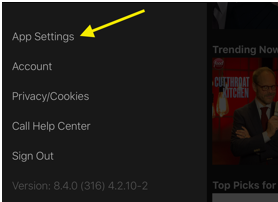
    First, open the Netflix app on your smartphone or tablet and click on the “More” item in the lower menu bar on the start screen. Now select “App settings” in the following menu. Then scroll down to the “Downloads” section. Here, the option “WLAN only” should be activated before downloading in order to conserve the data volume: When downloading a single episode, a few 100 megabytes (MB) can be incurred.

    How to download Netflix movies to your SD card on Android

    What are “smart downloads”?

    The “Smart Downloads” feature is particularly practical for Netflix downloads. Watched episodes are deleted and automatically replaced by the next episodes – this saves storage space. However, the function is only available if the devices download via a WLAN connection.

    Set video quality and location

    In “Download Video Quality”, you can choose between “Standard” and “High”, which, however, requires more storage space. This takes you to the next point, “Download storage location”, which offers the options “Internal storage” and “SD card“. Due to their size, download content should best be stored on a sufficiently large (micro) SD card – otherwise, the internal memory is quickly overfilled.

    Set video quality and location

    Offline use: Download films and series from Netflix

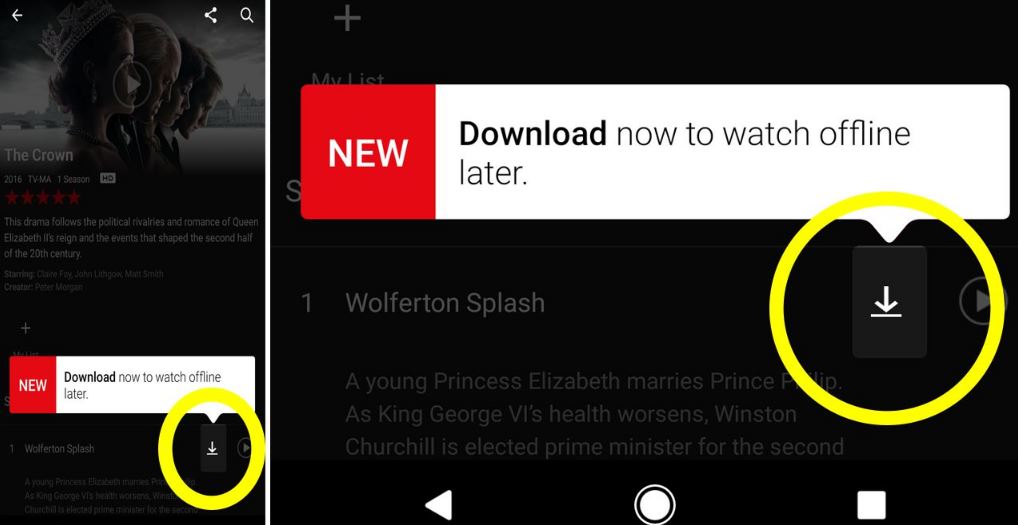
    If all settings are correct, the download can begin. Simply navigate to your desired content using the “Home” or “Search” items and click on the download symbol next to the name of the title. After downloading, the title can now be found under the item Download.


  • How to Download Netflix Movies and Shows to Your Android device

    How to Download Netflix Movies and Shows to Your Android device

    With all the new shows that Netflix is adding every month, are you unable to keep up? Are you looking to download Netflix movies and shows to your Android device so that you can watch on the go? If you are visiting a place which does not have a good network signal, it can be a good idea to download Netflix videos and see them offline later. This can be easily done by the Netflix app. 

    First Method to Download Netflix Movies

    In this guide, we will see how you can painlessly download Netflix movies to your Android device using the Netflix app. To do so, first, you need to have an Android phone or tablet running Android 4.4.2 or later that is compatible with the app. Install the Netflix app to get started.

    Download Netflix Titles
    Download Netflix Titles

    Once done, open Netflix from the app drawer or home screen. You will find the Menu button on the top left corner. Clicking on that will take you to the Download screen where you will be able to see that the titles that are available for download. Simply tap on the videos that you want to download. You will see the Download button. If you are using the app for the first time, Netflix will guide you through this process by drawing your attention to the download button. The default setting will allow downloads to take place only if the device is connected to Wi-Fi. If not, you will receive a notification for the same.

    Once you have initiated the download for a certain title, you will see a blue notification along with the download progress. Meanwhile, you can add more titles for download as well. One thing you might want to note here is that while using this method, you cannot download a lot of movies. You are limited to a certain number only.

    Download Netflix Movies
    Download Netflix Movies

    Second Method

    If you are a true movie buff and you want to download and watch endless movies, follow this method. There are plenty of third-party Netflix video downloaders available in the Play Store. FlixiCam is an option you can use. This platform has been specifically designed for users who want to download a large number of movies to watch offline later on. In fact, you will be able to download shows 30 times faster than usual. Since it owns the broad compatibility with the Windows system, you will have no trouble downloading Netflix movies on your Windows either.

    To do this, you will first have to launch the app and log in to your Netflix account. Firstly, choose the setting button located on the top right corner and select the output quality. Search for the show or movies you want to download on the Netflix Video Downloader. When you find what you are looking for, simply click on the download button. All your downloaded content will be present in the Library section.

    It is this simple! Follow the steps above and enjoy your favourite shows on Netflix regardless of where you are.