Tag: Google Assistant

  • Google Assistant Can Read Web Pages You Aloud, Available Today On Android

    Google Assistant Can Read Web Pages You Aloud, Available Today On Android

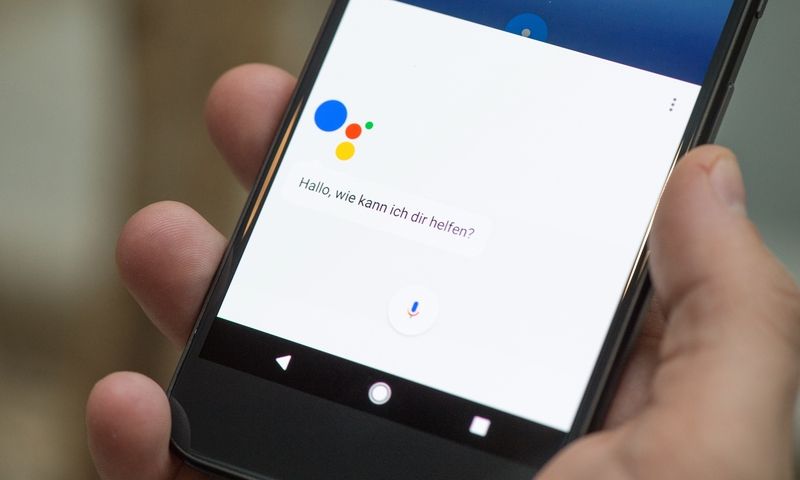
    If you are someone who prefers podcasts over reading long pages, then the all-new feature from Google Assistant has made it easier. Google has introduced its new feature READ IT. All you have to do is remember 4 words, that is Google Assistant, Read it.

    Google Assistant Can Read Web Pages You Aloud, Available Today On Android

    The feature will help you by reading out long paragraphs for you which you can just sit back and listen to. You can even ask your Google Assistant to read out a 1000-2000 word article for you while you are doing some other work.

    The feature is going to be a great help for the visually impaired people. It can also translate the content into 42 different languages, out of which 11 are Indian languages. The Assistant works only in English as of now, but it will surely support other languages in the future.

    This feature of Google Assistant will also work in a 2G network apart from the 4G network and Wi-Fi. The translator will help its users to translate the content in any language of their choice.

    How can you enable this feature?

        • Download Google Assistant from Google Play Store, in case you do not have it already.
        • Just ask the Assistant to read out the content of a particular page and it will start reading out loud for you.
        • You can highlight important points on the page
        • You can even control the reading speed of the content

    Limitations

    The only limitation of this feature is that the Google Assistant doesn’t edit the typos made in the content. It will read the content as it is no matter how many spelling mistakes or typing mistakes are there.

  • Use These Voice Commands To Make The Most Of Google Assistant

    Use These Voice Commands To Make The Most Of Google Assistant

    How To Set Up The Google Assistant

    Before you turn on Google Assistant on any device, make sure the setup is well configured.

    Firstly, check the Play Store to see if your Google assistant needs updating. If updates are available, you can install them. You’re ready to get started once you’ve installed the latest version Google Assistant from the Play Store.

    Google Assistant

    Expectations Of Google the Pixel Buds:

    If you’ve never used Google Assistant before, don’t worry, it’s easy to set up despite its sophisticated capabilities. If you’ve got Android Lollipop or later on your phone, press the Home button for three seconds to open Google Assistant.

      • Long-pressing the home button should launch the Google Assistant.
      • Next, tap ‘Meet your Google New Screen Assistant.’
      • Accept the disclaimer.
      • Now you use Google assistant.

    The “OK, Google” hot word can be used to trigger the assistant after you have enabled your assistant on your device. To enable this feature, open the Google app and go to Configurations > Setup (in Google Wizard) > Phone > Detection of ‘OK, Google’ and activate it. That means that whenever you say “OK Google,” you’ll activate Assistant.

    Welcome! You now have all kinds of opportunities to open applications faster, starting with simple website searches via voice commands, right through Google Assistant

    How Can Google Assistant Assist?

    How many messages do you send every day on WhatsApp, Viber, Telegram, or other instant messaging apps? It isn’t easy to count, but from now on, you can speed up this process by asking Google to send you messages directly!

    To do so, you have to say “OK, Google, send the [message] to[Mom]: what do we eat?” or say, “OK, Google send [Mom] a [WhatsApp] message,” then dictate the message you want to send. If there is more than one telephone number in your contact, you are asked to choose which one you want the message to send.

    Google Assistant Opens Websites And Apps Directly

    You need to say the keyword “Go to …,” followed by the site name to open your favorite website without lifting your finger.

    Say, “Go to [site].”

    Example: “OK, Google, go to androidpit.com.”

    If you want to start an application like the calendar to check your schedule after Google Assistant has been enabled, you have to say:

    “Launch [app].”

    “Example:” OK Google, launch calendar.

    You can launch any applications on your device. Make sure you use the exact name of the app (which is shown under the icon). When the product has an unusual name, the method may not work.

    Managing Google Assistant Obligations

    Google can be your assistant to alert you of your obligations, set up your notifications, and even maintain control of your purchases on Amazon. All this depends on knowing the correct voice commands to use.

    Set Reminders

    You must remember paying the gas bill by the weekend, but are you too lazy to create a reminder manually? Wake up Google Assistant and say the following command:

    Example: “OK, Google, just remind me on Friday at 8:00 am to pay my gas bill.”

    Google is smart enough to make customized reminders, all in one phrase, based on time and place. But you will need your locations configured by the settings to make sure that the service functions perfectly and knows exactly when to remember an event.

    You will be able to register your home or business address here and allow Google Assistant to activate at the right time only.

    You only have to talk regularly to call Google Assistant. Speak as you would speak to someone else, and the assistant can follow your commands.

    The assistant will take time to get used to your voice commands, but after a day or two, it will respond to your requests instantly.

  • How Google Assistant Can Help You Stay On Top Of Your Stock Portfolio

    How Google Assistant Can Help You Stay On Top Of Your Stock Portfolio

    Whether you have a retirement account set up that you’ve forgotten about, or are an active investor and make orders at your coffee table, checking up on your portfolio and getting things done right from your smart speaker will be super handy.

    How Google Assistant Can Help You Stay On Top Of Your Stock Portfolio

    Google has now made it easy to do with its Google Assistant, and new brokerage services are listed in the Google Account settings!!

    Firms like E*TRADE and TD Ameritrade already have Google Assistant integrations. Also, with the recent release of Fidelity’s integration in Google Assistant, all three of these firms have been listed in the Google Account settings under the ‘Services’ tab in the Stocks & Brokerages menu.

    If you wish to implement any of these integrations, you will need to link your portfolio account information for each trading house. After connecting your account, it will retrieve specific pieces of information by giving Google Assistant commands.

    Each of these services works when different commands are issued.

    To use Fidelity using Google Assistant, you can say:

    1. “How’s my portfolio doing?”
    2. “Ask Fidelity for my tax forms.”
    3. “Ask Fidelity when will I get my dividends.”
    4. “Ask Fidelity for today’s top stocks.”
    5. “Ask Fidelity to play podcasts” (Fidelity produces several podcasts series)

    To use E*Trade using Google Assistant, you can say:

    1. “Check my E*TRADE portfolio.”
    2. “Check my stock plan account.”
    3. “Check my Netflix stock at E*TRADE.”
    4. “How’s my E*TRADE portfolio doing?”

    Finally, to use TD Ameritrade using Google Assistant, you can say:

    1. “Ask TD Ameritrade how the IT sector is doing.”
    2. “Ask TD Ameritrade to check financial markets.”
    3. “Ask TD Ameritrade for a portfolio update.”
    4. “Ask TD Ameritrade for my account balance.”

    Using these commands, you will be able to get a summary of your portfolio. Also, you can play a market news podcast through your speaker.

    You may also find summaries or short pieces of news on your phone within the Assistant app.

    If you’re wondering if you can check individual stock directly through Google Assistant, unfortunately, it doesn’t seem like you can do so from the Stocks & Brokerages menu.

    Tapping on the Stocks section takes you to the Stocks subsection of the ‘Your Interests’ menu. Also, there are no recommendations and any other offerings to the users of any interesting and matching stocks.

    If you do not like to dig through your Google accounts settings, you can access the integration pages directly by clicking on these links – E*TRADE, Fidelity, TD Ameritrade.

    Bottom Line

    The integration of these services is making it super easy.  Therefore, you can get the stock market or portfolio information quickly. However, having the ability to check individual stocks directly through Google Assistant would have made for better convenience. Hence, we hope to see that feature added with an update in the future.

  • Google Pixelbook Review: Laptop with Google Assistant

    Google Pixelbook Review: Laptop with Google Assistant

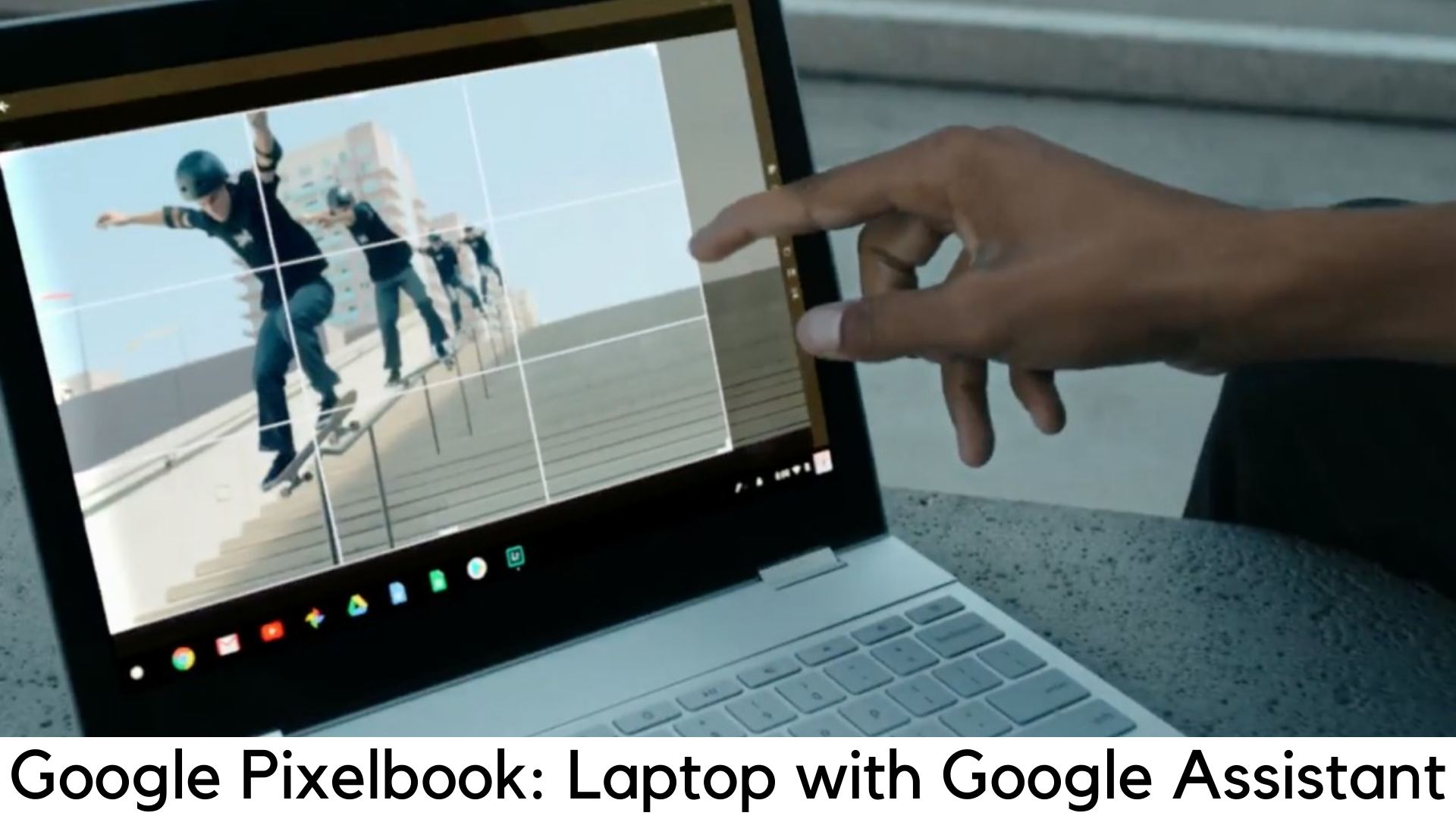
    Are you willing to spend a hefty $999 for a laptop that is based on Android and runs only Chrome OS? Starting at $999, Google Pixelbook has answered with its stunning looks, bright display, great performance and so on.

    Google Pixelbook Review

    Though it beautifully packs fast charging tech, the battery life still falls short of other Chromebooks which cost just half of its price or even less. The true value of this notebook comes with its Google Assistant support, which provides a great experience. All such features are tied in a great package that is best suited for executive-class travelers looking for a professional-looking Chromebook.

    Design

    Design-wise, more power to Google! With a 3:2 aspect ratio, it looks really very attractive. It is aluminum unibody design is truly thin and its accents and silicon wrist rest look insanely fantastic. It is so small that it won’t remind you of a true paper notebook. This slender laptop evokes those saddle notebooks that are found only in stationery stores.

    Google Pixelbook Review

    Measuring just 0.4 inches thick and weighing 2.5 pounds, Pixelbook is thinner and lighter than even Lenovo Yoga 920 (13.9”) which weighs 3.1 pounds and measures 0.6 inches. It has USB Type-C ports along the edges with a 3.5mm headphone jack on the left.

    Display

    We are used to believing that Chromebooks only deserve a 1080p display. But Pixelbook has proved us wrong with its vivid and bright 2400x1600p display (which is quite quad-HD). The 12.3-inch display with 235ppi resolution can definitely be your favorite part as text really looks crystal sharp.

    Google Pixelbook Review

    The details while playing 4K video on YouTube was amazingly sharp as it allowed us to see every bead and scale of water. However, you need to do some tweaks to play 4K videos on VLC Player and Google’s default video player.

    The display produces 117% of the RGB spectrum, which is bigger than 101% of average notebooks and more colorful than 105% of Lenovo Yoga 920. It also offers great brightness with 421 nits. It offered great touch sensitivity when navigating through Chrome and desktop apps. Scrolling was smooth both in TweetDeck and in apps without the stutter.

    Performance

    We’ve finally got a Chromebook which is power-packed by 8 Gigs of RAM and Intel Core i5-7Y57 inside. It works well with all Android apps and delivers smooth performance. There is no lag or stutter when splitting between dozens of tabs (Google Docs included) and a 1080p Full HD YouTube video while using Twitter, Slack, and Outlook.

    Google Pixelbook Review

    It even scored 7927 on the benchmark test of Geekbench 4 beating the notebook average of 6823. On the JetStream JavaScript benchmark, it scored 145 in the performance of web apps. The Intel HD 615 graphics integrated into Pixelbook delivers smooth visuals.

    Battery Life

    The battery life of Chromebooks is quite terrific but Pixelbook is not just another laptop with Chrome OS. It lasted just around 8 hours on web surfing on Wi-Fi, which is quite shorter than 12:09 by iPad Pro and 12:22 by Lenovo Yoga 920.

    After 15 minutes of charging, Google claims around 2 hours of backup in Pixelbook (when it had just 5% of battery left). But in the real world, it gave only 1 hour and 18 minutes of battery life by charging for 15 minutes. However, we have used some Android apps and done surfing.

    Chrome OS

    Chromebooks have always had a complaint that they couldn’t stand out from Mac OS and Windows machines for a long time as they were short in apps available from Chrome Web Store and more than 95% of those apps were junk.

    By bringing Android apps and Google Play store to the platform, we have seen a long-promised change finally on some machines like Asus Chromebook Flip and Samsung Chromebook Pro. You can now get Outlook and other Microsoft Office apps, Instagram (with posting), and games like PinOut.

    Chromebook buyers have finally got a reason to expand storage, thanks to the arrival of Android to those notebooks. It is because there are apps that save content to use offline, such as Netflix and Spotify Premium.

    Touchpad and Keyboard

    The backlit keyboard on Pixelbook adds another comfort to type longer, despite its shallow design and thin design. The keys feel even more comfortable than the ones on Smart Keyboard by iPad Pro, which is quite louder in typing. Google seems to make up for shallowness with its key systems which need an actuation force of 68 grams.

    The silicon palm rest on Pixelbook has another plus with rubbery flex and grip to provide even better typing experience. The edge-to-edge touchpad which measures 4×2.6-inch sits beautifully in between such wrist rests. It enables solid feel and accurate tracking on each click. The touchpad makes it even easier to scroll through webpages.

    Pixelbook Pen

    It is another feather in Pixelbook’s cap with the power of Google Assistant. Unfortunately, it costs $99 extra. Simply hold down the button of this pen while highlighting the object and you can send text and images to the digital assistant. The powers of Google Assistant really come handy when it comes to circle something.

    Like Apple Pencil, which also costs the same, Pixelbook Pen also comes with tilt support and pressure sensitivity. However, this stylish has issues in latency according to where it is used.

    Sound

    The Pixelbook is quite loud but lacks audio quality when it comes to playing music in a large conference room. While listening to a few tracks, we have wondered why vocals feel so flat and where the bass is.

    Plus

    • Excellent display
    • Cool thin design
    • Superb performance

    Minus

    • Overpriced
    • Battery life is not quite good

    Our Verdict

    When it comes to the overall performance, looks, and display, the Pixelbook is great as a Chromebook as it stacks up well against iOS and Windows-based archrivals. It could have been an easy choice if Pixelbook was not overpriced with mediocre battery life.

    If looks don’t matter and you want better battery life while saving money, you could easily go with Asus Chromebook Flip C302CA and save up to $500. But if you have no problem with the budget, you can definitely go with Google Pixelbook, which is the best Chrome OS laptop money can buy.