Category: Tech

Tech news in Android.appsapk.com, read all about the recent tech news

  • Firefox 73 : Default Zoom Level And Readability Backplate

    Firefox 73 : Default Zoom Level And Readability Backplate

    Earlier in February, Mozilla launched an all-new Firefox 73. Packed with new features and in a brand new form, Firefox 73 has become a thing of interest for everyone. Mozilla has incorporated various improvements in the browser, which help users to read and view content easily and quickly. Enhancements like accessibility improvement is a major up for the Mozilla browser. The Firefox 73 is compatible with Windows, Mac, Linux, as well as Android devices. 

    Firefox 73 : Default Zoom Level And Readability Backplate

    The all-new Firefox 73 comes with a default zoom level. Also, it has a setting and readability backplate option along with a few other developer features. It can be easily downloaded on desktops from the firefox.com website. Alternatively, the existing users can just upgrade it if not done automatically. For Android users, it is gradually getting in the Google PlayStore.


    According to sources, the Mozilla Firefox has over 250 million active users. Among the several other new features, the global zoom feature and the readability backplate are the two main highlights of the latest version.

    The Previous Version

    Earlier in the previous versions of Mozilla Firefox, the browser allowed users to zoom only on a per-site basis, which means you would need to manually zoom the page every time you open a new page. It has been the same for more than a decade now. So, if you are a user who generally zooms most websites, adjusting it every time can be both annoying and time-consuming.


    So, finally, Mozilla has addressed this issue in the new Firefox 73, where it has implemented an all-new global or default zoom level setting. You can quickly scale up or down the zoom level from 100 percent as per your requirement and set it as the default zoom level for all websites. But, if you need individual adjustments for specific sites, you can still adjust the per-site zoom level for them. 

    The Readability

    When it comes to readability, several people face visibility issues and rely on the Windows’ High Contrast Mode. Mozilla has forever disabled the background images when the contrast mode is enabled to increase the readability of the text. But with the new Firefox 73, Mozilla has fixed this issue as well.


    Mozilla has introduced a readability backplate, which acts as a solution for everyone who faced issues with readability. This feature blocks the background color between the background image and the text. So, the texts become more visible and readable without disabling the background images when the High Contrast mode is enabled. 


  • Everything You Need To Know About The Android’s New File System

    Everything You Need To Know About The Android’s New File System

    Mobile gaming is one of the booming industries today. With numerous games of different genres to cater to all kinds of users and players, the Android gaming section is only going for a rise in the future. Games in all categories like adventure, arcade, educational, puzzle, simulation, strategy, trivia, music, or card, both free and paid, are prevalent amongst youngsters in today’s time.

    Everything You Need To Know About The Android’s New File System

    Recently, Google has rolled out rumors of developing a new feature for Android that shall allow users to start gaming even before they finish installing the game. Google has made few patch submissions to check to merge support for the new system into the Linux Kernel.

    As per the document that Google has submitted, Incremental FS is a virtual Linux New File System that allows the execution of a program even while its binary functions and resource files are in the process of downloading. This technology is almost similar to the ones which operate in PlayStation 4 and Xbox One.

    In simpler words, Android will allow its users to start playing games even before the game has been downloaded and installed completely. So, let’s say you would like to download a 4GB game on your device. This will take a considerable amount of time to download and launch on your smartphone.

    But the new incremental FS can effortlessly launch the game without any discontinuity while the game gets downloaded in the background.

    The User Experience

    From the recent proceedings, it is visible that Google is trying out new ways and means to enhance the overall user experience. This could also be a beginning to the method of gaming in which gamers will no longer require to download massive games to start playing entirely.

    This would also result in serving as a native Instant Apps replacement, which will not need developers to work extra as the implementation will be directly done in-kernel.

    In we go deeper into the documentation submitted by Google, we can see that Google suggests Android will be downloading the data packages first. This means an intro file will be downloaded initially while the complete game can be downloaded later. It also recommends loading ‘hot blocks,’ which shall be used as filler content to avoid any kind of discontinuity or friction while gaming.

    Incremental New File System feature

    Google has also confirmed that new Android devices with the Incremental FS feature will have an incremental data directory, which will contain subdirectories for each of the app installed or launched on the particular device.

    For the past year, Google has been testing the Incremental FS feature in Google Pixel 4 XL. However, there has been no significant news about the success of the feature now. We hope to see the feature roll out with Android v12 later in 2021.

  • Realme 5 Pro: Android 10 Upgrade

    Realme 5 Pro: Android 10 Upgrade

    Most of the handsets that have been released in 2019 and the previous year have started receiving the Android 10 upgrades. Android had begun rolling out the Android 10 version to the Pixel devices last September.

    Realme Pro 5 Android 10 Upgrade


    Now moving to the other devices, it seems likely that Realme 5 Pro is due to get its direct version of Android 10 by the coming month while the Realme X should have it by this month.

    Several Realme devices have already been testing the Android 10 beta versions. Still, for now, it is most likely that the Realme handsets will no longer get the beta firmware update but move directly to the stable Android 10 version.

    According to reports, Realme has published its software release dates and timeline in January 2020, wherein it has confirmed the Realme 5 Pro to receive the Android 10 version soon. It has assured that its users should keep an eye on the regular announcements regarding the update. It is all set to arrive in March 2020.

    The Software Updates

    Realme 5 Pro has been receiving regular software updates ever since its release but did not receive the Android update as yet. But, now it shall skip the beta programs moving straight the core version of the Android 10.

    It has been the same case for Realme X as well. But it shall have the update to the most recent Android version earlier than the other Realme handsets. The users of Realme X can get themselves prepared for a leap from Android Pie to Android 10.

  • How to use Sound Amplifier on Android 10?

    How to use Sound Amplifier on Android 10?

    Google has always been keen on providing its users with a fresh experience through its Android platform. Be it related to the User Interface, the navigation keys, Multi-Window mode or even the minuscule changes that comes with every Android update.

    From functions for the neophyte gamers to aspiring shutterbug, from functions for the highly sophisticated netizens to sound enhancements for music enthusiasts, Google’s Android has it all. And, with every Android update, it has worked towards increasing the ease of access for its users.

    How to use Sound Amplifier on Android 10

    Today, we will delve deeper into the spectrum of the sound amplifier on Android Q or mostly renowned as Android 10. Sound Amplifiers are present on the Android platform since Android 6 Marshmellow. The idea behind introducing amplifiers was to give users relishing experience when it comes to listening to songs via headphones. It allows users to customize frequencies and strike a balance between foreground and background noise and listen to a more emphasized and pleasing music.

    Working of Sound Amplifier on Android 10

    Well, first you need to know that if your phone has a built-in Sound Amplifier or not.

    For that you need to go to your Settings->Accessibility->Sound Amplifier. If you don’t find this function, don’t panic; just go to the Google Play Store and download it. It basically improvises the sound quality when we tune to play music or even make a phone call. In order to experience this, one needs to plug in the headphone.

    Turning on the Sound Amplifier

    If you have already installed the Sound Amplifier on your device, then follow the below steps to start it.

    1. Open the Settings of your phone.
    2. Click on Accessibility, then on Sound Amplifier.
    3. Now, click on Use service.
    4. You have to allow the permissions here.
    5. Connect the earphones/headphones to your phone.
    6. You are now ready to start the Sound Amplifier.

    Changing the setting of the Sound Amplifier 

    One can adjust the tuning levels and loudness to fit the environment. Follow the below steps –

    1. On your phone, go to the Sound Amplifier.

    In the settings of Sound Amplifier, you can experiment with these alternatives as per your choice:

        • Click on Pause to pause the amplification.
        • You can also modify the sound settings. Go to the Sound tab. Here, try adjusting the Fine-tuning control and find the best setup for you.
        • On the same tab, you can click on the Adjust ears separately.  It will apply the settings to the right and left audio individually.
        • To reduce the unwanted sounds, click on the Noise tab. Here, you can alter the noise attenuation level.

    The Sound Amplifier comes with multiple functions wherein each ear sound can be adjusted as per users’ needs. The features include sound enhancements with noise reduction along with source selection.

    The features have sub enhancements which as a consequence opens a broader level of sound configuration. More to it is the boost and fine-tune enhancement that comes hand in hand.

    At the end

    More or less, the Sound Amplifier works in a similar way as you apply filters to your photos. The filters beautify the selfies and snaps while the Sound Amplifier filters your sound. Thus, providing you a fresh experience and lets you secluded from the outer world.

    Now, you don’t have to worry about the noise encapsulating you. Whether you are traveling or going for a workout, just plug in your earphones and dwell into your own world.

  • Samsung Galaxy Note 9 rolls out Android 10 update in Germany and the USA

    Samsung Galaxy Note 9 rolls out Android 10 update in Germany and the USA

    Samsung launched the beta release a few days ago. Now, the smartphone giant Samsung has finally released an Android 10 update for Samsung Galaxy Note 9. It comes with UI 2.0 features. Android 10 is now on its way to the public. Samsung has rolled it out in Germany and the USA

    Samsung Galaxy Note 9 rolls out Android 10 update in Germany and the USA

    For those who didn’t try the beta, it’s been a long time for them to get an Android 10 update. Currently, it is in Germany and the USA. But we can expect its rollout across the globe in a matter of weeks. Comments have also rolled out of the internet from various users receiving the update of Android 10.

    Inclusions in Samsung Galaxy Note 9 Android 10 update

    Android 10 update comes with a firmware version, N960FXXU4DSLB. This firmware has unique features that will significantly improve the smartphone.

    They’ve officially released it as ‘System Update 16’ with the inclusion of the February 2020 Android Security Patch Update. In what’s a new section during the initial update process, it shows only Android 10.0 and updated user experience.

    Also, another point to notice here is that only users with Verizon’s network have received the update. If you’re a Note 9 user on Verizon’s network, you might have already got a notification pop-up on the bar.

    It mainly contains One UI 2.0 (UI is User interface). So, it is a big package deal for users like a gift that includes all features of UI 2.0. However, everyone is yet to get lucky.

    Updates in One UI 2.0

    One UI user interface is just a year old, a little earlier than that. But, there is a lot of room for improvisation, according to Samsung.

    There are several features of UI 2.0 and looking at them; it seems they’ve worked on identifying root issues of display, notifications, positions, permissions, camera, arrangement, and many more. Let us list down a few for you.

      • Quick toggles won’t come up on tapping lock screen notifications.
      • Position of app permission dialogues is at the bottom now
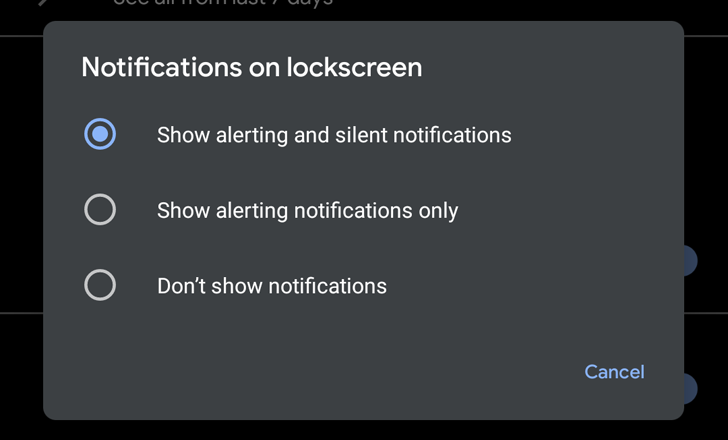
      • Separate Active and silent notifications
      • UI interface lock screen can far better recognize color differences
      • Time and date size in the drop-down reduced
      • The camera will be in full-screen mode while opening from messaging apps
      • Optimized Camera app arrangements and feature positions
      • Options such as aspect ratio, split-screen, pop-up view
      • More simplified calendar
      • Device care station now has a new design at screen bottom now
      • All-time related stuff combined in one scree (world-clock, alarm, timer, stopwatch, etc.)

    Many other updates are not visible on the front screen but will contribute to the performance of your mobile. Many different corners of the world are yet to receive the update.

    You can check if you have the update available in your country. You will need to go to the Software Update menu in settings and select download and install.

    It is also available via the Samsung Firmware website. One thing is sure that Samsung Note 9 users will have a more comfortable and smooth life now.

  • How to remove the Google Search bar from any Android home screen

    How to remove the Google Search bar from any Android home screen

    Google is one of the biggest tech giants in the world. It provides information and other services from daily life to world-class technologies. It is transforming itself day by day. The evolution of Google leads up to the epitome of technology. Google not only provides search engine services but it launches its smartphones and making a mark in the smartphone business.

    How to remove the Google Search bar from any Android home screenAndroid is a subset of Google. Nowadays, Android smartphones are the most running smartphones in the world. The establishment of Android in the market is considerable. It provides a search bar on the home screen of every smartphone.

    Reasons to remove

    Google tries to provide the best of its facilities to its users. Consequently, it launches a mic bar on the right corner of the Google Search bar. It provides a facility to search the information through voice mode. One can speak to it and can search whatever the information they want. Google comes up with a feature of Google Assistant. It will provide most of the assistance one might need.

    It provides the Google Search bar on the home screen of the phone which at times becomes the cause of concern. The bar takes a lot of space on the home screen which can you can use for several other purposes. If we are able to remove the Google Search bar from the home screen, we will be able to put many icons in the place of it. This is one of the biggest reasons that one needs to remove the Google Search bar from the Android home screen.

    How to remove it?

    The process to remove the Search bar varies from phone to phone. But it is not a difficult task. At times, one just needs to press the bar for a bit long and the bar pops up the remove or the hide option.

    Most of the time the cause of concern becomes the space it takes on the home screen. So to minimize the space, one can also reduce or minimize the space by taking a suitable option.

    There are some examples of how to remove the Search bar. Like in Samsung, one just needs to long-press the bar, and it pops up with an option to remove it just like another widget.

    But in Sony Xperia it is different. It basically hides it in a different way. On Huawei handsets, one just needs to go to their home screen and long-press the Google Search bar and drag it to top of the screen. Once you leave it, it will disappear automatically.

    Bottom Line

    One can also use disable settings and disable the Google app. This is one of the alternatives to removing the Google Search bar from the home screen. By rooting your Android phone you can also remove the Google Search bar. But this might affect the warranty guidelines of the smartphone.

    So the problem of taking space by Google search bar can be resolved through several means and the remaining space can be used for other useful purposes.

  • How To Easily Share WiFi Passwords On Android

    How To Easily Share WiFi Passwords On Android

    So, have you ever wondered how you can share the Wi-Fi password effortlessly instead of painstakingly spelling it out? When your friends or family visits your home, it is quite likely that the first thing they are going to ask you is your Wi-Fi password. Thank your lucky stars that there is a much easier way to Share WiFi Passwords. This is by creating a QR code that will allow your friends to connect to the wi-fi network.

    Easily Share WiFi Passwords
    Easily Share Wi-Fi Passwords

    There are plenty of QR code generating apps that you can use for this. Once you have created a code and added the necessary details, simply share the code and the person will be able to connect. You don’t need to generate a code every time you want to tell someone your password. Create the QR code once and save it safely somewhere. Reuse the same one every time you want to give someone the Wi-Fi password. So, just how do you go about doing that?

    Your SSID & Network Encryption Type

    Before jumping on to QR codes and the like, find out your SSID and network encryption type. SSID, or service set identifier, is your Wi-Fi network’s name. If you don’t know the SSID, go to the Settings menu on your phone and look up Wi-Fi connections. Check out the name of the network that you are connected to. Do note that SSIDs are case-sensitive. This means that you will need to keep an eye on upper and lower cases. Next, find the Network Encryption Type. For this, simply tap on the SSID which will then show your Network Encryption Type on the next screen. Keep both the details safely.

    QR Code Generator

    There are plenty of QR code creator apps in the Play Store. The one named QR Code Generator is a pretty reliable one. Download and install the app.

    Share WiFi Passwords
    Share Wi-Fi Passwords

    Once done, you are now ready to create a code for your Wi-Fi network. Most apps will create a QR code for texts by default. For others, you will have to make the change. For our mission, choose Wi-Fi. Enter your SSID, password, and the network type. The app will not authenticate anything, so you will have to make sure that you have entered the right details. Once done, simply tap on the ‘Generate’ button.

    Share WiFi Passwords

    Once the app has generated the QR code, you can download the same as a PNG image file. Some users may be required to grant app permission for storage. Save the QR code. Once done, it will be stored permanently on the phone.

    Every time you want to share the code, simply pull it up from the storage. Get your friend or family member to come closer and use their camera to scan the code. They will immediately receive a notification for connecting your network. Tap ‘Join’ and you are done! If you might not be there when your guests need access, simply print out the QR code and stick it somewhere discreet so that they can scan it when they require it.

  • How To Save Battery On Samsung Galaxy S10e, S10 And S10+

    How To Save Battery On Samsung Galaxy S10e, S10 And S10+

    Samsung devices are not really known for their battery lives. Smartphones, such as Galaxy S10 and Galaxy Note 9 take a lot of time to charge up. Another issue is that they also tend to use up the battery quite soon. This is all the more true if you have enabled other features of the phone. However, if you know some tricks, you can save battery and extend its life.

    #1 Night Mode

    A good thing to do would be to enable the Night Mode. Since the Galaxy S10 series uses Super AMOLED displays, you can easily use it to achieve longer battery life. One excellent way would be to enable the system-wide dark mode. Since the Light Mode uses more pixels, it uses up more battery. Besides this, you can also choose to get AMOLED wallpaper apps that help you save battery while looking ultra-cool.

    Samsung Galaxy S10 Series
    Samsung Galaxy S10 Series

    #2 Disable Always On Display

    While the Always On Display is a cool option to enable, keep in mind that it can easily suck battery. It is a good idea to switch it off on your S10/S10 Plus so that you can make your phone last longer. If you don’t want to remember to do it every time, how about setting a schedule for it? You can set it to enable and disable itself.

    #3 Adaptive Battery

    The adaptive battery is a relatively new feature is seen in the Galaxy S10 series. This element makes use of machine language to understand your phone habits and usage. Based on the same, it will disable apps that you don’t really require and the apps that use up a lot of battery. One thing to note here is that the process does not start immediately. It takes some time to understand your usage and then decides to disable the apps. The phone will categorize the app into different options, such as Active, Frequent, Working Set, Rare, and Never.

    How To Save Battery
    How To Save Battery

    #4 Power Modes

    One of the best things you can do is to enable the power mode on your phone. On the Galaxy S10 device, there are three modes – High performance, Medium power saving, and Maximum Power Saving. In most cases, you can choose the one that suits you so that you are able to get the best out of it.

    #5 Optimize Settings

    You may be pleased to know that Galaxy S10 and S10 Plus come with battery optimization features that enable automatically when you are not using the device. It is designed to reduce the screen brightness, media volume, and the screen timeout automatically. You can make changes on the Settings menu by visiting the Optimize Settings tab. Here, you can also choose if you want to put unused apps to sleep.

    #6 Reduce Screen Timeout

    You can also check out the screen timeout settings. If you generally don’t bother locking the phone, enabling this feature could help you save energy. Usually, a 30-second screen-on time is considered ideal.

  • What Is NFC And Why Should I Use It?

    What Is NFC And Why Should I Use It?

    NFC technology is becoming popular by the day thanks to the conveniences it offers. But, what exactly is it and how does one use it? So, let’s dive right in. NFC stands for Near Field Communication. It is basically a way for your smartphone or watch to communicate with something that is close by. NFC generally works with a radius of about 4cm by using a wireless connection between the devices. This method is perfect for two-way communication with both the involved devices being able to send and receive data. One thing to note here is that the NFC connection does not depend on 3G, LTE, or Wi-Fi. The best part about it is that it doesn’t cost anything!

    NFC
    NFC

    The UK has had it for quite a while now, but it is just becoming more common in the US. In the UK, you may have noted credit or debit card that allows the users to make contactless payments. This is basically due to NFC. An interesting fact here is that Eat, a high street retail chain, was the first one to make use of NFC and this was in 2008. Today, in addition to credit and debit cards, you will be able to use this tech on your smartphone or smartwatch. There are plenty of online services, such as Google Pay, Apple Pay, and Android Pay that works using NFC, allowing you to digitize your wallet and make life more convenient. It is a good idea to understand just how this service works.

    How does NFC work?

    To put it simply, Near Field Communication basically uses wireless data transfer to detect a device in close proximity to communicate with it without requiring an internet connection. It is fast and reliable. You don’t have to authenticate anything and once you have your digital wallet set up, the process is pretty automatic. The RFID tech used helps the NFC chip with one part of the wireless link. Once this is activated by another chip, the two devices can start communicating data when they are close to each other.

    What Is NFC
    NFC

    It does make life easier since there is no need for pairing or one-time passwords. Another advantage of this method is that the chips here use up very low amounts of power, making it a very power-efficient option when compared to others. NFC basically identifies us by using our cards and devices. It could also verify our personal info and bank accounts.

    Using NFC

    NFC chips are basically embedded within our debit and credit cards. More recently, these chips are coming with our smartphones and watches. To use NFC to make payments, you will first have to set up a digital wallet. This could include Google Pay, Android Pay, Samsung Pay, Apple Pay, and more. Once done, you will have to add your card to it. Then, simply bring it near the pay terminal and your account will be debited. Besides payment, NFC can also be used to transfer photos and other data. Android Beam is a good option for this.

  • Huawei Conundrum: Germany Set To Follow UK

    Huawei Conundrum: Germany Set To Follow UK

    Germany is working on a deal that would give Huawei restricted freedoms. In a way, this is pretty similar to the UK deal. A report in Reuters suggests that the leading political parties in Germany are working on a strategy paper that would allow Huawei only a limited role to take part in the implementation of 5G networks. Similar to the UK, this is quite a sensible approach to take for the Huawei Conundrum while deploying the next generation of connectivity. The agreement states, “State actors with sufficient resources can infiltrate the network of any equipment maker. Even with comprehensive technical checks, security risks cannot be eliminated completely – they can at best be minimized. At the same time, we are not defenceless against attempts to eavesdrop on 5G networks. The use of strong cryptography and end-to-end encryption can secure confidentiality in communication and the exchange of data.”

    Huawei Conundrum
    Huawei Conundrum

    The stance of the government has not been confirmed yet. The new position is likely to be voted on February 11, 2020. There are still some in the country, such as the Social Democratic Party, a junior coalition partner to the Christian Democratic party, who are pushing for an all-out ban. However, it looks like Huawei will make it, even if only with restricted function. The paper talks about approaches to take in order to manage Huawei which is quite similar to the one the UK has taken. With regards to the statement released by the German authorities, it looks like they are taking the stance that it would be impossible to guarantee 100% safety, regardless of the equipment manufacturer. It is just not rational to target one specific company.

    The Statement

    The paper also mentions that the network would be split into three different components. This includes radio, transmission, and core. The authorities have also got different procedures in place for managing Huawei equipment based on its designation. Again, this risk-management approach is similar to the one in the UK. This is because the Germans are facing a similar issue where all the German telcos are already the customers of Huawei. They already have signed agreements in place to continue work with Huawei in the near future. If a full ban comes to force, this could create issues in terms of money and time.

    Germany on Huawei
    Germany on Huawei

    BT has said that £500 million to be compatible with the Huawei restrictions in the RAN in the UK. While it could look like a huge sum, the amount could be even higher. This could happen if a complete ban was put in place. Other aspects that could affect the telcos include potential demands to have a multi-vendor supply chain, detailed security checks on equipment, and so on. One thing to always keep in mind is that no one can ever guarantee complete security. It is not yet certain which approach the German government will take. However, it appears that they will try to mitigate the risk and compensate for the existing state of affairs.