Category: Tech

Tech news in Android.appsapk.com, read all about the recent tech news

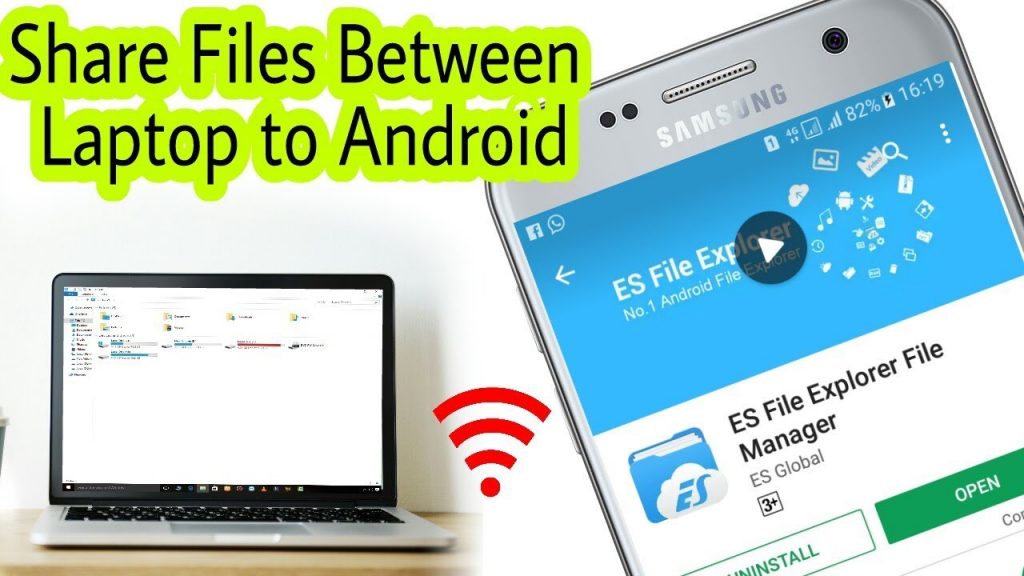
  • How to Share Files Between Android and Windows

    How to Share Files Between Android and Windows

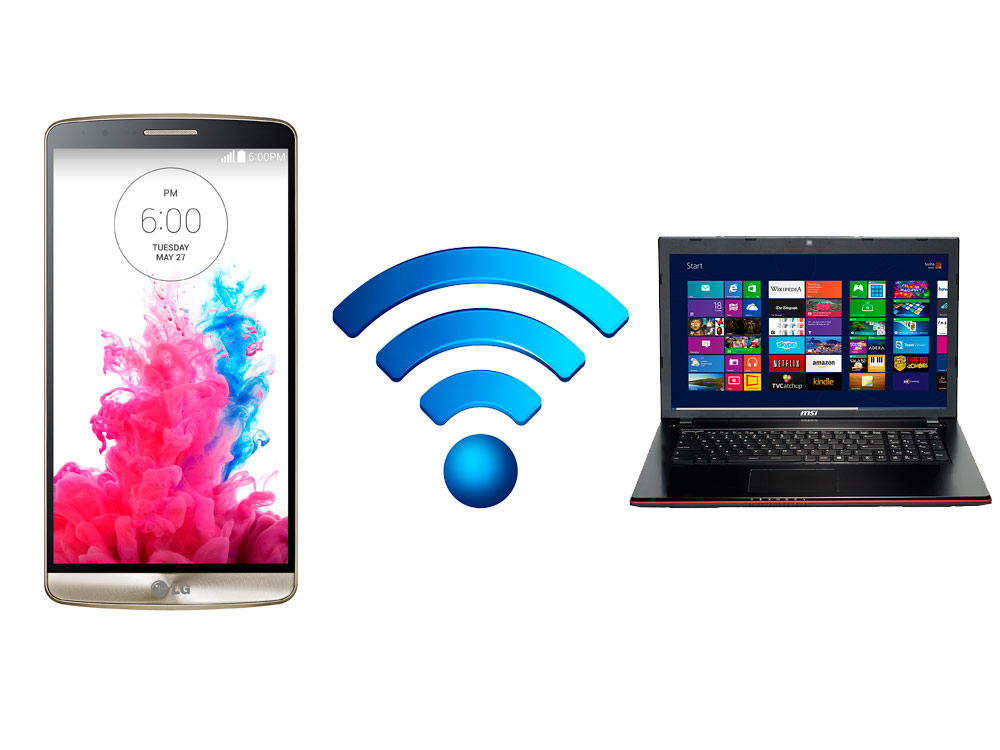
    When it comes to sharing the files between Android devices to Windows, there are certain things that you need to follow. Well, with the support of USB cable, you can get an opportunity to share the files without any hassles. Usually, while handling this process, most probably the people would go over with a slow option like Bluetooth to transfer the files. If you are the one who doesn’t want to experience this thing, then go ahead with the support of some free apps.

    How to Share Files Between Android and Windows Using Free Apps


    Let’s have a look at two different methods in order to share the files between the windows as well as android. Hopefully, it will be helpful in terms of transferring the files using the apps.

    Solution 1: Share files between Android and Windows using Your Phone app

    If you are looking at this app, then it has the potential to share 25 photos and screenshots. So, whenever people are looking for transferring the files without any hassles at a faster rate, then you can go ahead with the following steps.

    How to Share Files Between Android and Windows Using Free Apps

      • First of all, it is necessary for you to install Your Phone app.
      • After the above process is completed, then make sure to complete the process like country code, phone number in the windows app. Now, you will get an opportunity to receive the link in a text message for an android application.
      • When it comes to downloading the application, then you can go ahead with Google Play with the support of the link at any time.
      • Well, after the successful installation, it is necessary for you to click over “Connect my PC”.
      • Now, proceed further to sign in with Microsoft account. On the other side, i.e. on the android device and allow all permissions.
      • After the above process, tap to open the app on your windows.
      • Finally, you are ready to access recent photos as well as text messages without any hassles.

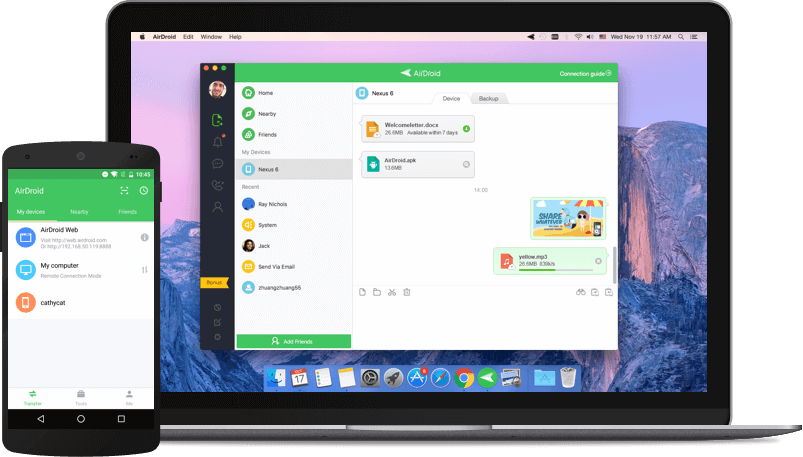
    Solution 2: Share files between Android and Windows using AirDroid

    It is the application that will allow the user to transfer the different files like videos, photos, audio and more. Even it will allow the user to share the multiple files.

    The best thing about this app is where you can also check out the remote camera mode which will allow the user to view the camera remotely. Let’s have a look at some of the essential steps.

    How to Share Files Between Android and Windows Using Free Apps

      • At first, you need to download the AirDroid desktop as well as an android app by visiting the official site of AirDroid.
      • Next, complete the registration process and proceed further to sign-in with the support of credentials on the windows app.
      • Make sure to check whether you are connected to Wi-Fi or not.
      • Now, the device and PC will shop up in the section of My devices in both the apps.
      • At last, you are ready to drag and drop the respective files that you want to transfer at any time.
  • How to Recover Deleted WhatsApp Messages

    How to Recover Deleted WhatsApp Messages

    Several ways are there for downloading WhatsApp messages without any fail. There are times when we all do this mistake we forget to have back up of messages or media. And later we pay for this losing our most important messages but even if you have forgotten having back up. You have a chance of recovering deleted WhatsApp messages.

    How to Recover Deleted WhatsApp Messages

    1. Go to the file manager on your phone (then download the file app of Google, just in case this app is not available). Now visit the WhatsApp folder> database. The database folder has entire WhatsApp backup files that are stored locally on the phone.
    2. Then select the file msgstore.db.crypt12. After doing it you will have to rename it to the msgstore_BACKUP.db.crypt12. And this one is the most current backup file and you will have to rename it. This you do for protecting it from being overwritten. Or even, in any case, you will be able to rename this particular file to its real name and restore it.
    3. There you will receive a bundle of files in this folder in the format msgstore- YYYY-MM-DD.1.db.crypt12. This is the older backups; here you can single out the recent messages and then rename them to the msgstore.db.crypt12.
    4. Pay attention – this part is puzzled. You will require to open Google drive (on any device).there you will find a hamburger icon (the three vertical lines)> Backups. The next step would be about backing up the WhatsApp messages. By doing this the phone would recover the WhatsApp messages.
    5. The next step you will have to do is uninstalling the WhatsApp and then reinstalling it. When you will be done you can set it up, by doing this instantly there you can restore recent chats from a local backup.
    6. After taking the entire step you have to tap on the restore and that is it. There you will be able in getting your deleted chats back.

    Restore deleted WhatsApp chats with cloud backup

    This is also one another way of restoring WhatsApp chats if your messages have gotten deleted due to some reason. You can say your Google Drive or iCloud back up took place at midnight and your messages somehow got deleted.

    How to Recover Deleted WhatsApp Messages

    But the best part of all is that the cloud has a record of everything. It will still have your money. Here are the steps which one can follow up –

    1. At first, uninstall WhatsApp from your Android Smartphone or iPhone.
    2. Then reinstall your WhatsApp, and then fill basic first details.
    3. When you are done with that, then instantly you will be asked for restoring messages from the cloud backup.
    4. By taking the above step you will be able to restore messages which you would have accidentally deleted.
    5. Note- but just in case if you receive any messages like this, your cloud does not have back up of your recent messages. It means you have lost your chats forever. And there is even no way of getting them back.
  • How to Download Facebook Videos

    How to Download Facebook Videos

    Facebook is one of the popular social media websites which is used by millions of users around the world and this is one of the biggest websites which is streaming very popular in recent days.


    Facebook is a strong competitor with YouTube media for acquiring multiple advertisers. The only difference between YouTube and Facebook is YouTube has offline mode but this Facebook does not have offline mode options.


    And also in this Facebook website you don’t have any buttons for saving videos in this article let us discuss in detail about downloading the videos from Facebook social media in an easier way to your Smartphone devices.


    How to Download Face book Videos on Android, IPhone, Windows and Mac

    How to save the videos to view later from Facebook media

    Second, by second you will come across plenty of videos but you will find it difficult to save and download your favorite videos from Facebook here is the simple method to save the Facebook videos.

      • Initially just open the video from Facebook to choose your favorite video to save.
      • In that video right top end, you will see three dots.
      • Just click to expand the option.
      • There you will find the save video option.
      • Finally, your favorite video will be saved to the saved videos and you will have the option of accessing any time that is saved in the video menu on your Facebook.

    Steps to download Facebook videos in iPhone and Android

      • Initially go to the Facebook video which you want to download on your device.
      • Just refer to the video below you will find the share button.
      • Click that button to copy the video link which is appeared.
      • Just take this video link copied on any browser or go to fbdown.net.
      • Paste the link and tap to download.
      • On the next page immediately you can select the quality of the video to download.
      • Now you can watch the video that plays in your browser and you can download this video anywhere on your device.
      • Therefore the video will be downloaded in your downloaded folder from your browser on your smartphone.

    How to Download Face book Videos on Android, IPhone, Windows and Mac

    However, as if now there is no option of downloading the videos from Facebook on iPod and iPhone. The leading Apple Company has not been provided permission for any developer to download the videos from the social websites to iPod or iPhone. If you try to download your favorite video in iPod or iPhone it will just play your favorite video where you could not download it.

    How to download the favorite videos from Facebook on Mac and Windows

    Facebook videos can be easily downloaded to your device in the same way as Android phones.

      • Initially just open any of the browsers and visit the Facebook website.
      • Choose your favorite video when you click on it you will find the URL video just copy it.
      • And then go to fbdown.net to paste the copied URL and then downloaded
      • On the next page, you will find the double option of downloading in HD or normal quality.
      • Choose the option and the video which is playing on the browser.
      • And now right-click the video to save and to download the favorite videos in your Mac or PC.

    Steps to download Facebook videos which you have posted

      • For this initially, jump to your Facebook profile.
      • Here at the top of the page next to your name you will find the menu bar with the button down arrow.
      • Keep the mouse over the menu box and list the videos which you have clicked.
      • Here you will find the album in the video section.
      • Keep the mouse on the particular video which you need to download and you will see the icon as pencil blinking on it just click that.
      • When you click it you will find an option of download HD and download SD.
      • Choose your best quality option and finally, your video will be immediately downloaded in the format of MP4.

    Conclusion

    In this context, we have discussed in detail about downloading the videos from the Facebook social media to your device for your future reference.

  • How to Stop Your Smartphone Getting You Arrested?

    How to Stop Your Smartphone Getting You Arrested?

    Honestly speaking, if GCHQ officers wanted access to your device, they may definitely have. In terms of digital surveillance, they might still know very much about you with your phone data that can sentence you to the jail term. If there is nothing to worry about for international secret agencies, police officials may definitely have records. In most cases, the smartphone is tracked by the police to incriminate the owners.

    How to Stop Your Smartphone Getting You Arrested?

    With that said, here are some tips you can follow and avoid getting you into any trouble:

    Lock your Smartphone

    Well, it is the most obvious and best way to keep unauthorized people at bay from your phone. Its fingerprint lock, pattern or PIN can be the first line of defense against potential infiltrators. Police have no authority to ask you to unlock your device during search operations in most cases.

    They can check through your bag and wallet, and even your body for hidden guns or lethal weapon. But they cannot justify why you should unlock your phone, at least without your consent.

    How to Stop Your Smartphone Getting You Arrested?

    Unless they have any solid grounds that your device has some evidence of any crime, they cannot ask you to unlock your phone. If you are used to recording your own videos stealing something or glassing men off the pubs, don’t do that again.

    In case if your device has the feature to wipe up your data with 10 incorrect patterns or passwords, enable it. Also, if you feel something fishy, enter your password incorrectly 9 times when leaving your home.

    If a police offer enters the wrong password even once, all of the data on your phone will be wiped out. But this is not practical in general sense but it can save you sometimes.

    Don’t carry much data on your smartphone

    Don’t carry a full calendar or address book on your device. These would definitely attract the police’s attention. It is the best way to save you from incrimination. It would be better if you use two email accounts. If you want to keep your email active, be sure to have another account. Use secondary email and strictly remove old email.

    Don’t carry much data on your smartphone

    Log out of all apps that are not widely used

    A lot of apps are designed to keep tracking your location for targeted ads. Initially, you can log out of apps you don’t use most, such as Google Apps, Uber, etc. and delete the apps you no longer use like MyFitnessPal. Sign out to keep those apps from sending your location data to their server.

    How to Stop Your Smartphone Getting You Arrested?

    If the police get a warrant and force the developer to give your location information, they will, hopefully, have no information. Basically the worst enemies who can share your location are simply the apps made by Google and Facebook.

    Turn off Device Location

    If you are concerned about privacy and haven’t done it already, it’s the right time to go. According to your device’s OS like Android or iOS, there are different ways to turn off your location settings. If you are using the iOS devices, simply go to Location Services under Settings>Privacy and toggle it off.

    For Android, simply go to Use Wireless Networks (or mobile network location or Google Wi-Fi location) under Settings>Location (Location and Security) and uncheck the same. If you are not at guilt, keeping the location on can show your innocence.

    All in all, the absolute best advice for you is not using your device for criminal activities. Even better, don’t commit any crime at all.

  • Easy Steps to Keep Malware Off Your Android Phone

    Easy Steps to Keep Malware Off Your Android Phone

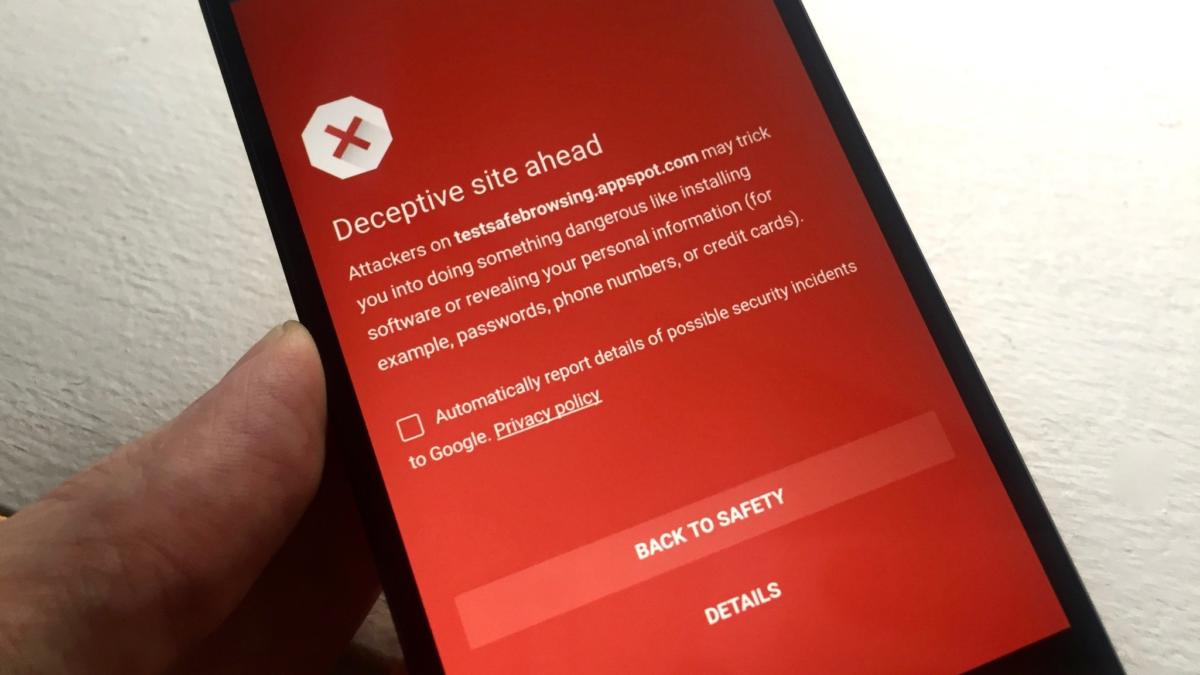
    As you may know, Google allows all the developers to upload their app to the Play Store. There is no restriction of any kind. Since the app is scanned for malware after the app is uploaded, it is not very effective. However, the company has recently come up with a Play Protect program with the aim of protecting the users. There are many anti-malware apps that could help you protect against broken apps and more. Let’s take a look at the other ways how you can keep malware off your Android phone.

    Google Play Protect

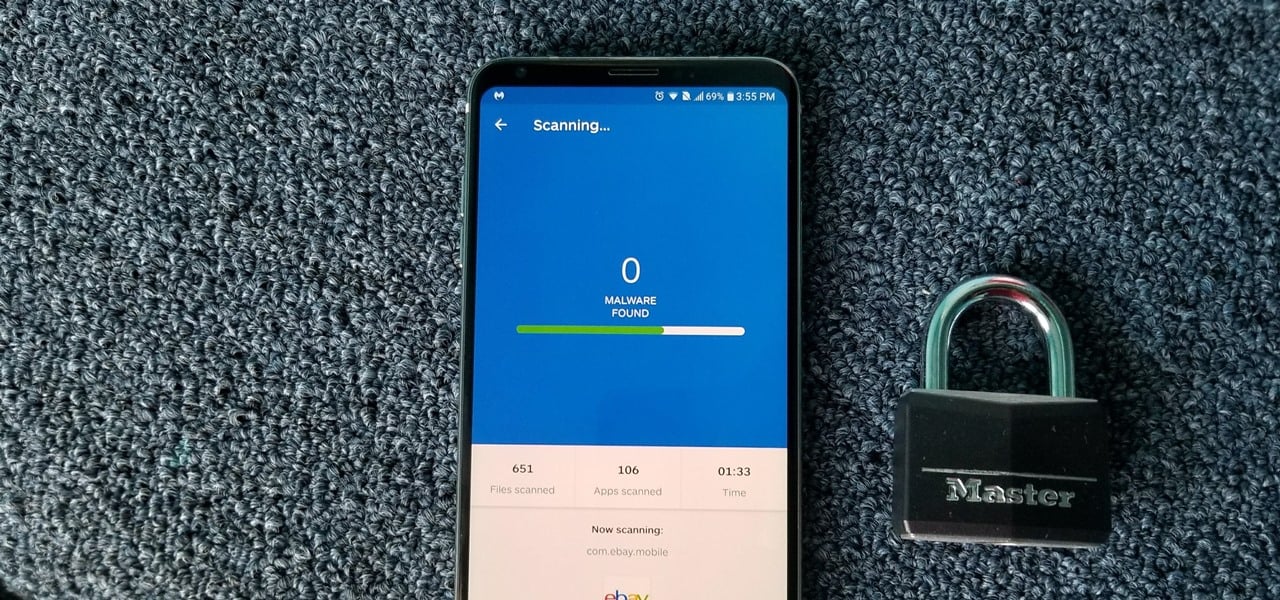
    Google Bouncer is a way in which Google tries to keep a malicious app off the Play Store. This antivirus system scans all the apps for malware or malicious code. Play Protect is more thorough and scans each app individually. However, reports have emerged that it is only about 67% accurate, making it pretty ineffective. If you really want to protect your phone, install an antivirus app. Antiy AVL is a good option to use. It is so good that it has a 100% detection rate. The best part about this is that it does not kill your battery life! Your phone heating up could be an indicator of presence of malware as well. 

    Malware On Android Phone
    Malware On Android Phone

    Turn Off Unknown Sources

    While the Play Store may not seem to be very secure, it is one of the most trusted places you can visit to download applications. Keeping in mind their policies, Android allows users to sideload apps from different sources. If you are using third-party apps, it is a great thing, but it is highly recommended that you make Google Play Store your first option. So, if you want to install apps from other unknown sources, you will first have to enable this in the Settings menu. Enabling this option would prevent the unauthorized installation of apps outside of the Play Store. 

    To disable the service, make your way to the Settings menu and select Security. Within there, you may find it the “Unknown Sources” option within “Lock Screen & Security” or “Privacy & Security”. 

    Review App Permissions

    Android devices running on 6.0 Marshmallow and above use an app permission system that will offer access to specific smartphone functions. For example, Google Maps or other navigation apps would require GPS. Since the apps are not given permission by default, you will receive a request for permission the first time you use the feature. After you ‘Allow’ the app to access, it will be able to access it every time. It would be great if all the apps used this mechanism. Unfortunately, not all of them do. Some apps request bulk permissions as you install the app. If you don’t grant permission to all of them, you cannot install it. 

    Malware Off Android Phone
    Malware Off Android Phone

    You can review the permission by heading over to the Settings menu and searching for “Configure Apps” or “App Permissions.” Here, you will see a list of the apps that you have given permission to. Keep your access permissions to a minimum so as to keep your phone more secure and off malware. 


  • The Google Pixel Watch

    The Google Pixel Watch

    With the launch of the most awaited Google Pixel Watch, we are expecting Wear OS to come up at its best. But it doesn’t feel like we are going to see it anytime soon. According to the speculations, Google was expected to launch it with Google Pixel 4. But has it happened? No!
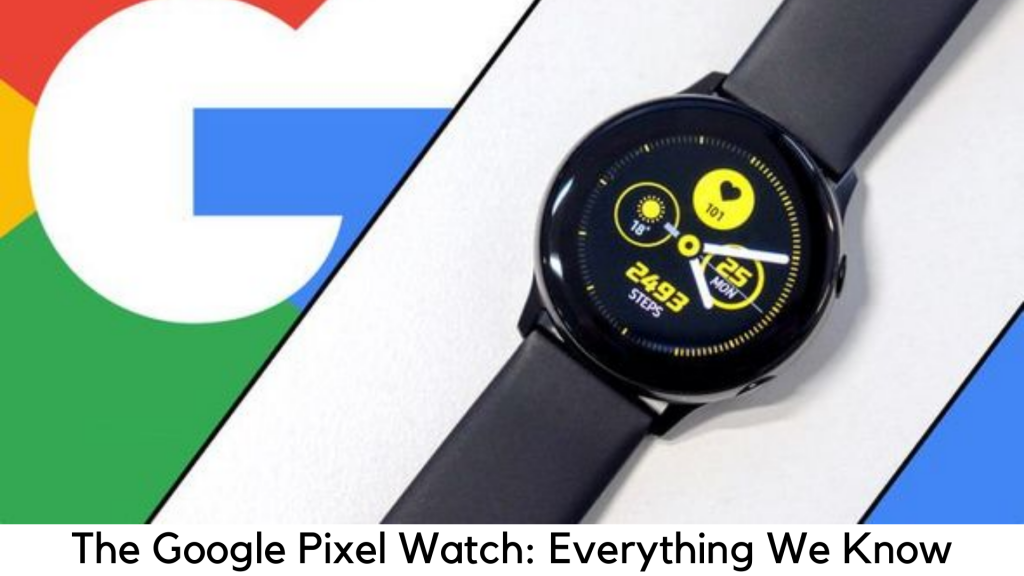
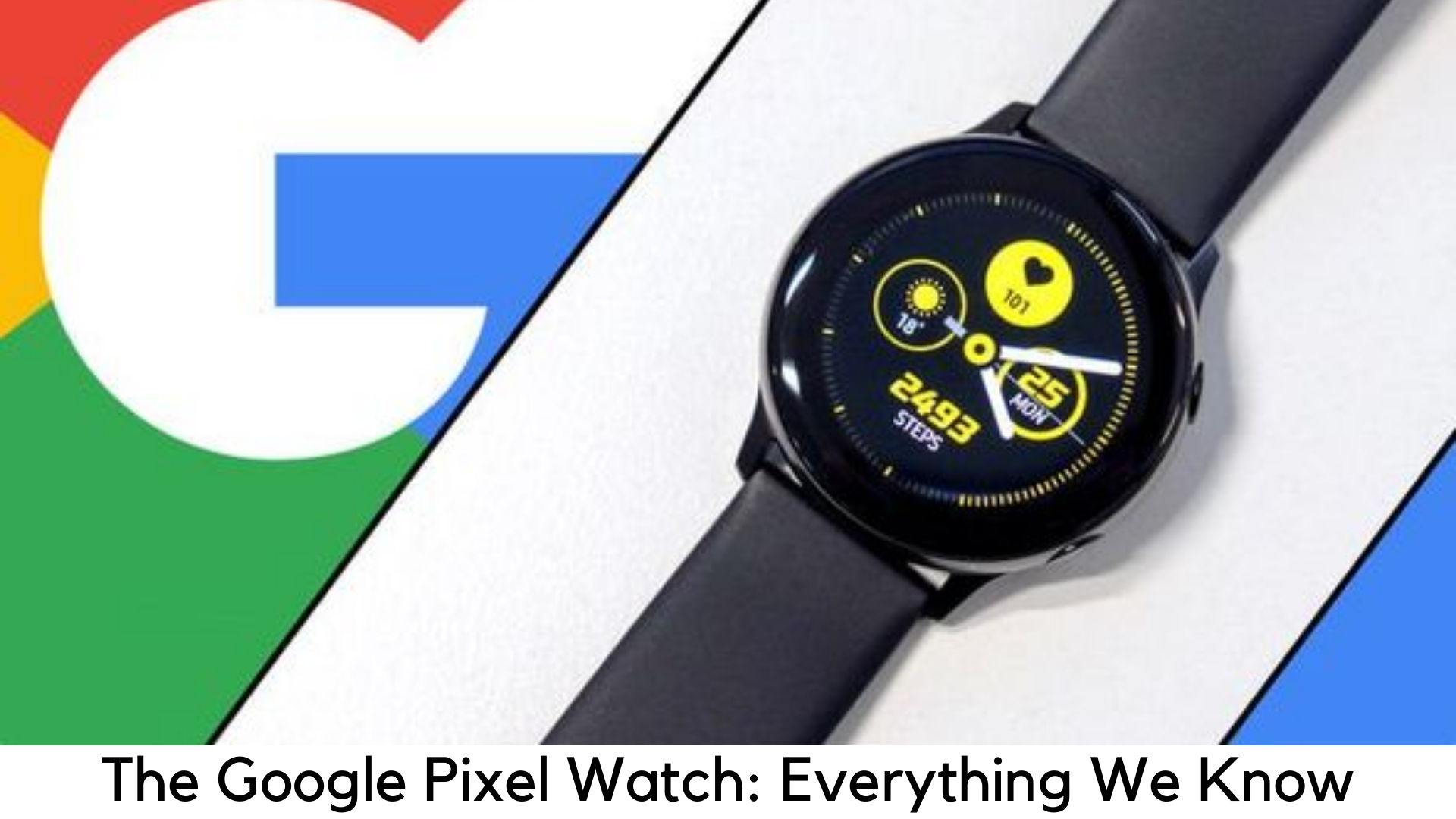
    The Google Pixel Watch: Here’s Everything We Know

    There are also rumors that Google was working hard to make its official smartwatch to showcase what Wear OS can do just like they had done by introducing Google Pixel phones to represent Android. But we haven’t seen any Google-branded watch yet.

    In 2018, @Evleaks, a reliable Twitter leaker, had reported that Google Pixel Watch was being developed and he got the leaks from a trusted source. According to his source, it was supposed to be announced with Pixel 3 and 3 XL. But it didn’t happen either.

    Meanwhile, we are about to break down all the details we know about the Google Pixel Watch so far. We don’t know whether it will really happen. But we have listed some of the speculated designs and features of the first flagship smartwatch by Google.

    Key highlights

    • What is Google Pixel Watch?

      – Google’s first flagship watch

    • How much it will cost?

      – The price might be on the high side, but there is no specific detail yet.

    • When it will be launched?

      – Probably in 2019, Maybe later

    Release Date and Price

    For the rumored Pixel Watch, the official release date has not been announced yet. We heard the latest rumor which claimed that it is October 15 but it didn’t happen and we got only Pixel 4 launch.

    We got our first rumor of the launch date in a tweet from Evleaks who claimed that it would be launched with Pixel 3 and 3XL earlier this year, according to his reliable source.

    Along with second-generation Pixel Buds and Pixel 3 and 3 XL, a reliable source was fully confident that, a Pixel-branded watch would also be launched during the fall hardware event by Google. And it was reported in May 2018.

    But in 2018, Google also confirmed that there would be no Pixel Watch anytime soon. Does it mean we would see it in 2019? Maybe there is no guarantee.

    According to a report about 3 variants of Google Pixel Watch by WinFuture, the device has been on another level of verification of the design. So, it means it is being tested to find out if it is ready for mass production.

    It shows that the design would be final enough for the production line in the future. Also, it has been cleared that a new codename has been found for a device “medaka”.

    It is nothing new because Google always gives its products with a codename of sea creatures. Medaka is a small fish and the device may not have a notch. So, it seems to be a Pixel Watch.

    Price-wise, we don’t have any strong information. Since the Pixel range usually brings high-end products with some flagship-level prices, it is expected that the smartwatch would also come at high prices. But we don’t have any evidence currently to prove that.

    What about the news and speculations?

    There is nothing much known regarding Pixel Watch when it comes to specs. It is all set to be a high-end device that uses the latest smartwatch techs.

    It is expected to run the latest and most powerful Qualcomm Snapdragon 3100 SoC which is known to improve battery life and give more power to your favorite apps.
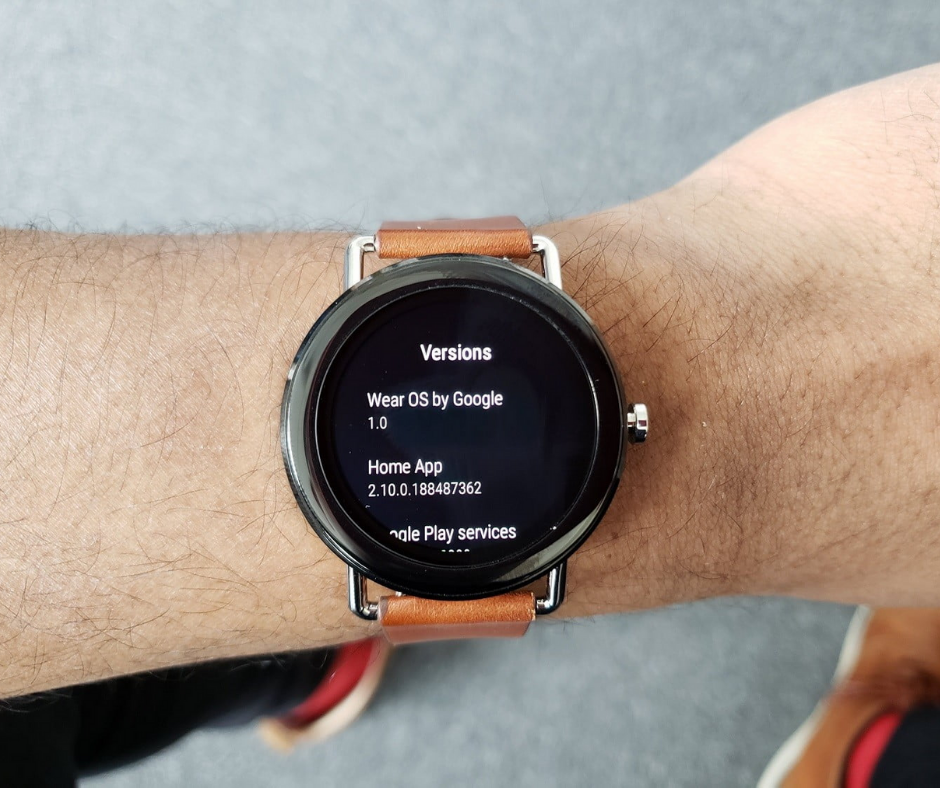
    The Google Pixel Watch: Here’s Everything We Know

    The codename “Blackghost” is another rumored feature that is somewhat related to the power management circuit in the chipset. With this feature, your watch will hear your voice commands all the time without affecting battery life.

    It is not actually the feature of Snapdragon 3100 chipset. But Google may have found a way to add this exclusive feature.

    Another report from WinFuture suggests that the Pixel Watch will actually have 3 versions to be developed. The website has suggested some codenames for devices like Triton, Ling, and Sardine. All of these are being developed at Google HQ.

    The exact differences between the devices are still unclear. It seems that there will be three variants of the smartwatch. According to the same report, one version would come with up to 1GB RAM, which is huge in terms of the smartwatch.

    It is also speculated that one watch will be based completely on fitness and others will have LTE support. We still haven’t heard so far as to what those versions are going to be.

    Here are some of the features expected from Google Pixel Watch –

    1. Rotating bezel or crown

    Android Wear 2.0 has been focused on the way design is reworked to go well with rotating crowns or bezels before switching to Wear OS. We are yet to see other watches having that feature.
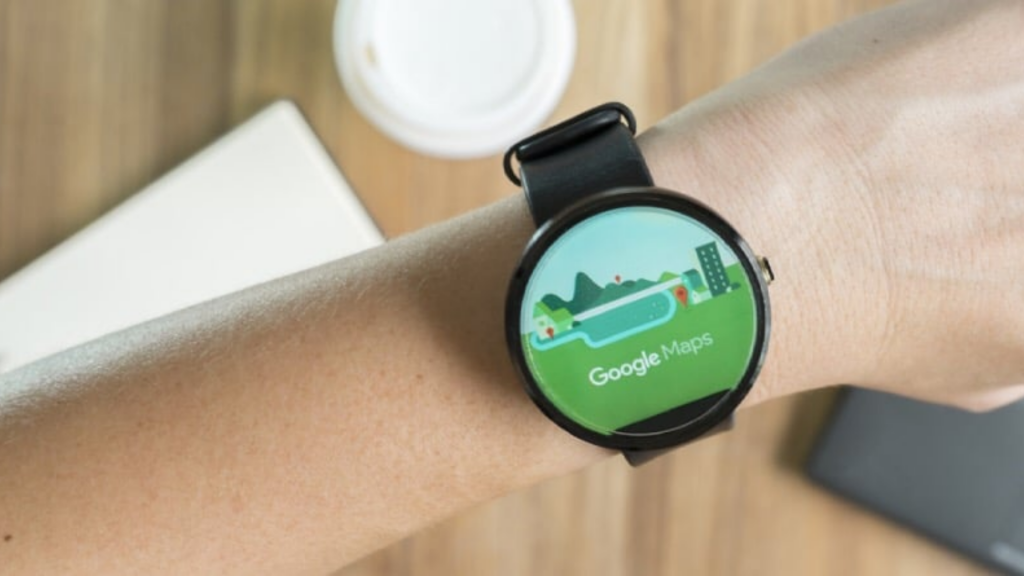
    The Google Pixel Watch: Here’s Everything We Know

    2. Waterproof

    We have seen smartwatches with some level of water and dust resistance. But only a few have managed to come with high enough IP rating to ensure that they can survive when we splash into the pool. We expect a completely waterproof Pixel Watch which would let you keep it on in the pool and also track your activity without any fear.

    3. Up to 3 days of battery life

    Well, this one is quite simple. We expect Google Pixel Watch which doesn’t need to charge up even after 2 days of heavy usage.

    Wear OS features a handy battery saver mode which can give even more time with smartwatch while limiting some features when it is turned on. Google definitely needs to improve the longevity of the smartwatch after a single charge.

    4. In-display fingerprint sensor

    Adding an in-display fingerprint sensor can definitely put Pixel Watch ahead of the competition. Currently, Apple Watch and Wear OS watches are locked with a PIN code.

    But it is not that secure. The in-display fingerprint scanner can fit smoothly into the watch without having to affect its visual appeal. You can also allow purchases with NFC.

    But there are a few challenges. First of all, the thickness of the watch could be increased by adding this technology. Second, it might also cost higher. If Google manages to deal with these challenges, Pixel Watch could be a killer tech for Android users.
  • 8 Privacy Settings You Need To Set On Your Phone RIGHT NOW

    8 Privacy Settings You Need To Set On Your Phone RIGHT NOW

    Important Privacy Settings

    With cloud and new tech coming out all the time, securing your privacy has become very important. One thing you should know before we jump in is that as long as you are going to use Google services, there is no sure-shot way of securing your privacy. However, by following these tips and modifying your privacy settings, you can secure yourself better and don’t have to hand over your personal information to a hacker on a silver platter! However, to be fair, Google is working to protect data. Take a look here!

    Strong alphanumeric password

    One of the first things to do is to set a strong password containing alphabets and numbers. While you will receive the option to use a PIN or a pattern to unlock your phone, an alphanumeric password is far stronger. 

    Biometric Authentication

    While you can always unlock your device using your fingerprint, it is not advised, especially considering the legal grey area surrounding it. 

    Biometric Authentication
    Biometric Authentication

    Disable Google’s tracking

    Google thrives on data, which is why you should disable Google tracking ASAP. If you visit the Menu button, you will find the “Activity Controls” section. Here, you can disable search tracking, voice tracking, location tracking, and anything else you can think of. 

    Android Device Manager

    Thanks to this, you would be able to locate your phone remotely. While this may seem like an excellent feature, this is definitely a privacy issue. While Google will have the location detail to help find your phone, on the other hand, Google knows a lot about you. 

    Encrypt your phone

    This is a good option to consider for those having smartphones that are made by manufacturers who don’t encrypt the phone by default. One way to find out is to see if you require a PIN when the phone starts. If you do, the device is probably encrypted. You can always encrypt it by visiting the Settings menu and making your way to the Security option. Within this, tap on Encryption and select the ‘Encrypt Phone’ option. If it is already encrypted, you will see a status mentioning the same. If not, details on how you can do will be presented. 

    Two-factor authentication

    You may think you have a pretty strong password but are the hackers just one password away from accessing all your personal data? This is why it is highly recommended that you enable two-factor authentication. You can do this for your Google account or any other account. These apps will help you protect your data as well.

    Disable Google backup

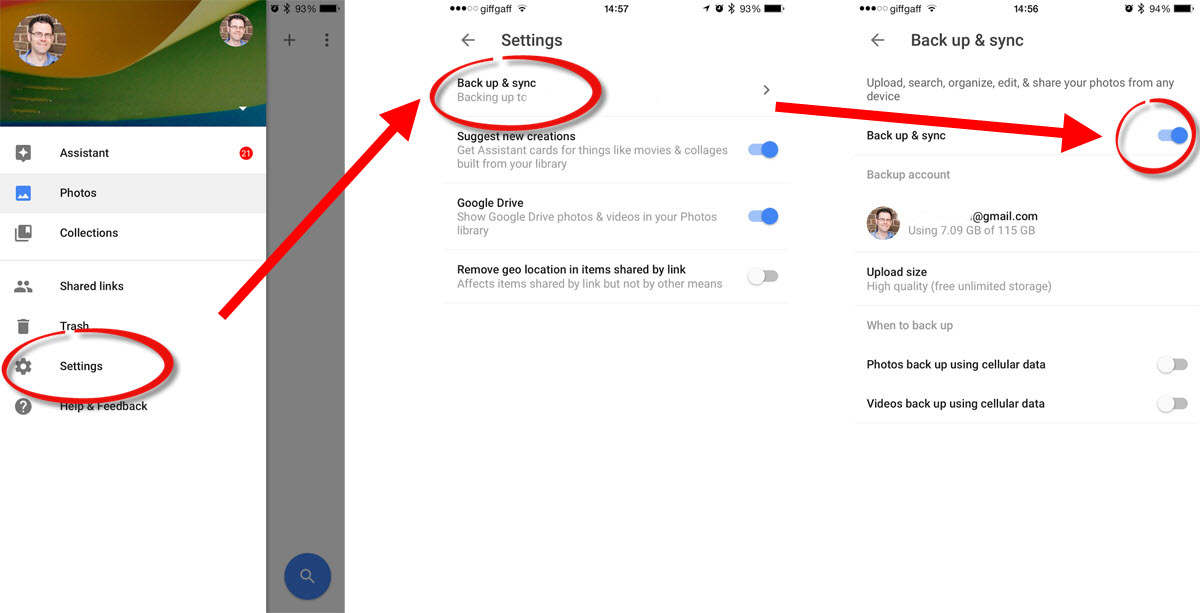
    Google automatically backups everything on your phone, ranging from apps, updates, and Wi-Fi networks, to passwords, history, and more. If you don’t want Google to have access to all this data, you can disable the backups by visiting the Backup and Reset option in the Settings Menu. You can disable it entirely or choose specific data that you don’t want to be backed up. 

    Privacy Settings
    Privacy Settings

    Hide notification information from the lock screen

    This may seem like a pretty simple thing. But since Android shows alerts and notifications when your phone is locked, chances are that private data could be seen by other eyes. You can either hide sensitive content or hide the notification completely. 

  • Why Your Android Phone Is Overheating and How to Stop It

    Why Your Android Phone Is Overheating and How to Stop It

    No one is ever immune to Android phone overheating. Most of us have experienced it at one time or the other. So, why does this happen and what can you do to stop it?

    Reasons for Your Android Phone Overheating

    Let’s take a look at some of the most common reasons why your phone might overheat. This does not refer to when your phone slightly warms up when you have been playing a heavy game for some time. This is when it gets too hot to touch. What could be some of the reasons?

    Your phone could overheat if you have connected to a Bluetooth speaker for a long time or are overusing the phone. Did you know that phones having a high-quality camera can also heat the phone up? This is not true for all phones, but it could happen in some cases. 

    Android Phone Overheating
    Android Phone Overheating

    Other factors that could affect your phone could be the screen brightness, temperature, and long use of the camera. If your phone overheats quite high, chances are that you might see a warning. Using a case while using heavy-duty apps could also promote overheating, especially the cases made using plastic or leather. 

    If you tend to install apps from unknown sources, you should probably check for malware on your phone. This could be another reason for your phone overheating. Another possible cause could be your phone’s battery or the charging cable that you use. If you have an older model phone, it is advised that you don’t charge it completely. Stop when the battery level reaches 80 to 90%. Consistently charging to 100% could overheat your phone, especially with older phones. 

    It is a commonly believed myth that Wi-Fi could overheat your phone. While Wi-Fi by itself cannot be held responsible, overuse of Wi-Fi could certainly overwork and heat up your device. There are plenty of apps out there that could help you manage Wi-Fi or your battery. You will find great options here

    Why Your Android Phone Is Overheating
    Why Your Android Phone Is Overheating

    How to Cool Down Your Phone 

    Now that we have seen some of the reasons why your phone could overheat, let us take a look at how you could cool it down and keep it working efficiently. 

    The first thing to do would be to remove the case, especially if it like plastic or leather that can trap the heat. It is also a good idea to switch the airplane mode on so that all connectivity is disabled. If you are outside or if you have kept the phone under direct sunlight, remove it and keep it elsewhere. It would also be a good idea to not play heavy games like PUBG for a long time. 

    While you can use a fan to cool down your phone, never put it into a freezer or a cooler. That could have disastrous effects. Reducing the brightness could also help cool down the device. Other possible options to cool down your phone could include using the battery saver mode, cleaning all the junk in your, and disabling Bluetooth and Wi-Fi. 

  • YouTube: How to Delete All Offline Videos From the YouTube App on Android, iPhone, or iPad

    YouTube: How to Delete All Offline Videos From the YouTube App on Android, iPhone, or iPad

    It is impossible that you would not have heard of YouTube, the world’s biggest and most popular video-sharing platform. It is completely free and is huge fun! If you feel your child is addicted to YouTube, here are a few ways you can make YouTube safer for children. Check them out. About 5 years back, YouTube released a feature that lets users download videos and later, watch it on their phones. This put an end to slow streaming and lagging videos. Most YouTube videos can be downloaded today, but for that, you would require a smartphone, such as an iPhone or an Android phone. 

    Videos cannot be downloaded on to your desktop. Once downloaded, you can view it in your saved folder within 30 days. One thing you should note here is that after the 30 days, the videos will continue to be present in the Downloads section. You will no longer be able to play them, but they will not be automatically deleted either. You will have to manually do this. 

    YouTube
    YouTube

    Delete YouTube Videos

    Downloaded YouTube videos are an ingenious idea. You can download them before you head out to areas that don’t have a strong connection or while traveling where there are chances of a spotty network. This is a great idea if you are traveling by flight. Over time, the data charges have come down quite a bit, but if you are going to binge, it is a far better idea to use your Wi-Fi to download the video and later view it offline rather than use your data and stream it online. 

    One potential downside to this is the fact that storing tons of high-resolution videos could eat up all your storage space. However, you can always delete the videos whenever you want. You can do this all together or one by one, as you wish. Let’s take a look at how you can nail this. If you want to install one or the other versions of YouTube, this is a good place to do it. 

    How To Delete All Downloaded Youtube Offline Videos At Once

    To know how you can delete all the downloaded videos from the YouTube app, first open the app and tap on your profile. This should be located on the top right corner. Go to Settings and open the Downloads section. This will work for Android devices. If you are on an iPhone or iPad, make your way to the Offline section. You will find the Delete Downloads option. Clicking this will remove all the downloaded videos on your device. 

    How to Delete All Offline Videos From the YouTube App
    How to Delete All Offline Videos From the YouTube App

    If you don’t want to delete everything, there is a method with which you can delete specific videos. Let’s take a look at that in the next section. 

    How To Delete Downloaded Youtube Offline Videos One By One

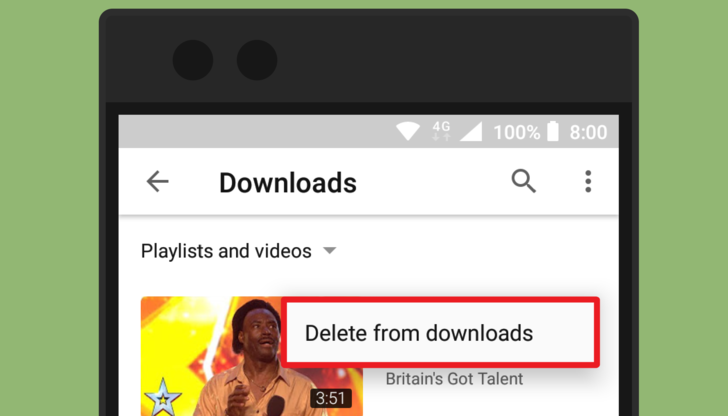
    Open the YouTube app and click on the Library Tab located on the bottom right side of the screen. Within the Available Offline section, open the Downloads tab. You will be presented with a list of downloaded videos. Click on the three dots next to the video. Select Delete from the menu that shows up. 


  • Check Chrome Version and Update Google Chrome Manually

    Google Chrome is obviously the most popular browser and is the first choice of users on all platforms. For better security, it is important to keep it up-to-date and Google also releases a lot of major security updates all the year round for this browser. However, there are some people who wonder how to update Chrome as it doesn’t have any large update button around.

    The reason is simple. Google Chrome is designed to update automatically by default without any intimation. It doesn’t even tell you that it has been updated. But sometimes, it may not happen. In some cases, you might want to install updates on your own.

    By default, Google Chrome is set to update automatically on both Mac and Windows, by default. In this guide, we are going to discuss how to update the browser to the latest version. The way you can update Google Chrome varies as per the platform the browser is being used.

    It is quite easy to update Google Chrome on desktop as well as on iOS and Android. If you are one of the users looking to check the latest update, here are the detailed steps to do.

    Update Google Chrome on Mac or PC

    All the major Google Chrome versions get patched and updated regularly, including Google Chrome for macOS, Windows, Android, Linux, and iOS. Google rolls out a new major update almost every month or so and updates are synched in different platforms. Here are the steps to update Chrome on different devices.

    Chrome for PC

    Like several other browsers, Google Chrome is also designed to update by default on its own. If it doesn’t update due to any reason, there is also an option to do it on your own. There are two different ways to update Google Chrome – using the address bar on the app and Main Menu.

    Both of these methods are working on Mac, Windows, and Linux systems. Here are the methods to update Chrome on laptop or desktop –

    Method 1

    In this menu, you can use Main Menu on Chrome to check updates.

      • Open Google Chrome from the desktop.
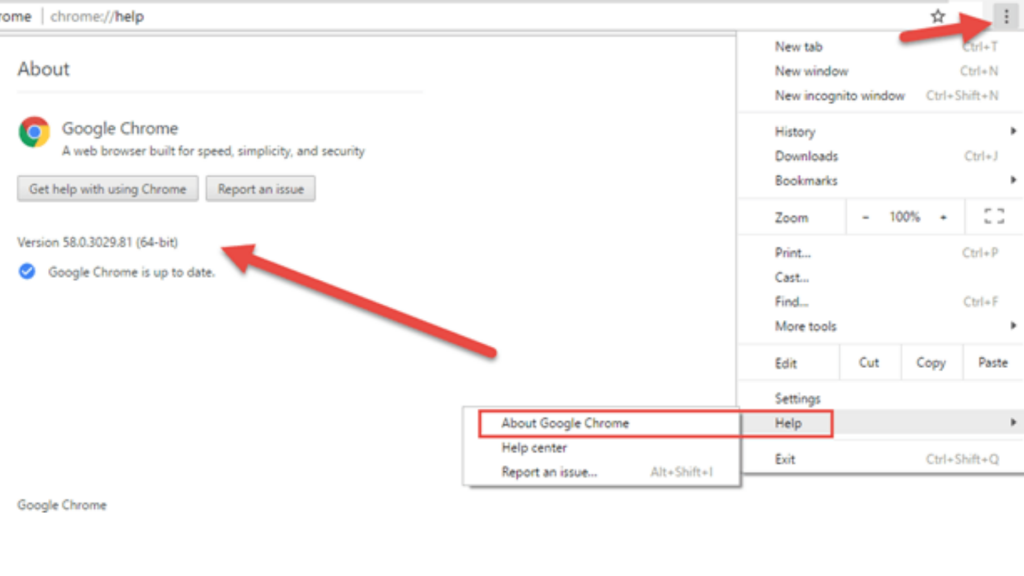
      • Click on Main Menu on the upper-right corner of the window
      • Hover around the “Help” option in the drop-down menu
      • Click “Update Google Chrome” in the sub-menu. Click on “About Google Chrome” if it is not there.
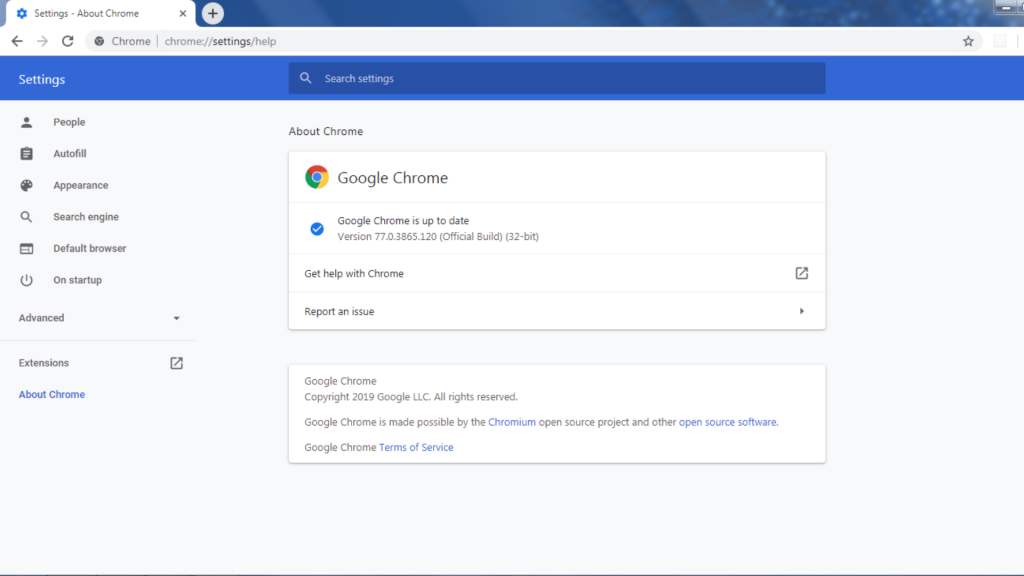
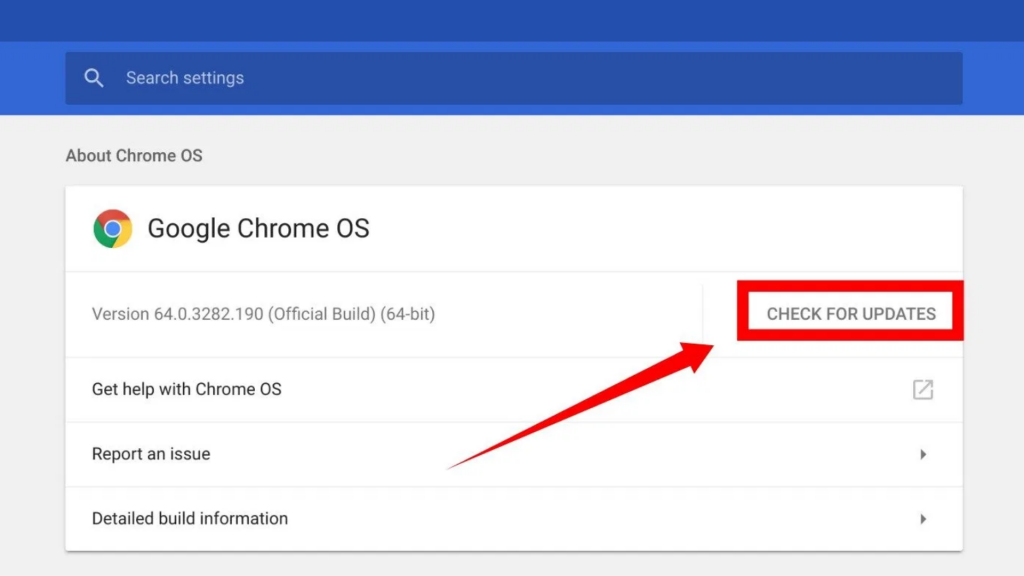
      • If you choose “About Google Chrome”, the “About” page will open. The existing version will be displayed and you will be able to see the available update. Click the “Relaunch” option and wait for the browser to restart after installing the latest version.

    Check Chrome Version and Update

    Method 2

    This method is quite faster and you need to use the address bar of the browser.

      • Double click on the Chrome icon to launch the browser.
      • Enter “chrome://chrome/” and press “Enter” on the address bar.
      • Then, you will directly enter the “Help” page in Chrome. If there is an update available, click the “Relaunch” button and wait for the browser to install updates and restart.

    Method 2

    Checking availability for update

    Keep in mind that the recent version of Google Chrome tells whether the update is available or not. In order to check the availability for an update, go to the Main Menu on the top right corner.

      • If the menu icon is grey, it means the browser is up-to-date.
      • It will be green if an update has been offered for two days.
      • The update has been there for four days if it shows the orange icon.
      • If there is more than one week, it shows the red icon.

    Check Chrome Version and Update

    Update Google Chrome on Android

    Chrome is the default web browser on all Android devices. It comes with every Android device as it comes bundled with Google apps. Google Chrome is also set in Android to be updated automatically by default similarly with other Android apps. You will be required to update the browser manually via the Play Store app if automatic updates are off.

    Update Google Chrome manually on Android

      • First of all, tap on the Google Play icon on your Android device.
      • Launch the Google Play store, tap on the Main Menu icon on the top-left corner, which seems like a hamburger icon.
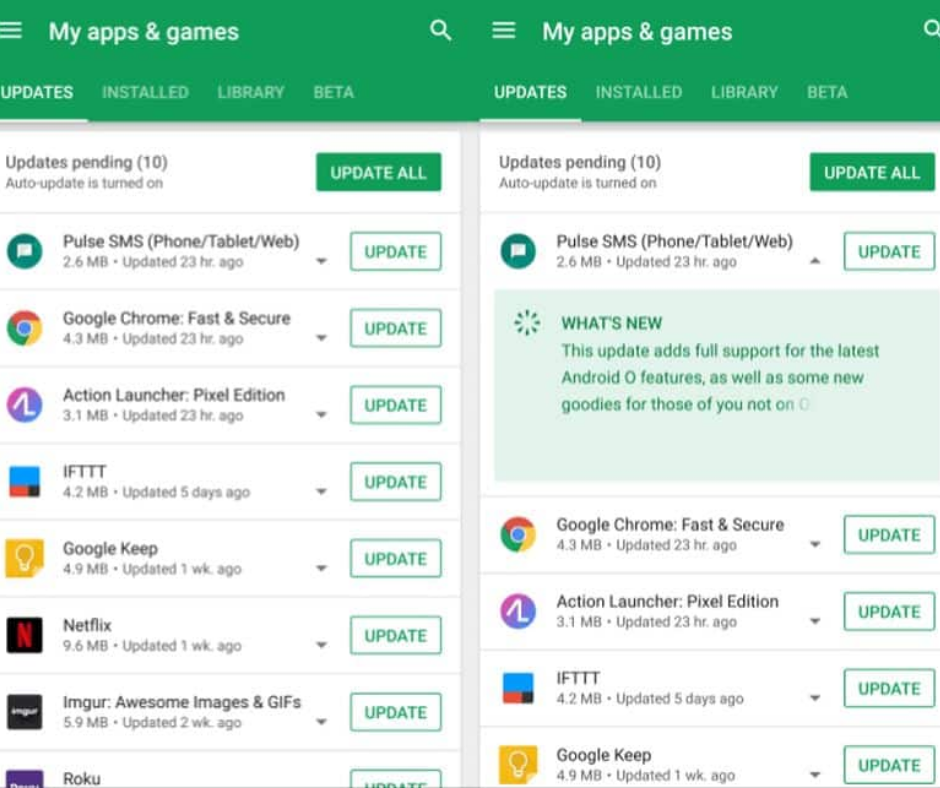
      • Next up, go to the side menu and choose “My apps & games”.
      • Apps that have been available and updates are pending will be featured in the “Updates” section. Over there, search for Chrome.
      • If it is listed with the Update button, tap on it.

    Also, the process of updating Chrome on desktop and Android is totally different. It doesn’t show availability for the update when using Chrome for Android. Therefore, you cannot change the setting for default update from automatic to manual.

    Update Google Chrome manually for iOS

    Similarly, like other platforms, Google Chrome for iOS is also set to update automatically by default. Just like the Android App, Chrome is unable to be updated from inside the app for iOS and you will be required to update the same via App Store. Here are the steps to update Chrome on your iPad or iPhone manually.

    Update Google Chrome manually for iOS

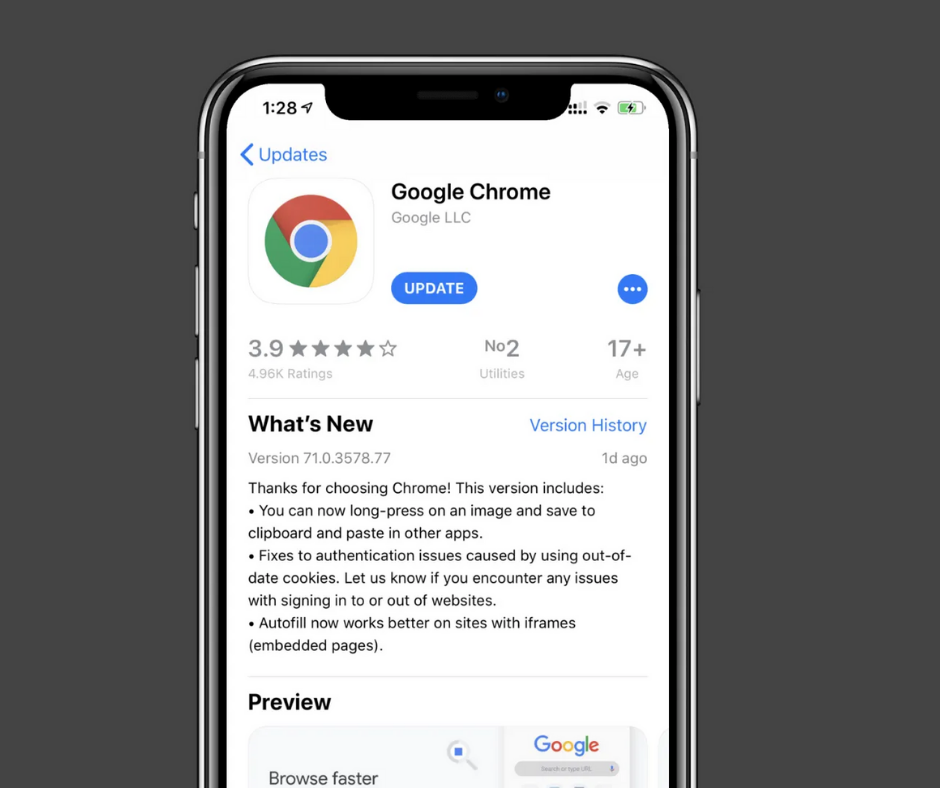
      • Launch the Apple App Store by tapping on its icon on the Home screen.
      • Simply tap the “Updates” button on the bottom of the screen.
      • Browse the updates pending for Chrome.
      • Tap “Update” button to install the recent version if it is listed there. It means the app is up-to-date if you are unable to find it.

    In some devices, you might need to confirm that you want to update. Just type your Apple ID and password if it prompts you to update the browser. In addition, Chrome also doesn’t show the availability of updates in iOS like on desktop. Hence, you cannot set the preferences for updates to manuals in iOS, too.

    Summary

    Users can decide how and when to install updates on Google Chrome for macOS, Windows, and Linux. You will also get notified whenever updates will be available. On the other side, you cannot set the updates on Chrome to manual on Android and iOS. Additionally, you will have to use the app store to update Chrome on both iOS and Android.