Author: Poonam

  • Google Play Pass Subscription Service to Launch Soon, Google Confirms

    Google Play Pass Subscription Service to Launch Soon, Google Confirms

    Well, the usage of Google in all the ways has become bigger and better than expected in recent times. Yes, from browsing to money transactions, everything has been used with the support of Google in recent times. Even millions of people are excited about accessing Google for various reasons.
    Google Play Pass Subscription Service

    When it comes to Google Pay or some other services from Google, you will feel comfortable and at the same time, the usage is completely secure. It is also one of the main reasons where millions of people focus on this platform.

    Exciting news from Google

    As we mentioned earlier, the usage of Google is growing like never before in recent times. Generally, when it comes to downloading the games or apps in an Android device, we visit PlayStore to download. For information, it has a combination of paid and free apps to download. Most of the people may download the apps which are providing for free.

    On the other side, some people may excite about downloading the paid apps due to their features which are hidden in it. However, after seeing the paid apps, some of them may reduce their interest in downloading those apps.

    Now, the exciting news is where you can use the paid games or apps in a subscription plan. Yes, all you need to do is complete the subscription process and get ready to access any paid apps for free without any hassles. Well, this could be the best news for Google platform lovers for sure.

    Google Play Pass is the name, which is going to arrive soon. This could be the best and new development for android users at any time. After the launch, the handling of premium apps or games will be huge in the future for sure.

    Confirms on Twitter

    This news is considering that has the similarities with Apple Arcade which was announced earlier to Apple users in order to access the premium apps and games with the subscription charges. If you see about Google Play Pass information, it has been confirmed over twitter recently.

    So, the launch of Google Play Pass will happen soon and millions of android users are expecting to use soon with reasonable subscription charges. When it comes to news, it has been confirmed by Google Play on Twitter.

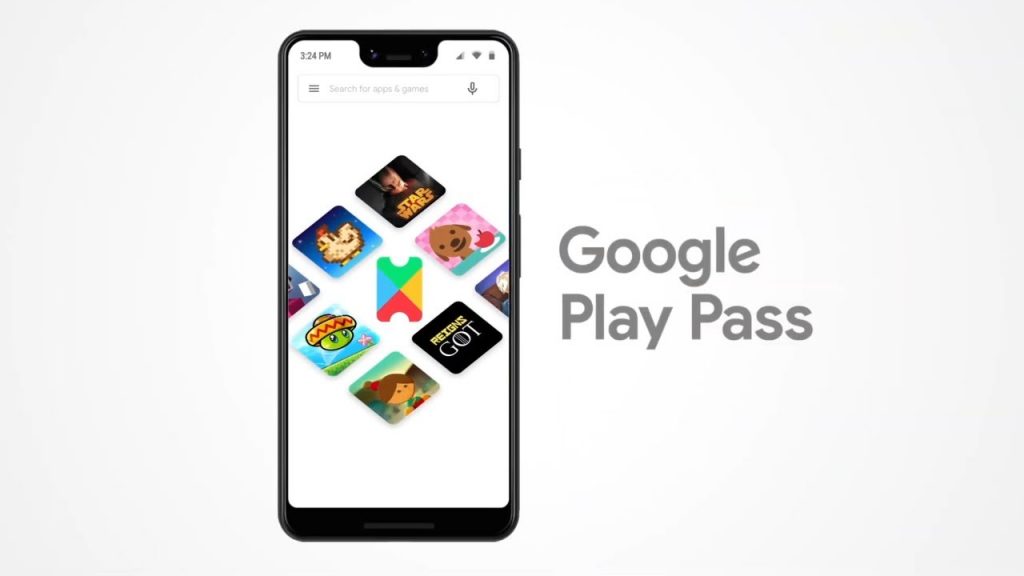
    Hopefully, this new service will be liked by all. Even some of the users have shared some screenshots across the internet regarding the sneak peek over the development. This thing is confirming that there may be a chance to receive Google Play Pass soon. As per the reports, then Google Play Pass was supposed to launch last year itself. However, it is going to launch soon this year.

    Google Play Pass subscription service charges

    Now, this is the main thing where most of the people across the globe looking for it. Well, there is a leaked screenshot getting a ride over the internet related to subscription charges. It looks like the subscription will be $4.99. If you are in India, then you will be paid of Rs.360 for monthly usage.

    For information, there will be a chance of witnessing the free trial of 10 days in the beginning. Post free trial; you will witness the subscription charges. However, there will be different plans to choose from and go according to that. Once the plan is fixed and subscription charges are done on your device, then you will be going to experience the better result in the end for sure.
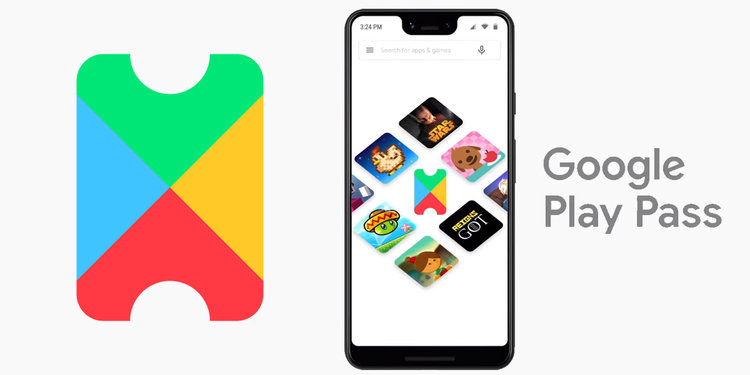
    Google Play Pass subscription service charges

    After the successful launch, you will get a great opportunity to use premium apps or games that whenever you want. So, people don’t need to be worried about downloading premium apps every time. By using Google Play Pass Subscription, you are ready to access it at any time.

    One can expect that Google will be going to offer a different price structure in order to grab the attention of people. People who all in the US and UK, also going to witness the usage of Google Play Pass at any time with reasonable subscription charges for sure.

    The best thing about this service is where you can also get the bouquet of paid apps as well as games to use in a single subscription charge. According to your interest, you can choose the best bouquet that will be suitable to you. If the plan is fixed successfully, one can see a better outcome than expected for sure.

    Games spotted in the screenshot 

    Like we said earlier, the subscription charges displayed in screenshots that are having a roam across the internet. Even some of the games spotted in roaming screenshots like Marvel pinball, Monument valley, Mini metro and more.

    These kinds of premium games will be available for the Google Play Pass subscribers. Yes, they can play all the premium apps or games at free of cost without any hassles at any time.

    The best thing is where you can also witness the ad-free games or apps from this. So, whenever you are going to access it, then you will not be going to see any ad in between to annoy you. It means the subscribers are ready to experience the smoother process while accessing this service on their android devices at any time.

    One should keep it in mind that the subscription plans will be different and the price also varies according to that.

    Interesting fact

    Before the announcement of the iPhone 11 event, Google declares the announcement on the launch of Play Pass Subscription. At the same time, one should know that Apple also made an announcement over its service called Apple arcade.
    Interesting fact

    Yes, it is also almost similar when compared to Play Pass at any time. If you see the Apple Arcade, then it will offer the massive collection of games to use like Oceanhorn 2, Beyond a steel sky and others. So, people who all are the Apple user, then this news could be the best thing for you to experience it this year.

    Expect the launch soon

    So, people who all are struggling to download the paid apps that whenever they want, the usage of this Play Pass will always going to be the best for sure. Yes, by just following the proper subscription plans, you will get an opportunity to use many premium apps without any complicatedness.

    At the end of the day, all you need to do is waiting for some more days for the official launch soon. If you are a fan of Google, then this service will be even more pleasing to you.

    Wrapping up

    Before going to experience the service on your android device, you can also get a chance to use a free trial for a better understanding. If you are completely satisfied with the usage of a free trial, then you can choose the right plan and go according to your wish at any time.

    As per your wish and convenience, one can pick the right premium apps or games for their devices to access that whenever needs. Hopefully, the features of this service will be announced during the time of launch for sure. At the end of the day, this service could be the treat for all the android users.


  • How to Turn Off Notifications on Android

    How to Turn Off Notifications on Android

    How many applications do you have on your Android smartphone? Are all of those applications equally important to your work or your life? Or are some of those applications present on your phone just for the sake of your pleasure?

    How to Turn Off Notifications on Android

    Chances are that the answer to all of these questions is in the affirmative. We often have a number of applications on our smartphone devices and a majority of those applications are not even that important to our work and life.

    This is why we often face the issue where we are doing something very important and our phone beeps indicating that there is a notification. You obviously will not want to miss any important notification so you go ahead and check your phone only to know that it is something trivial or an advertisement.

    That is extremely annoying and you would definitely want to put an end to it as soon as possible, right? If you have answered yes to that question then this article is for you as we will tell you about all the methods and steps which you need to follow to turn off notifications on your android smartphone.

    Issue with Notifications

    Constant notifications do not just disturb you for a temporary moment but can have long-term effects on your concentration, memory, and other cognitive functions. According to a study conducted by Florida State University, notifications are one of the primary modern-day causes of ruined concentration amongst teenagers and adults alike. All natures of notifications are very destructive to the concentration of an individual whether it is a small beep or a longer ring.

    Many studies have also shown that an individual does not even have to interact with his or her smartphone device to be disturbed by the notification. Simply hearing the notification sound or even perceiving the notification light is enough to get an individual derailed from whatever task he or she was performing.

    It is also quite interesting to note that this behavior is not just restricted to people who are labeled to be ‘smartphone addicts’ but instead, is found in people of all ages who are in constant touch with technology.

    Methods For Turning Off Notifications on Android

    If you are tired of being distracted every single time your phone displays a notification or makes that beeping sound then, it is best for you to turn off the notifications on your android. There are different versions of android available on different smartphones. The settings option for those versions of android can differ from one another. Hence, a list has been made which can be followed to turn off notification on a different version of android. And that list is mentioned below.

    Turning Off Notifications on Android 5.0 Lollipop and Up

    In devices that run on the Android 5.0 Lollipop or up, it has been made incredibly easy to turn off notifications. This has been done by introducing a specific section that is solely dedicated to turning off notifications on the android device. The steps for turning notifications off in Android 5.0 Lollipop and up are mentioned below.

    Turning Off Notifications on Android 5.0 Lollipop and Up

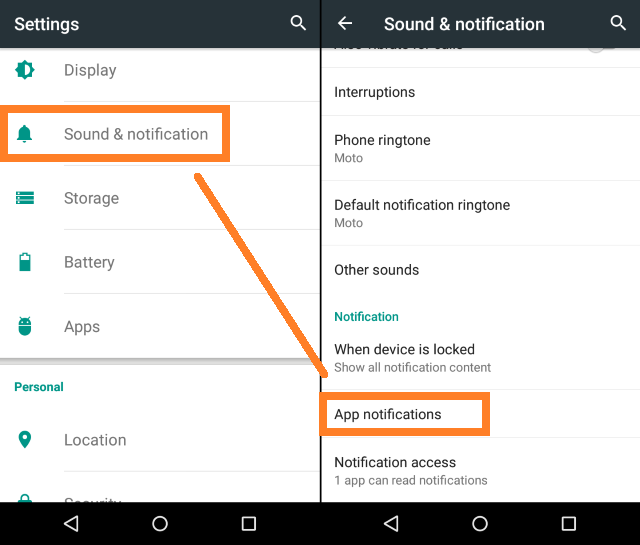
    • Go to the ‘Setting’ icon and scroll down to the ‘Sounds and Notifications’ tab
    • Now click on the ‘Sounds and Notifications’ option and again scroll down to the option of ‘App Notifications’
    • Next to click on the option of ‘App Notifications’ and find the application from the list which you would prefer to stop receiving notifications from
    • Click on the icon of the application which you don’t want to receive any notifications from and tap the boggle option for ‘Block’
    • Find other applications from which you would not want to receive a notification and follow the step mentioned above to always avoid being disturbed

    There will also be a boggle named ‘Priority’ below the ‘Block’ boggle. It is important for you to not be bothered by that option at this moment as it is designed for creating a sort of separate list of applications that will be allowed to send you notifications even when the ‘Do Not Disturb’ (DND) mode is on. This option should only be used for applications that are highly important to the android smartphone user.

    Turning Off Notifications on Android 4.1 Jelly Bean to Android 4.4 Kit Kat

    Not every Android smartphone user will be using the rather latest Android 5.0 Lollipop or above and if you are one of those readers who are using an android variation from an Android 4.1 Jelly Bean to an Android 4.4 Kit Kat then, you can follow the steps which are mentioned below to turn off notifications on your device.

    Turning Off Notifications on Android 4.1 Jelly Bean to Android 4.4 Kit Kat

    • Look for the ‘Settings’ option and click on it. Scroll to the option of ‘Apps’ from the list which is available
    • Click on the option of ‘Apps’ and select the application from which you would not want to receive any further notifications
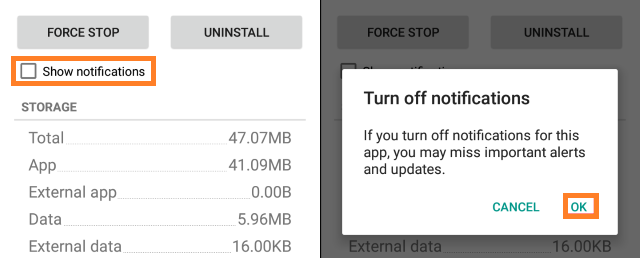
    • Look for the checked box named ‘Show Notifications’. This option will be present below the ‘Force Stop’ button
    • Click on the box next to ‘Show Notifications’ to uncheck the box
    • A message will display which will be asking you to confirm whether you want to turn off notifications for that application or not. Simply click ‘Ok’ to proceed further
    • When you are done, go ahead and find other applications on your android smartphone from which you would not want to receive a notification and follow the 3rd to 6th steps.

    Turning Off Notifications on Android 4.0 Ice Cream Sandwich or Older

    These days it is common for individuals to use Android versions 5.0 and above. Many users also end up using Android versions 8.0 and above. Hence, it quite uncommon to find users who still use devices with Android 4.0 Ice Cream Sandwich versions or older.

    But if you are one of those people who are using such an old device then it is high time for you to change your device and replace it with some newer model of smartphone. Not to mention the fact that there is no option in a smartphone with android version 4.0 Ice Cream Sandwich or below to turn off notifications.

    Final Words

    Following all of these methods and steps should get rid of all your constant notifications issues. However, if you are still receiving constant notifications then comment it down below so that we can help you out as soon as possible!


  • Xbox One S Review Details and All Insights

    Xbox One S Review Details and All Insights

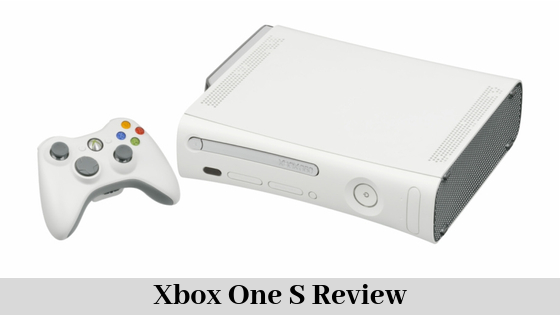
    If you are an individual who usually loves gaming and considers video games to be one of the biggest pleasures which life and technology can afford then there is no way that you would not have heard of Xbox. Xbox is a series of video gaming console models that are developed and released by Microsoft.

    Xbox One S Review

    There are literally thousands of options that one can select from if he or she has one of the Xbox gaming consoles. One of the best things about Microsoft when it comes to gaming is that they always tend to revise their gaming consoles and release them with better and more advantageous features.

    Xbox One S is one such gaming console and it’s release date is 2 August 2016 by Microsoft. Since then, millions of Xbox One S gaming consoles have been sold by Microsoft and the sales for this video gaming consoles are still going strong. If you are one of those people who are thinking about purchasing an Xbox One S then you would want to be as informed as possible.


    In addition, what better way to do it than to get a detailed review of Xbox One S? If you agree with us then this is the right article for you as we have listed everything, which you would ever need to know about the Xbox One S in this review mentioned below. The information has been divided into sections to make it easier for you to analyze.

    Basic Information About Xbox One S

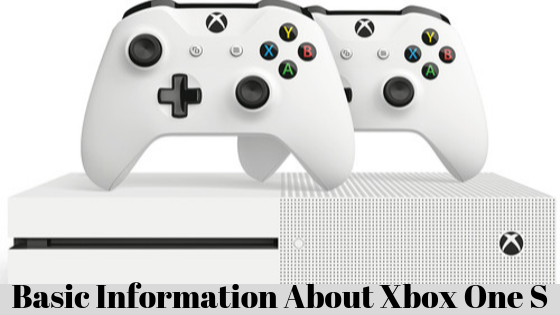
    The most obvious improvement of the Xbox One S gaming console over its previous models is the fact that this version is slimmer. There are many other features in this gaming console model which will be discussed later in this review. According to the official website, the Xbox One S is 40%slimmer than its previous model!

    Basic Information About Xbox One S

    This makes the model very pleasing to the eye and also gives it an edgy design. When compared to the PS4 Pro, this model seems to be the true beauty in terms of its design. Xbox One S also comes with a 4K Blu-ray drive giving it an edge over the PS4 Pro, which lacks the 4K Blu-ray drive.

    Design, Ports, and Controller of Xbox One S

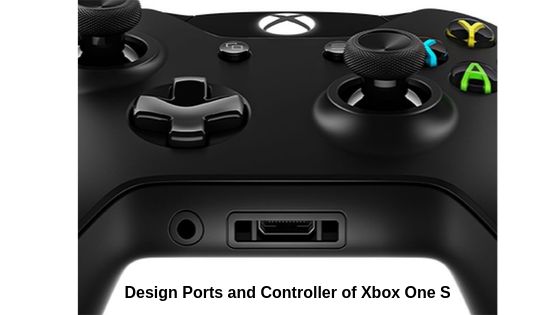
    Xbox One S comes with a power button that is not touch-sensitive. This means that even if you are cleaning your gaming console then it won’t just turn on and off on its own. The USB port is also present at the front of the model rather than on its sides which makes it easier to connect the controller to charge it.

    Design, Ports, and Controller of Xbox One S

    The controller also supports Bluetooth, which makes it incredibly easy to connect it with a laptop or PC. This is in tune with the Xbox Play Anywhere initiative, which means that you can play your favorite games whenever and wherever you want to. There is also a subtle textured grip on the controller, which makes it easier and more comfortable to hold. There is no difference when it comes to the ports, which are present at the back of the console.

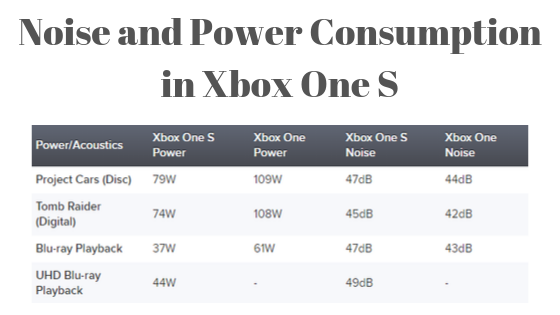
    Noise and Power Consumption in Xbox One S

    When you start using, the console there is a certain sound that you can definitely hear in the background. However, this sound tends to go away once you start playing your game. This sound is between 44dB and 47dB, which is almost similar to what the Xbox One was producing.

    Noise and Power Consumption of Xbox One S

    There is a significant improvement in power consumption. This means that this console is slightly less pricey to run over the years as it consumes less power than the earlier models.

    4K Blu-Ray Drive Functionality

    The Xbox One S comes with a 4K Blu-ray drive pack, which is also packed with High Dynamic Range (HDR) support. This increases the color gamut exponentially and makes the overall color pallet far wider. This can simply translate to you getting far better, more vibrant, brighter, and better images than ever.

    The darker scenes have a smooth shadow gradient and highlighted scenes are less prone to clipping. Nevertheless, to fully take advantage of these features the user will require a 4K television which should also ideally support HDR. Therefore, if you have a 4K TV or if you are planning on buying one then this can be an important consideration.

    HDR Functionality

    The HDR functionality in Xbox One S allows it to produce staggering results when it comes to reading details related to every last shred of information. This makes the entire content appear almost to be in three dimensions. This can significantly improve your overall video gaming experience.

    Picture Settings of Xbox One S

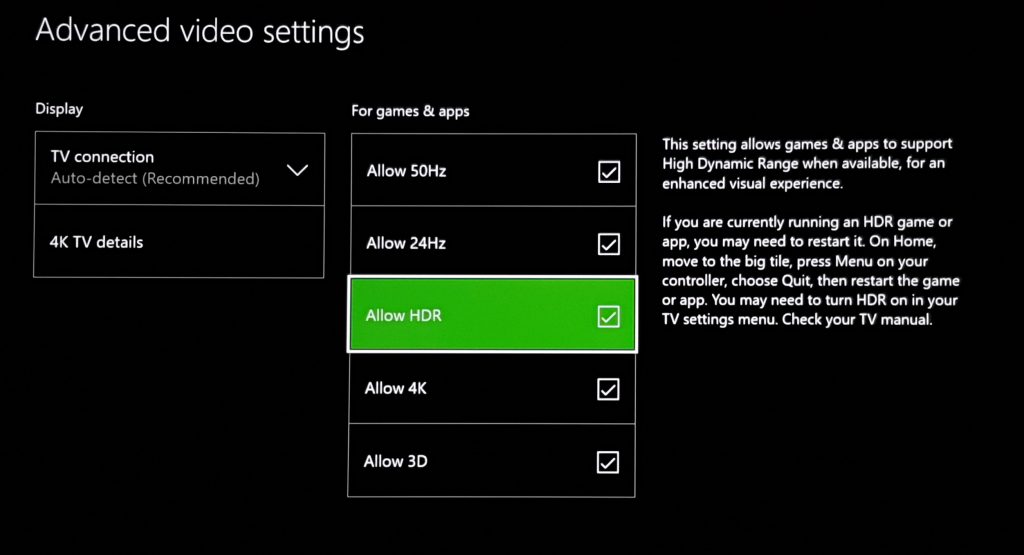
    If you head on to the option of ‘Display Settings’ option on an Xbox One S then you will find a very helpful display calibration guide which will let you get the best quality pictures on your device. If you are not sure about the exact settings, which you should use then it, is best to follow the options and settings, by the display calibration guide in Xbox One S.

    Picture Settings

    You also get complete access to more advanced features when it comes to the picture settings than just the standard brightness and contrast setting features.

    4K Streaming and Applications on Xbox One S

    If you are thinking about opting for 4K streaming then Xbox One S would be the natural and very obvious option for you. There is also a wide range of applications that you can download or install on an Xbox One S gaming console. Some of those applications are Netflix, YouTube, Amazon Prime Video, ITV Hub, BBC iPlayer, Now TV, All4, TV from Sky, and Demand 5. This makes your entire entertainment system to be very modern and high-tech which is a big improvement over the standard TV and sound system.

    Overall Gaming Experience in Xbox One S

    When it comes to the options of playing games on the Xbox One S console then there is a wide range of games that you can play on this video game console. Some of the best gaming titles, which you can try out, are Scalebound, Forza Horizon 3, Sea of Thieves, Gears of War, and Crackdown 3.

    Final Verdict

    There are many people who are often torn between an Xbox and a PS gaming console. However, if you are getting the option of purchasing an Xbox One S then we say that you should go for it! This video gaming console is one of the best options, which are available in the market, and it lets you play thousands of high-quality games from literally anywhere or at any time you want.

  • How to Update Android: Check for and Install Android Version Updates?

    How to Update Android: Check for and Install Android Version Updates?

    In order to keep any Android device up-to-date and secure, software updates are always important. Unfortunately, most of the Android devices do not get even the small monthly security patches, let alone the major OS updates. Hence, updating an Android OS is a major concern among users.
    How to Update Android

    There is no single answer because the actual steps to download an update vary by the device’s manufacturer. Sometimes it also varies from device to device, despite having the same brand. If you are reading this guide, you are here to know the answer. Don’t worry; we will discuss some basic steps along with other methods to install the updates. Therefore, keep in mind that the steps may vary a bit according to your device.

    Updating Your Device to Android 9 Pie

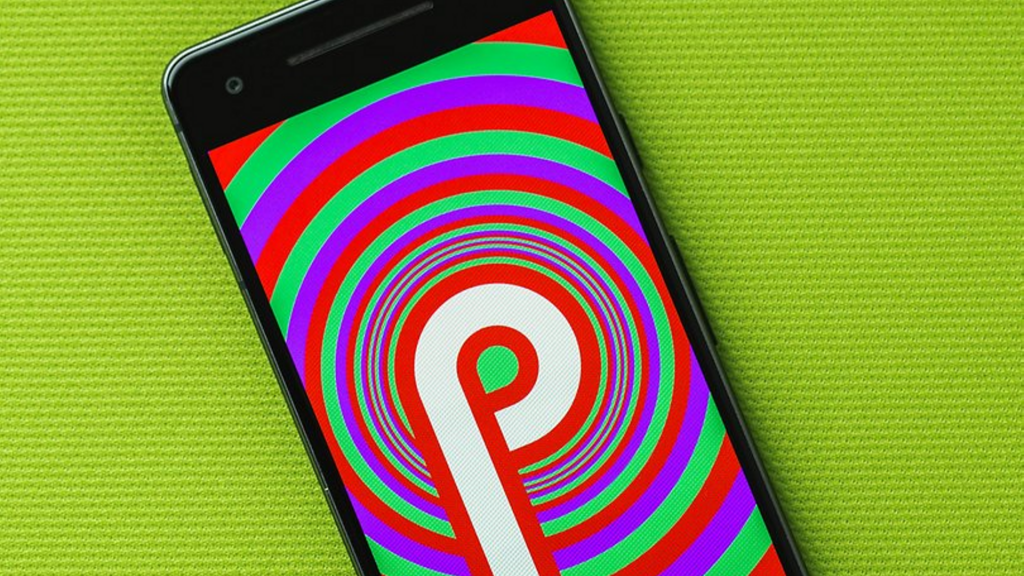
    The best thing is that most devices have got Android 9 Pie till now and we all are desperately waiting for Android 10. Android has come a long way from Android 1.0 to Android 9 Pie with a great improvement in concept, visuals, and functionality. Each Android OS version has a dessert code. For example, Android 5.0 got Lollipop, Android 7 got Nougat, Android 6 got Marshmallow, Android 8.0 is Oreo, and finally, Android 9 has Pie.

    updating to Android 9 Pie

    Android 9 Pie Key Features

    • Adaptive brightness and battery
    • Multiple Bluetooth connections and camera supports
    • Easy navigation and smart gesture controls
    • Set time limits for apps
    • Keep track on your device usage
    • Do Not Disturb mode
    • New Gesture Control interface with no multitasking button and back button

    These were some of the cool features of Android Pie. After knowing these features, you may not want to wait for any further to update your old Android version to a new one. Depending upon the device, updating an Android OS may not be that simple. In order to make things easier, we have listed three of the effective and easiest methods to update your Android system.

    Method 1 – Upgrading Android with Basic OTA Updates

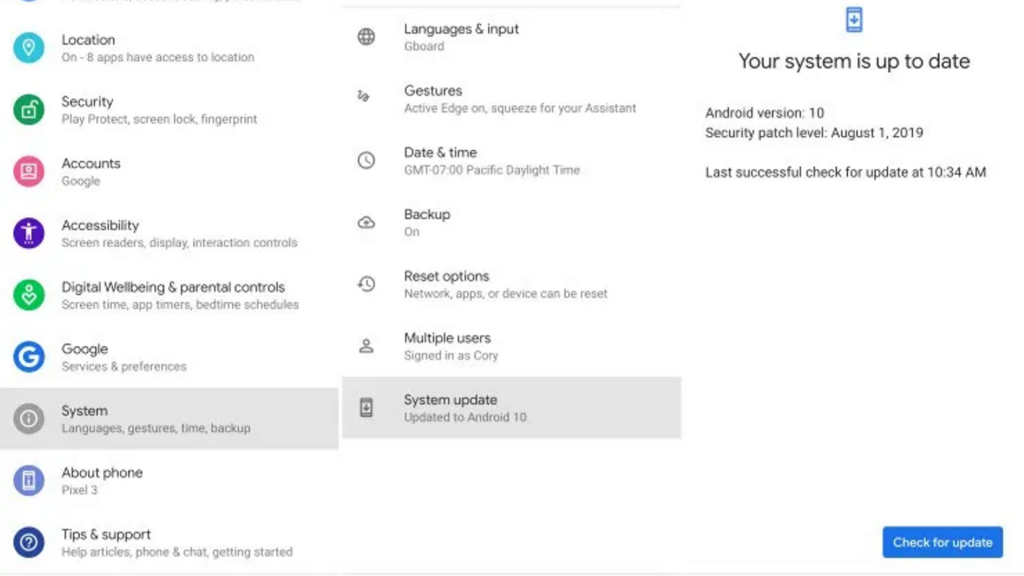
    You will usually get notifications whenever your device gets the basic OTA (over-the-air) Android Pie update. You can simply open the same and tap the “Update Now” option (depending upon the device) to upgrade to the latest Android version.

    method 1

    If not, we have listed the basic steps to search for and update your android. These steps have been verified on Nokia, Google, OnePlus, and Samsung devices. The following steps may vary if your device uses has a different interface over the basic Android. For any reason, if the latest update has not rolled out yet to your device or you cleared the notification by mistake, you can update the OS with these steps –

    • First of all, connect your Android device to the LTE or Wi-Fi network (recommended).
    • Go to Settings.
    • You can search for Update if your device features a Search option on the top of the screen. You can quickly land to System Update or a similar setting.
    • Now tap Check for updates or Check now.
    • If there is any OTA update, your device will show.
    • Tap Download and Install.

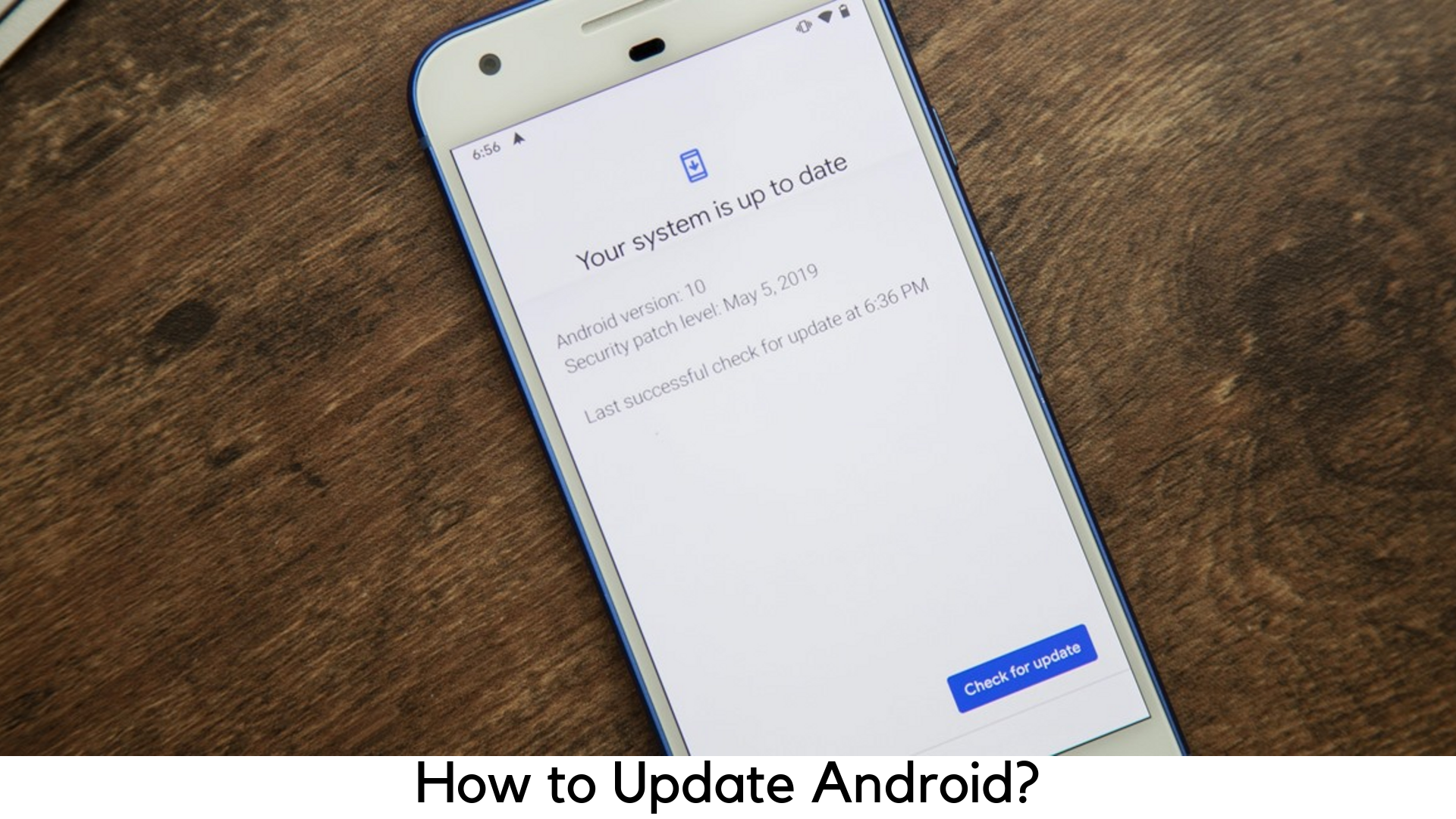
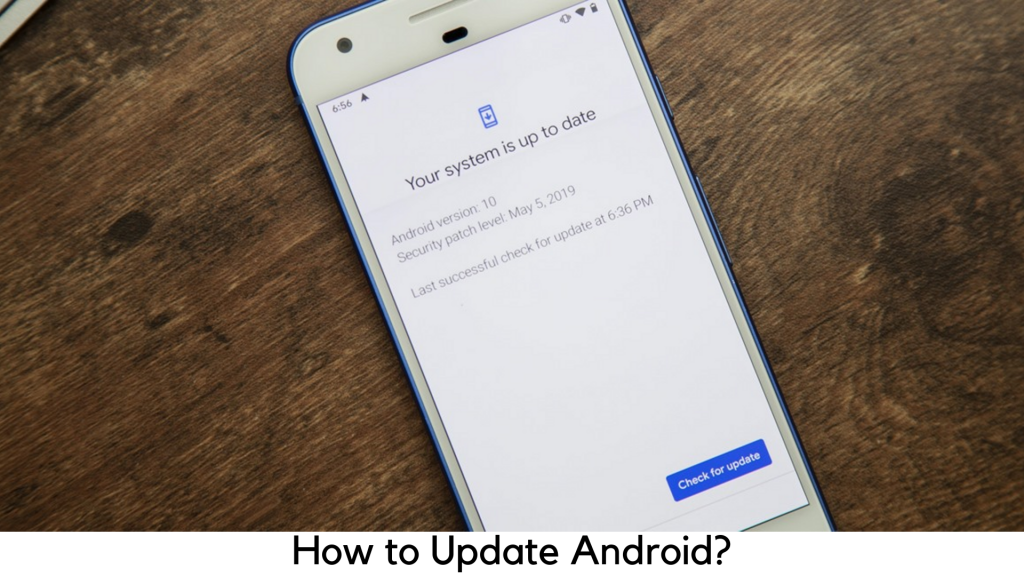
    Wait for a few minutes to update and install your device. Once the download process is finished, you need to restart the device. Keep patience because it may take some time to restart the device to process the update. However, if it shows “Your device is up to date” when you check for updates, it means your device has not got any update from the manufacturer.

    Method 2 – Using Upgrade Package

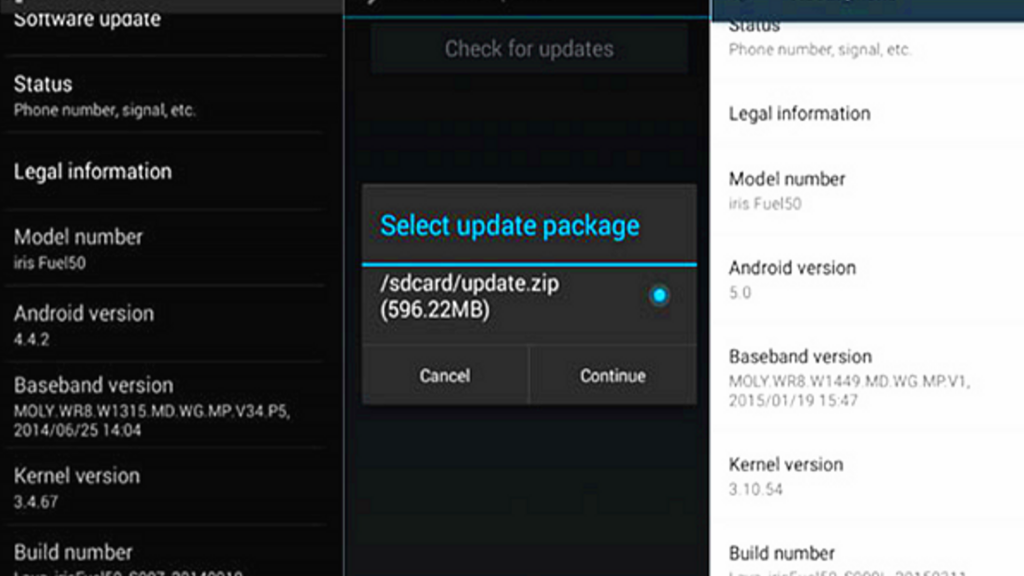
    In normal circumstances, the official website will update system files to download and upgrade the package. Also, you can simply head to the download section of the official website of your Android device. From there, you can download the latest upgrade pack by selecting the brand model of your phone. After downloading the package, keep it in the SD card or internal storage.

    update package

    Go to System Update under About Phone section in Settings. It must show the package available. Tap the option “Continue to download” and wait for it to install the package. Restart the device and your device will be updated to Android 9.0.

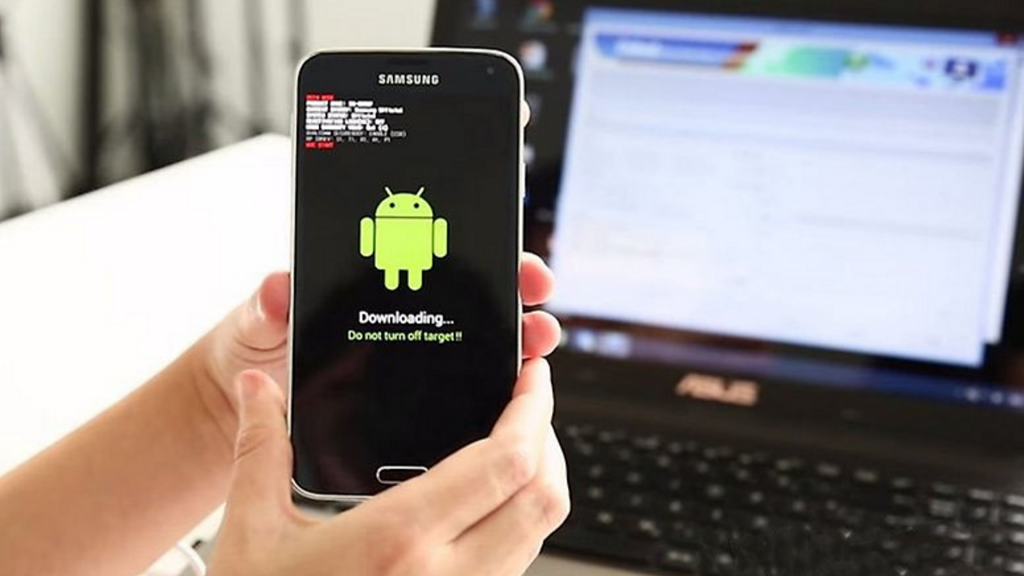
    Method 3 – Upgrading by Rooting Device

    Well, it is the last option for you to update your Android. In addition, you can try rooting the device to upgrade the device to the latest Android OS whenever it is available. Along with super administrator permissions, you can also access updates easily. Here are the detailed steps to root your Android device –

    • First of all, download a root app and install it on your PC.
    • Open it and connect your device via USB cable to your PC.
    • Follow the steps to root your device.
    • Restart the device to get the latest version of Android.

    Testing Android Q Beta on Your Device

    Even though Android 9 Pie is a perfect Android OS, the developers are still engaged in the new Android version to offer a better experience to the users. Android 10, previously known as Android Q is going to outperform the current Android 9 Pie.
    Although the official release date is not confirmed yet, Google has rolled out Android Q beta for developers and users to help various manufacturers to know about the improvements and problems which should be fixed before the company rolls out the next OS. Therefore, you should have a Pixel smartphone to join the Android Q beta program.

    If you have one of the following Pixel phones, all versions of Android Q beta are available for you to test –

    1. Google Pixel
    2. Google Pixel XL
    3. Google Pixel 2/2XL
    4. Google Pixel 3/3XL

    Initially, Google offered Android Q on selected Google Pixel models. As of May 7, 2019, Google introduced Android Q beta for other smartphones from different brands. Only a few models support the Android Q version currently.

    Also, before installing Android Q Beta on your device, be sure to backup all your data as you may lose the same during the process, according to Google. There are some non-Google devices that support the Android Q beta program.


  • How to Record WhatsApp Calls on Android and iPhone?

    How to Record WhatsApp Calls on Android and iPhone?

    WhatsApp is truly a nice messaging app with lots of cool features. Now you can make both voice and video calls using WhatsApp. It has been used in the day-to-day life of many of us due to its great convenience. Nevertheless, call recording is a feature that has not been provided for the privacy concerns of the users. Obviously, there is a huge risk of misuse and surveillance using this feature. At some point, we need it somehow.
    How to Record WhatsApp Calls

    If you desperately want to record your WhatsApp calls, you need to do a few workarounds. It also varies as per the smartphone you have been using and it is not a foolproof option. Meanwhile, it is your best bet. We have discussed a few of the best ways to record WhatsApp calls on both iPhone and Android.

    Note – Before going any further, let us be clear that you need to take informed permission from the caller before recording. We expect that you will not breach the law or user’s privacy by recording calls secretly.

    With that said, let’s get started…

    Since the process of recording WhatsApp call varies on iOS and Android devices, we have suggested different processes. So, if you want to read the steps specific to your iPhone, you may skip to the next section.

    Recording WhatsApp Calls on Android

    There is no specific approach to record WhatsApp calls on every Android phone. Some devices come with VoIP call recording features while some do not. You may want to find out if your device supports that feature. If not, you just have to read on to know how to record WhatsApp calls on your android.

    recording whatsapp call on Android

    Keep in mind if you are using Android 9 Pie on your device, chances are less that it may allow recording because there are some restrictions on the OS level.

    Method 1 – Using Cube Call Recorder ACR

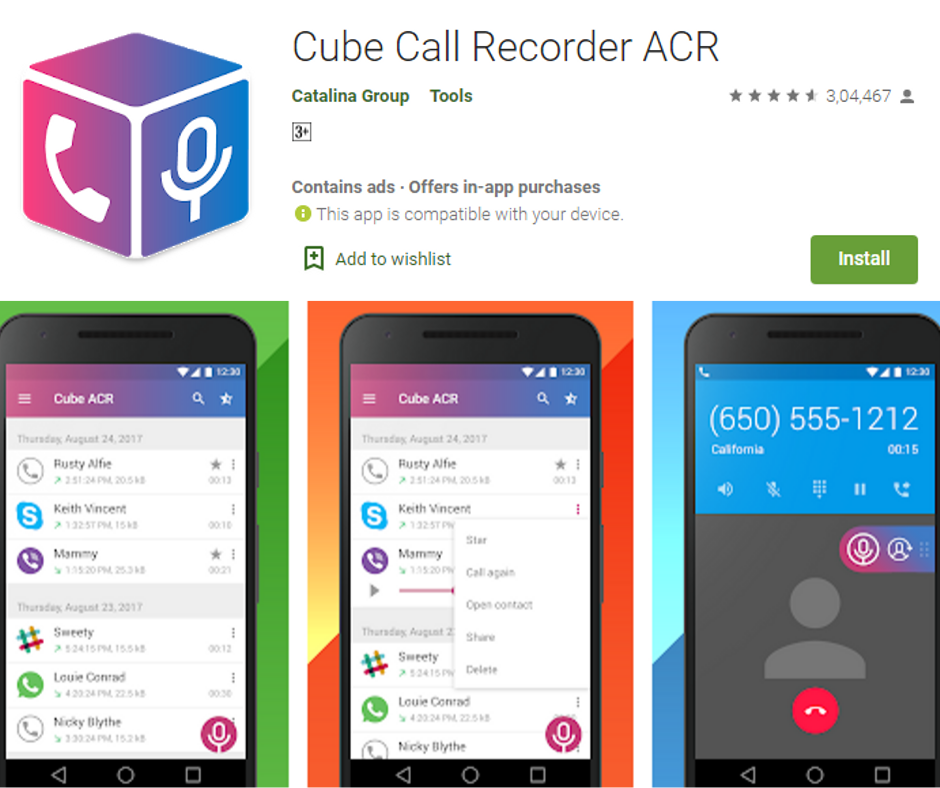
    Cube Call Recorder is one of the highly recommended apps for recoding all your outgoing and incoming calls with VoIP calls like those that you do on WhatsApp. This app also supports Viber, Skype, Line, IMO, and Telegram. Here are the steps to use this app –

    cube call recorder

    • If it is not installed, simply download and install the Cube ACR app from the Google Play store.
    • Open the app.
    • The Welcome Screen will show up. Tap the “Next” button. Allow this app to listen to Audio Calls, Save Call Recording, and detect outgoing and incoming calls.
    • It will ask for permission to use the VoIP call recording if your device supports one. You need to record calls directly via Accessibility Services. Otherwise, an error message will show up that “VOIP calls recording is not supported on your device. The feature is disabled.”
    • If VOIP call recording is disabled, tap on the hamburger icon (Menu bar).
    • Go to Settings > Recording.
    • Scroll down to VOIP recording and turn on “Ignore VoIP Support Check
    • Tap on the “I Understand” button and tap “Enable App Connector” on the next screen.
    • Turn on the “Cube Call Recorder app connector” under Accessibility Services.
    • Whenever you get any call on your WhatsApp or your phone, it will start recording automatically. You can also change auto recording for any call from the floating icon on the screen.
    • You can go to Menu to check other settings.

    Along with VoIP calls, you can also record basic cellular calls using this app. Call recording on WhatsApp works smoothly, especially on Redmi Note 6 Pro and Mi A1, based on our testing. You do not even have to change its default settings.

    Other Third-party apps for WhatsApp audio call recording

    Real Call Recorder and Messenger Call Recorder are other apps you can use to record your WhatsApp calls.

    Method 2 – Using Screen Recorder Apps to Record WhatsApp Video Calls

    You can record video calls over WhatsApp easily using different screen capture apps. Here are some of the free and best screen capture/recording apps to record video calls on WhatsApp –

    • AZ Screen Recorder
    • DU Recorder
    • Mobizen Screen Recorder

    The basic features are very similar in these apps.

    Recording WhatsApp Calls on iPhone

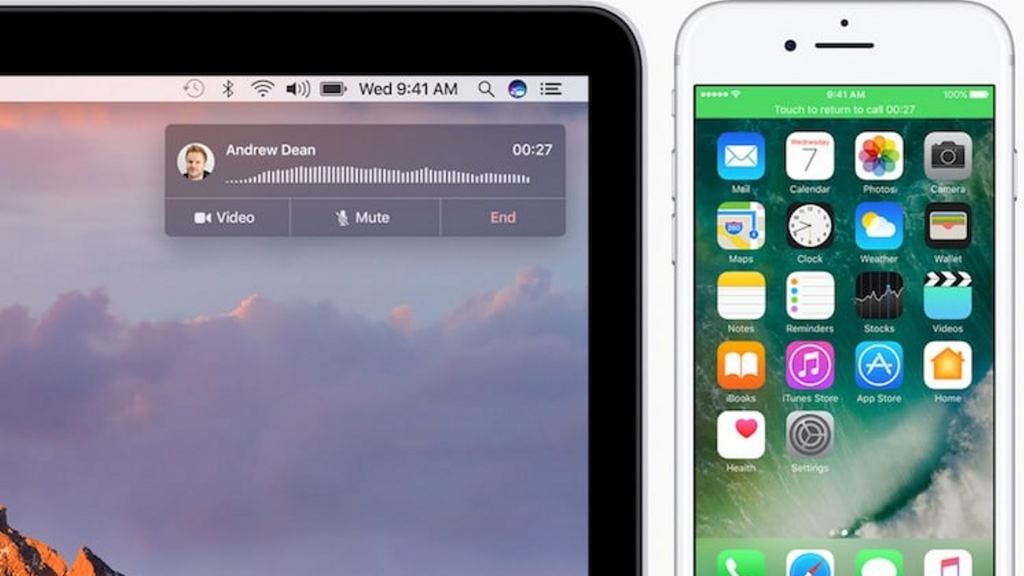
    In terms of privacy, iOS is even stricter than Android. Therefore, it has left no simple way of recording calls on both cellular and VoIP apps. However, there is a hack that can help you get things done. It takes a lot of effort. You will need an iPhone, a Mac system and another smartphone having a WhatsApp account.

    recording whatsapp call on Android

    It is a tedious process. Your secondary smartphone can be either iPhone or Android. Your primary iPhone will be connected to the Mac to conduct call recording. Hence, you need a secondary device to make calls.

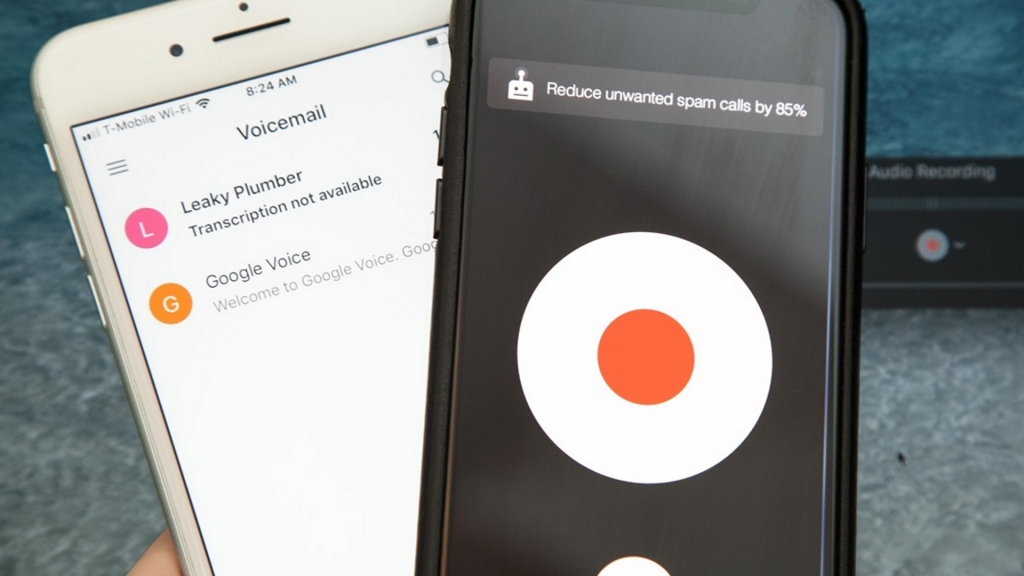
    • First of all, you need to connect iPhone to Mac and allow important permissions. Open QuickTime and go to the File menu. Select your iPhone as a source under “New Audio Recording” and click the record icon.
    • Make a WhatsApp call from your iPhone to your secondary device having WhatsApp account. Once it is connected, use the group-calling feature on WhatsApp to add the person you would like to talk to.
    • Now you can keep the conversation going with the secondary device. Once conversation is finished, stop recording and save it from Quicktime to Mac.

    Note – Make sure your iPhone is connected to your Mac during the conversation. Also, ensure that all three numbers are active when doing group calls. If any device is disconnected, the recording will be stopped.

    This is all you need to do to record WhatsApp calls on iPhone. We hope the above steps will help you.

    Bottom Line

    As discussed earlier, recording WhatsApp calls is not that simple. We can just expect that it will be even more difficult due to the ongoing privacy controls. It is already next to impossible on iOS to record voice calls and Android is eventually making a move in this direction.

    Feel free to tell us if the above steps have helped you to record VoIP calls. What are your opinions on these privacy controls to keep users from recording calls? Leave your thoughts on the comment section below.


  • How to Record a Call on iPhone or Android Phone for Free?

    How to Record a Call on iPhone or Android Phone for Free?

    Sometimes, you just need to record phone calls just for your personal records, whether for business, work, or sentimental purposes. The problem is that there is no default option to record calls on iPhone and Android handsets.

    How to Record a Call on iPhone or Android Phone for Free

    If you desperately want to save your conversations as an audio file, you can try different ways like screen recorder apps. The laws on call recording vary by country. Be sure not to breach the law before trying any call recorder options. Do some research and check with other parties before recording.

    Recording Call on Android Phone

    You just have to follow these steps to do a call recording on Android –

    Recording Call on Android Phone

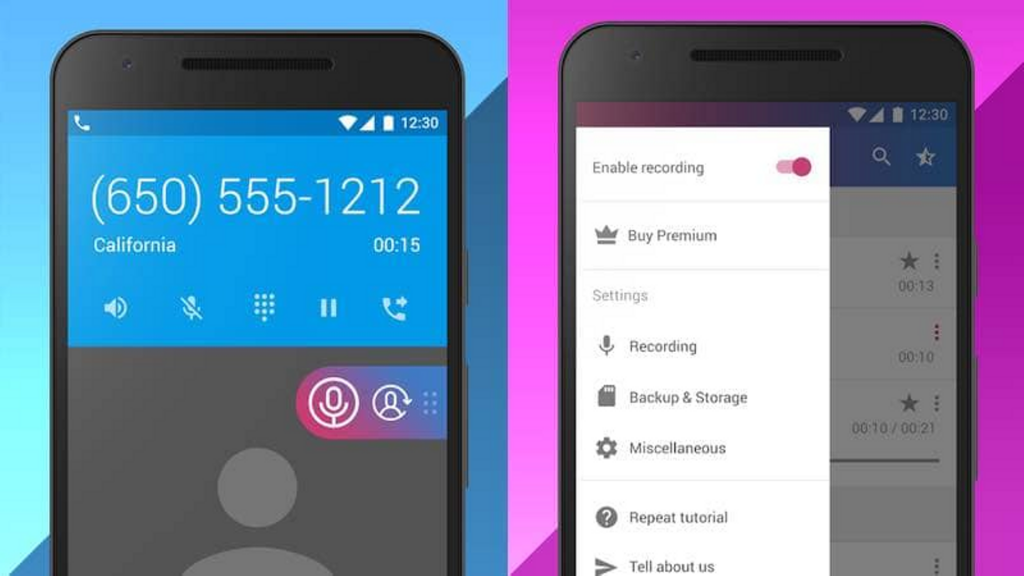
    • First of all, download Cube Call Recorder.
    • Launch the app on your Android device.
    • Allow the app permissions and select “Enable Overlay”.
    • Be sure to disable the battery saver in your device to allow this app to record voice calls. You can go to Settings but its actual location varies by phone. Normally, this option is available under Optimization by going to Settings.
    • Now you have to answer any call you get or call someone. This app will record the call automatically.

    Keep in mind that the recorded call volume might be a little low on some phones. It is a small issue as the recording will be clear.

    Recording Call on iPhone

    Recording phone calls on the iPhone is not that easy. You can find different call recording apps available on the App store. However, you may not be able to find the good ones. They ask for a recording fee on a per-minute basis and it’s not a good value. There are two different ways to record calls easily on iPhone and both have another device. You need to follow these steps if you have an Android device –

    Recording Call on iPhone

    • Be sure that your device has an active SIM card so you can receive calls.
    • Now you need to download Cube Call Recorder on your android device and allow call recording by going through the above steps.
    • Call your Android device from iPhone.
    • Answer the call.
    • Tap Add Call on your iPhone.
    • Call anyone or any number from your contacts.
    • Tap Merge calls once they receive your call.

    The call recorder app will start recording the call automatically on your Android device. The recording will be stopped once the call ends or dropped.

    Recording a Call on iPhone or Android in loudspeaker mode

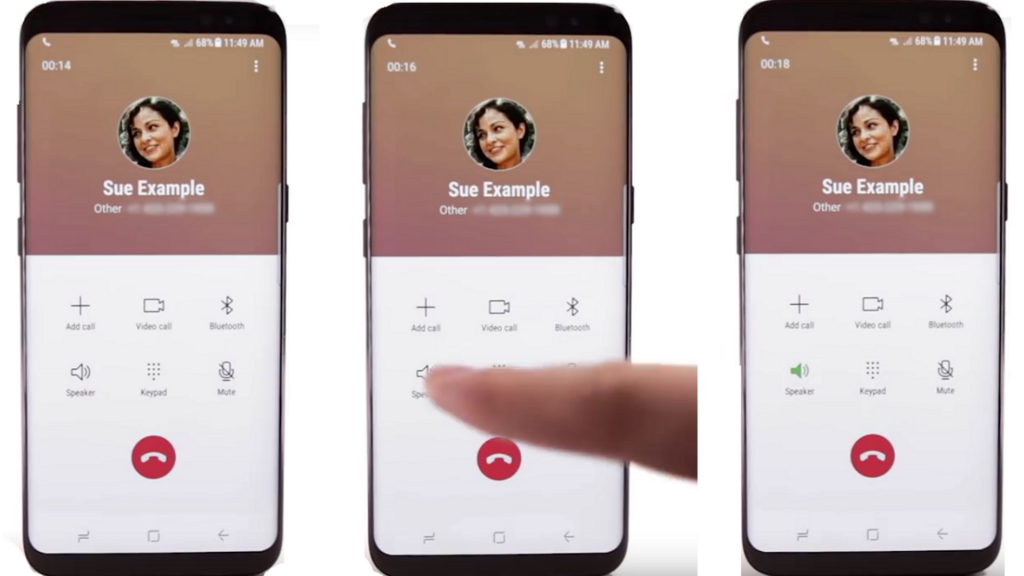
    Using another tablet or phone is the fastest and easiest way to record a call. iOS devices already have a voice memo app and Android devices have a default voice recorder. The thing is you need to receive or make a call on the loudspeaker and set up another device to record. This way, you can record both sides of the calls.

    Recording a Call on iPhone or Android in loudspeaker mode

    Be sure to do it in a calm and silent room where there is no distraction or noise, like ambient chatters or people walking around. The audio quality might vary as per the microphone on the second device.

    Recording a Phone Call on iPhone or Android with Google Voice

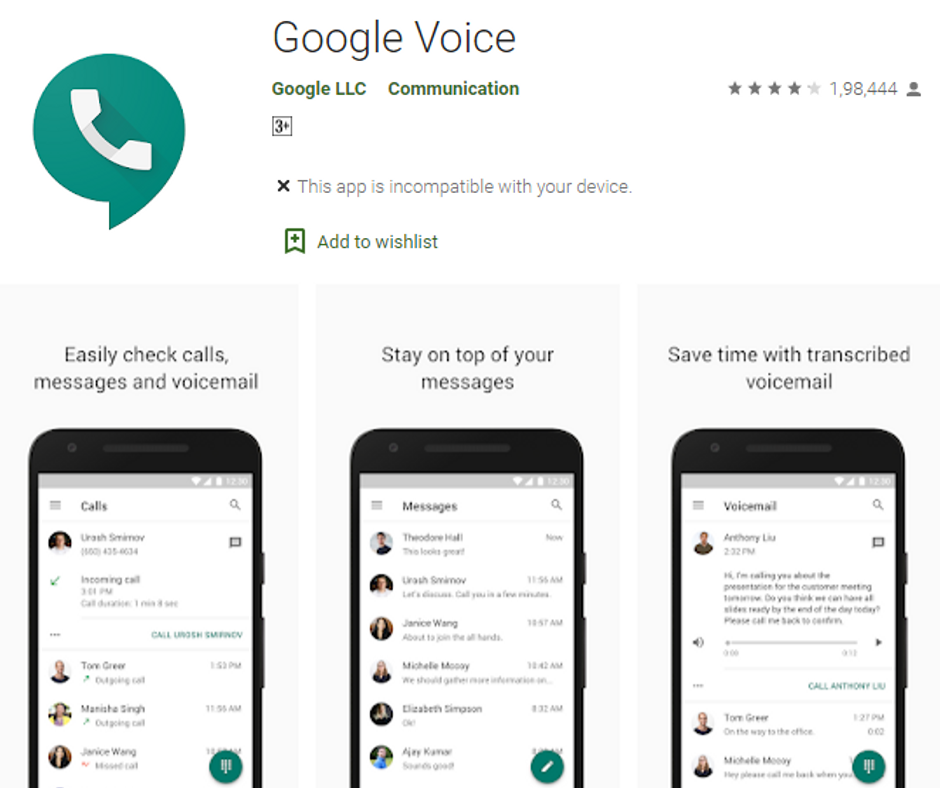
    Google Voice is the perfect go-to app when it comes to record calls. As the name suggests, it is Google’s official app for Wi-Fi calling. You can set up the app to record incoming calls. But it won’t record outgoing calls.

    google voice

    Go to the settings menu in the app, select “Calls” and go to Incoming Call Settings. When you press 4 on the number pad on call once it is active, it will start recording the call. Keep in mind that both of you will know that your conversation is being recorded and it will notify you that it is happening. Google Voice is not available currently in all countries. This recording technique will not work as per your location. So, be sure that this app supports your location before recording.

    Recording Phone call on iPhone or Android via a Third-Party Call Recorder App

    If you are not willing to use Google Voice, there are several other apps to record calls but they have certain cons. Some of those apps are paid while some ask for a fee as per the minutes of calls you record. Here are some of the call recorder apps for Android and iOS to check out –

    • Call Recorder Lite – This iOS app can record both outgoing and incoming calls. You will have to make a payment if you want to record longer calls. It can record calls for as long as you want. There are several apps available on the App Store and Google Play. It is worth to check out if you want a free app.
    • Call Recorder – It is an Android app to manage recordings and record calls. You can back up the calls by categorizing them or on the cloud. It also comes with caller ID to recognize unknown calls.

    How to Ensure Recording Clarity?

    In order to ensure the best clarity, you should look for a peaceful environment to record the call. Find a quiet room in your home. Disable notifications and incoming calls. Be sure you are not close to the fan if you are turning on the loudspeaker. Be sure to keep the call recorder away from the keyboard if you want to type notes on the call. You can perform a test recording and ensure that you are not going to miss anything.

    If another person is speaking unclearly or too fast, ask them to say it again. Rephrase the questions or repeat answers if you could not understand the other party. It will help you later when it comes to hiring someone to transcribe. You may want to add timestamps in professional transcripts. This way, you can easily revert and repeat the words.

    What about Legal Issues in Recording Calls?

    Keep in mind that recording conversations or calls may not be legal in some states in the US or in some countries. Some countries have provisions for one-party consent. It means you need to ask for permission before recording calls.


  • PlayStation Plus September 2019

    PlayStation Plus September 2019

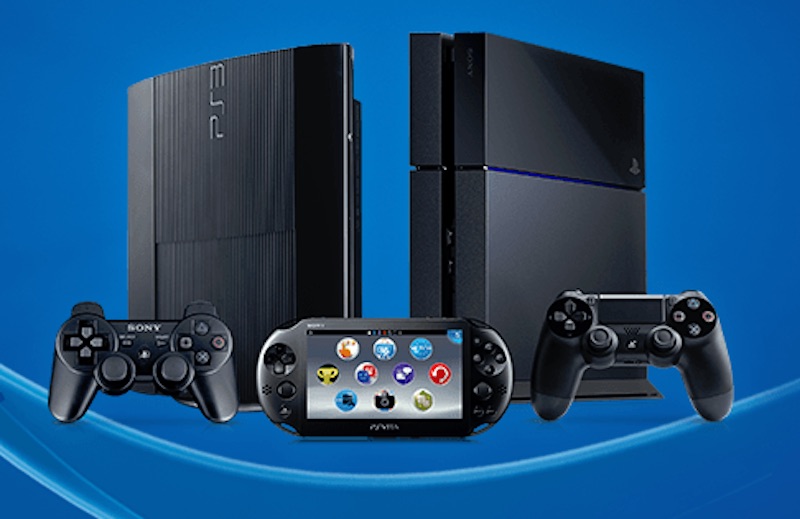
    In order to experience better gaming, everybody knows that the PlayStation is always playing a significant role among the people. Generally, it will offer the best visuals to play around with your friends and family. When it comes to playing the PS, you can find different versions and buy according to it. On the other side, you can also get online services from PlayStation. If you are a member, then you must know about it. In case, if you aren’t aware of it, then without going for a second thought, this PlayStation plus online services is the best thing to know.

    PlayStation Plus

    When it comes to PlayStation Games, you may witness the different stuffs to experience under various plans. Usually, you need to follow the right plan which is providing by PS plus for further process to do. If you are the one who wants to play the games and get several discounts, then PS plus is the best choice where you can make use of it at any time. By following this service, you can get an opportunity to play more games in your budget.

    Be a PlayStation Plus subscriber

    People who all completely new to this platform, and then it is essential for them to complete the sign-up process. Once done with the signup process, then you will become a subscriber of this service. If you are a new member, then you will get more free games to play for PS4 consoles.

    So, this is the best way to experience the PlayStation games if you are not tried it before. One should keep it in mind that the PS plus games are mainly available for one month, so people should be aware of it and grab it without wasting time.


    It means you can witness the different games which are available for each and every month to play and experience the best play. Unless you are a subscriber to this platform, you cannot be able to witness the good games to play. So, hopefully, people may be satisfied with the games offered to play in August month. Now, most of the subscribers are keenly waiting to get the games to play in the month of September.

    You may confirm that the games are quite impressive as expected when compared to previous month games. If you are the subscriber of this platform, then without going for a second thought, you can get an opportunity to find better games to play.

    PlayStation Plus games for September 2019

    New Game in September 2019

    Like we mentioned earlier that the games are available for one month and now people are keenly showing their interest in playing the September month games.

    Now, the thing is most of the PS plus subscribers are highly looking forward to knowing the games which are available in this month. If you are looking for the best games to know, then have a look at games to play with the support of PlayStation Plus that whenever you need it.

    Darksiders 3

    Everybody knows that Darksiders II is considered to be the best game to play and even most of them are highly addicted to that game. Well, it is such a cool game where anybody can play with cool controlling. However, people are looking for some of the challenging tasks to play.

    So, hopefully, one can expect better tasks in the next game of this series. Yes, we are talking about the game called Darksiders III. Generally, it comes up with difficulty levels which makes the people expect even more interesting and at the same time challenging. This is what most of the people expecting it while playing the games.

    PS Plus

    One can witness how much people were excited about welcoming this game and proceed further to play. Usually, people who were playing this game already, they were started to pour the positive reviews. Well, this thing triggers the people to get this game and play further.

    People who all are really interested in playing this game, then without going for the second thought, one can make use of this chance to play for this month. For information, you can play this game for free when it comes to September month.

    Batman: Arkham Knight

    When it comes to playing a game, there are certain games that will offer the best visuals to experience on the whole. At the same time, people may always expect a combination of interesting and thrilling. If you are expecting such games, then you can go ahead with Batman: Akrham Knight.

    Well, it is said to be the most beautiful game to play with friends and family. If you are a batman fan, then this could be the best choice for you to play. The best thing is where you can play this September. Yes, you can play this game for free.

    So, people who are the subscriber of PlayStation plus, then this is a good opportunity where you can make use of it. Now, you can download this game in September and start to play that whenever you want without any hassles.

    In order to witness the great games to play, then without going for a second thought, Batman: Akrham Knight is always considered to be the best play at any time. Even the controlling is quite easy for the people while handling the game with the support of PS plus.

    Best PlayStation plus Subscription deals

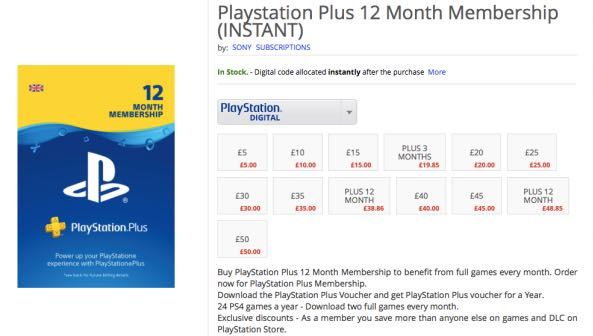
    People who all are really excited about playing the PS4 games, then there are certain things that you need to follow and keep it in mind. Yes, it is necessary for you to become a subscriber for PlayStation Plus. When it comes to subscription deals, you can make it possible and start to experience the different discounts and games to play for free.

    If you are a subscriber, then one can witness different games to play for each and every month. Hopefully, the games for September month will be going to excite the people for sure.

    Play station plus subscription

    When you are planning to handle the subscription process, then go ahead with 12 months subscription and expect a better outcome in your budget. If this thing is done, then you can see the better results from PS4 all the time. Now, people who all are very much excited about to play, make sure to utilize PS plus in different subscription plans.

    At the same time, you will get different and interesting games for each and every month. When you feel that it is a good deal, then you can become a subscriber and start to witness the different benefits through PS4 at any time.

    Wrapping up

    Well, millions of people across the globe are highly waiting to know the September month’s games. Hopefully, the above-discussed games are going to be supportive and offer loads of excitement while playing them. Before that, keep it in mind that you need to complete the signup and subscription process.

    If everything is over, then you are ready to witness the exciting benefits that you can get it for PS4. So, whenever you are looking forward to playing the PS4 games, then go ahead with PlayStation Plus for better usage and expect excellent benefits on the whole.


  • How to Mute Voice Chat in PUBG Mobile?

    How to Mute Voice Chat in PUBG Mobile?

    PlayerUnknown’s Battlegrounds is the most popular and No.1 Battle Royale game which delivers most intense multiplayer action. This award-winning survival game has made millions and billions of players addicted. But indistinct chattering in the game distracts many people from focusing on the target.

    Mute Voice Chat in PUBG

    This is the common problem in every multiplayer and Battle Royale games. Chatter from other people really spoils the gaming experience and distracts sometimes in PUBG Mobile. Luckily, there is a shortcut to disable or mute video chat options and focus only on your game. We have broken down some easy steps to follow.

    Mute Voice Chat in PUBG Mobile

    When you tap on the Mic icon in the game, there are three options –

    • All – It means everyone can hear you.
    • Team – Only your teammates can hear you.
    • Mute – No one can hear you anymore.

    Mute Voice Chat

    Here are the steps to follow –

    • First of all, you need to start your match in PUBG Mobile. You can choose any mode, including a sandbox.
    • Tap the speaker icon and select the mute button on the gear icon located on the top right corner of the screen.
    • If you just want to hear your team only, select Team rather than mute. It works only when you are playing the team game. You can hear everyone else’s game by selecting all.
    • Tap the mute icon under the microphone icon, which is located below the speaker icon.
    • If you choose Team instead of mute, your teammates can hear you. By selecting All, everyone can hear you.

    Remember that you cannot hear what other players are saying if you mute the speakers. And no one can hear what you say if you mute the mic. You have to enter the game to permanently mute the mic in PUBG Mobile. These are the steps to lower the speaker volume for a while –
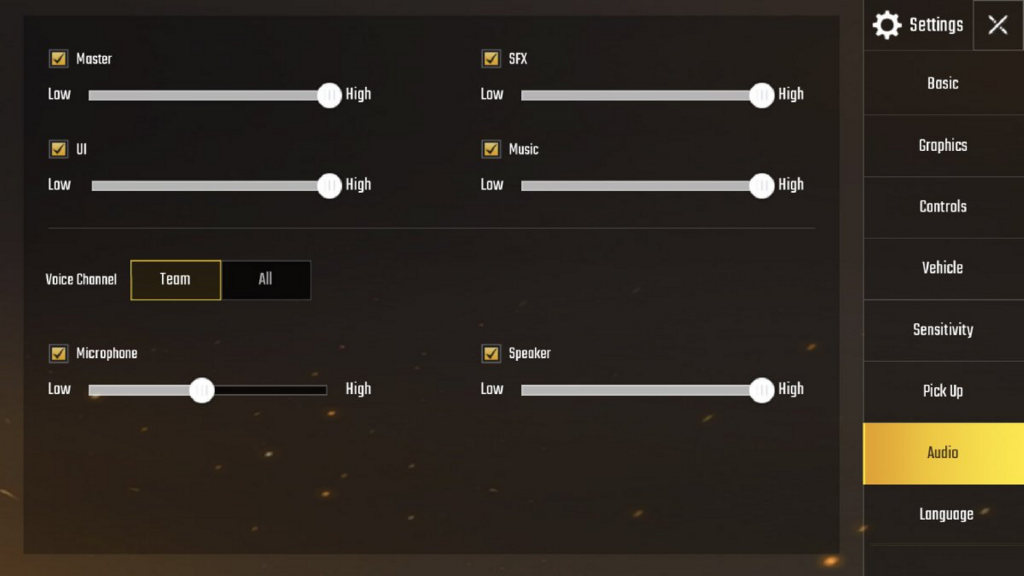
    • Tap the gear icon on the home screen on the bottom right corner.
    • Select Audio.
    • Slide the Microphone volume to low under Voice.
    • Slide the volume of Speaker to low.

    It can slow down the volume to a minimum but it cannot mute audio completely.

    Steps to Mute Microphone in PUBG Mobile Permanently

    You need to go to your device settings to disable microphone for PUBG Mobile permanently. Here are the steps to follow –

    • Go to your Android system Settings.
    • On the search bar, look for App permissions.
    • Tap Microphone.
    • Now go to PUBG Mobile and toggle the switch to off.

    This way, you can disable mic permanently on PUBG Mobile on Android. You have to go back to Settings if you want to enable it again. We hope these steps will help you to mute the mic and disable voice chat. It will be better if you play your game with headphones for a better experience because you also need to hear the steps approaching you.

    Mute your mic and Disable Voice Chat in the game with one tap

    You can mute voice chat in PUBG only when you are in the match. You are free to choose any mode to start the match. Under the settings button and just behind the minimap, there is a speaker icon to choose whose voice you want to hear.

    You can change the mode by tapping on 8. Similarly, you can choose from three different modes. You can hear everyone by tapping on “All”. Also, you can hear only your teammates and only teammates can hear you by tapping on ‘Team’. Users can choose the third option by tapping on “Mute” and you will not hear the voice of anyone.

    Mute the microphone on PUBG Mobile while playing on iPhone

    There is an option to disable the microphone on the iPhone when playing PUBG Mobile. Here are the steps to follow –

    • First of all, go to Settings on your iPhone.
    • Tap Privacy
    • Select Microphone.
    • Toggle the switch next to PUBG Mobile to Off.

    This way, you can mute the PUBG Mobile microphone permanently on the iPhone.

    Enable and Disable Voice Chat in PUBG Mobile

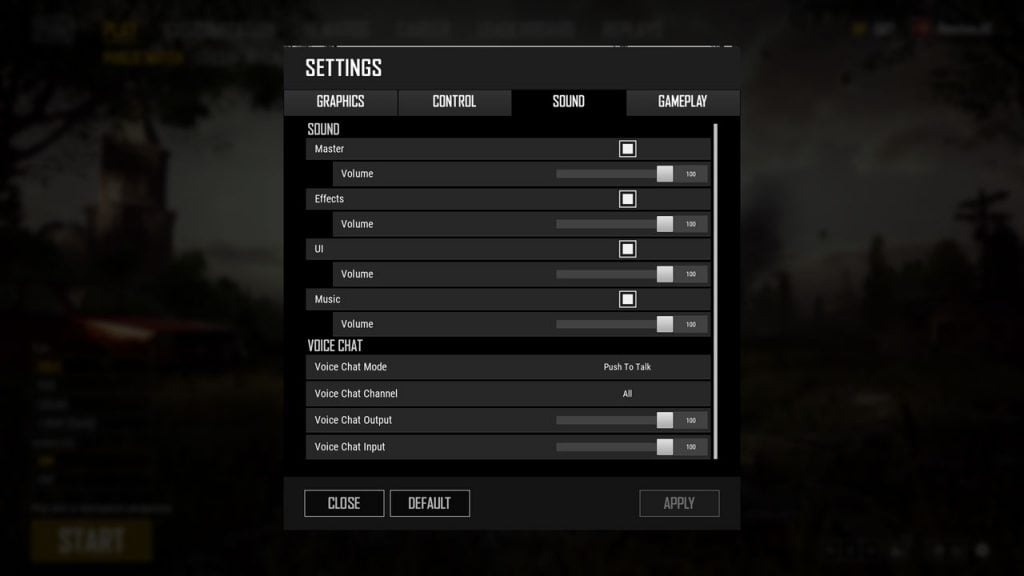
    In terms of configuring the voice chat, there are literally different options on PUBG Mobile. You change a lot of settings in PlayerUnknown’s Battlegrounds, such as Voice Chat Channel, Voice Chat Mode, Output volume and Input volume. You can go to the Settings menu and configure all such options easily.

    For Voice chat mode, you can choose from three different options – push to talk, mute, and open voice (permanently). When you select mute, it will disable voice chat for all players together. When you select Push to Talk option, it means you can send your voice only when you hold a preset key. For doing this, you have to check control settings. On the other side, one can hear whatever you say in the game when you select open voice.

    Enable and Disable Voice Chat in PUBG Mobile

    There is a slight difference in the voice channel. You can easily choose who you can talk to and listen to. The three options to choose from are – All, Team and None. It definitely helps you decide who can hear you.

    In the end, the ‘Input Volume’ and ‘Output Volume’ are the two sliders available. With the help of Output volume, you can easily control how loud you want your voice to be. You can keep the voice louder by keeping the slider further. You can do the same with input volume. Don’t forget to control other people’s volume.

    In order to access Voice Chat settings, you need to go through these steps –

    • Select the cog icon on the Settings menu on the home screen.
    • Select Sound and go down to voice chat on the list of tabs.

    Voice Chat settings in PUBG

    If you want to completely disable the voice chat in PUBG Mobile, you can set it to None and Mute. Also, set both sliders to the lowest. It will help you disable the voice chat completely.

    You can select the options you like. Toxic players are found in every competitive game and you may not want to hear them spoil your experience. When needed, you can also report them.


  • Motorola Moto Z4 REVIEW | All Information and Details

    Motorola Moto Z4 REVIEW | All Information and Details

    Usually, Motorola is highly popular for its design and its budget. It is the main reason where millions of them used to purchase the brand Motorola. Now, Motorola is again back with the recent Z-series. It is also considering that the recent model’s design is highly having the similarities with previous Z series model. One should keep it in mind that Moto Z was said to be the flagship device. So, instead of running on the same track, the Motorola brand has decided to launch the recent model called Motorola Moto Z4. Well, it is the midrange device.

    Motorola Moto Z4 REVIEW

    When it comes to Z4, Motorola is decided to move ahead with the processor Snapdragon that is said to be the mid-range one. It is also indicating that the device is a mid-range device to access. If you see this model, it mainly comes up with recent updates where one can witness in other recently launched devices. Apart from that, you can expect the in-display fingerprint scanner as well as a high-resolution camera with 48MP.

    Motorola Moto Z4 design

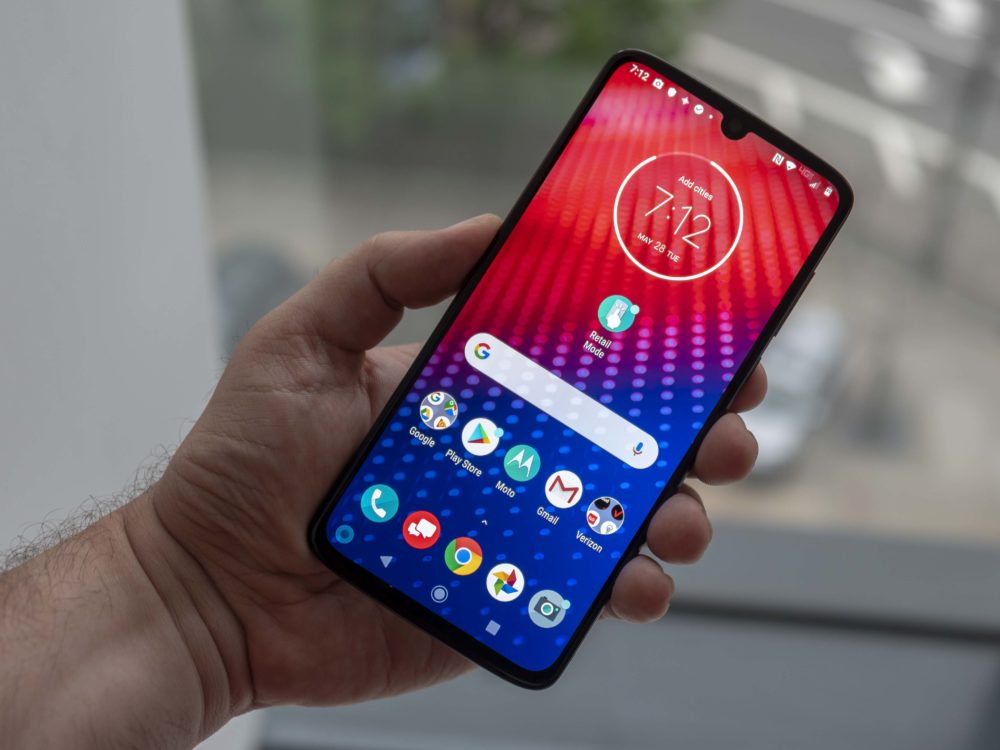
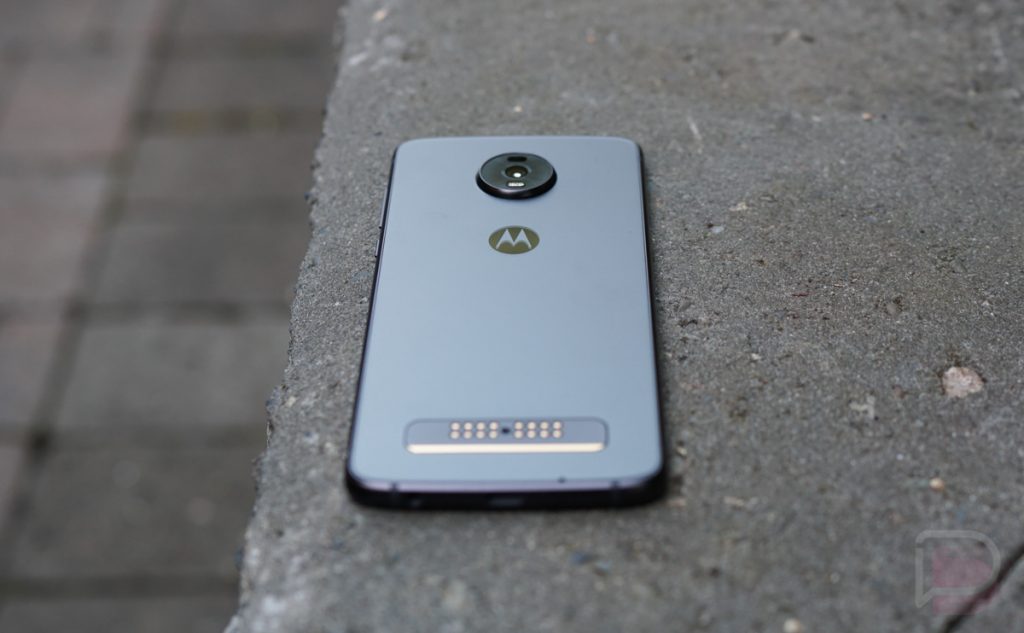
    It is a fourth-generation device of Moto Z. For information, the footprint is the same as you can witness in the original device. If you see the display, then it comes up with 6.4 inches and covers the available space to deliver an attractive look. On the other side, this brand is also focused on offering the fingerprint scanner, which is available in the OLED display. When compared to previous models, the availability of designs brings some attractive look over the phone frame. If you are aware of Z-series’ previous models, then you must know that Moto Z had a metal black with the support of glass bumpers. If you come to Motorola Moto Z4, then it offers the glass frosted when it comes to this model.
    Motorola Moto Z4 Design

    When you are looking for the facing camera, then it comes up with 25MP. In previous Z-series models, you made a witness over the full-sized earpiece. However, the availability of loudspeaker in the Motorola Moto Z4 model, it is moved to the top of the device. One should keep it in mind that there is a dedicated speaker given at the top-edge for handling the phone calls. When you see the SIM tray, it mainly gets set with micro SD that supports up to 512 GB as well as nanoSIM.
    Easy to hold

    There is also a power key and volume button available on the right side of this phone. You can also see the USB-C charging port, which is located at the bottom of this device. If you are looking for the outer frame, then it is highly built from aluminum. Yes, it comes up with a matte finish as well. The thing is where the frame is easy for users to hold without any issues. If you see the frame, the narrower look makes the gap to get even more grip while holding the device.

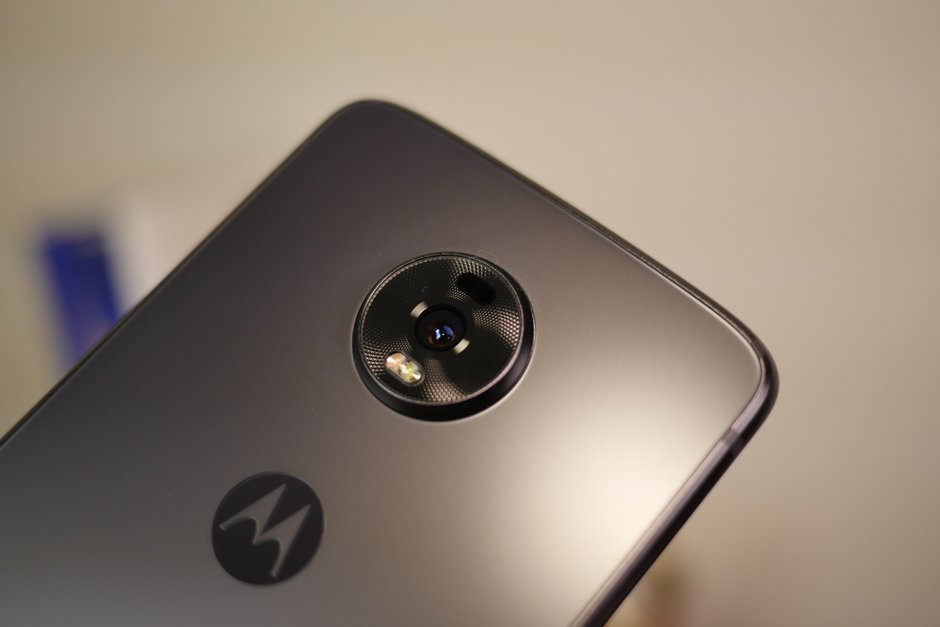
    Even you can see that the device is mainly come up with the version of Flash Grey. Also, it offers a better result in terms of hiding the fingerprints than the usual glass. At the same time, it is easy for users to get more grips and hold the phone without any fear while carrying. The availability of a camera provides a single camera sensor of 48 MP. In addition, you can experience that the geometric matrix pattern is available around the camera, which makes even cooler in terms of look. When it comes to Motorola Moto Z4, it is highly compatible with all older Moto Mods. Also, it supports Verizon’s 5G Moto Mod.


    Though the design is familiar and resembles with previous models, you can see a lot of changes design-wise. This amazing device is having the right control of offering the perfect grip to hold without any hassles. Yes, it makes the users to feel comfortable while holding it.

    Quality Loudspeakers

    From the first Moto Z-series phones, all the devices are built with a front-facing loudspeaker and even the same speakers used for phone calls. In Z4, to experience the near-bezel less display, the loudspeaker has moved top of the device. However, in most of the devices as per the current trend, it has become common to see the loudspeaker at the top of the device. On the other side, when you are looking for quality, then it will offer better audio quality on the whole and at the same time, it is highly impressive.

    Motorola Moto Z4 Quality Loudspeaker

    It is also said to be the loudest device when compared to others and it offers good clarity in terms of audio. Therefore, performance-wise in audio, it produces the solid clarity sound and at the same time, it is quality as well. It is one of the main reasons where people are looking for this device to buy from the market.

    Battery life

    Generally, the device comes with a battery capacity of 3600mAh. But, due to larger display, there will be a chance of witnessing more battery consumption. It has the potential to manage around 70h in a single charge. However, with different usages like web browsing and video playback, you may witness a different level of consumption. So, when it comes to battery life, there will be changes that one should keep it in mind.

    But the thing is battery life is quite good even after the huge consumption. If you are handling the moderate usage, then you may witness the better battery usage for most of the time. On the whole, the battery life is good in Z4.

    Sensor on Moto

    As we mentioned earlier, Z4 comes up with the best support of 48MP which mainly used the Quad Pixel Technology that offers the outcome of 12MP images. For information, it is the equivalent to 1.6um pixel size. In Z4, it also has a good combination of OIS as well as LED flash to offer a nice quality picture. This camera is having the phase-detect autofocus along with laser-assisted autofocus.

    The performance in this camera is always greater than expected. Yes, it is highly possible with the support of the camera sensor of 48MP. So, whenever people want to take amazing snaps with great quality, then without going for a second thought, this Z4‘s camera is the best pick for better execution.

    User-interface of camera

    Most of them might think that the interface is quite complicated, but it is not. Yes, it has such simple options where you can follow and make use of it. In order to handle the photo shooting, then the availability of video viewfinder will be helpful to offer easy framing. By just swiping another side, you can able to see the different modes available in it to pick and use. You can expect the main camera, which always offers portrait mode, and there is also a mode like cinemagraph. Yes, it helps to shoot short videos that whenever you want. With the support of different options, you can make better pictures and videos in the end.

    Final words

    Therefore, people who want to buy Motorola Z4, and then it is necessary for them to know about the phone in-depth. For those people, the above-mentioned review would be helpful and at the same time supportive before the purchase.


  • How to Automatically Close Inactive Safari Tabs on Your iPhone or iPad?

    How to Automatically Close Inactive Safari Tabs on Your iPhone or iPad?

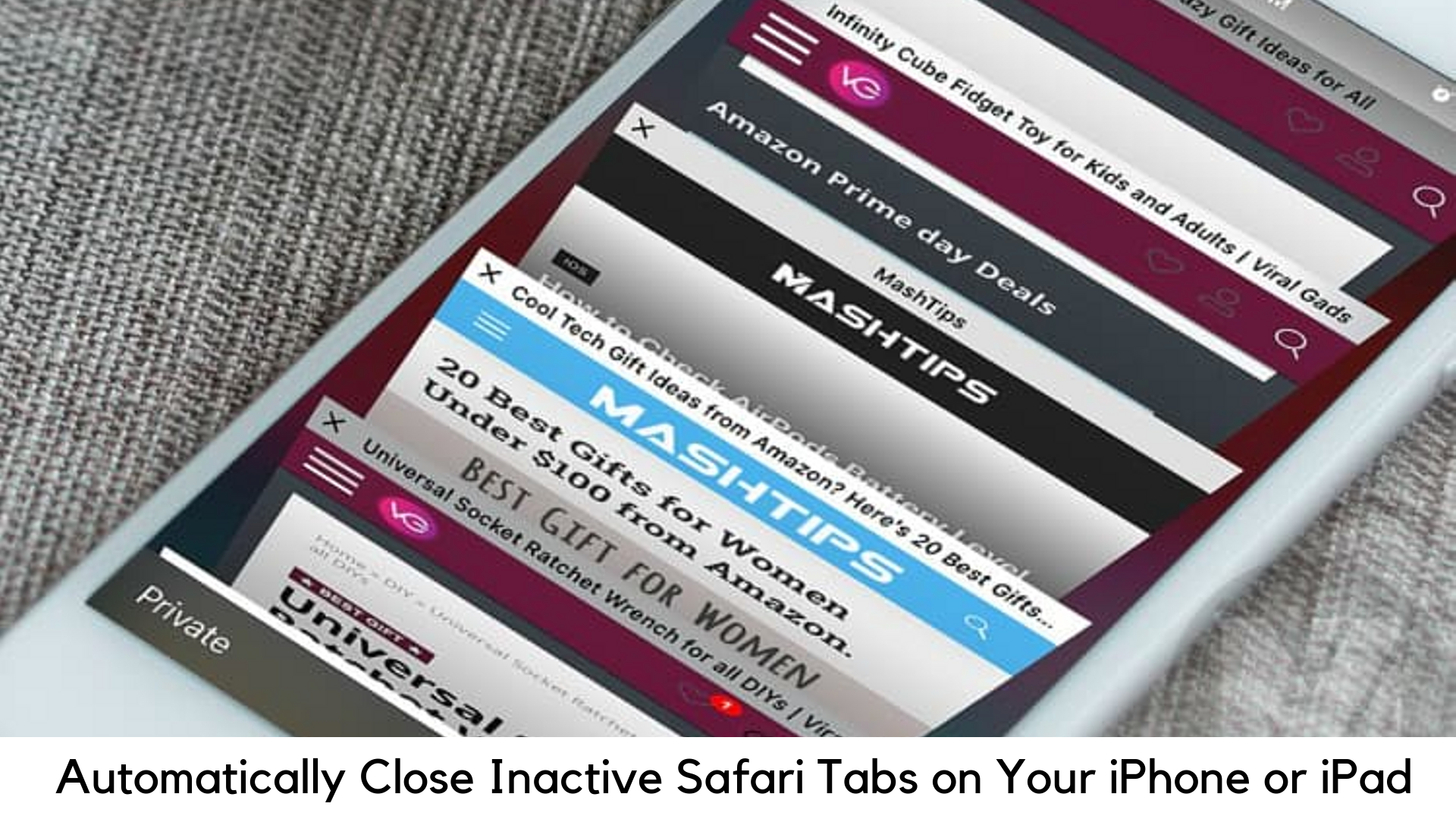
    The most awaited iOS 13 is finally here. Apple has launched its new iOS version with a lot of great features, especially on its in-built Safari browser. Now you can close inactive Safari tabs automatically after a specific period of time, which you can choose. Hence, there is no need to worry about tabs, which you forgot to close on your Safari browser.

    How to Automatically Close Inactive Safari Tabs on Your iPhone or iPad

    The very own, Safari browser now comes with an auto-close tab option. It means you can set the day, month, or week as per your own preference if you want to close inactive safari tabs automatically. Read on to know more.

    Applying Auto Close Tabs in Safari on iPad or iPhone

    Keep in mind that this feature is more than just for iPhone having iOS 13, including iPad devices running iPadOS 13. Let’s take a look at the detailed steps to make this feature work –

    Applying Auto Close Tabs in Safari on iPad or iPhone

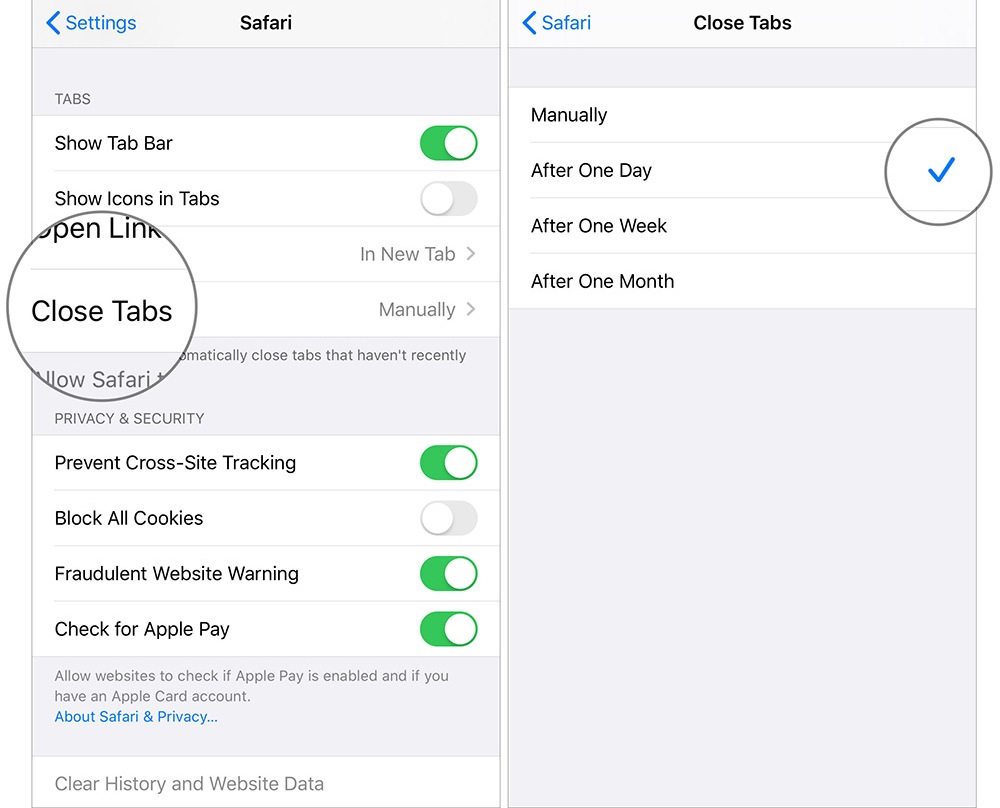
    • First of all, go to Settings on your iPad or iPhone.
    • Now go to the Settings menu and click on Safari
    • Now you have to go down to the tab section.
    • On this list, select the Close Tabs option.
    • Choose the duration to close the inactive tabs later on.
    • There are options like After One Month, After One Day, or After One Week.
    • After selecting the desired option, you are good to go. It will enable the automatic close tab option on your iPad or iPhone.

    What Else you should know about Tabs in Safari?

    A web browser cannot complete without its tabs, and Apple’s Safari is no exception. Actually, Safari has come a long way with its tabs, since its humble beginning. However, there’s a lot more you should know about them. Let’s take a quick look at all the features you should know to master the tabs in the Safari browser.

    Opening, Pinning and Closing Tabs

    It is very easy to learn the basics of the Safari tab, just like Google Chrome in different ways.

    • Tap the small + sign on the right side of Tab Bar to create a new tab or hit Command+T on the keyboard.
    • Click the X button to close the tab on the left side or use “Command+W” keyboard shortcut
    • If you have multiple tabs opened, you need to do something more. You can rearrange the tabs by dragging them around the Tab bar or drag out the tab to open in a new window.
    • In order to merge separate windows into one window, click “Merge All Windows” on the Window menu.
    • Open the options by right-clicking on a tab. The options are important to note though they are not. You can move or close the active tab to the new window like dragging it off the Tab.
    • If you have a lot of open tabs and you don’t like to close each tab separately, right-click on the tab and choose the option “Close other tabs”. In case you close a tab by mistake, you can restore the one by pressing the keyboard shortcut “Command+Shift+T”. You can also press the combination “Command+Z” to restore the last action.
    • Even if you reopen and close Safari, pinned tabs will always stay there, unless you unpin or close the tabs. It is also nice to keep tabs active, which are widely used as your email.
    • To mute an unwanted tab, click the speaker icon. Click on the blue speaker icon to silence all tabs in the location bar.
    • When it comes to open tabs, you can arrange them all in a grid. Click the “Show all tabs” button on the upper right section or “Command+Shift+\” key combination.
    • Right-click on the tabs to pin them. It creates smaller tabs on the left of Tab Bar.
    • There are several other tab tricks for Safari. Choose “Open in New Tabs” to open everything in the folder by right-clicking on the bookmark folder. By selecting the option “Automatically Replace Tabs”, everything inside it will be opened on Tab bar.
    • Right-click on the folder and uncheck this option when it comes to restoring the same to right operation.
    • To hide the Tab bar temporarily, select “Hide Tab Bar” by clicking the View menu.
    • Before creating a new tab, the Tab Bar will be hidden. You may want to hide it by going to the View menu.

    Choosing what Appears when Opening a New Tab


    managing tabs on safari

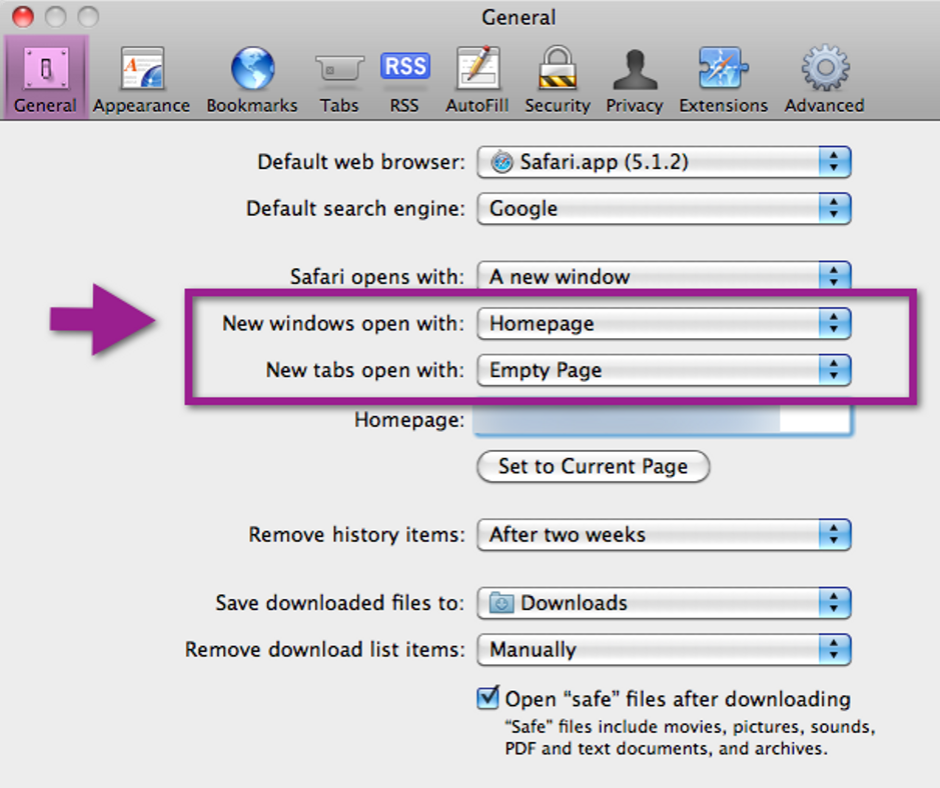
    • Open Preferences from Safari menu or hit the keyboard shortcut “Command+” to change the tab behavior of Safari.
    • Configure Safari to launch new tabs in General preferences to your Favorites page, Homepage, Top Sites, empty page, or same page. If How-To Geek has been opened, new tabs will open with it.
    • You can choose when you want to open new pages in tabs in Tan Preference rather than windows –
      • Automatically – Links can open in new windows rather than opening in new tabs.
      • Never – If you want links to open in a new window, it will launch in a new window.
      • Always – Links can open in new windows, even the ones coded to open in their specially formatted and separate windows.

    Here are the options for you to change the pattern of opening a new tab –

    • Enable/disable Command+Click and open links in new tab.
    • The link will be active if you click the same and it opens a new tab or window
    • Disable or enable tab switching through Command+9 to Command+1

    You can disable all the other shortcuts by disabling Command+Click as well as their modifiers at the bottom of Tabs preferences.

    Use Extensions to Get the Most of Tabs

    safari extensions

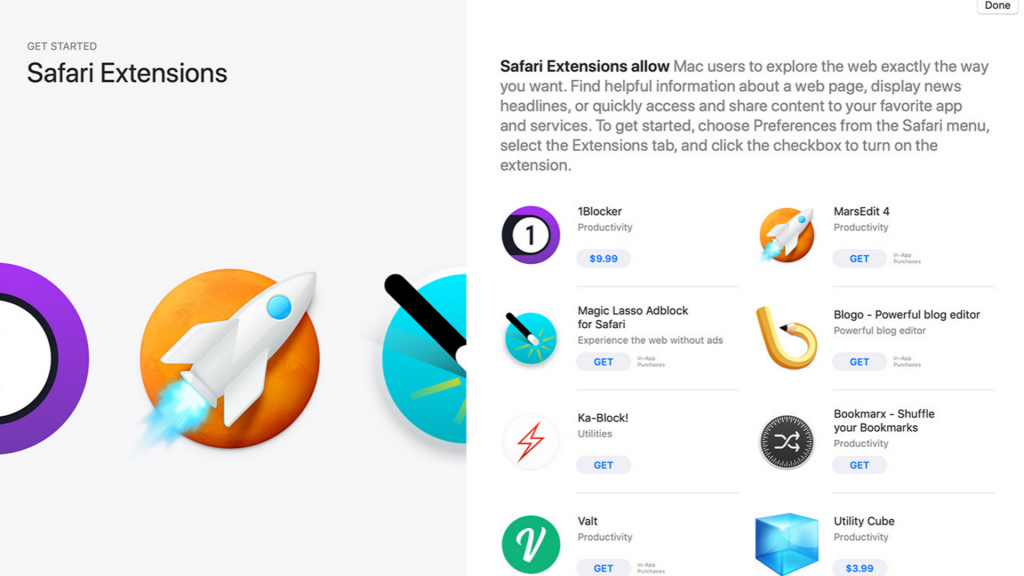
    You can use several tab extensions that can help you add emoji to the tab titles you like, save the whole tab session, and also keep a record of tabs you have closed recently. You might definitely find something that might help.

    Bottom Line

    As discussed, you can do a lot more with tabs than what you can expect on the Safari browser. You can memorize a few keyboard shortcuts and learn the tabs to do repetitive tasks faster.