Category: How to

WordPress is a favorite blogging tool of mine and I share tips and tricks for using WordPress here.

  • Samsung Galaxy S8 Review

    Samsung Galaxy S8 Review

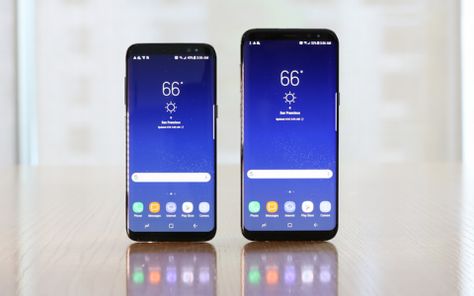
    Samsung Galaxy S8 mobile phone is something great and special during its launch. It is entirely different and unlike anything, you would have seen within the market. Even after two years, this model is still stunning and can get it under a lower price point. It has a brilliant screen with sharp, clear, and provides lovely color reproduction to make your dream true. The screen is much bigger or larger than iPhone 8 or iPhone 8 Plus.
    Samsung Galaxy S8 Review

    This is one of the mobile phones that includes the Iris scanner which may not properly work at required times. Samsung Galaxy S8 & S8 Plus provides much-improved battery life for booting and has an even bigger screen. Both mobiles are now replaced with the next variants of Samsung Galaxy S9 & Galaxy S9 Plus. If you prefer to save your money then choose Galaxy S8 which includes iterative upgrades. However, you can also opt for Samsung S9 duos (either Samsung Galaxy S9 & Galaxy S9 Plus) to pay more attention.

    Key Specifications

    Find below the list of key specifications of Samsung Galaxy S8 mobile phone:

    Display (Main Display Size)

    Samsung Galaxy S8: 5.8″11 & Galaxy S8 Plus: 6.2″11

    Main Display Technology

    Dual Edge SuperAMOLED

    Camera

    Front Camera Resolution: 8 MP AF, Rear Camera Resolution: 12 MP, Main Camera Flash: Yes included

    Memory

    Internal Memory: 4 GB RAM & 64 GB Space. Available External Memory: MicroSD can extend up to a maximum of 256GB Space

    Connectivity (Wi-Fi Connectivity)

    1024-QAM, VHT80 MU-MIMO, 802.11 a/b/g/n/ac 2.4G+5GHz

    Bluetooth

    Bluetooth v5.0 (LE up to a maximum of 2 Mbps)

    OS

    Android OS (Operating System)

    Form Factor

    Touch Bar

    Size (Product Dimensions in Inches)

    Galaxy S8: 68.1×148.9×8.00 mm & Galaxy S8 Plus: 73.4×159.5×8.1 mm

    Battery Talk Time

    Galaxy S8: Up to a maximum of 30 hrs & Galaxy S8 Plus: Up to a maximum of 34 hrs

    Battery Type & Size

    Galaxy S8: 3000 mAh & Galaxy S8 Plus: Non-Removable, 3500 mAh.

    Design

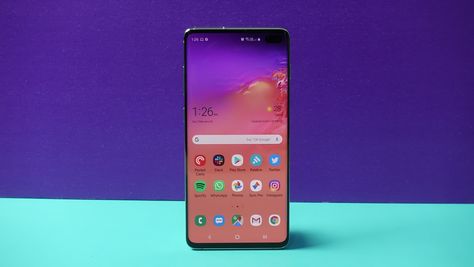
    Samsung Galaxy S8 & Galaxy S8 Plus comes with curved, slippery, lighter, and smaller, the best way you can describe this mobile model. It also includes the Midnight black variant along with other color schemes and includes a certain affinity to fingerprints.

    Most of the reviewers informed that they feel it as an excellent for holding and utilizing with premium effect. It has numerous these to break on this mobile model.
    Samsung Galaxy S8 Design

    Galaxy S8 has tough Gorilla Glass but still, this kind of glass can also be broken. Since this model includes glass on both sides; it is advisable to use a back-case. It means that you can lose its excellent ergonomics and design language.

    With regard to ergonomics, it is advisable to take your risk and also take advantage of them. It is slippery, but the model has a narrow and tally body to provide excellent grip & balance.

    The Buttons

    Samsung Galaxy S8 provides the best button placement when compared with Samsung Galaxy S8 Plus that has an awkward button placement. Depending upon your hand usage (holding your Samsung mobile phone), the buttons for power on/off will be replaced exactly to use your thumb/index finger.

    The Bixby and Volume rocker buttons are also much easier for you to reach without losing your grip.
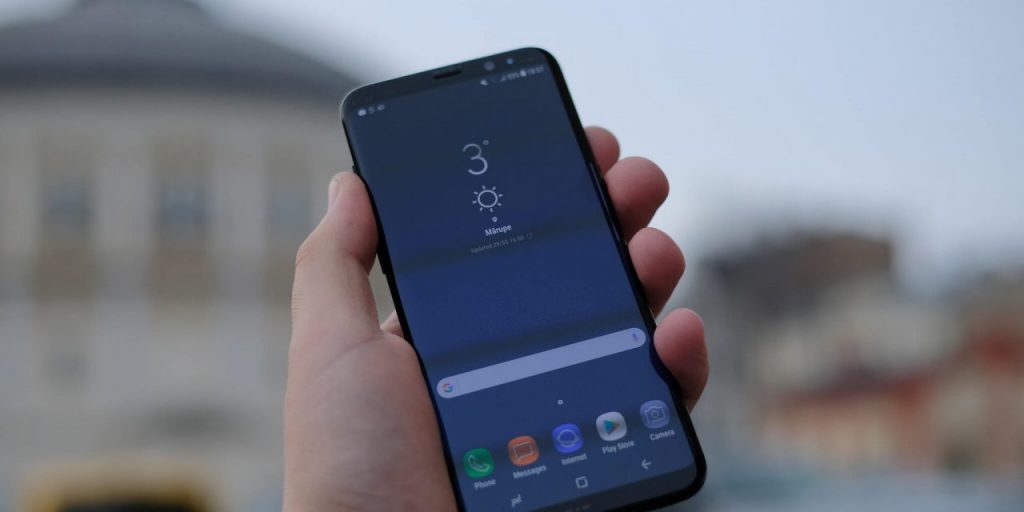
    Samsung Galaxy S8 Buttons

    The recent’s, back, and on-screen home buttons will work as per the design and the mobile phone is taller & narrower. This means that the finger can easily reach the screen without any hassle.

    Most of the gaming apps such as Asphalt 8 can utilize the entire screen aspect ratio (18:5:9), it is more often to use the entire pressure-sensitive home screen button. Within the on-screen version, you can view the pressure-sensitive home screen button. At any time, you can return to the home screen by pressing the down screen button.

    Biometrics and Fingerprint Scanner

    You can find the fingerprint sensor on the rear side of your mobile phone and next to the camera. It’s a new replacement and might be an awkward position to place it on.

    However, Galaxy S8 the smaller model can still make use of it. The feature will take an entire day to learn and used to it, but if you are done then it could be much faster to use.

    The Face Unlock and Iris Scanner features will work better on the Samsung Galaxy S8 model. With regard to the bigger phone, those features are not really dependent to use.

    It is also not possible to activate both features at the same time, but it is advisable to utilize the Iris Scanner feature instead of Face Unlock.

    This is a better solution for faster and low light conditions. However, none of the features are seamless or dependable similar to the fingerprint scanner.

    Hardware & Features

    Samsung Galaxy S8 mobile device will differ from other mobile devices in terms of design. Significantly it has only fewer hardware buttons (it is also referred to as phone physical buttons).

    It has also relied more heavily on the utilization of software buttons (which appears on your on-screen). Samsung developers had reduced the hardware buttons number on the new Galaxy S8 model.

    It includes only three buttons: the Bixby button, the Volume button, and the Power button. Before using the phone, it is essential to understand the correct side of your phone for usage.

    With reference to the right or left side of your phone can assume its vertical orientation (it means that you are not handling the phone sideways) and look towards the phone’s screen.

    Galaxy S8 Key Features

    Find below the list of key features offered by Samsung Galaxy S8 mobile phone:

    Main Camera with 12 MP Dual Pixel & Front Facing Camera with 8 MP – Galaxy

    S8 will catch each shot even under the low light by utilizing the Main Camera with 12 MP Dual Pixels. Front Facing Camera with 8 MP will provide clearer selfies and Snap sharper.

    Octa-Core Processor (1.9GHz Quad + 2.3GHz Quad)

    Thankful to its processor for launching the apps much faster even during the less battery. It consumes only 20% less power to get 10% more powerful.

    5.8″ Quad HD+ Super AMOLED Display

    This is the world’s first and best Infinity Screen extends from one edge to another and offers the users to utilize the entire screen with less amount of space. The Stunning Super AMOLED and Quad HD (High Definition) display will allow having color clarity of an incredible degree.

    Talk Time (3000 mAh Battery & 29 Hours)

    You can utilize the talk time up to a maximum of 29 hours by using the 3000 mAh lithium-ion battery.

    64 GB Memory & Supported for External microSD card & 4GB RAM

    Similar to a professional, you can perform multitasking by using the 4 GB RAM. You can never run out of your storage space by having the internal storage space of 64 GB and supported up to a maximum of an additional 256 GB of microSD (card storage).

    3×20 CA & 3g/4G LTE

    3×20 CA (Carrier Aggregation) provides the fastest service by increasing the network speed and as well as the network capacity. It is possible to switch seamlessly between 3G & 4G LTE networks.

    Samsung Touch Wiz / Android™ 7.0 Nougat OS

    This Android sweetest release will offer numerous features to make your phone with the deeply customizable home screen, smarter battery usage, and improved multitasking experience.

    Water-resistance and IP68 Dust

    Worry less and do more by using water resistance and IP68-rated dust.

    Mexico Roaming Capable

    Even if you are preferred to travel to Mexico, you can utilize and stay connected. It is essential to choose the add-on plan required for the login process.

    Voice Roaming Capable

    Even, if you are temporarily outside or not able to use the network then you can keep on talking by selecting the appropriate plan. Your plan has to include 50 minutes of domestic voice roaming per month.

    Mobile Hotspot Capable

    Do not stick to use only the available internet connection. You can turn on your phone with a Wi-Fi hotspot to get on-the-go access.

    Pros

    • It has a large and amazing screen display to use.
    • Huge power to consume maximum mobile access.
    • Great camera to capture unforgettable and share memories with your family members, relatives, and even with friends.
    • It makes you feel to use it as a future phone.
    • Front and Back stunning camera.
    • This mobile phone has numerous innovative features.

    Cons

    • Irritating to use the Biometric and Face Unlock features.
    • Very expensive mobile during the launch time.
    • Pointless to use the Bixby feature.
    • The Fingerprint sensor is awfully placed on this mobile phone.

    Verdict

    The bezel-less, large display is beautiful and truly iconic along with excellent screen quality. However, Samsung had made a bad decision of placing the Fingerprint scanner at the rear side of the mobile phone’s screen. With regard to real consideration, both facial recognition and Iris scanner are not functioning well to an extent.

    Moreover, it is not deal-breakers, and tweaked camera & the improved battery life are among the best available features. It is still an excellent mobile phone with a fantastic display, lovely design, and along with a great camera. This is not referred to as a Samsung flagship anymore and never let you put it off.
  • Sony Xperia 1 Review

    Sony Xperia 1 Review

    Being ranked up as one of the topmost players in the field of electronic gadgets, Sony is the name that brings up a level of trust and credibility among users. Sony has carved up an interesting niche into its folder where users are free to enjoy the experience of unlimited streaming on a curved screen. Sony Xperia 1 is supposed to be one of the advanced models and of course an improved one as well.

    Despite having some cons and annoyances over there, the tool has become the center of attraction among the movie buffs and budding filmmakers. The looks are quite attractive and give up an evident view that Sony has purposely made it stand out of the crowd.

    Sony Xperia 1 Review

    In fact, in the growing up completion in the Android industry, Sony is giving something that can offer people a specific and differentiating reason to opt for these phones. The introduced new screen shape is mainly designed to improve the user experience, especially for video streaming.

    This, in fact, is going to be one of the first high power flagships by Sony with super tall length and supper high resolution, where one can enjoy video streaming with an improved experience. Amazing sound quality, better backup and much more is there that keeps it on the topmost position in the Android market.

    Sony Xperia 1 is actually a skyscraper and refreshing Android phone that suits well to the needs of both movie makers and movie watchers also.

    Specs

    General
    Brand Name Sony
    Model No. Xperia 1
    Release Date February 2019
    Display OLED Touch Screen
    Dimensions 6.57” * 2.83” * 0.32”
    Network Technology GSM/HSPA/LTE
    IP Rating IP68
    Battery capacity 3300 ,MAh
    Fast Charging Proprietary
    Wireless Charging YES
    Available Colors Black, Grey, Purple, White


    Display Screen

    Type OLED  Capacitive Touch screen, 16 M colors
    Size 6.5”
    Resolution 1644 * 3840 pixels
    Protection Corning Gorilla Glass 6
    Aspect Ratio 21:9


    Platform

    Operating System Android 9.0 Pie
    Chipset Qualcomm SDM855 Snapdragon 855
    CPU Octa-core
    GPU Adreno 640
    Card Slot microSD includes shared SIM slot – dual SIM model only up to 1 TB
    RAM 6GB
    Expandable Storage YES
    Expandable Storage Type microSD


    Camera

    Rear Camera 12-megapixel (f/1.6, 1.4-micron) + 12-megapixel (f/2.4, 1-micron) + 12-megapixel (f/2.4, 1-micron)
    Rear autofocus YES
    Rear flash Dual LED
    Features LED flash, panorama, HDR, eye tracking
    Video 2160p@24/30fps HDR, 1080p@60fps, 1080p@30fps (5-axis gyro-EIS), 1080p@960fps
    Front Camera Single, 8-megapixel (f/2.0, 1.12-micron)
    Features HDR
    Video 1080p@30fps (5-axis gyro-EIS)


    Connectivity

    WiFi YES
    GPS YES
    WIFI standards Supported 802.11/a/b/g/n/ac
    USB Type-C YES
    Number of SIMs 2
    Bluetooth YES, v5.00
    NFC YES
    Active 4G on both Sim cards YES

    SIM 1

    SIM Type Nano-SIM
    GSM/CDMA GSM
    3G & 4G/LTE YES

    SIM 2

    SIM Type Nano-SIM
    GSM/CDMA GSM
    3G & 4G/LTE YES


    Sensors Involved

    Accelerometer YES
    Ambient Light Sensor YES
    Barometer YES
    Compass/Magnetometer YES
    Fingerprint sensor YES
    Gyroscope YES
    Proximity sensor YES

    Design

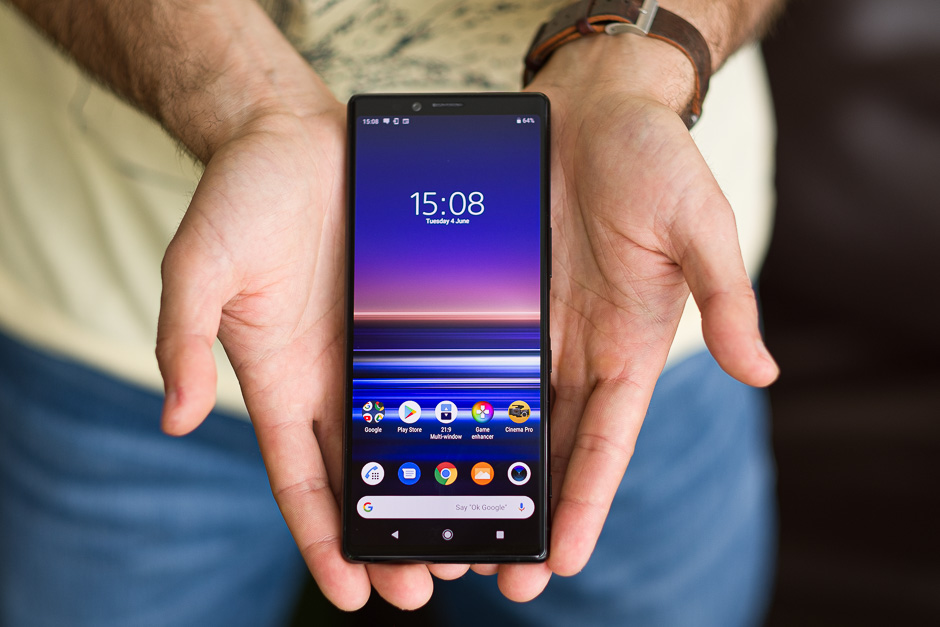
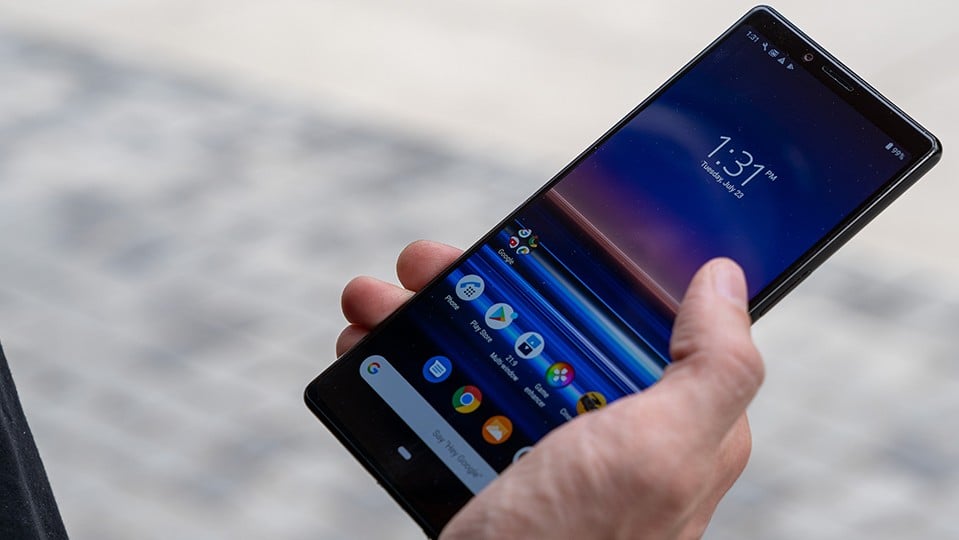
    As we have mentioned to you earlier that this handset of Sony is much larger than the previous one. Taller and unique looks offer this handset a great video streaming and video capturing option. This phone is the next generation of Sony where users are free to enjoy a curved screen for a wider view. Sony Xperia 1’s super tall form factor is the limelight.

    This bigger phone includes a cinematic screen, color reproduction, and a camera. It is actually a complete package where users can enjoy high-end results effectively. Coming up with a price tag of $950, this handset is supposed to be one of the best mid-range handsets to enjoy endless features.

    The best thing about this big-screen phone is that it is much easier to get fitted in your hand. The smartphone includes 6.5” screen which is quite huge than the other models of 2019 in the market. The screen offers you 21:9 aspect ratios.

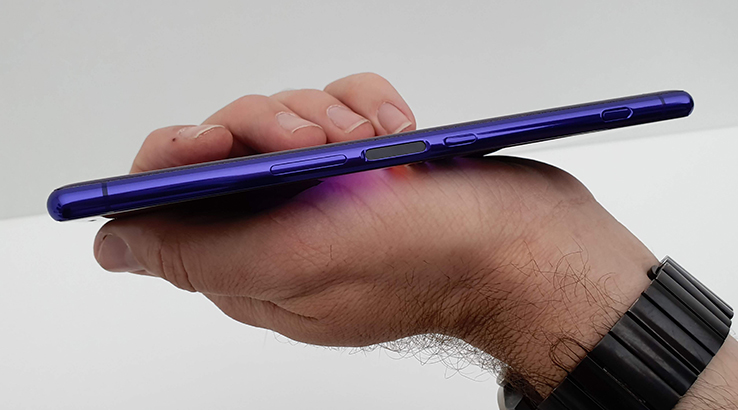
    The phone is coming up with almost the same width as that of the iPhone XS. The grip is just awesome with all the basic ergonomics of handling slab of glass. To offer ease of usability to the users, the handset comes up with various buttons options.

    Users will get here different buttons for volume, fingerprint sensor, power button, and a camera button as well. Yet fingerprint sensor and power button aren’t combined, still offers a quick feel of usage to the users. Users can conveniently launch the Google Assistant option just by double-pressing the power button.

    Hardware & Features

    Sony Xperia 1 comes up with a 4K HDR OLED screen option where users can easily enjoy the resolution of about 1644 * 3840.

    In simpler words, we can also say that users can now conveniently enjoy high-end video streaming every time. Creator Mode is one of the most favored features that offer the best colors to the photos and videos.

    Sony Xperia 1 Hardware & Features

    Creator mode actually replicates the RGB setup and image processing of the cinema screen. It is actually designed in a perfect way to display content in the same way the creators intended to do.

    Moreover, it also offers a slight red tint to the display. Adding more into its features users will be free to change the white balance of the screen to suit your preferences.

    Rather than having a notch or punch hole camera breaking up the display, Xperia 1 comes up with old fashioned bezel above the screen that offers a classic look to it.

    Whether it is about making movies or it is about streaming online, everything here is going to be super fantastic. Dynamic vibration and creator mode are somethings that make it a perfect format to enjoy all.

    Users can enjoy record 21:9 content and alter key settings like resolution, frames per second, shutter speed, lens size, and color filters conveniently.

    Sony Xperia 1 Review

    This handset of Sony comes up with the latest addition of operating system i.e. Android 9.0 and well supports multiple functions to be seamlessly performed on it. The presence of a powerful processor ensures users to have hassle-free and seamless operations throughout.

    The best thing we love about this wonderful handset is the presence of wired and wireless fast charging option. you really don’t need to wait for longer hours nor need to get stuck to those annoying cables to charge your phone.

    Just enable wireless charging and perform multiple tasking at the same time. If we talk about cameras, the handset comes up with three back end cameras and one selfie camera that makes it quite easier for the users to capture fine photos and videos with great resolution.

    Verdict 

    The launch of Sony Xperia 1 has really brought up freshness in the field of Smartphones. Taller buildup and curved screen with a wonderful aspect ratio of 21:9 give users high-end results especially when it comes to creating movies and streaming movies online.

    One of those who are looking for the best budget phone fully loaded with various advanced features, Sony Xperia 1 is surely the one that they can effortlessly choose upon. The smartphone is the new addition with the advanced Android operating system i.e. Android 9.0 (pie) that offers seamless access to the users. So purchase this handset now and enjoy the endless experience with the latest and advanced technology.

  • Vivo NEX 3 hands-on review

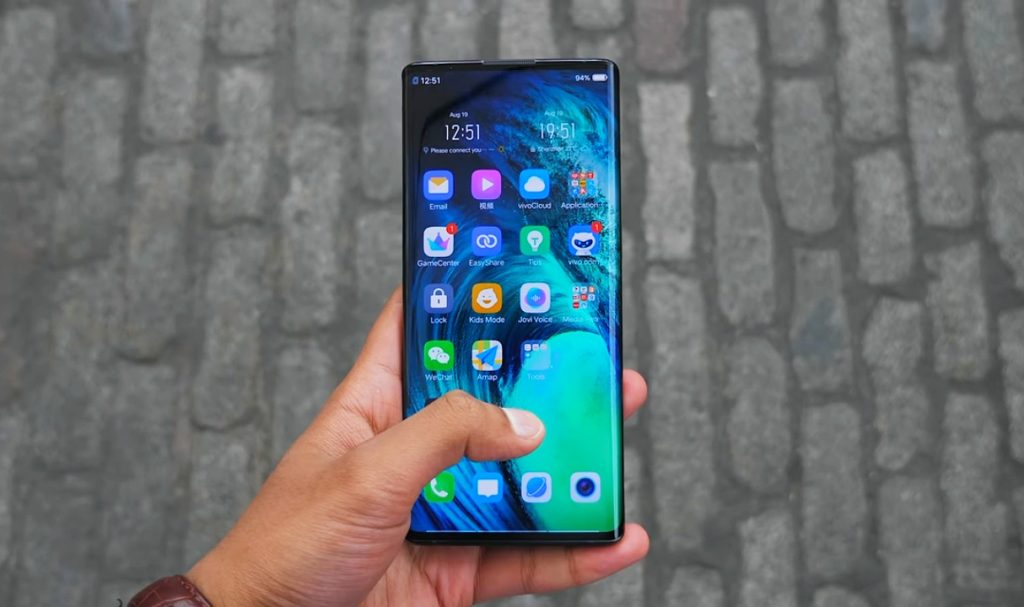
    Vivo NEX 3 hands-on review

    Vivo smartphone has grabbed the majority of the market today. What did we surely need from a smartphone? Seamless access and quality features, that’s it. Vivo is one of the most grooming brands available in the market. It is serving the world with its amazing high-quality services for the past few years. Each and every handset of it is a symbol of uniqueness and advanced technology. VIVO is Surprising the world with its wonderful products. The company is now coming up with a wonderful handset i.e. Vivo NEX 3 hands-on in the market.

    Vivo NEX 3 hands-on review

    Vivo NEX 3 hands-on is really going to grab the market soon as the looks and features both are its charm that is surely shining globally. The huge waterfall display will be surely one of the leading eye-catcher designs for 2019-2020.

    The High-end resolution, well designed triple camera system and much more is there as a surprise for you under this flagship. It would really be quite disappointing if we will not talk about its wonderful features like its power and 5G connectivity.

    The software is real is a real grind whereas the absence of physical buttons to the side makes the display little bit weird.

    Just following in the footsteps of its predecessors, Vivo has launched its third generation and that is a real symbol of beauty and innovation.

    Not only we are going to explore here the beautiful full-screen design, but the product is going to have one of the most powerful operating systems in the industry. Extreme curves at almost 90 degrees are really going to steal the limelight here.

    Specifications Vivo NEX 3

    Body Design: Reinforced front curved glass with beautiful aluminum side frame

    Screen: 6.89” E3 Super AMOLED fullscreen

    Resolution: 1080*2256 pixels resolution

    Camera options: 64MP Primary camera with Samsung GW1 sensor 1/1.7”, Ultra wide-angle: 13MP f/2.2, PDAF, Telephoto: 13MP f/2.5 2x optical zoom and PDAF, 120-degree FoV, PDAF with macro mode from 2.5 cm.

    Memory: 12GB RAM with 256GB external storage

    Chipset: Snapdragon 855 octa-core processor with Adreno 640 GPU

    Operating System: Android 9.0 Pie and FuntouchOS 9.1

    Connectivity: Dual SIM

    Bluetooth: 5.0

    NFC: 5G support

    WiFi Connectivity: YES

    Battery: 4,500 mAh

    Misc: Pressure sensitive side buttons, pop-up selfie camera.

    What about the designs?

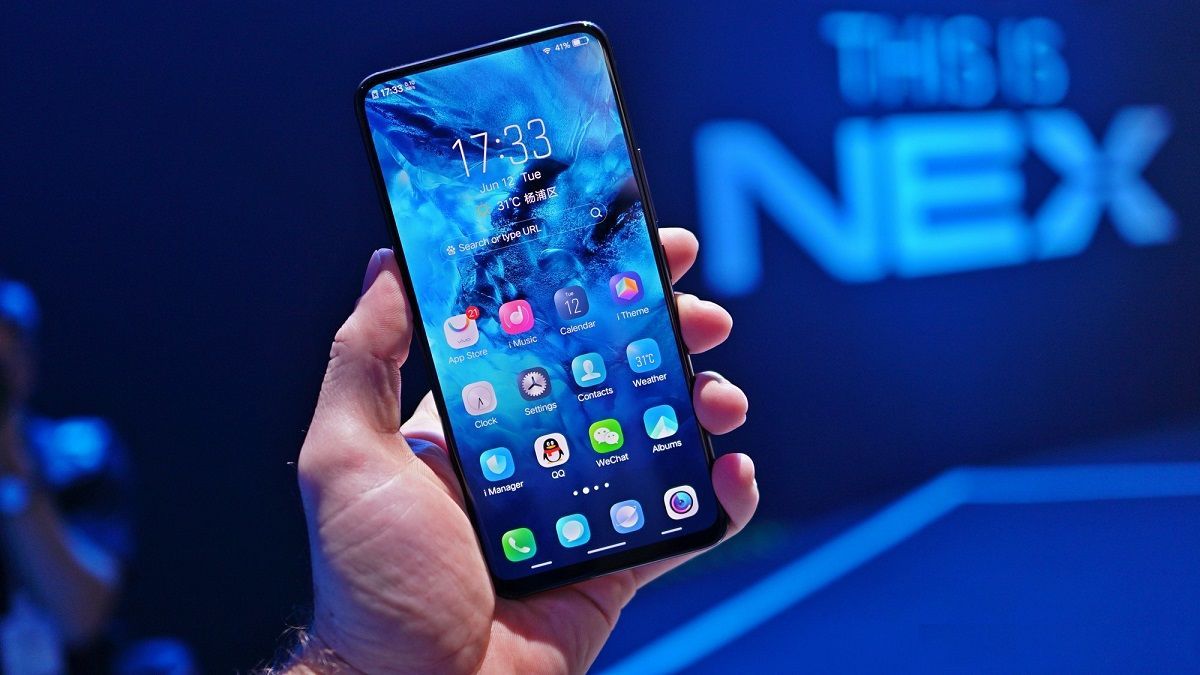
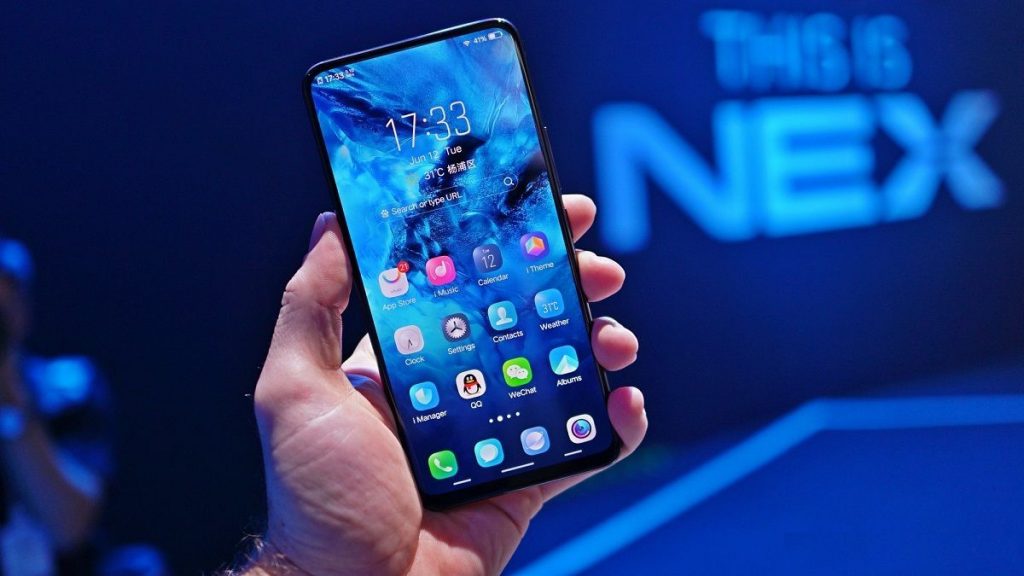
    Vivo NX3 is really a gorgeous handset that will amaze the people with its beautiful designing. The overall looks of this wonderful handset are really quite stunning. Coming up with a wider screen; it really gets hard to operate your handset with single-handedly.

    The curved sides offer a refreshing look to the users whereas the 5.5 inches large display offers amazing experience while streaming.

    Vivo NEX 3 hands-on review designs

    You really don’t need to worry about the protection like Gorilla Glass to save you from accidental touches. As we have told you earlier that the side buttons are being removed from Vivo NEX 3. The handset includes a thin frame with pressure-sensitive sensors and haptic feedback that you can use as a power button and volume keys here.

    How is the camera?

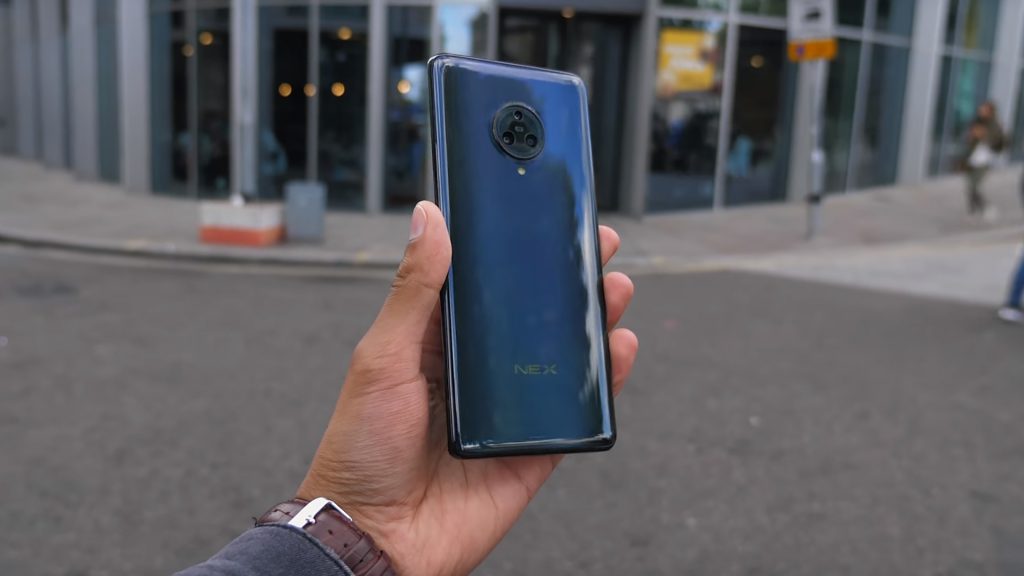
    If we move around the back panel of Vivo NEX 3, the device is featured with a circular camera module where you can find three different camera sensors easily.

    Keeping various demands of the photo lovers in mind, the handset is being installed with three camera sensors where you can enjoy 64MP pixels with the main unit, 13MP with an ultra-wide-angle camera and 13MP with telephoto snapper.

    The best thing about this wonderful handset is that its bump is also not so big and awkward. The back glass is straight enough without having any curve over there and hence users can easily enjoy enough of grip.

    The pop-up mechanism is quite in trend these days, and when we talk about Vivo NEX 3 it has been significantly upgraded to offer better user experience to the users. Enhancing the selfie experience of the users much more, the handset is being installed with 16MP selfie.

    Features

    Vivo NEX 3 is expected to coming up with one of the most powerful operating systems. The device is being designed with Snapdragon 855+ chipset. The device is basically coming up in two variants.

    Users are free to choice 8GB RAM or 12 GB RAM depending upon their preferences and budget. If required, the memory of this handset can be easily extended up to 256GB overall. Therefore, you can now easily enjoy a seamless and smooth experience while working on the various files.

    Vivo NEX 3 hands-on review Features

    AnTuTu 8 is the benchmark of quality and high-end features. When we compare Vivo NEX 3, it is surely one of the highest-scoring devices being present in the market. For offering more reliable results to the users, the device is assumed to be coming up with a heavy-duty chamber.

    Yet the device is coming up with 5G. The users who are feeling low at the budget at this moment, they can also opt for the non-5G variant. The good thing about choosing this big vapor chamber for 5G is that it will reduce the heat of your smartphone for about 100C. Hence, you can seamlessly access your phone now for hours without getting worried.

    The presence of Qualcomm’s X50 5G modem supporting feature and sub-6GHz band support makes this wonderful product one of the most searched out products on the web.

    Users are now not going to have any connection issues as the device is featured with six antennas instead of four. You can easily hold your smartphone as you want.

    Battery Life

    The power consumption is also one of the major reasons. This product is assuming to be covering the market in a shorter time after its release. This 5G solution is not being built into the chipset and hence users can now easily enjoy more power draw.

    Users can now easily enjoy movies and TV shows and can listen to their favorite tracks for hours with the help of a 4,500 mAh battery.

    Adding more into its features, the device is being equipped with 44W SuperFlash Charge technology. The super flash technology can reduce charging time.

  • The Best Multiplayer Games to Play on a Single Smartphone

    The Best Multiplayer Games to Play on a Single Smartphone

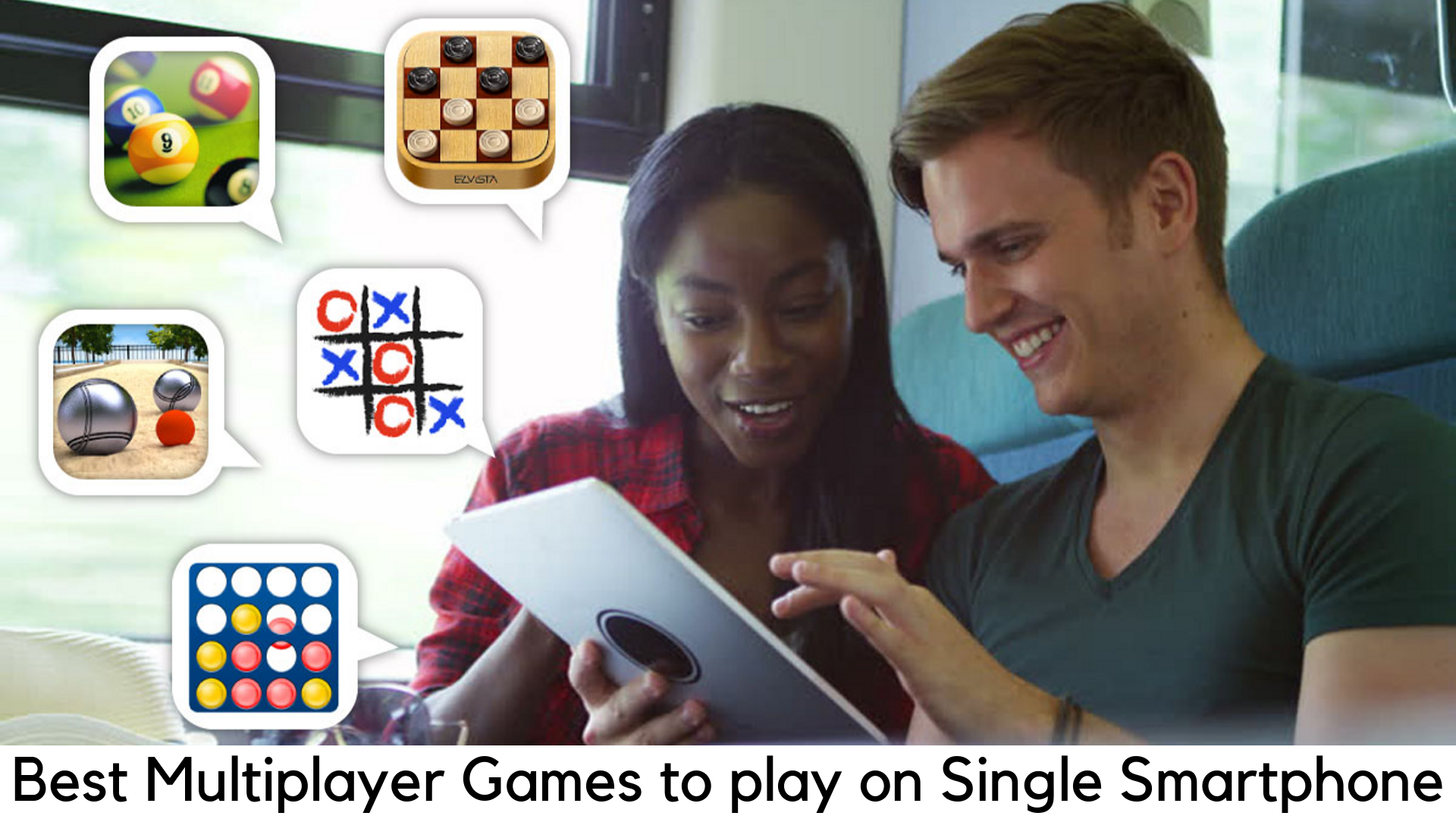
    These days, smartphones offer endless benefits to the users that usually go unnoticed. You can have fun while playing multiplayer games with huge 6-inch display. There are basically two types of multiplayer games. One is those played in multiple screens with friends over the internet or Bluetooth.

    Multiplayer Games

    Other types are those played in a single screen with two or three players. In this guide, we are going to list the best multiplayer games you guys can play on one smartphone.

    1. Ludo King

    It is one of the oldest and most popular games in which you cannot cheat and the result is purely based on your skills and luck. If you have grown up playing Ludo and Snakes & Ladders, it is a digital version of both games. You can play both games with a maximum of four friends on the same device or with a computer offline.

    The Best Multiplayer Games

    It also has the option to play multiplayer in online mode. The game contains ads, no in-app purchases and is absolutely free.

    2. Fruit Ninja

    The Best Multiplayer Games

    Even though you don’t play mobile games, you may definitely know about Fruit Ninja. It is one of the most successful mobile games in the world. But only a few people know that it comes with the multiplayer mode on a single screen. You and your friend can use the same screen to slice through the fruits. It has two modes – Zen Duel and Classic Attack. Classic Attack mode is very simple. You have to slice the fruit in half with your katana and you will lose if three fruits are missed. In another mode, you need to cut as many fruits as you can within 2 minutes.

    3. Badland

    After winning various awards in 2013 and 2014, Badland has reached the third position in this list. It is well regarded as a single-player game but it also comes with multiplayer mode for maximum 4 players. You can play with your friends or against one another. Like Super Meat Boy, you have to survive a very tough situation.

    Each player has given their own part of the screen specific to the character in multiplayer mode. The goal here is to reach the end of the stages. You can take your friend to death in a competitive mode. It is absolutely free with some in-app purchases. If you have a group of friends who want to have some fun, this game is completely worth it.

    4. Science vs. Magic

    The Best Multiplayer Games

    It consists of a lot of mini-games in which you can do different things, such as one-on-one battle and parkour. If you are in search of a simple game to have fun with your friends and kill some time, you should definitely play Science vs. Magic. The game contains no ads and is absolutely free with no in-app purchases.

    5. King of Opera

    This cool party game can be played with a maximum of 4 players in the role of egoistic opera singers who are trying hard to force their rivals to go off stage. You have to use your girth power to knock down the rivals and keep you tenor in the limelight.

    It has got very intuitive controls to grasp easily and even your elder family members can easily become tough competitors within minutes. There is a button dedicated to each player to send their warbler on the stage and the spinning physics of the game takes care of all other things.

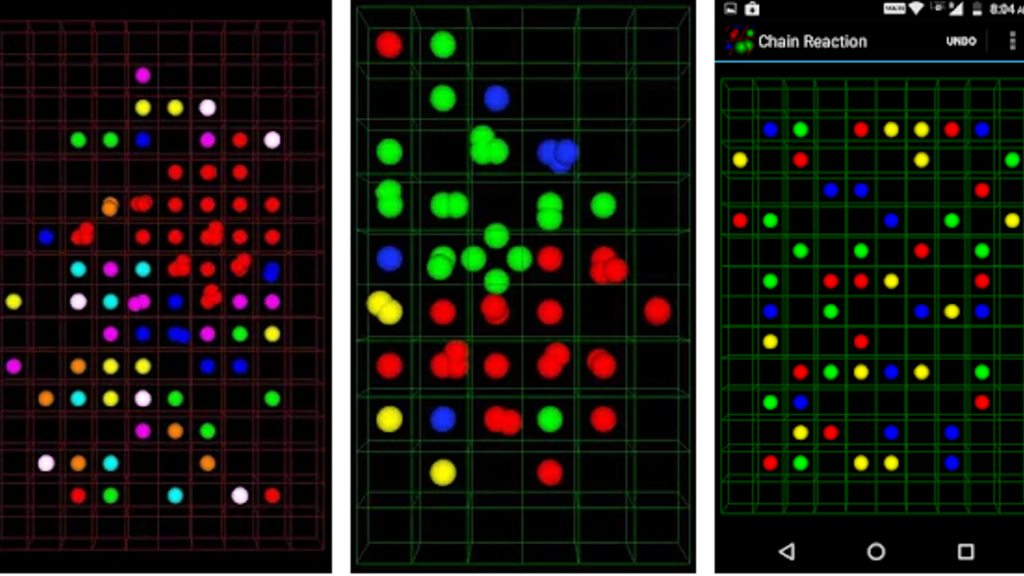
    6. Chain Reaction

    It is basically a strategy board game that can be played by a maximum of 8 players in one device. Players can take their turns and place colored orbs on the grid of cubes. The goal is to take the cube to the critical mass so the orbs can explode around the cells.

    This way, it adds another orb and claims the cube for a player. The key here is to cover the orbs of your opponents and take the cover of all the cubs you are seeing on the board. This game is both addictive and simple time killer for a group of friends.

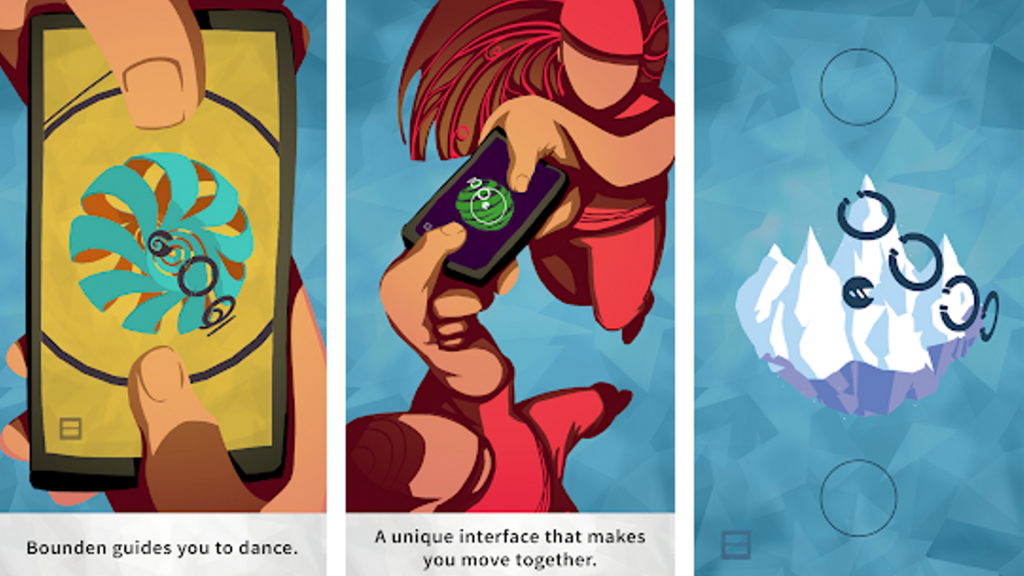
    7. Bounden

    It is one of the most beautiful and unique Android multiplayer games. You will dance with creativity in this game. It can take your gaming experience to the next level. Both you and your partner have to hold the device and press a button given while playing. All you need to do what you have told in the game.

    The Best Multiplayer Games

    You need to follow the commands to rotate, spin and perform the moves in order to do everything in sync. It is one of the most unique concepts in multiplayer gaming for smartphones. It will definitely bring genuine laughs. Make sure not to drop your phone off the floor.

    8. Duel Otters

    Duel Otters is usually based on the same mini-game concepts like Micro Battles. But the theme is more competitive and slightly different. Each player has to hold the device on one side and uses the fingers to play on the other side. Also, you can play hockey and other games, which are more competitive like hot potatoes.

    You can play 11 mini-games and 9 of them are free. You need to like the Facebook page of the developer to unlock another mini-game. To unlock the last one, you have to pay some amount.

    But you don’t have to do it. The game looks cute but is equally very competitive to create more tension. It is a nice game to pass time with friends. If you are alone, you can also play on the computer.

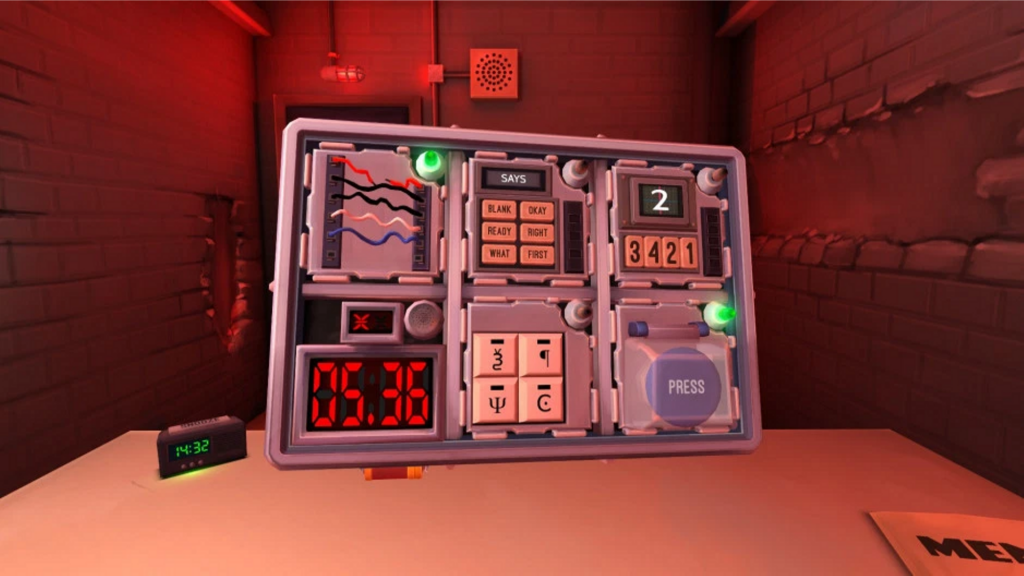
    9. Keep Talking and Nobody Explodes

    This game is a bit on the high side when it comes to pricing as compared to other paid games but it still deserves to be on this list. It is yet another multiplayer game to play on the same smartphone but it also needs another smartphone, computer or tablet to open the manual included in this game. Otherwise, players can play on the same smartphone.

    The Best Multiplayer Games

    This game is full of fun and tension. Here, one player will need to keep an eye on the bomb which should be defused. At the same time, others will be using the manual and give instructions on the steps. There is a limited time to solve the riddles or the bomb will explode and boom, game over! This game is truly amazing that you will have a love/hate relationship with. It would be better if you have a VR device.

    Bottom Line

    We hope you enjoyed reading the multiplayer game list and details.

  • No internet? No problem! The Best Android Games to Play Offline

    No internet? No problem! The Best Android Games to Play Offline

    It goes without mentioning that games are a great source of fun and entertainment when it comes to killing time. There is no lack of Android games that you can fire up anytime on the go. Play Store is filled with thousands of games in virtually every genre. But the problem is when we don’t have a stable and fast internet connection to play online games. They are also filled with annoying in-app purchases, ads, and pop-ups which can spoil the gaming experience.

    Best android games to play offline

    It is always best to keep some offline games handy when you don’t have any access to the web and you have to pass your time. With that said, we have listed some of the Best Android Games to Play Offline from different genres.

    1. Into the Dead

    Enter the world of Zombie Apocalypse where you feel a weird fear of getting lost in the dark where there is no chance to escape. Into the Dead is one of the best android games to play offline.

    The Best Android Games to Play Offline

    You need to run as far as possible while defending against the dead and do whatever you can to survive. It has got intense gameplay with some weapons to unlock by finishing goals. You need to complete all the mini-goals and missions along with the game. You can also challenge your friends to reach high scores.

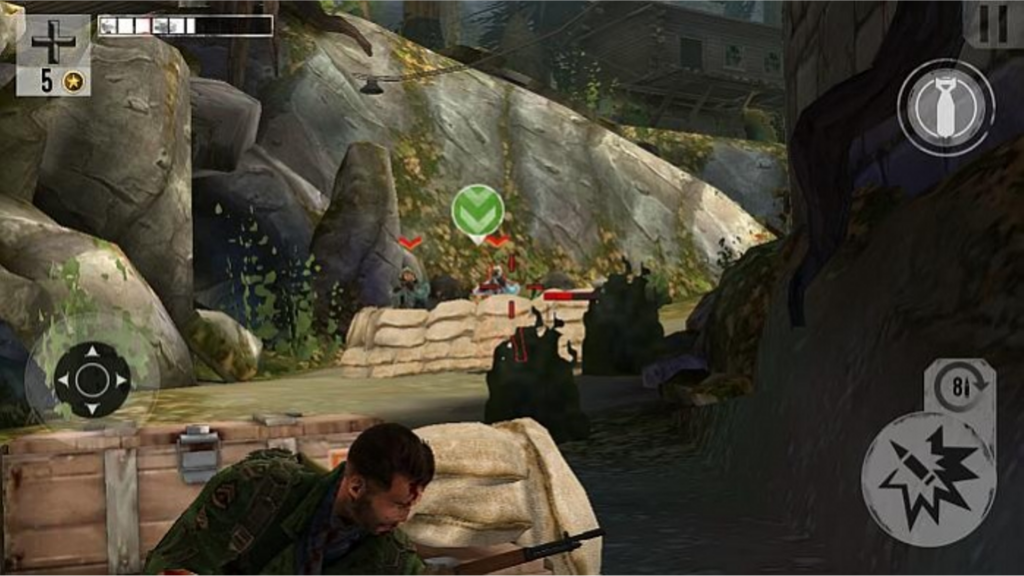
    2. Brothers in Arms 3

    Enter the battlegrounds in the period of World War II where you can play as a brave soldier in the action shooter. You really don’t need the internet to play this game on your smartphone. Even better, you can play this game without any interruption as there are no ads or popups while playing it.

     The Best Android Games to Play Offline

    You can play single player offline but you need to turn on mobile data to play on multiplayer mode. You can also choose between Team Deathmatch and Free for All modes. You can play each weapon class to unlock perks and test new weapons. Get amazed by stunning graphics and appealing skin animations.

    3. The Room Series

    It is one of the best puzzle game series by Fireproof Games which doesn’t need the internet connection. You can play various challenging puzzles to unlock different rooms until you reach the final puzzle to reveal all the mysteries behind the rooms.

     The Best Android Games to Play Offline

    The game has beautiful endings as per your choices and the gameplay is really stunning. The best part is that these games support cloud saving and have no in-app purchases. Though the games are not free, it’s an award-winning franchise and worth to try. There are four games in the series, including The Room 1, 2, 3 and Old Sins.

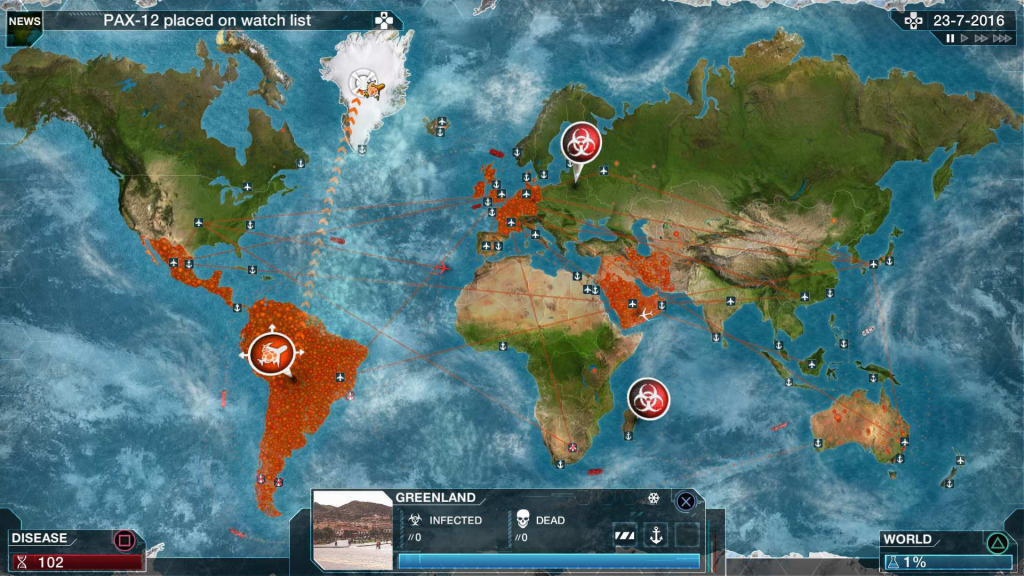
    4. Plague Inc

    It is a realistic and strategy-based simulation game where you are on the verge of creating a deadly plague to destroy humanity across the world. The game is aimed to infect the whole work where you are against everything in the world. The gameplay is truly very innovative from Ndemic Creations.

     The Best Android Games to Play Offline

    It takes the strategy gaming to the next level where you have to be the most clever of all gamers to survive. It has very realistic and stunning graphics with over 12 different types of diseases. You have to infect more than 50 countries to stay immersed in the game.

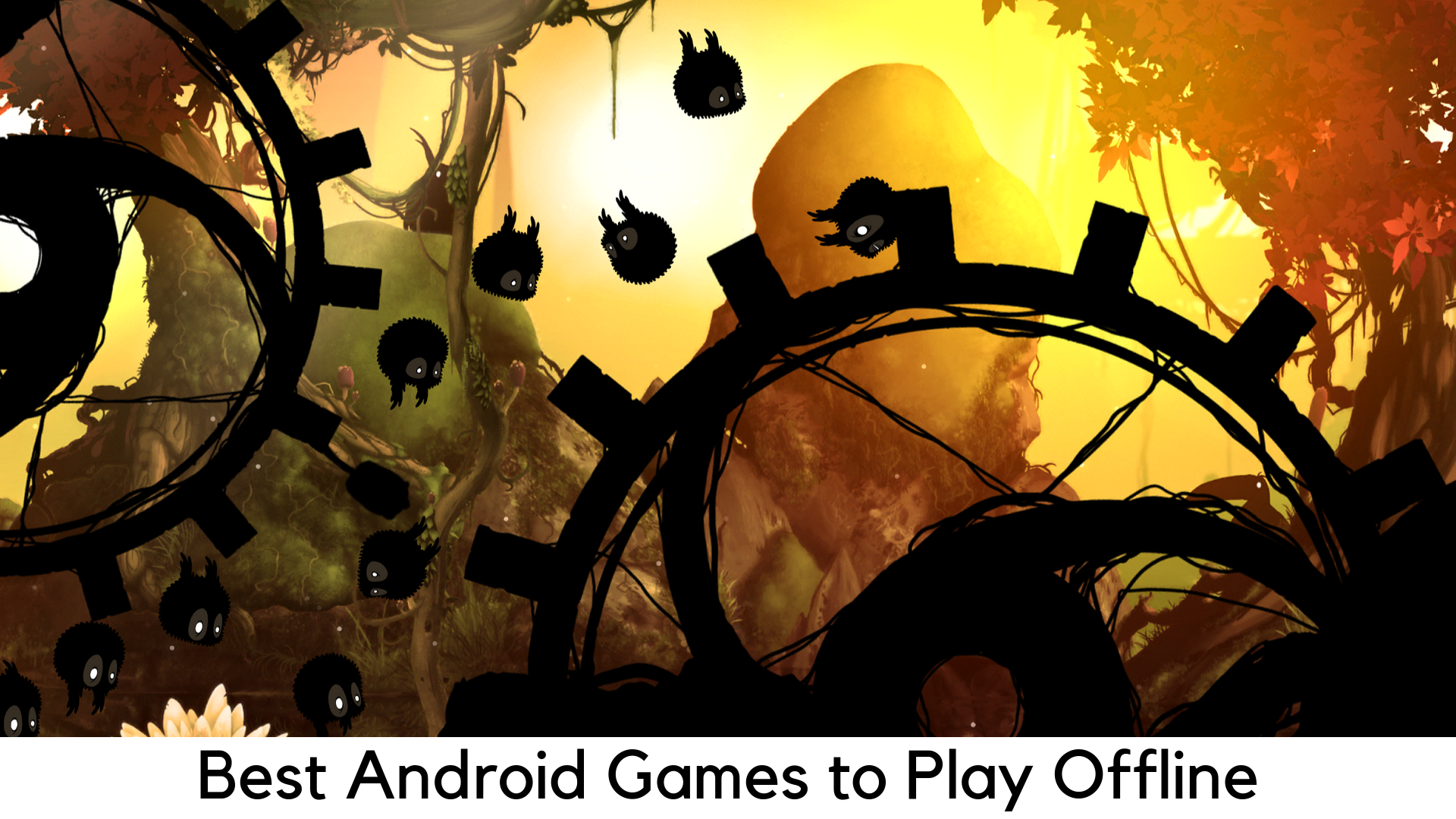
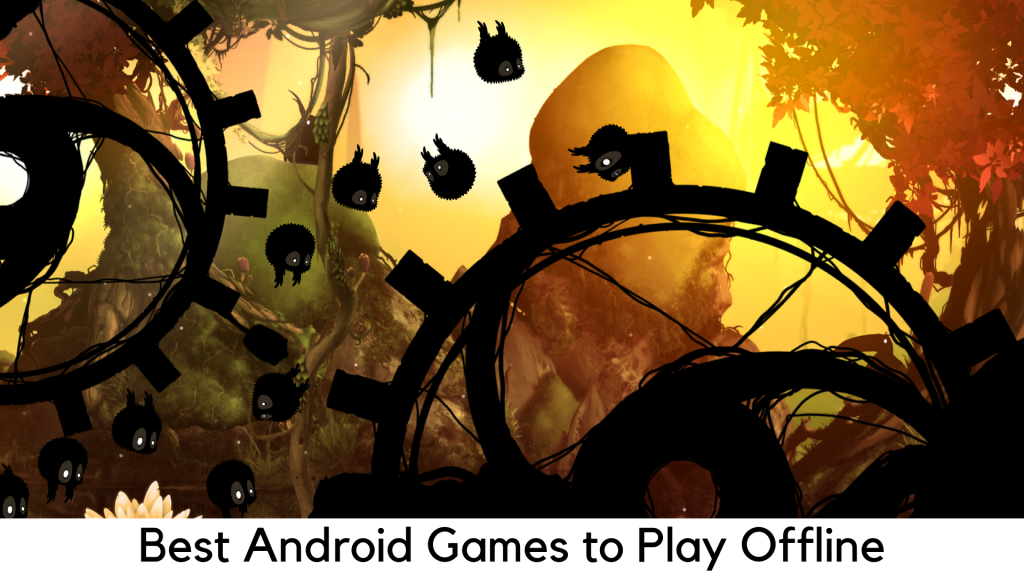
    5. Badland

    With stunning and bright forests filled with different trees, inhabitants, and flowers, Badland has serene ambiance with cool graphics. But there is a catch in the woods. You need to save yourself from the obstacles and traps and figure out what’s happening around. The Best Android Games to Play Offline

    The game features 100 different levels with single-player mode as well as the multiplayer mode to allow maximum 4 players with 23 levels to play on the same device. You can play this game offline with no ads and it also supports cloud storage.

    6. Overkill 3

    Overkill 3 is another cool and stunning offline shooter with fast-paced action that you can play endlessly. In this game, you have to pass the levels or defend the Generator by killing the enemies.

    You have to deal with a cruel army who wants to kill everyone on their way. You are on a mission to save humanity by teaching the bad guys a lesson. Playing online has its own perks but you can also play offline.

    7. Plants vs. Zombies

    Plants vs. Zombies have become a big hit series since it was launched. It still stands one of the best and award-winning strategy games. In Plants vs. Zombies, you need to place a range of plants to deal with the herds of zombies with different abilities.

    They are on the verge to attack your yard and eat your brains. Plot the plants to destroy the undead before they can cross their limits. Like with any other strategy game, it eventually goes difficult over time. You don’t have to buy any item even though the gameplay forces you to buy one.

    8. Asphalt Nitro

    Unlike the GBs of data, its closest siblings require, Asphalt Nitro needs nothing but just 110MB of storage and it supports even older Android devices. Asphalt Nitro is basically a stripped-off variant of the high-end racing games of Asphalt series. The gameplay is nice but the graphics are very light.

    Like any other Asphalt title, you have to unlock cars, start racing, and keep upgrading. The difficulty increases as you pass through 125 levels. There is no lack of cool racing games but they need internet connectivity. But Asphalt Nitro is both free and offline.

    9. Limbo

    It is a great and amazing puzzle game where you need to move ahead, solve puzzles and find your sister who was lost somewhere while using the available resources.

    It is well regarded as one of the best Best Android Games to Play Offline and is elegant enough. The graphics are really very nice in this game. The game is based on a small little boy who is looking for his lost sister in the weird world. The game is not free but it’s worth playing offline.

    Verdict

    We hope our list of Best Android Games to Play Offline would help you pick the best titles without having to use the internet. You can choose one according to your favorite genres like strategy, action, puzzle, racing, and adventure.

  • How to Turn Off Notifications on Android

    How to Turn Off Notifications on Android

    How many applications do you have on your Android smartphone? Are all of those applications equally important to your work or your life? Or are some of those applications present on your phone just for the sake of your pleasure?

    How to Turn Off Notifications on Android

    Chances are that the answer to all of these questions is in the affirmative. We often have a number of applications on our smartphone devices and a majority of those applications are not even that important to our work and life.

    This is why we often face the issue where we are doing something very important and our phone beeps indicating that there is a notification. You obviously will not want to miss any important notification so you go ahead and check your phone only to know that it is something trivial or an advertisement.

    That is extremely annoying and you would definitely want to put an end to it as soon as possible, right? If you have answered yes to that question then this article is for you as we will tell you about all the methods and steps which you need to follow to turn off notifications on your android smartphone.

    Issue with Notifications

    Constant notifications do not just disturb you for a temporary moment but can have long-term effects on your concentration, memory, and other cognitive functions. According to a study conducted by Florida State University, notifications are one of the primary modern-day causes of ruined concentration amongst teenagers and adults alike. All natures of notifications are very destructive to the concentration of an individual whether it is a small beep or a longer ring.

    Many studies have also shown that an individual does not even have to interact with his or her smartphone device to be disturbed by the notification. Simply hearing the notification sound or even perceiving the notification light is enough to get an individual derailed from whatever task he or she was performing.

    It is also quite interesting to note that this behavior is not just restricted to people who are labeled to be ‘smartphone addicts’ but instead, is found in people of all ages who are in constant touch with technology.

    Methods For Turning Off Notifications on Android

    If you are tired of being distracted every single time your phone displays a notification or makes that beeping sound then, it is best for you to turn off the notifications on your android. There are different versions of android available on different smartphones. The settings option for those versions of android can differ from one another. Hence, a list has been made which can be followed to turn off notification on a different version of android. And that list is mentioned below.

    Turning Off Notifications on Android 5.0 Lollipop and Up

    In devices that run on the Android 5.0 Lollipop or up, it has been made incredibly easy to turn off notifications. This has been done by introducing a specific section that is solely dedicated to turning off notifications on the android device. The steps for turning notifications off in Android 5.0 Lollipop and up are mentioned below.

    Turning Off Notifications on Android 5.0 Lollipop and Up

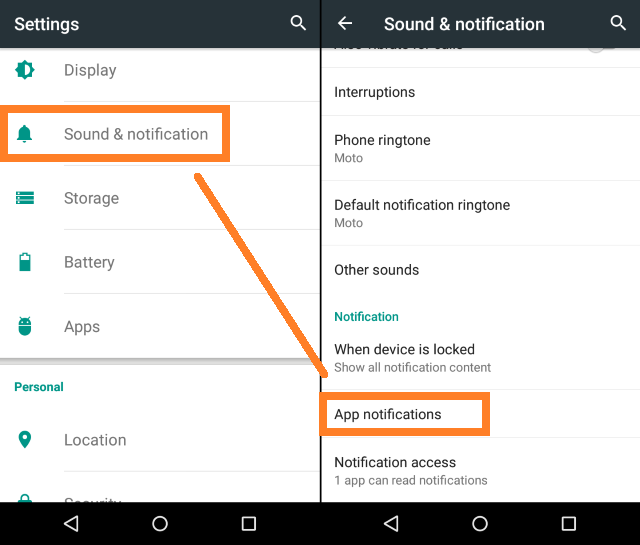
    • Go to the ‘Setting’ icon and scroll down to the ‘Sounds and Notifications’ tab
    • Now click on the ‘Sounds and Notifications’ option and again scroll down to the option of ‘App Notifications’
    • Next to click on the option of ‘App Notifications’ and find the application from the list which you would prefer to stop receiving notifications from
    • Click on the icon of the application which you don’t want to receive any notifications from and tap the boggle option for ‘Block’
    • Find other applications from which you would not want to receive a notification and follow the step mentioned above to always avoid being disturbed

    There will also be a boggle named ‘Priority’ below the ‘Block’ boggle. It is important for you to not be bothered by that option at this moment as it is designed for creating a sort of separate list of applications that will be allowed to send you notifications even when the ‘Do Not Disturb’ (DND) mode is on. This option should only be used for applications that are highly important to the android smartphone user.

    Turning Off Notifications on Android 4.1 Jelly Bean to Android 4.4 Kit Kat

    Not every Android smartphone user will be using the rather latest Android 5.0 Lollipop or above and if you are one of those readers who are using an android variation from an Android 4.1 Jelly Bean to an Android 4.4 Kit Kat then, you can follow the steps which are mentioned below to turn off notifications on your device.

    Turning Off Notifications on Android 4.1 Jelly Bean to Android 4.4 Kit Kat

    • Look for the ‘Settings’ option and click on it. Scroll to the option of ‘Apps’ from the list which is available
    • Click on the option of ‘Apps’ and select the application from which you would not want to receive any further notifications
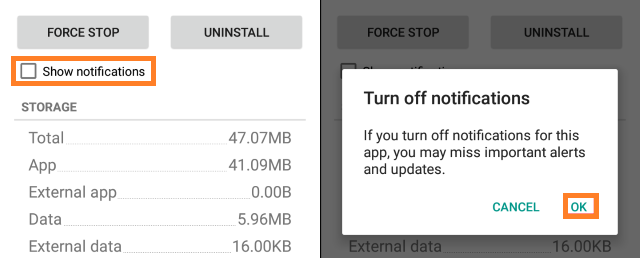
    • Look for the checked box named ‘Show Notifications’. This option will be present below the ‘Force Stop’ button
    • Click on the box next to ‘Show Notifications’ to uncheck the box
    • A message will display which will be asking you to confirm whether you want to turn off notifications for that application or not. Simply click ‘Ok’ to proceed further
    • When you are done, go ahead and find other applications on your android smartphone from which you would not want to receive a notification and follow the 3rd to 6th steps.

    Turning Off Notifications on Android 4.0 Ice Cream Sandwich or Older

    These days it is common for individuals to use Android versions 5.0 and above. Many users also end up using Android versions 8.0 and above. Hence, it quite uncommon to find users who still use devices with Android 4.0 Ice Cream Sandwich versions or older.

    But if you are one of those people who are using such an old device then it is high time for you to change your device and replace it with some newer model of smartphone. Not to mention the fact that there is no option in a smartphone with android version 4.0 Ice Cream Sandwich or below to turn off notifications.

    Final Words

    Following all of these methods and steps should get rid of all your constant notifications issues. However, if you are still receiving constant notifications then comment it down below so that we can help you out as soon as possible!


  • How to Update Android: Check for and Install Android Version Updates?

    How to Update Android: Check for and Install Android Version Updates?

    In order to keep any Android device up-to-date and secure, software updates are always important. Unfortunately, most of the Android devices do not get even the small monthly security patches, let alone the major OS updates. Hence, updating an Android OS is a major concern among users.

    How to Update Android

    There is no single answer because the actual steps to download an update vary by the device’s manufacturer. Sometimes it also varies from device to device, despite having the same brand. If you are reading this guide, you are here to know the answer. Don’t worry; we will discuss some basic steps along with other methods to install the updates. Therefore, keep in mind that the steps may vary a bit according to your device.

    Updating Your Device to Android 9 Pie

    The best thing is that most devices have got Android 9 Pie till now and we all are desperately waiting for Android 10. Android has come a long way from Android 1.0 to Android 9 Pie with a great improvement in concept, visuals, and functionality. Each Android OS version has a dessert code. For example, Android 5.0 got Lollipop, Android 7 got Nougat, Android 6 got Marshmallow, Android 8.0 is Oreo, and finally, Android 9 has Pie.

    updating to Android 9 Pie

    Android 9 Pie Key Features

    • Adaptive brightness and battery
    • Multiple Bluetooth connections and camera supports
    • Easy navigation and smart gesture controls
    • Set time limits for apps
    • Keep track on your device usage
    • Do Not Disturb mode
    • New Gesture Control interface with no multitasking button and back button

    These were some of the cool features of Android Pie. After knowing these features, you may not want to wait for any further to update your old Android version to a new one. Depending upon the device, updating an Android OS may not be that simple. In order to make things easier, we have listed three of the effective and easiest methods to update your Android system.

    Method 1 – Upgrading Android with Basic OTA Updates

    You will usually get notifications whenever your device gets the basic OTA (over-the-air) Android Pie update. You can simply open the same and tap the “Update Now” option (depending upon the device) to upgrade to the latest Android version.

    method 1

    If not, we have listed the basic steps to search for and update your android. These steps have been verified on Nokia, Google, OnePlus, and Samsung devices. The following steps may vary if your device uses has a different interface over the basic Android. For any reason, if the latest update has not rolled out yet to your device or you cleared the notification by mistake, you can update the OS with these steps –

    • First of all, connect your Android device to the LTE or Wi-Fi network (recommended).
    • Go to Settings.
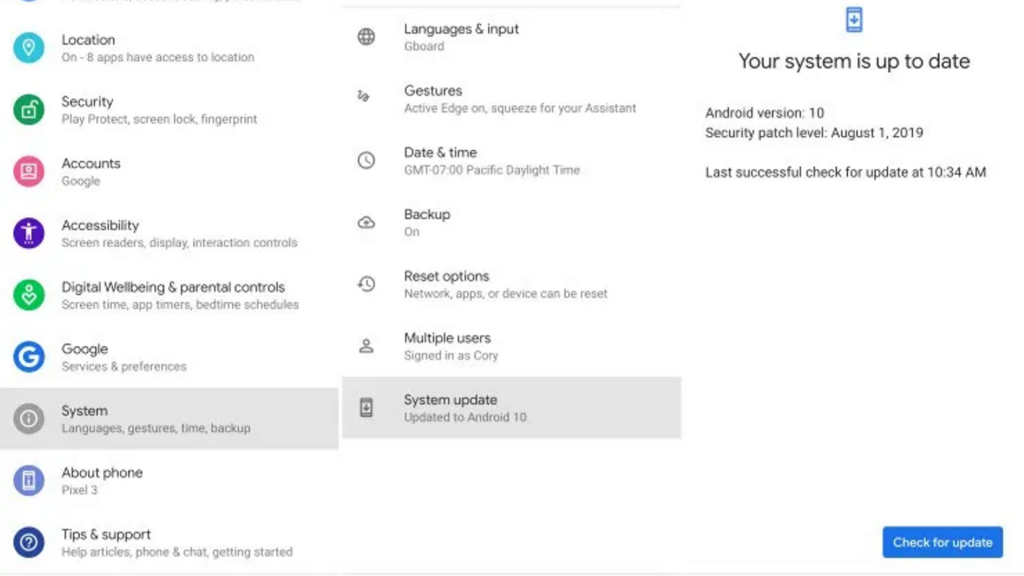
    • You can search for Update if your device features a Search option on the top of the screen. You can quickly land to System Update or a similar setting.
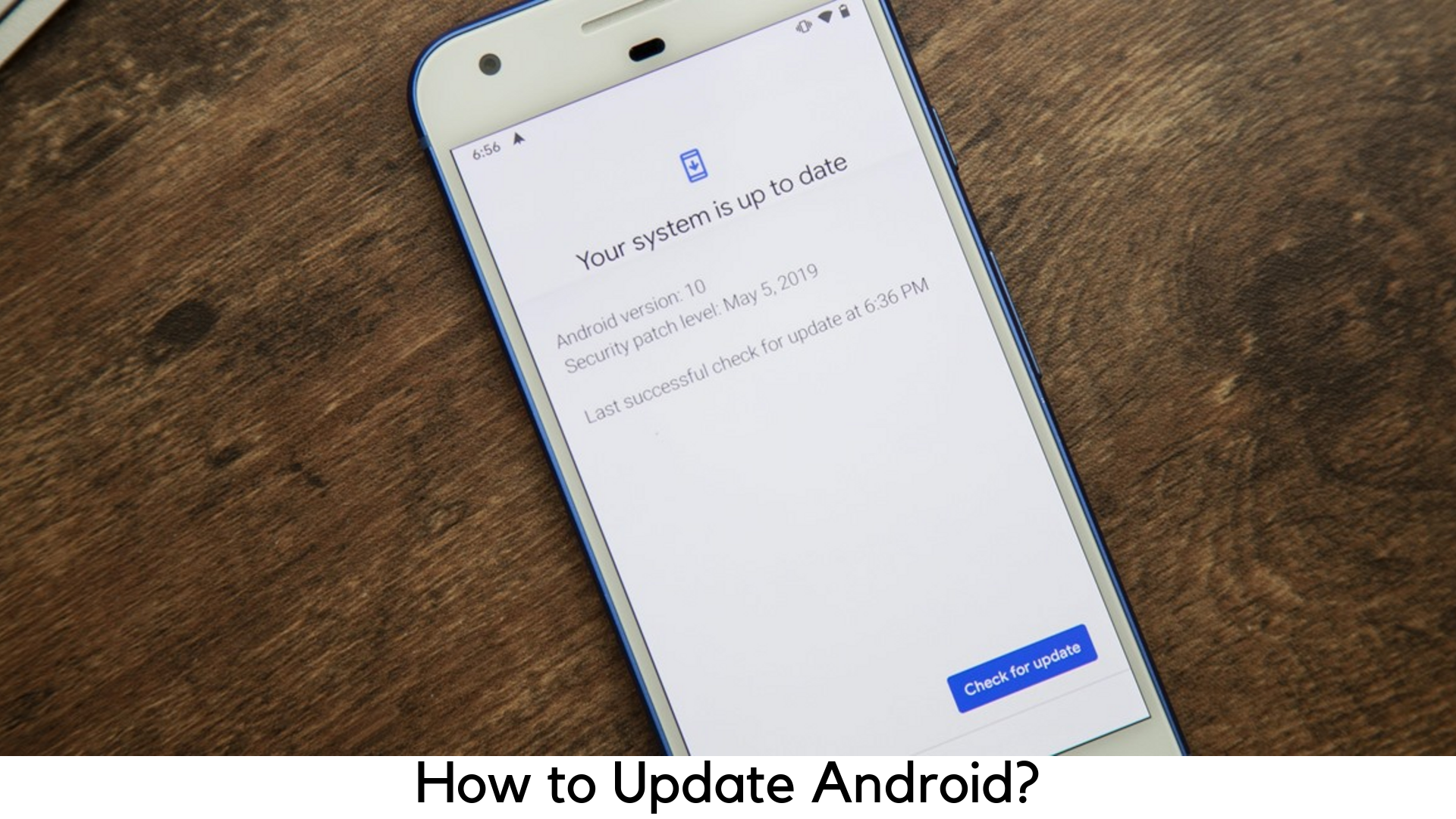
    • Now tap Check for updates or Check now.
    • If there is any OTA update, your device will show.
    • Tap Download and Install.

    Wait for a few minutes to update and install your device. Once the download process is finished, you need to restart the device. Keep patience because it may take some time to restart the device to process the update. However, if it shows “Your device is up to date” when you check for updates, it means your device has not got any update from the manufacturer.

    Method 2 – Using Upgrade Package

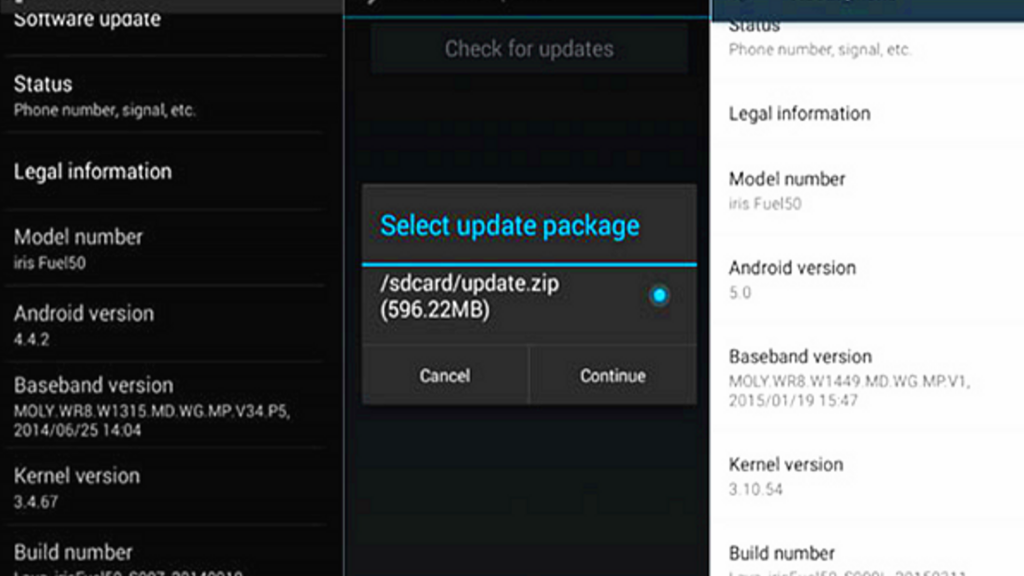
    In normal circumstances, the official website will update system files to download and upgrade the package. Also, you can simply head to the download section of the official website of your Android device. From there, you can download the latest upgrade pack by selecting the brand model of your phone. After downloading the package, keep it in the SD card or internal storage.

    update package

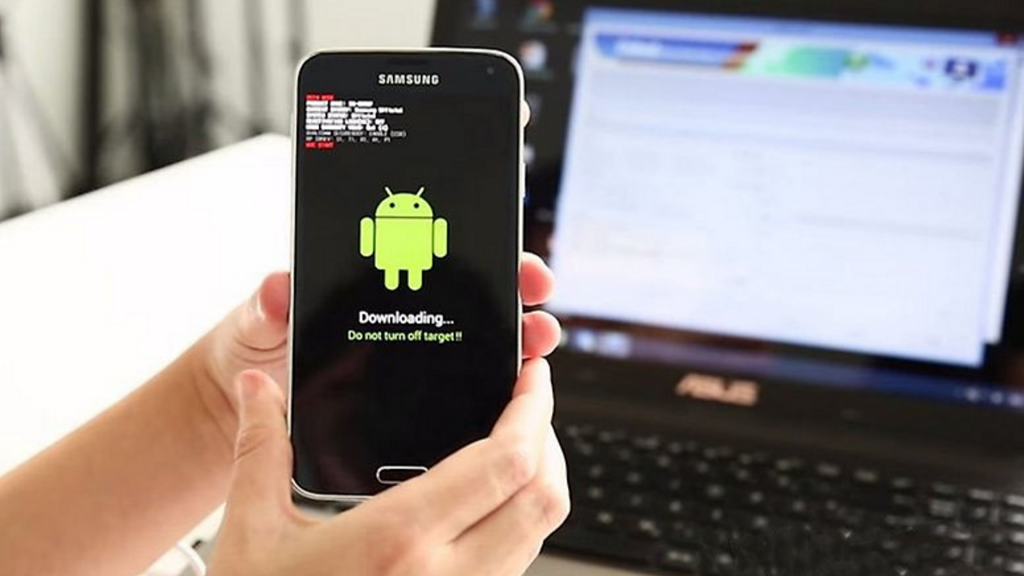
    Go to System Update under About Phone section in Settings. It must show the package available. Tap the option “Continue to download” and wait for it to install the package. Restart the device and your device will be updated to Android 9.0.

    Method 3 – Upgrading by Rooting Device

    Well, it is the last option for you to update your Android. In addition, you can try rooting the device to upgrade the device to the latest Android OS whenever it is available. Along with super administrator permissions, you can also access updates easily. Here are the detailed steps to root your Android device –

    • First of all, download a root app and install it on your PC.
    • Open it and connect your device via USB cable to your PC.
    • Follow the steps to root your device.
    • Restart the device to get the latest version of Android.

    Testing Android Q Beta on Your Device

    Even though Android 9 Pie is a perfect Android OS, the developers are still engaged in the new Android version to offer a better experience to the users. Android 10, previously known as Android Q is going to outperform the current Android 9 Pie.

    Although the official release date is not confirmed yet, Google has rolled out Android Q beta for developers and users to help various manufacturers to know about the improvements and problems which should be fixed before the company rolls out the next OS. Therefore, you should have a Pixel smartphone to join the Android Q beta program.

    If you have one of the following Pixel phones, all versions of Android Q beta are available for you to test –

    1. Google Pixel
    2. Google Pixel XL
    3. Google Pixel 2/2XL
    4. Google Pixel 3/3XL

    Initially, Google offered Android Q on selected Google Pixel models. As of May 7, 2019, Google introduced Android Q beta for other smartphones from different brands. Only a few models support the Android Q version currently.

    Also, before installing Android Q Beta on your device, be sure to backup all your data as you may lose the same during the process, according to Google. There are some non-Google devices that support the Android Q beta program.


  • How to Record WhatsApp Calls on Android and iPhone?

    How to Record WhatsApp Calls on Android and iPhone?

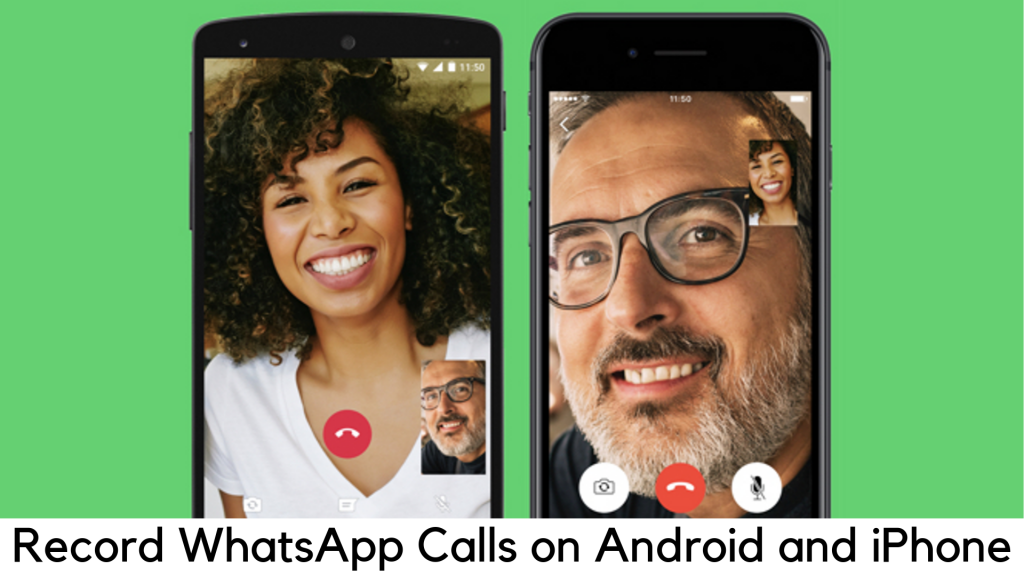
    WhatsApp is truly a nice messaging app with lots of cool features. Now you can make both voice and video calls using WhatsApp. It has been used in the day-to-day life of many of us due to its great convenience. Nevertheless, call recording is a feature that has not been provided for the privacy concerns of the users. Obviously, there is a huge risk of misuse and surveillance using this feature. At some point, we need it somehow.

    How to Record WhatsApp Calls

    If you desperately want to record your WhatsApp calls, you need to do a few workarounds. It also varies as per the smartphone you have been using and it is not a foolproof option. Meanwhile, it is your best bet. We have discussed a few of the best ways to record WhatsApp calls on both iPhone and Android.

    Note – Before going any further, let us be clear that you need to take informed permission from the caller before recording. We expect that you will not breach the law or user’s privacy by recording calls secretly.

    With that said, let’s get started…

    Since the process of recording WhatsApp call varies on iOS and Android devices, we have suggested different processes. So, if you want to read the steps specific to your iPhone, you may skip to the next section.

    Recording WhatsApp Calls on Android

    There is no specific approach to record WhatsApp calls on every Android phone. Some devices come with VoIP call recording features while some do not. You may want to find out if your device supports that feature. If not, you just have to read on to know how to record WhatsApp calls on your android.

    recording whatsapp call on Android

    Keep in mind if you are using Android 9 Pie on your device, chances are less that it may allow recording because there are some restrictions on the OS level.

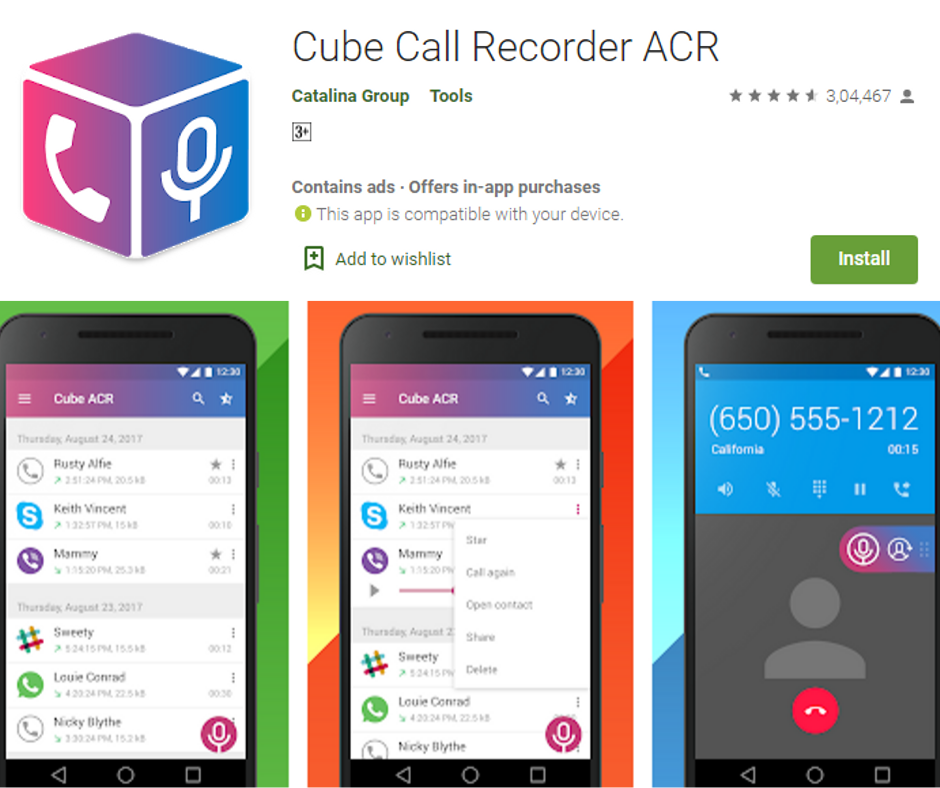
    Method 1 – Using Cube Call Recorder ACR

    Cube Call Recorder is one of the highly recommended apps for recoding all your outgoing and incoming calls with VoIP calls like those that you do on WhatsApp. This app also supports Viber, Skype, Line, IMO, and Telegram. Here are the steps to use this app –

    cube call recorder

    • If it is not installed, simply download and install the Cube ACR app from the Google Play store.
    • Open the app.
    • The Welcome Screen will show up. Tap the “Next” button. Allow this app to listen to Audio Calls, Save Call Recording, and detect outgoing and incoming calls.
    • It will ask for permission to use the VoIP call recording if your device supports one. You need to record calls directly via Accessibility Services. Otherwise, an error message will show up that “VOIP calls recording is not supported on your device. The feature is disabled.”
    • If VOIP call recording is disabled, tap on the hamburger icon (Menu bar).
    • Go to Settings > Recording.
    • Scroll down to VOIP recording and turn on “Ignore VoIP Support Check
    • Tap on the “I Understand” button and tap “Enable App Connector” on the next screen.
    • Turn on the “Cube Call Recorder app connector” under Accessibility Services.
    • Whenever you get any call on your WhatsApp or your phone, it will start recording automatically. You can also change auto recording for any call from the floating icon on the screen.
    • You can go to Menu to check other settings.

    Along with VoIP calls, you can also record basic cellular calls using this app. Call recording on WhatsApp works smoothly, especially on Redmi Note 6 Pro and Mi A1, based on our testing. You do not even have to change its default settings.

    Other Third-party apps for WhatsApp audio call recording

    Real Call Recorder and Messenger Call Recorder are other apps you can use to record your WhatsApp calls.

    Method 2 – Using Screen Recorder Apps to Record WhatsApp Video Calls

    You can record video calls over WhatsApp easily using different screen capture apps. Here are some of the free and best screen capture/recording apps to record video calls on WhatsApp –

    • AZ Screen Recorder
    • DU Recorder
    • Mobizen Screen Recorder

    The basic features are very similar in these apps.

    Recording WhatsApp Calls on iPhone

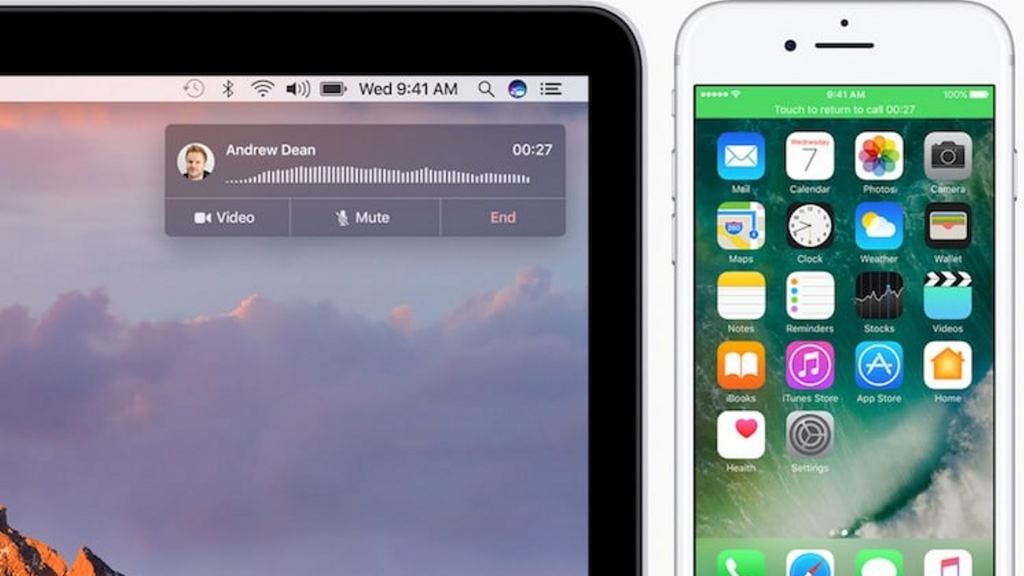
    In terms of privacy, iOS is even stricter than Android. Therefore, it has left no simple way of recording calls on both cellular and VoIP apps. However, there is a hack that can help you get things done. It takes a lot of effort. You will need an iPhone, a Mac system and another smartphone having a WhatsApp account.

    recording whatsapp call on Android

    It is a tedious process. Your secondary smartphone can be either iPhone or Android. Your primary iPhone will be connected to the Mac to conduct call recording. Hence, you need a secondary device to make calls.

    • First of all, you need to connect iPhone to Mac and allow important permissions. Open QuickTime and go to the File menu. Select your iPhone as a source under “New Audio Recording” and click the record icon.
    • Make a WhatsApp call from your iPhone to your secondary device having WhatsApp account. Once it is connected, use the group-calling feature on WhatsApp to add the person you would like to talk to.
    • Now you can keep the conversation going with the secondary device. Once conversation is finished, stop recording and save it from Quicktime to Mac.

    Note – Make sure your iPhone is connected to your Mac during the conversation. Also, ensure that all three numbers are active when doing group calls. If any device is disconnected, the recording will be stopped.

    This is all you need to do to record WhatsApp calls on iPhone. We hope the above steps will help you.

    Bottom Line

    As discussed earlier, recording WhatsApp calls is not that simple. We can just expect that it will be even more difficult due to the ongoing privacy controls. It is already next to impossible on iOS to record voice calls and Android is eventually making a move in this direction.

    Feel free to tell us if the above steps have helped you to record VoIP calls. What are your opinions on these privacy controls to keep users from recording calls? Leave your thoughts on the comment section below.


  • How to Record a Call on iPhone or Android Phone for Free?

    How to Record a Call on iPhone or Android Phone for Free?

    Sometimes, you just need to record phone calls just for your personal records, whether for business, work, or sentimental purposes. The problem is that there is no default option to record calls on iPhone and Android handsets.

    How to Record a Call on iPhone or Android Phone for Free

    If you desperately want to save your conversations as an audio file, you can try different ways like screen recorder apps. The laws on call recording vary by country. Be sure not to breach the law before trying any call recorder options. Do some research and check with other parties before recording.

    Recording Call on Android Phone

    You just have to follow these steps to do a call recording on Android –

    Recording Call on Android Phone

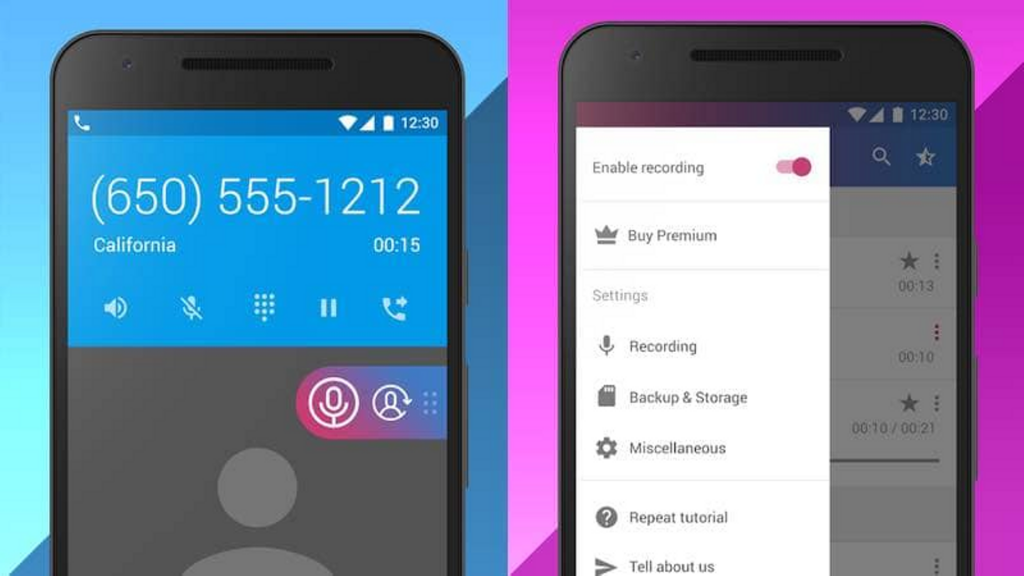
    • First of all, download Cube Call Recorder.
    • Launch the app on your Android device.
    • Allow the app permissions and select “Enable Overlay”.
    • Be sure to disable the battery saver in your device to allow this app to record voice calls. You can go to Settings but its actual location varies by phone. Normally, this option is available under Optimization by going to Settings.
    • Now you have to answer any call you get or call someone. This app will record the call automatically.

    Keep in mind that the recorded call volume might be a little low on some phones. It is a small issue as the recording will be clear.

    Recording Call on iPhone

    Recording phone calls on the iPhone is not that easy. You can find different call recording apps available on the App store. However, you may not be able to find the good ones. They ask for a recording fee on a per-minute basis and it’s not a good value. There are two different ways to record calls easily on iPhone and both have another device. You need to follow these steps if you have an Android device –

    Recording Call on iPhone

    • Be sure that your device has an active SIM card so you can receive calls.
    • Now you need to download Cube Call Recorder on your android device and allow call recording by going through the above steps.
    • Call your Android device from iPhone.
    • Answer the call.
    • Tap Add Call on your iPhone.
    • Call anyone or any number from your contacts.
    • Tap Merge calls once they receive your call.

    The call recorder app will start recording the call automatically on your Android device. The recording will be stopped once the call ends or dropped.

    Recording a Call on iPhone or Android in loudspeaker mode

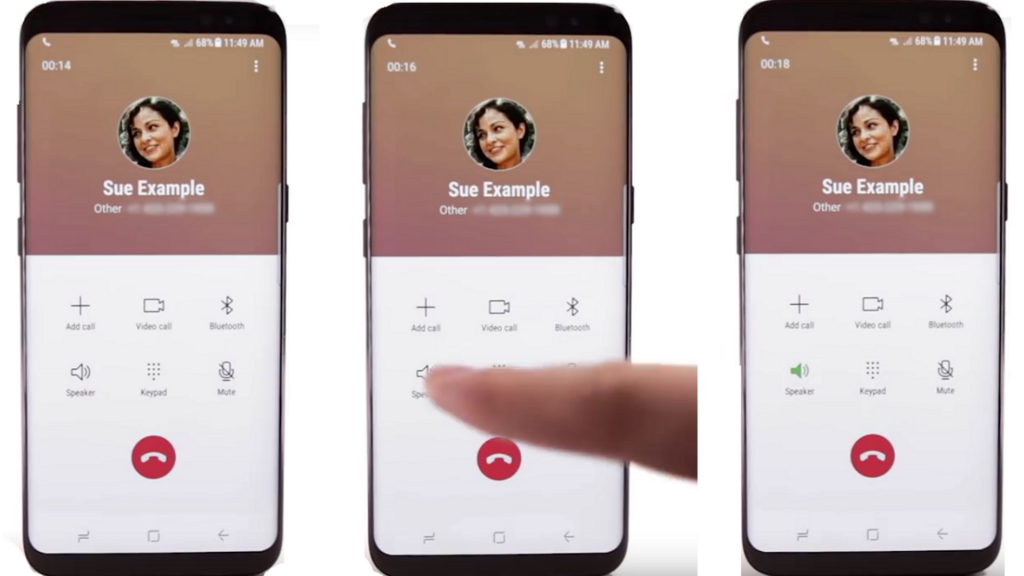
    Using another tablet or phone is the fastest and easiest way to record a call. iOS devices already have a voice memo app and Android devices have a default voice recorder. The thing is you need to receive or make a call on the loudspeaker and set up another device to record. This way, you can record both sides of the calls.

    Recording a Call on iPhone or Android in loudspeaker mode

    Be sure to do it in a calm and silent room where there is no distraction or noise, like ambient chatters or people walking around. The audio quality might vary as per the microphone on the second device.

    Recording a Phone Call on iPhone or Android with Google Voice

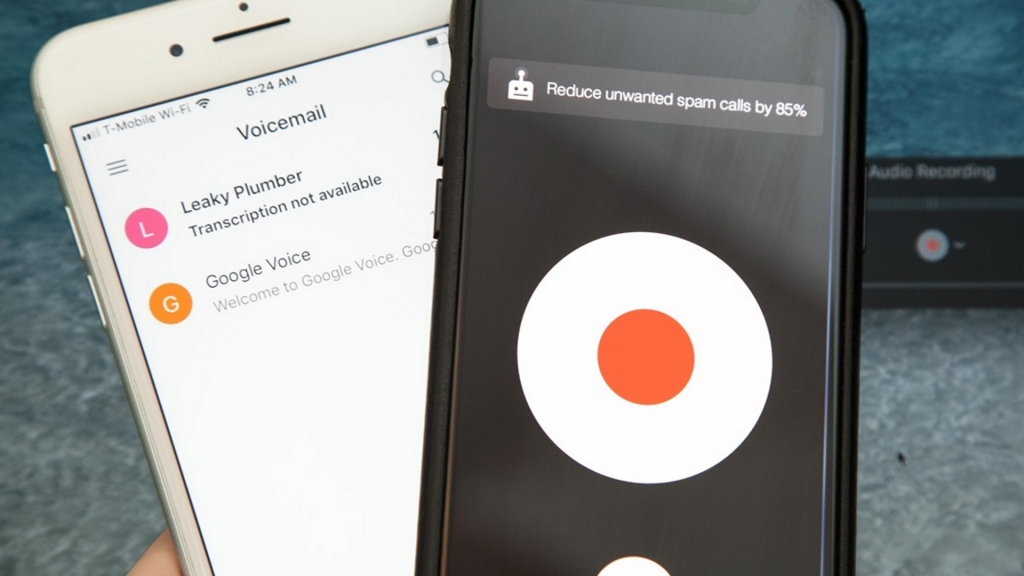
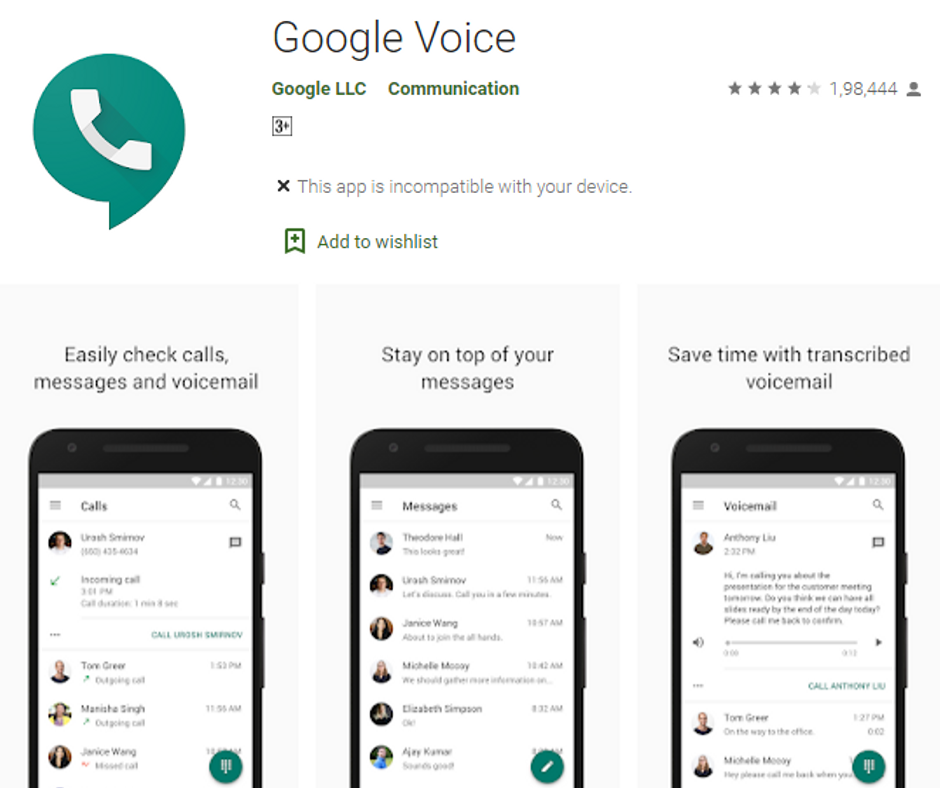
    Google Voice is the perfect go-to app when it comes to record calls. As the name suggests, it is Google’s official app for Wi-Fi calling. You can set up the app to record incoming calls. But it won’t record outgoing calls.

    google voice

    Go to the settings menu in the app, select “Calls” and go to Incoming Call Settings. When you press 4 on the number pad on call once it is active, it will start recording the call. Keep in mind that both of you will know that your conversation is being recorded and it will notify you that it is happening. Google Voice is not available currently in all countries. This recording technique will not work as per your location. So, be sure that this app supports your location before recording.

    Recording Phone call on iPhone or Android via a Third-Party Call Recorder App

    If you are not willing to use Google Voice, there are several other apps to record calls but they have certain cons. Some of those apps are paid while some ask for a fee as per the minutes of calls you record. Here are some of the call recorder apps for Android and iOS to check out –

    • Call Recorder Lite – This iOS app can record both outgoing and incoming calls. You will have to make a payment if you want to record longer calls. It can record calls for as long as you want. There are several apps available on the App Store and Google Play. It is worth to check out if you want a free app.
    • Call Recorder – It is an Android app to manage recordings and record calls. You can back up the calls by categorizing them or on the cloud. It also comes with caller ID to recognize unknown calls.

    How to Ensure Recording Clarity?

    In order to ensure the best clarity, you should look for a peaceful environment to record the call. Find a quiet room in your home. Disable notifications and incoming calls. Be sure you are not close to the fan if you are turning on the loudspeaker. Be sure to keep the call recorder away from the keyboard if you want to type notes on the call. You can perform a test recording and ensure that you are not going to miss anything.

    If another person is speaking unclearly or too fast, ask them to say it again. Rephrase the questions or repeat answers if you could not understand the other party. It will help you later when it comes to hiring someone to transcribe. You may want to add timestamps in professional transcripts. This way, you can easily revert and repeat the words.

    What about Legal Issues in Recording Calls?

    Keep in mind that recording conversations or calls may not be legal in some states in the US or in some countries. Some countries have provisions for one-party consent. It means you need to ask for permission before recording calls.


  • How to Mute Voice Chat in PUBG Mobile?

    How to Mute Voice Chat in PUBG Mobile?

    PlayerUnknown’s Battlegrounds is the most popular and No.1 Battle Royale game which delivers most intense multiplayer action. This award-winning survival game has made millions and billions of players addicted. But indistinct chattering in the game distracts many people from focusing on the target.

    Mute Voice Chat in PUBG

    This is the common problem in every multiplayer and Battle Royale games. Chatter from other people really spoils the gaming experience and distracts sometimes in PUBG Mobile. Luckily, there is a shortcut to disable or mute video chat options and focus only on your game. We have broken down some easy steps to follow.

    Mute Voice Chat in PUBG Mobile

    When you tap on the Mic icon in the game, there are three options –

    • All – It means everyone can hear you.
    • Team – Only your teammates can hear you.
    • Mute – No one can hear you anymore.

    Mute Voice Chat

    Here are the steps to follow –

    • First of all, you need to start your match in PUBG Mobile. You can choose any mode, including a sandbox.
    • Tap the speaker icon and select the mute button on the gear icon located on the top right corner of the screen.
    • If you just want to hear your team only, select Team rather than mute. It works only when you are playing the team game. You can hear everyone else’s game by selecting all.
    • Tap the mute icon under the microphone icon, which is located below the speaker icon.
    • If you choose Team instead of mute, your teammates can hear you. By selecting All, everyone can hear you.

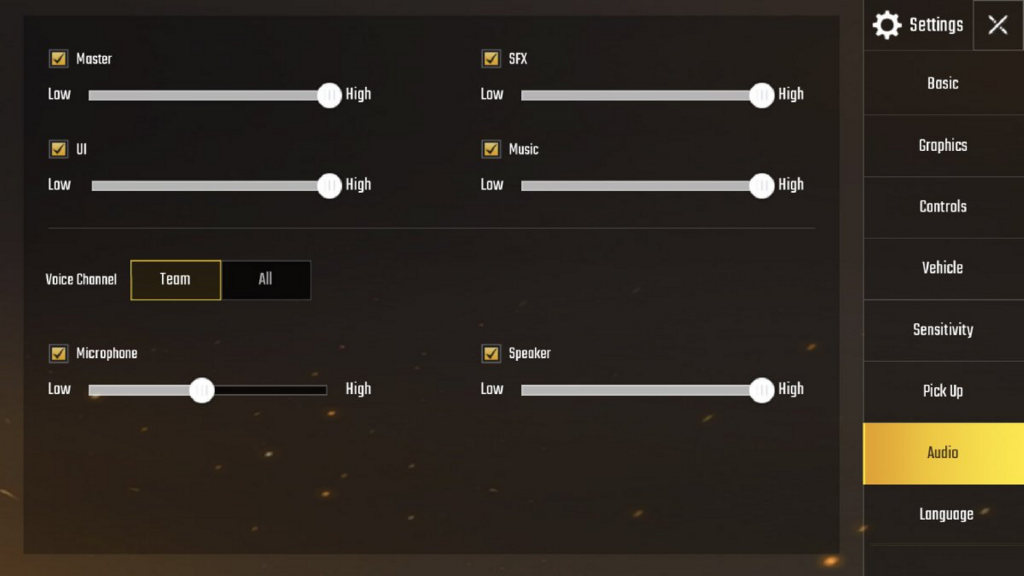
    Remember that you cannot hear what other players are saying if you mute the speakers. And no one can hear what you say if you mute the mic. You have to enter the game to permanently mute the mic in PUBG Mobile. These are the steps to lower the speaker volume for a while –

    • Tap the gear icon on the home screen on the bottom right corner.
    • Select Audio.
    • Slide the Microphone volume to low under Voice.
    • Slide the volume of Speaker to low.

    It can slow down the volume to a minimum but it cannot mute audio completely.

    Steps to Mute Microphone in PUBG Mobile Permanently

    You need to go to your device settings to disable microphone for PUBG Mobile permanently. Here are the steps to follow –

    • Go to your Android system Settings.
    • On the search bar, look for App permissions.
    • Tap Microphone.
    • Now go to PUBG Mobile and toggle the switch to off.
    This way, you can disable mic permanently on PUBG Mobile on Android. You have to go back to Settings if you want to enable it again. We hope these steps will help you to mute the mic and disable voice chat. It will be better if you play your game with headphones for a better experience because you also need to hear the steps approaching you.

    Mute your mic and Disable Voice Chat in the game with one tap

    You can mute voice chat in PUBG only when you are in the match. You are free to choose any mode to start the match. Under the settings button and just behind the minimap, there is a speaker icon to choose whose voice you want to hear.

    You can change the mode by tapping on 8. Similarly, you can choose from three different modes. You can hear everyone by tapping on “All”. Also, you can hear only your teammates and only teammates can hear you by tapping on ‘Team’. Users can choose the third option by tapping on “Mute” and you will not hear the voice of anyone.

    Mute the microphone on PUBG Mobile while playing on iPhone

    There is an option to disable the microphone on the iPhone when playing PUBG Mobile. Here are the steps to follow –

    • First of all, go to Settings on your iPhone.
    • Tap Privacy
    • Select Microphone.
    • Toggle the switch next to PUBG Mobile to Off.
    This way, you can mute the PUBG Mobile microphone permanently on the iPhone.
    Enable and Disable Voice Chat in PUBG Mobile

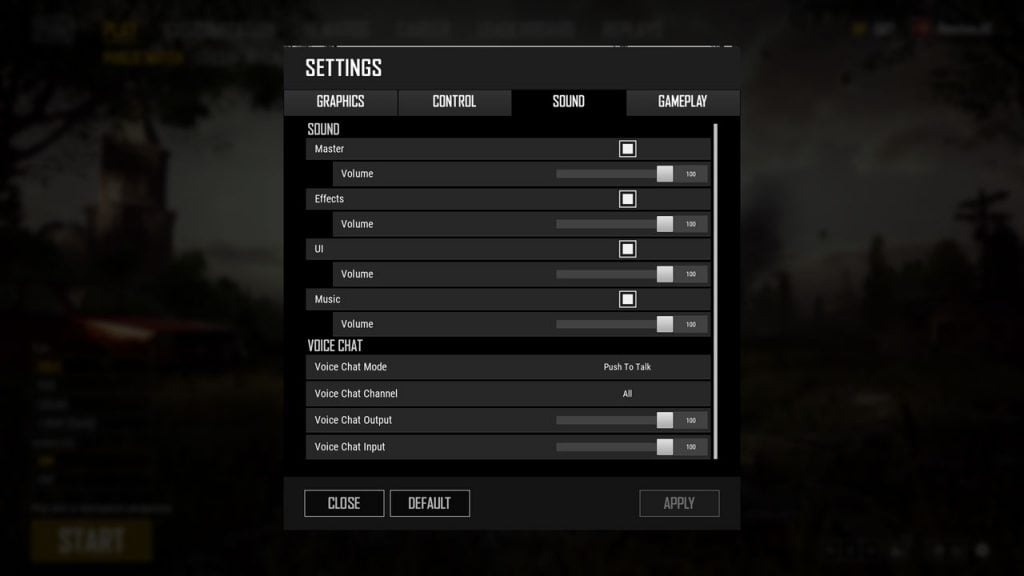
    In terms of configuring the voice chat, there are literally different options on PUBG Mobile. You change a lot of settings in PlayerUnknown’s Battlegrounds, such as Voice Chat Channel, Voice Chat Mode, Output volume and Input volume. You can go to the Settings menu and configure all such options easily.

    For Voice chat mode, you can choose from three different options – push to talk, mute, and open voice (permanently). When you select mute, it will disable voice chat for all players together. When you select Push to Talk option, it means you can send your voice only when you hold a preset key. For doing this, you have to check control settings. On the other side, one can hear whatever you say in the game when you select open voice.

    Enable and Disable Voice Chat in PUBG Mobile

    There is a slight difference in the voice channel. You can easily choose who you can talk to and listen to. The three options to choose from are – All, Team and None. It definitely helps you decide who can hear you.

    In the end, the ‘Input Volume’ and ‘Output Volume’ are the two sliders available. With the help of Output volume, you can easily control how loud you want your voice to be. You can keep the voice louder by keeping the slider further. You can do the same with input volume. Don’t forget to control other people’s volume.

    In order to access Voice Chat settings, you need to go through these steps –

    • Select the cog icon on the Settings menu on the home screen.
    • Select Sound and go down to voice chat on the list of tabs.

    Voice Chat settings in PUBG

    If you want to completely disable the voice chat in PUBG Mobile, you can set it to None and Mute. Also, set both sliders to the lowest. It will help you disable the voice chat completely.

    You can select the options you like. Toxic players are found in every competitive game and you may not want to hear them spoil your experience. When needed, you can also report them.