Category: How to

WordPress is a favorite blogging tool of mine and I share tips and tricks for using WordPress here.

  • Nintendo Switch Lite Review

    Nintendo Switch Lite Review

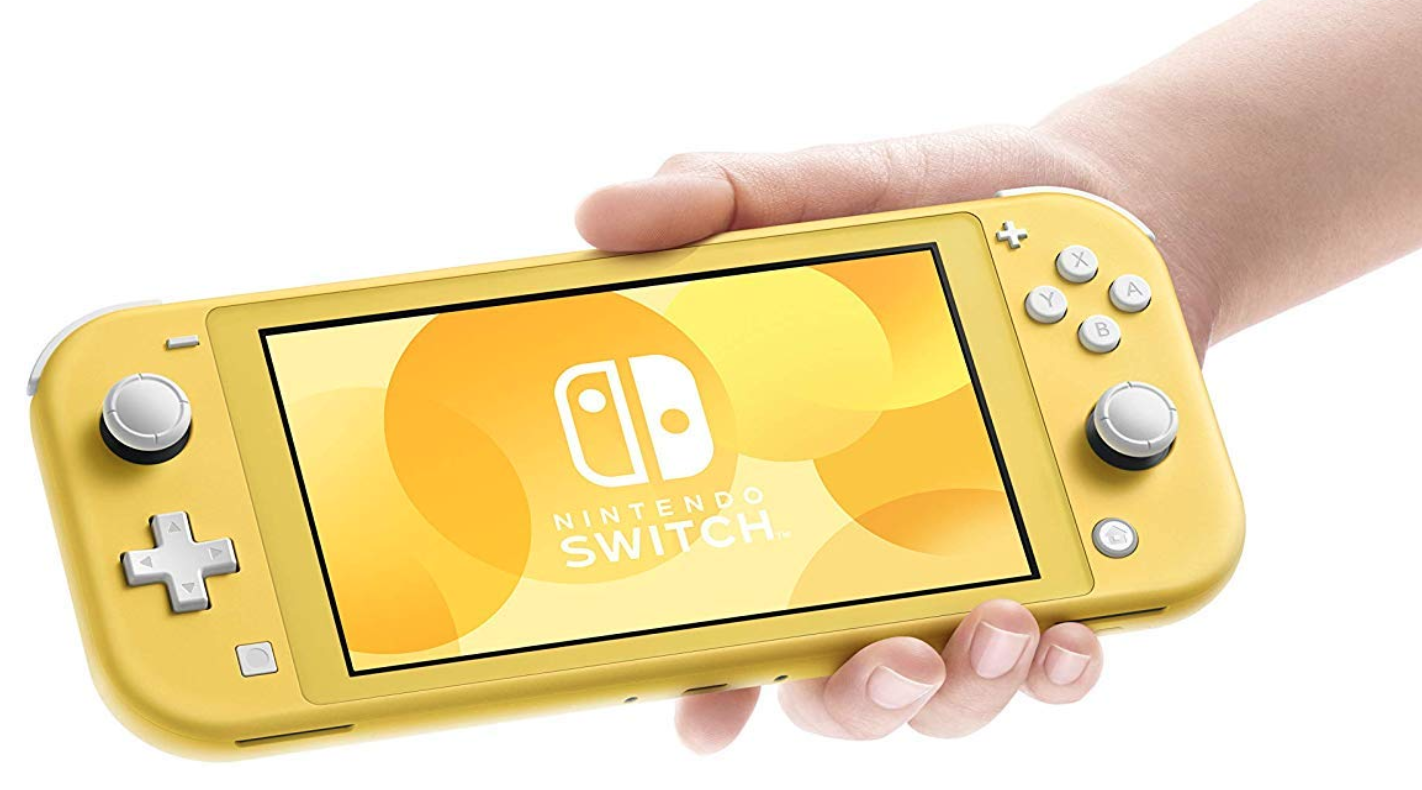
    The Nintendo Switch is one of the most popular consoles of our time. After its release in 2017, the platform has had one hit game after another. In 2019, the company decided to change things up and provide a cheaper, more compact alternative to the hybrid Switch console in the form of the Nintendo Switch Lite. Take a look at this Nintendo Switch Lite Review.

    Nintendo Switch Lite Review

    The Switch Lite is the smaller, lighter version of the original Nintendo Switch

    If you enjoy the flexibility of playing the Switch handheld and on the TV, the Switch Lite isn’t for you, since playing video games docked is not an option here. However, if you are looking for a handheld gaming device or continually use the Switch handheld, but find it a bit clunky for on-the-go gaming, the Switch Lite could be the right device for you. But, as with any device, there are some pros and cons that you should weigh out before deciding to purchase the Nintendo Switch Lite. Let us quickly go over the features of the device in this Nintendo Switch Lite Review, and help you figure out if it is worth your money.

    Design

    The difference between the Nintendo Switch and Nintendo Switch Lite is that the Switch Lite is solely a handheld device. There is no option for playing games on your TV, and this makes for a more compact and lightweight design. Its dimensions are 91.1mm x 208mm x 13.9mm, and it weighs 275g, which is much smaller and lighter when compared to the 102mm x 239mm x 13.9mm dimensions and 297g weight of the original Nintendo Switch. The Switch Lite comes with a smaller LCD touch screen, measuring just 5.5 inches with a resolution of 1280 x 720 pixels.
    Nintendo Switch Lite Design
    Nintendo Switch Lite Design

    In other words, the screen is smaller than the original Switch’s 6.2-inch screen, but the resolution is the same. Therefore, you don’t lose anything in terms of picture quality. The Switch Lite has a higher pixel density of 267 pixels-per-inch, making it a little sharper than the original Switch, which has a pixel density of 236 PPI. However, there is a trade-off – it can sometimes be difficult to read the small in-game writing on the screen. The Switch Lite feels more comfortable as a handheld device. The smaller size makes it more portable and convenient to use when compared to the original Switch.

    Switch Lite

    To play video games on the Switch Lite, you need less elbow room, and the device itself can fit in a (large) pocket. If you have smaller hands and have used the original Nintendo Switch, you will know that it can be uncomfortable to use in handheld mode, since the device is large by handheld standards. The Lite, on the other hand, is considerably more compact and portable and fits in your hands snugly. However, the device is still quite broad and doesn’t feel quite as comfortable as the Nintendo 3DS did. Furthermore, the Switch Lite comes with controls integrated into the device and does not use Joy-Cons. You can connect up to four Joy-Cons to the Switch Lite wirelessly, but you don’t get any Joy-Cons in the box with the Lite.
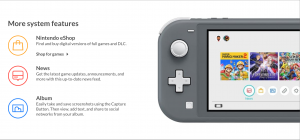
    Nintendo Switch Lite Features System
    Nintendo Switch Lite Features System

    Despite the controllers being fixed, most buttons remain in the same layout. Only the left, right, up, down buttons have been replaced by a D-Pad. The D-Pad feels natural – almost like it’s always been there. It is undoubtedly more suitable for handheld play than the older layout. The ZR and ZL triggers are a perfect size and help cement that compact design. The L and R buttons are a bit leaner than those on the original Switch, and your fingers may slip off them at times.

    The Switch Lite allows wireless connectivity and has Bluetooth, but you cannot use wireless headphones with it. You can also use a MicroSD card to add the 32GB of internal storage. With the Lite, you aren’t missing out on many features aside from docked mode. The Switch Lite comes in turquoise, grey, and yellow colours.

    Performance

    The Switch Lite essentially performs just like the Switch, except that it has a slightly longer battery life. What is definitely worth noting is that the Switch Lite does not come with HD Rumble or the IR Motion Camera. The device is designed solely for handheld use, and therefore, can only play Nintendo Switch games that support handheld mode. You can play games that don’t support handheld mode; however, to play these games, you will have to purchase Joy-Cons (and the charging grip separately) and connect them to the Switch Lite wirelessly. Connecting Joy-Cons to the Switch Lite allows you to use HD Rumble.
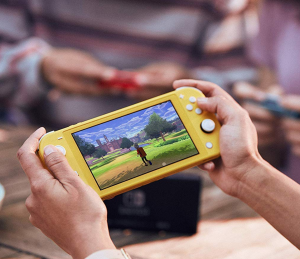
    Gameplay
    Nintendo Switch Lite Gameplay

    According to a Nintendo representative, the Switch Lite will be compatible with more than just the Joy-Cons, but we don’t know what exactly these devices are. Super Mario Party, 1-2 Switch, and Nintendo Labo accessory kits are not suitable for the Switch Lite. These games don’t suit the Switch Lite, because although the device can be paired with the Joy-Cons, playing with more than one person is not practical on the small screen.

    The Switch still has an accelerometer, a gyroscope, and a brightness sensor. You can use gyro controls in games like The Legend of Zelda: Breath of the Wild. For instance, you can tilt the Switch to aim the bow in the game.x The screen’s brightness adjusts itself automatically depending on your surroundings.  The wireless online play feature enables you to play games like Mario Kart 8 Deluxe with your friends. Sadly, since it cannot be connected to your TV, there is no opportunity for couch co-op.
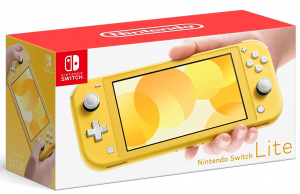
    Nintendo Switch Lite
    Nintendo Switch Lite

    Verdict: Nintendo Switch Lite Review

    The Switch Lite is compact and light, which makes it feel much less clunky and considerably more polished than its predecessor. It is easy to transport and takes up less elbow space on commutes. It fits your hands snugly. Although it’s not as comfortable as the 3DS, it does pack some great features and performs well for its price. The Nintendo Switch Lite feels like the perfect console for those who enjoy comfortable handheld gaming.


  • PUBG Mobile: Best Weapons And Full List Of Weapon Stats

    PUBG Mobile: Best Weapons And Full List Of Weapon Stats

    In PUBG Mobile, you must pick up the best guns and items you can find and use them to survive. Learning what guns do the most damage can help you pick out the right weapons from the ones you find, and will increase your chances of making it to the top.

    There is no official data from the Tencent about the damage each weapon does; however, thanks to different sources, players can get a rough idea of what guns are the best.

    Here’s a list of all the weapons you can find in PUBG Mobile along with their stats.

    Assault Rifles

    Weapon Base Damage Fire Rate DPS Time To Kill Shots To Kill (Chest) Shots To Kill (Head)
    Groza 49 0.08 612.5 0.24 4 2
    Beryl M762 47 0.086 547 0.258 4 2
    AUG A3 43 0.086 502 0.257 4 2
    M416 43 0.086 502 0.257 4 2
    G36C 43 0.096 502 0.257 4 2
    QBZ 43 0.096 466 0.277 4 2
    Scar-L 43 0.096 448 0.288 4 2
    M16A4 43 0.1 430 0.3 4 2
    Mk47 Mutant 49 0.1 490 0.3 4 2
    AKM 49 0.1 490 0.3 4 2
    PUBG Mobile Weapons
    PUBG Mobile Weapons


    Sniper Rifles

    Weapon Base Damage Fire Rate DPS Time To Kill Shots To Kill (Chest) Shots To Kill (Head)
    AWM 105 1.85 65 1.85 2 1
    M24 79 1.8 44 1.8 2 1
    Kar98K 75 1.9 39 3.8 2 1
    Win94 66 0.6 110 1.2 2 2


    Designated Marksman Rifles (DMR)

    Weapon Base Damage Fire Rate DPS Time To Kill Shots To Kill (Chest) Shots To Kill (Head)
    MK14 61 0.09 678 0.18 3 2
    SLR 58 0.1 580 0.2 3 2
    SKS 53 0.1 530 0.2 3 2
    QBU88 48 0.1 480 0.3 4 2
    Mini 14 46 0.1 460 0.3 4 2
    VSS 41 0.09 479 0.257 4 2
    Designated Marksman Rifles (DMR)
    Designated Marksman Rifles (DMR)

    Submachine Guns

    Weapon Base Damage Fire Rate DPS Time To Kill Shots To Kill (Chest) Shots To Kill (Head)
    Vector 31 0.0545 569 0.273 5 3
    UZI 26 0.048 542 0.288 7 4
    MP5K 33 0.066 495 0.333 5 3
    Tommy Gun 40 0.086 467 0.343 5 3
    Bizon 35 0.086 408 0.343 5 3
    UMP45 39 0.092 423 0.369 5 3


    Light Machine Guns

    Weapon Base Damage Fire Rate DPS Time To Kill Shots To Kill (Chest) Shots To Kill (Head)
    M249 45 0.075 600 0.225 4 2
    DP-28 51 0.109 468 0.327 4 2
    Shotguns
    Shotguns

    Shotguns

    Weapon Base Damage Fire Rate DPS Time To Kill Shots To Kill (Chest) Shots To Kill (Head)
    S686 216 0.2 1080 0 1 1
    S1897 216 0.75 288 0 1 1
    S12K 198 0.25 792 0 1 1


    Pistols

    Weapon Base Damage Fire Rate DPS Time To Kill Shots To Kill (Chest) Shots To Kill (Head)
    Sawed-off 160 0.25 640 0.25 2 1
    R1895 55 0.4 137.5 1.2 4 2
    R45 55 0.25 220 0.75 4 2
    P1911 41 0.11 373 0.44 5 3
    P92 35 0.14 259 0.54 5 3
    P18C 23 0.06 383 0.42 8 4
    Skorpion 22 0.07 312 0.494 8 4


    Melee and Others

    Weapon Base Damage Fire Rate DPS Time To Kill Shots To Kill (Chest) Shots To Kill (Head)
    Crossbow 105 3.8 28 3.8 2 1
    Pan 80 0.75 107 1.5 3 1
    Machete 60 0.75 80 1.5 3 2
    Crowbar 60 0.75 80 1.5 3 2
    Sickle 60 0.75 80 1.5 3 2
    Superman Punch 38 1 38 4 5 2
    Punch 18 0.33 55 2.97 10 4
  • How To Download Movies From Netflix And Watch Offline

    How To Download Movies From Netflix And Watch Offline

    Netflix is one of the world’s most popular streaming sites. It’s perfect for relaxing and killing time, with tons of exciting titles available in all genres. If you’re travelling, though, you’ll rarely get access to a stable internet connection, which means you won’t be able to stream any movies or shows. Thankfully, Netflix has a download feature that enables you to download movies or shows whenever you have an internet connection, and watch them later whenever you like – without needing access to the internet! In this post, we’ll quickly guide you through the process of downloading movies and shows from Netflix to your laptop or phone.

    How To Download Movies And Shows From Netflix

    Step #1: Make sure your Netflix app is up-to-date

    Keeping your software up-to-date ensures that you have a swift, bug-free experience. If you do not have auto-update enabled on your iPhone/iPad, go to the App Store and tap on it to update it.

    On Android, the process is almost the same – go to the Google Play Store and tap on ‘Update’ to update it.

    If you’re using Windows, go to the Start menu and click on Downloads or Updates. Next, click on the ‘Check for Updates’ option, and the Netflix option will start updating.

    Netflix Offline Download
    Netflix Offline Download
    Step #2: Choose download quality

    Netflix allows you two download whatever you like in Standard quality or High quality. The ‘High quality’ option seems to be high definition — which is somewhere between the 720p and 1080p resolution — Netflix doesn’t specify.

    Picking the ‘Standard quality’ option will use less space and allow you to download content more quickly. On the other hand, selecting the ‘High quality’ option will take a bit more time, space, and patience.

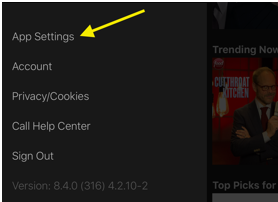
    You can pick whatever option suits your situation best. To choose quality, click/tap on the menu icon on the left, and scroll down to the App Settings. Here, navigate to Downloads, and click/tap on Video Quality. Here you can select your preferred quality.

    Step #3: Choose what to download

    Not everything on Netflix can be downloaded, but it is easy to find downloadable titles by heading to the Available for Download section. You can find this section by tapping on the Menu button on the upper left corner.

    Download Movies From Netflix
    Netflix Download
    Step #4: Start downloading

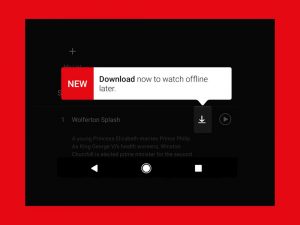
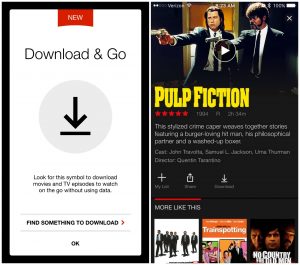
    To download a title, select the Download icon, which is affixed to the movie or show.

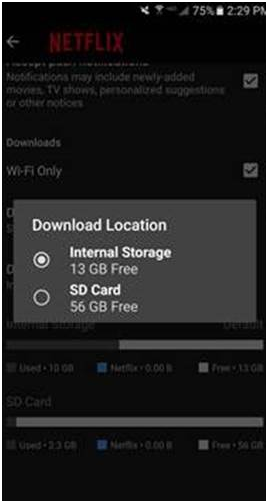
    If you’re on Android, you can also select in which location you want to download the movie or show. Go to the Settings menu of the app and look for a “Set Default Download Location” option.

    Step #5: Watch your titles

    After the download is complete, the content will appear in the Downloads section of the app. You can find this section by selecting the Menu option on the upper-left corner of the screen. The ‘My Downloads’ folder is located above the Home section.

    Each title’s running time, as well as how much space it uses is listed directly beside it. To play an episode, click or tap the video thumbnail.

  • Sony Xperia 2 Will Likely Be The Company’s First 5G Phone

    Sony Xperia 2 Will Likely Be The Company’s First 5G Phone

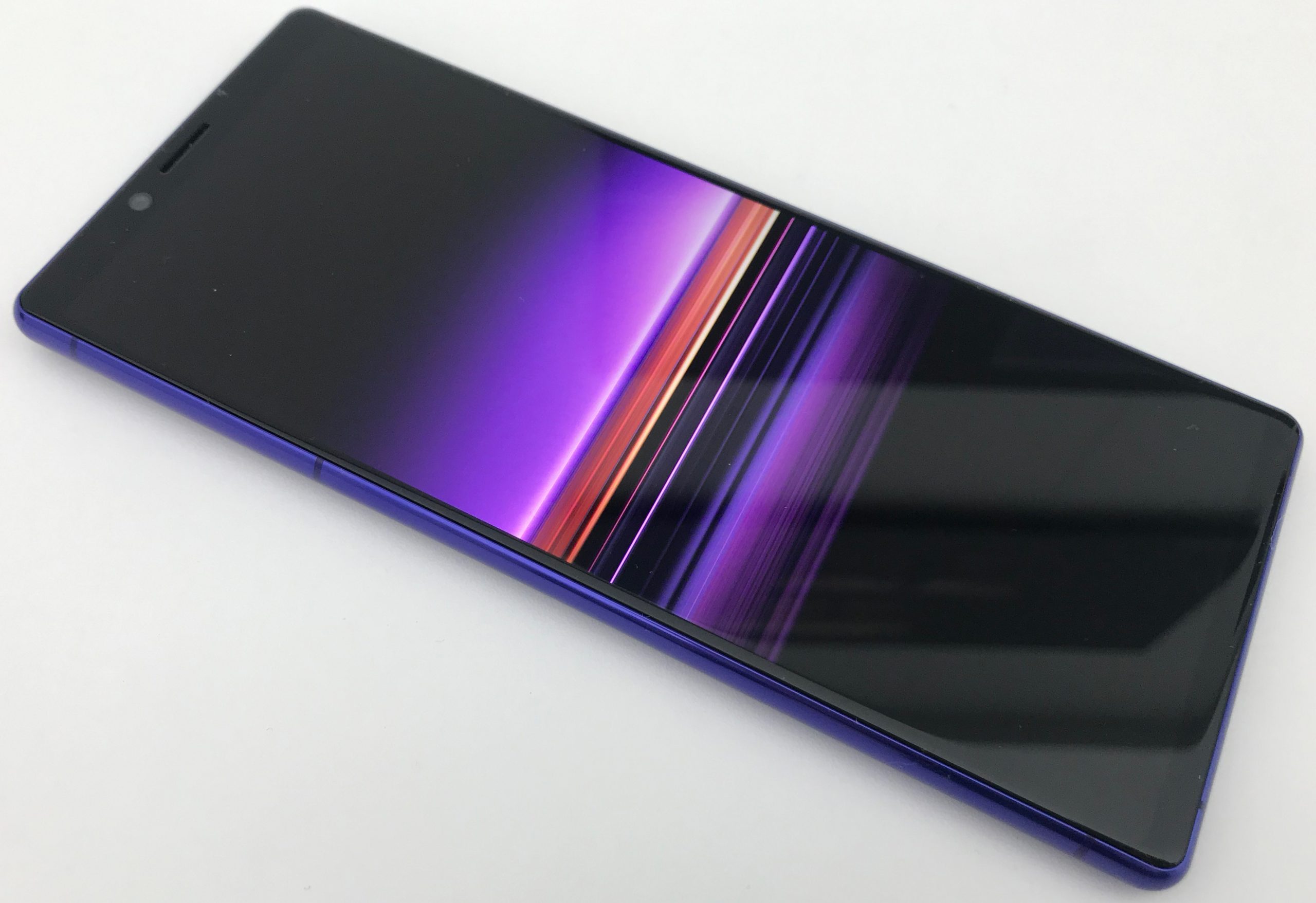
    According to My Drivers, a new Sony flagship is about to be launched, most likely to be named the Xperia 2. Sony will have a press conference at the MWC. During this time, the phone could be exhibited as well. Following the trend of 2020 flagships, the Xperia 2 will probably run on Qualcomm Snapdragon 865 chip as well. The SoC will be paired with the Snapdragon X55 modem for 5G connectivity. If this happens, the Xperia 2 will be Sony’s first-ever 5G smartphone.

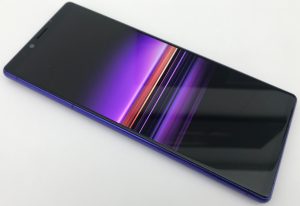
    Sony Xperia 2

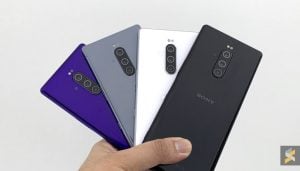
    The smartphone could come with a 4K HDR OLED panel with a 21:9 aspect ratio similar to its predecessor, the Xperia 1. This will make Xperia 2 one of the first 4K phone by Sony to support the next-gen internet connectivity. The screen is believed to be quite large at 6.6-inches. With regards to the camera, the Xperia 2 will have four cameras at the rear. Rumours abound, with some claiming that the primary unit will be a 48-megapixels sensor and others believing it would be a 64-megapixels sensor.

    Sont Xperia 5G
    Sony Xperia 5G

    Besides the main sensor, the camera unit will have a 12-megapixels ultra-wide-angle sensor and a 12MP telephoto unit with 3x optical zoom. Sony’s 2020 flagship is also expected to feature the Time Of Flight sensor for portrait shots. The phone is also likely to have 8K video shooting capabilities.

    Other features of the Xperia 2 includes IP68 protection against water and dust and fast charging. It will have also NFC, making contactless payment possible. While there is a chance that the company might name this upcoming flagship Sony Xperia 2, there is also a chance it might not. If it does not, other possible names include Xperia 1.1, Xperia 1 Premium, Xperia 0, or Xperia 5 Plus.

    Sony’s 2020 flagship

    According to several reports, the Xperia 2 (we will continue calling it that for now!) will have an 8-megapixels selfie shooter. With regards to speakers, it will sport dual front-firing ones. The dimensions of this smartphone are 168.2 x 71.6 x 8.1mm. The camera unit at the back does give way to a slight bump, but it is nothing very jarring. One thing that Sony has decided to retain is the physical fingerprint reader. Where most other companies have discarded the physical scanner on their flagships in favour of the in-screen fingerprint reader, Sony has decided to stick to the original option.

    Sony Xperia 5G
    Sony Xperia 5G

    The phone is expected to run on a near-stock version of Android 10. It will also continue to have the 3.5mm headphone jack. While the price tag is hefty which is nothing surprising. It is because it is supposed to be a high-end flagship. It is still more affordable than other 5G models that are currently in the making right now. If the phone is well received, it could gain more popularity thanks to its affordable price tag and high-end features. It would also be a huge relief to Sony which has not had a break in the smartphone market for quite some time now.


  • Samsung Galaxy S10e Review

    Samsung Galaxy S10e Review

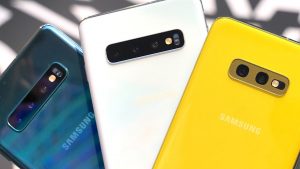
    The Galaxy S10e was Samsung’s last flagship for 2019. The unique point with this model was that it had all the latest features, but the price point was incredibly affordable. Naturally, the other S10 models are better with more eye-catching features, but the smaller size is a great appeal to some. While we are still talking about the S10e, Samsung has already launched another flagship – the Samsung Galaxy Note 10. In addition to the S Pen stylus, it also comes with a time-of-flight sensor and features a triple-camera setup. The one thing that the S10e has on its side is the price appeal.

    For that price, you will, of course, have to sacrifice some comforts. Users will not have curved screen sides, an in-screen fingerprint sensor, or a telephoto lens. On the other hand, it has a 5.8-inch all-screen display, excellent performance that is fast and smooth, and a stunning camera.

    Samsung Galaxy S10e Review
    Samsung Galaxy S10e Review

    Design

    The Galaxy S10e has a ton of features. Although it might fall short when compared to the likes of S10 Plus, it still packs some serious power. One thing we have noted is that as the main flagships steadily get larger, there is a group of users who have steadily stuck to the smaller phones, perhaps since it could be handled more easily. It is the lightest of all the S10 models. As mentioned before, the S10e does not have an in-screen fingerprint scanner. Instead, the company decided to go ahead with a biometric fingerprint pad at the rear. This is located within an enlarged power button on the top-right side. One would not have thought this setup could be responsive, but Samsung has surprised us.

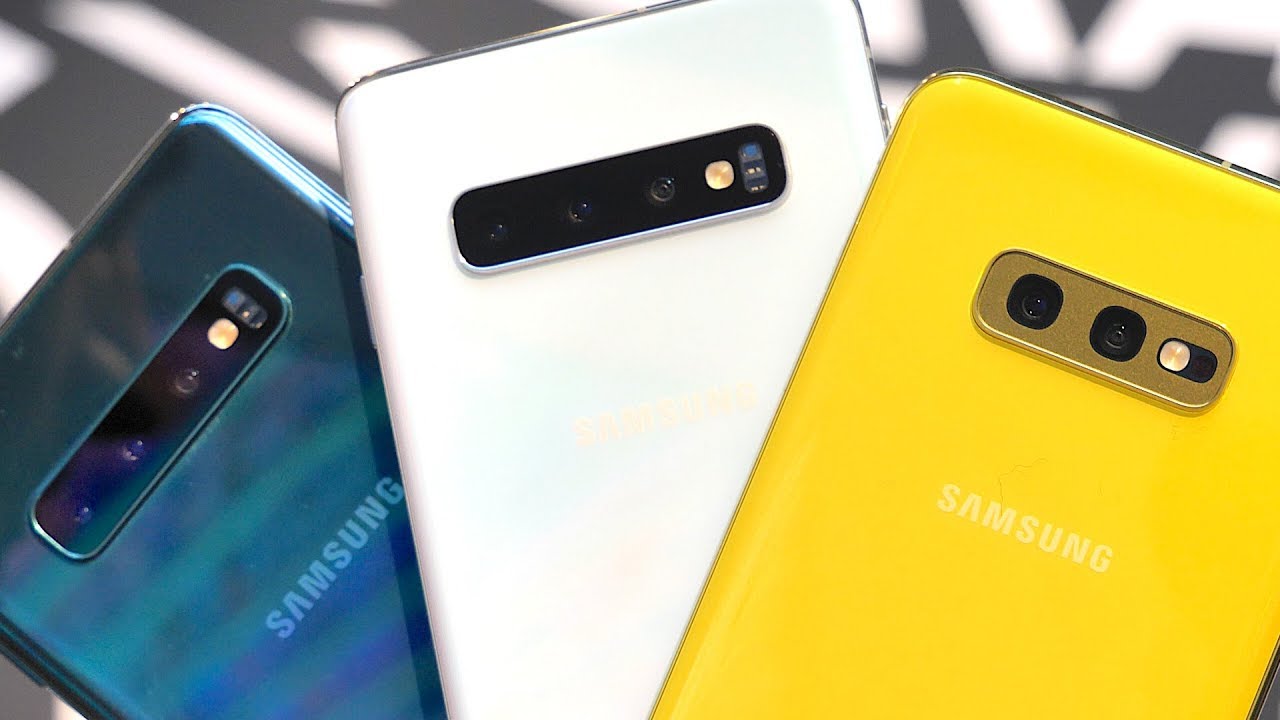
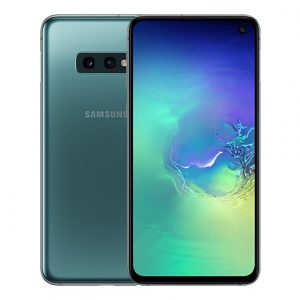
    Aesthetically, the phone looks a flagship in every sense. It comes with a chromed aluminium case having elegantly rounded corners that we usually see in the Galaxy S models. There is no third camera, so you might find the rear having a narrower camera casing. There is no heartbeat sensor here either. The S10e is available in six colours – Prism Black, The pearlescent Prism White, Prism Blue, Flamingo Pink, Prism Green and Canary Yellow. The last two options are not available in the US and are reserved for other regions. The left side of the phone houses the volume rocker below which sits the Bixby button. You can now set it to activate other apps as well. At the bottom, you will find the 3.5mm headphone jack, microphone port, USB-C port, and speaker grille.

    Display

    The 5.8-inch AMOLED display of the Galaxy S series is present here as well. The crisp details, rich colours, and vibrant display all make it a great experience. If you don’t appreciate the default colour balance, you can easily change it using the Vivid Mode. If you compare it with the iPhone XS Max, the display of these two models are almost on the same level, except that the XS Max does better with dark scenes. The S10e features Corning Gorilla Glass 5 on front and back. You will notice that the front has a punch-hole in the top-right corner for Infinity-O’ display. While it is noticeable, it does not stick out very much.

    Samsung Galaxy S10e
    Samsung Galaxy S10e

    Performance and Battery

    The Samsung S10 phones are among the first to showcase the new Snapdragon 855 chipset. The phone has a 6GB RAM and 128GB of storage, which is more than enough in most cases. You can multi-task, swap apps, and do so much yet hardly notice any lag. If you do need more space, you can always use a MicroSD card. The phone can keep up with all your gaming requirements, even if you play heavy-duty ones, such as Fortnite and more. One thing you might hear is that playing such games could lead to battery loss and even heat up the phone.

    Coming to the battery, the S10e supports a 3,100mAh battery which is large enough to last you through the day. With regular use, such as browsing, chatting, and some music, this should last you quite some time. You can use the 15W fast charging to recharge. Although it is not the fastest-wattage charging out there, it does its job. In the latest news, the S10e can now charge other wireless devices itself thanks to a new feature called Wireless PowerShare.

    Wireless PowerShare

    The idea behind this is that you can use your Galaxy S10e to wirelessly charge other devices that have Qi-enabled charging. All you need to do is to place the second device near the rear of the S10e. While it does work, the charging speed is quite low. This means you cannot use the phone as you transfer charge.

    Samsung Galaxy S10e Camera
    Samsung Galaxy S10e Camera

    Camera

    The Samsung Galaxy S10e features two rear-facing main cameras. One of them is the dual-aperture f/1.5-2.4 12MP main camera while the other is a 16MP f/2.2 ultrawide shooter. The former comes with OIS for smoothing out shaky footages. Unfortunately, users will have to accept the lack of telephoto lens. However, thankfully, it still retails the wide and ultrawide sensors. Regardless, the S10e still is a step ahead of Samsung Galaxy S9 which was released with a single dual-aperture shooter. The main camera has a 77-degree field-of-view while the ultrawide has 123-degree FOV allowing you to take in a lot more.

    In the bright sunlight, you will notice that the photos come out stunning. In fact, it is even better than the ones taken with iPhone XS Max and Huawei Mate 20 Pro. On the other hand, the interior images don’t do nearly as well. Night photography is currently ruled by Google Pixel 3 and the S10e needs to come a long way before it can compete in this space. The ultrawide lens can be used for panoramas, allowing you to capture more context.

    Verdict

    The Samsung Galaxy S10e is a perfect-sized phone that users would be able to use with one hand. The fact that Samsung’s interface works even better in a smaller frame is an additional advantage. With Android 9 Pie out of the box with One UI, you can be sure that the phone is an excellent option to consider.

  • How to create a dropdown list in Excel

    How to create a dropdown list in Excel

    You are probably familiar with drop-down lists from one of the numerous forms that each of us has filled out somewhere on the Internet. These are the fields with the small, downward-facing arrow on the side, which presents a selection of possible entries for the field – of course, if you click on the arrow.

    How to create a dropdown list in Excel

    Excel also has the function of creating dropdown lists. Their use is always useful when the content in columns is repeated frequently and you don’t want to type every time or when you want to limit the end-user of your document to a few options.

    CREATE A DROPDOWN LIST USING AN EXAMPLE

    I have decided to create an overview of my DVD collection, which has grown quite extensive over the years. To save myself unnecessary work, I would like to create a dropdown list for the Genre column.

    THE FIRST STEP: SET THE DROPDOWN VALUES

    First I have to tell Excel what values ​​I would like to have in my dropdown list. To do this, I open another table and enter the data there one after the other in a coherent row or column and without empty cells.

    THE SECOND STEP: CREATE THE ACTUAL DROPDOWN LIST

    Next, I mark all the cells in my list, right-click on them once and choose Define Name. This opens a window in which I enter a suitable name for my dropdown list in the Name field. This must not contain any spaces and will not be visible anywhere later. However, I need it to create a connection between my selection and the actual dropdown list. In our example, I choose Genre and then confirm with OK.

    THE THIRD STEP: INSERT THE LIST

    I switch back to the table in which the dropdown list should appear and select the cell in which I want to insert the list. Now I select the Data tab and click on Data Review here. A window is opening. In the Settings tab, under Allow, select the List entry. A source I enter an equal sign (=), followed directly by the name of the list previously created. So for us, that would be = genre.

    I make sure that the checkmark for cell dropdown is set. With another checkmark at ignoring empty cells, I allow that the user does not have to select an entry. Finally, you can confirm with OK. That’s it, we’re done! In my field, I now have a full dropdown list that I can copy and paste quickly to the entire column. Now I don’t have to enter every genre by hand.

    A FEW ADDITIONAL TIPS

    In the Data Check window, you can use the Input Message and Error Message tabs to further refine your dropdown list. These options are particularly useful if you are not the only user of the Excel folder and you want to give your colleagues or customers a few pointers along the way. Under the input message, you can create a note that appears when you select the dropdown list. Simply enter a suitable title and text.

    CONCLUSION

    Dropdown lists are quick and easy to create in Excel and can save a lot of work. They are also used in all forms that are filled out by other users and in which only very specific entries are to be permitted. With a few clicks, you can easily get to the desired result.

  • How to download Netflix movies to your SD card on Android

    How to download Netflix movies to your SD card on Android

    Do you have a long five-hour flight planned for next week? How about a weekend with your partner in a country house? For each of these options, learning to download Netflix Movies can save hours of boredom and some entertainment. Netflix is ​​ideal if you are trying to spend a night and have an internet connection, but what do you do if you have to kill a few hours on a plane or in a location without internet?

    How to download Netflix movies to your SD card on Android

    With the offline function of Netflix, you can watch your favorite program on the go without interruptions and are not dependent on a mobile internet connection. In addition to the data volume, this also protects the nerves.

    In addition to streaming, the Netflix app for smartphones and tablets also offers the option of saving films and series offline on the device. The application is available for iOS and Android. So you can watch your favorite series on the go and are not dependent on the mobile network. Our guide explains how this works and what you should pay attention to.

    Check options

    First, open the Netflix app on your smartphone or tablet and click on the “More” item in the lower menu bar on the start screen. Now select “App settings” in the following menu. Then scroll down to the “Downloads” section. Here, the option “WLAN only” should be activated before downloading in order to conserve the data volume: When downloading a single episode, a few 100 megabytes (MB) can be incurred.

    How to download Netflix movies to your SD card on Android

    What are “smart downloads”?

    The “Smart Downloads” feature is particularly practical for Netflix downloads. Watched episodes are deleted and automatically replaced by the next episodes – this saves storage space. However, the function is only available if the devices download via a WLAN connection.

    Set video quality and location

    In “Download Video Quality”, you can choose between “Standard” and “High”, which, however, requires more storage space. This takes you to the next point, “Download storage location”, which offers the options “Internal storage” and “SD card“. Due to their size, download content should best be stored on a sufficiently large (micro) SD card – otherwise, the internal memory is quickly overfilled.

    Set video quality and location

    Offline use: Download films and series from Netflix

    If all settings are correct, the download can begin. Simply navigate to your desired content using the “Home” or “Search” items and click on the download symbol next to the name of the title. After downloading, the title can now be found under the item Download.


  • Google Pixel4 Does Not Work With Some USB Cables | Fans are Dismayed

    Google Pixel4 Does Not Work With Some USB Cables | Fans are Dismayed

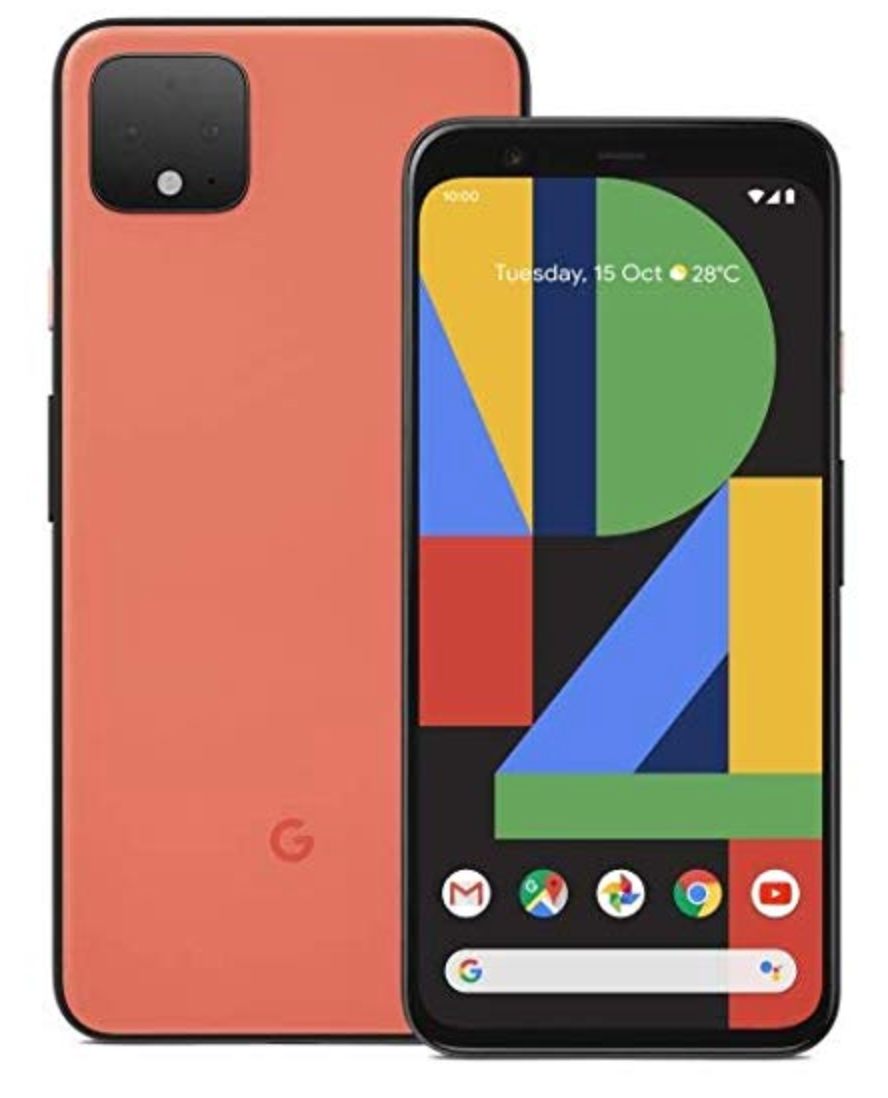
    While the Google Pixel4 brings its share of cutting edge features to the smartphone market, there is already a long list of things people dislike about the phone. The small battery capacity is something users are griping about. However, not being able to charge the phone with every charger makes matters worse. The charger itself isn’t what poses the problem – it’s the cable. The Pixel4 does not charge or transfer data with some third-party USB cables. The phone’s reliance on USB Power Delivery enables all USB-C to USB-C cables to work just fine. However, it’s the USB-C to USB-A cables that pose problems with the phone

    Google Pixel4 Side
    Google Pixel 4 Side

    What Is USB Power Delivery And Why It Matters

    Google’s Pixel range of smartphones relies on a technology called USB Power Delivery (PD) to charge the phones. You will find this technology in all of Google’s chargers. Since the tech is found on all of Google’s phones (the first Pixel too!), we know that all the phones in the series use the same technology to charge. However, the smartphone will not charge or transfer data when some specific cables are in use. The same wires work correctly with older devices like the Pixel 3. The technology works great and charges at about 15W. The Pixel4 charges fine with other charges that support USB Power Delivery (PD) over USB-C to USB-C connectors. Third-party USB PD products and older Pixel chargers work just as well.

    USB-C to USB-C works just fine. However, you will not be able to charge the Pixel4 with USB-A chargers. Quick Charge ports, power banks, and even the standard ports on your laptop or your PC will not work. However, swapping out to another cable may allow you to connect a Pixel 4 to these devices to charge it. If the cable has a purple identifier, it most certainly will not work with the Pixel4. The problem does not stop here.

    Google Pixel4
    Google Pixel4

    Issue With USB Accessories

    The Pixel 4 does not work with USB-C to 3.5mm adapters from other companies. In particular, the USB-C to 3.5mm adapters from Huawei and OnePlus do not work. Considering that Google no longer includes an audio adapter in the box, it is irritating. The smartphone does work with the Pixel 3’s audio adapter. The phone does not work with any USB-C HDMI dongle, whereas phones from competing brands like Samsung and Huawei do. However, only a few phones support wired HDMI screen mirroring these days, and it is a rare feature to come by. Regardless, Google is stern about what it does and doesn’t support over a Pixel’s USB-C connector.

    Conclusion

    Along with its own products, Google is also attempting to dictate stricter terms regarding the design of the chargers and cables on its Android partners’ smartphones. It looks like Google wants all Android devices to support USB-PD. Regardless, while most cables will work with the it, there is a subset of cables that won’t. To ensure that your Pixel 4 works with your power bank, head to Google’s store and grab the official USB-C to USB-A cable.


  • How To Activate Call Waiting On WhatsApp (Android)

    How To Activate Call Waiting On WhatsApp (Android)

    A few weeks after iOS users got the WhatsApp update that enables call waiting, Android users too started receiving the update. As the name suggests, the feature allows users to see incoming WhatsApp calls when they are already on a call with another user. The feature has been made available on WhatsApp version 2.19.352 – which is the latest stable version available on the Google Play store. If you have not updated WhatsApp in the last few days, now is the time to head to the “My Apps and Games” section of the Google Play store and look for the update.

    Once you update the app, the feature will automatically be enabled, and you do not need to set anything up. While the feature is called “call waiting,” it is slightly different from how the regular call waiting works. In a phone call on the cellular network, you can put people on hold, and switch between calls and carry a conversation with two parties. WhatsApp does not allow you to put people on hold. On WhatsApp, you can only speak to one party at a time.

    Here’s how WhatsApp handles call waiting

    If someone calls on WhatsApp

    You can do either of these two things:

    • End and Accept Incoming Call: You can end the WhatsApp call you are currently on and accept the incoming call.
    • Decline: You can decline the incoming call, and continue with the current call.
    Call Waiting On WhatsApp
    Call Waiting On WhatsApp

    If someone calls on WhatsApp and you’re on a call

    When someone calls you on WhatsApp, and you’re on a call over a cellular network, you have three options:

    • End and Accept: You can end your current call and accept the incoming call.
    • Hold and Accept: You can place the current call on hold and accept the incoming call.
    • Decline: You can decline the incoming call and remain on the current call.

    Essentially, WhatsApp introduces a priority system, and you can only speak to one person at once.

    The group calling option helps if the other person is trying to connect to you and the person you’re conversing with, but if not, there is no hold button, and you will have to hang up on somebody.

    Before the update, WhatsApp would automatically reject incoming calls from other WhatsApp users and notify you later. But now, users have a choice to either accept or decline incoming calls.

    Battery Drain Fix And New WhatsApp Group Privacy Settings

    Apart from the call waiting feature, the new version of WhatsApp (version number 2.19.352) brings some other features and fixes to the app. These include:

    • New Privacy Settings: The new privacy settings allow you to control who can add you to groups. You can configure the options by going to the app’s Settings> Account > Privacy > Groups.
    • Fingerprint Unlocking: You can now set up a fingerprint to unlock WhatsApp. You can configure your fingerprint to open WhatsApp by heading to the app’s Settings> Account > Privacy > Fingerprint lock and then enabling the ‘Unlock with fingerprint’ option.
    • Battery Drain Fix: The new version fixes an issue that caused rapid battery draining on some devices. OnePlus users complained about the battery drain issue, and the update fixes it.


  • How To Resolve Unsupported Audio/Video Codec Error On Android

    How To Resolve Unsupported Audio/Video Codec Error On Android

    Phones are compact and have decently sized screens – making them the perfect portable media machines. However, downloading or transferring a video to your phone only to have Android throw the annoying “Can’t open file” or the “Unsupported audio/video codec” error can be super frustrating. Fortunately, there’s an easy way to resolve this error in seconds. In this post, we will go over codecs and containers and also discuss fixes for the errors.

    What is a codec?

    A codec is an abbreviation, and it means coder-decoder. The name explains it’s function: codecs are used to encode and decode data – specifically compressed data. Codecs take in data (in this case, video data) and either decompress it so it can be viewed or compress it so it can be saved or transferred. Codecs are different from containers. AVI, for example, is often mistaken for a codec when it actually is a container.

    What is a container?

    A container is also referred to as the file format. The container takes care of the packaging, transport, and presentation of the data, whereas the codec prepares the file for these actions. Containers are the software components that take care of synchronizing the audio and the video of a video file.

    MX Player - Codec Error On Android
    MX Player – Codec Error On Android

    Why won’t the video play?

    In most cases, the reason why Android throws that weird error message is that the operating system does not have the right tools to play the file you’re asking it to play. Media players are as sophisticated as the phones themselves – containers may have a codec that your media player does not support by default.

    How do I fix Codec Error On Android?

    As mentioned above, your media player most likely does not support the video or the audio codec of the file. The easiest way of fixing the error is by installing a different media player from the Google Play Store. Modern media players can play any video you pick. MX Player is one of the most robust media players available for Android.

    MX Player

    If you’re looking for a lightweight and easy to use Android media player, MX Player is perfect for you. MX Player supports multiple file-formats or containers and can play almost every kind of video you ask it to. The media player also supports a variety of subtitle formats, such as .sub, .srt, .txt, and .idx files. The gesture controls make the software easy to use – swiping up or down on the left or the right ends of the screen increases or decreases the brightness and the volume.

    Swiping left and right will fast forward or rewind the video. The UI is relatively basic, which makes using the app simple. However, one downside is that the app has ads. If you dislike ads, you can get the ad-free paid version from the Google Play Store.

    Resolving the “Can’t open file” error is super easy, and you can quickly fix it by downloading a robust media player like MX Player or VLC for Android. In just a few taps, your phone will be ready to play any video.